
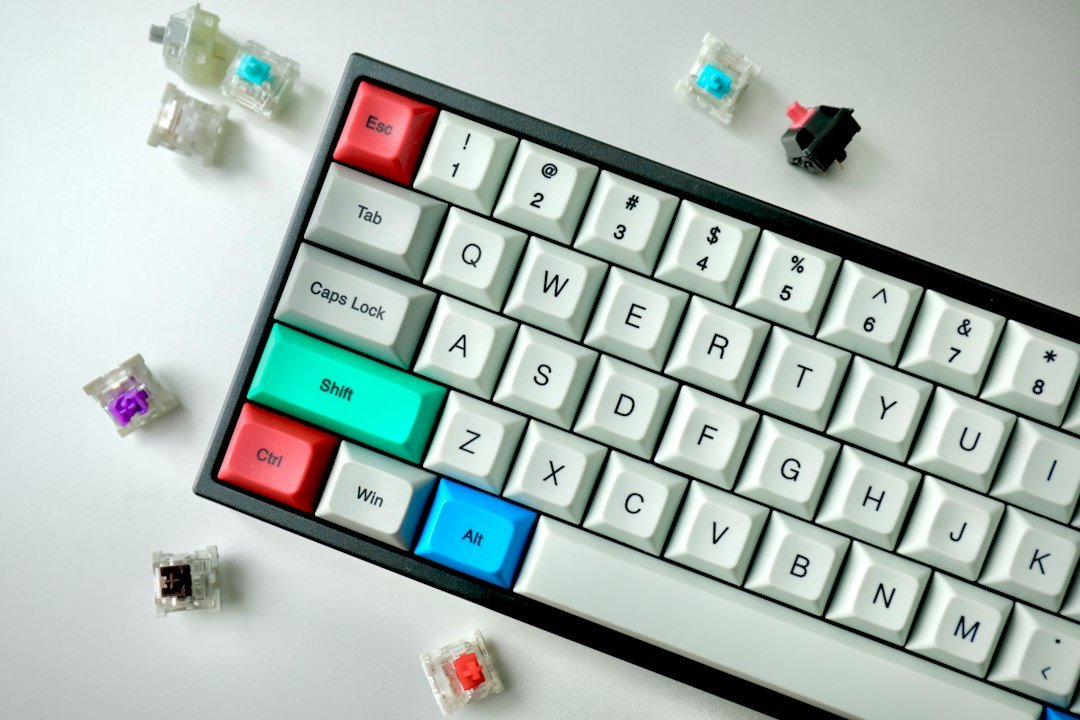
A creamy keyboard is defined by the buttery‑smooth feel of its keycaps and switches, giving each press a consistent, low‑friction sensation that many users describe as “creamy”. This guide explains why that feel matters, which keyboards deliver it, and how to maintain the experience over time.
Key Takeaways
- Creamy feel comes from a combination of keycap material, switch lubing, and stabilizer treatment.
- Top 2026 models include the Keychron Q3 Pro, Ducky One 2 Mini (cream‑finished), and Glorious GMMK Pro with aftermarket lubed switches.
- Maintenance steps—cleaning, periodic lubing, and stabilizer tuning—extend the creamy sensation.
- Budget options exist, but premium builds generally sustain the feel longer.
- Consider your typing style, desk setup, and whether you need RGB or wireless before buying.

What Makes a Keyboard Feel Creamy?
The sensation is not magic; it’s the result of three main factors:
- Keycap material and finish. PBT with a smooth dye‑sublimated or double‑shot finish reduces friction compared to textured ABS.
- Switch lubrication. Applying a thin layer of high‑quality grease (e.g., Krytox 205g0) to the stem and housing eliminates harsh squeaks and creates a buttery glide.
- Stabilizer preparation. Clip‑in stabilizers, once deburred and lubed, remove rattles that break the creamy flow on larger keys.
When all three are tuned, the keyboard feels consistent across the entire board, which is why many enthusiasts call it “creamy”.
How to Identify a Creamy Keyboard Before Buying
Because the term is subjective, look for these concrete cues:
- Product photos showing a matte or polished PBT surface.
- Mentions of factory lubed switches or “pre‑lubed” stabilizers.
- Reviews that specifically call out a smooth actuation without scratchy feedback.
- Warranty that covers switch or stabilizer issues—manufacturers confident in their finish often provide longer coverage.
Cross‑check with reputable reviews such as the 10 Best Creamy Keyboards list, which evaluates each model on feel, build quality, and value.
Top Creamy Keyboard Picks for 2026
Below is a concise comparison of five keyboards that consistently receive “creamy” praise. Prices are approximate US retail as of October 2026.
| Model | Switch Options | Keycap Material | Factory Lubed? | Price |
|---|---|---|---|---|
| Keychron Q3 Pro | Gateron Ink Black, Silent Red | PBT double‑shot | Yes (stabilizers only) | $179 |
| Ducky One 2 Mini (Cream Finish) | Cherry MX Brown | PBT matte | No | $109 |
| Glorious GMMK Pro (Custom) | Gateron Milky Yellow (lubed) | PBT dye‑sub | Custom lubed | $149 (kit) |
| Varmilo VA87M “Cream” | Zealios V2 | PBT double‑shot | Yes (stabilizers) | $199 |
| Leopold FC660M (Cream) | Cherry MX Silent Red | PBT smooth | No | $129 |
All of these models appear in the 5 Best Creamy (Thocky) Keyboards roundup, which highlights their tactile smoothness and overall value.

Budget-Friendly Creamy Alternatives
If the premium range stretches your budget, consider keyboards that can be upgraded to a creamy feel:
- Redragon K552 – ABS caps that can be swapped for aftermarket PBT sets.
- Anne Pro 2 – Hot‑swap sockets let you install lubed Gateron or Kailh switches.
- Keychron K6 – Often sold with a basic ABS set, but the community provides cheap PBT replacements and lubing guides.
These options are discussed in Best Budget Mechanical keyboards for 2026, where you’ll find pricing and durability details.
Step‑by‑Step: Turning a Regular Keyboard Creamy
Even a non‑creamy board can be transformed with a few DIY steps. The process works best on hot‑swap keyboards.
- Gather supplies. You’ll need switch lube (Krytox 205g0 or Tribosys 3204), a small brush, a keycap puller, and a stabilizer mod kit.
- Remove keycaps. Use the puller to avoid damaging stems.
- Lubricate switches. Open each switch (if not hot‑swap) and apply a thin dot of lube to the spring and a light coat to the stem rails.
- Prep stabilizers. Clip the housing, deburr the wire, and apply a small amount of lube to the contact points.
- Reassemble and test. Press each key to ensure smooth actuation; adjust lube amount if any key feels sluggish.
For visual learners, many YouTube tutorials walk through each step; just search for “lubing switches for creamy feel”.
Maintenance: Keeping the Creamy Feel Fresh
Regular care prevents the buildup of dust and oil that can make a once‑smooth board feel gritty.
- Weekly dusting. Use a soft brush or compressed air to clear debris from switches.
- Monthly keycap wash. Remove caps and soak in warm, mild soap water for 10 minutes; dry thoroughly before re‑installing.
- Quarterly re‑lubing. Over time, lube can migrate; repeat the lubing steps on switches and stabilizers to restore buttery action.
If a switch starts to feel rough, it may be a sign of dried lube or contaminant; swapping the switch or re‑lubing is usually sufficient.
Choosing Between Creamy and Other Feel Profiles
Not everyone prefers a creamy board. Here’s a quick comparison:
| Feel Profile | Typical Users | Pros | Cons |
|---|---|---|---|
| Creamy | Writers, programmers, gamers who value smoothness | Low friction, consistent actuation | May feel too soft for tactile‑purists |
| Thocky | Enthusiasts who love a deep acoustic ping | Audible feedback, satisfying sound | Higher noise, can be harsh on ears |
| Clicky | Typists who need audible confirmation | Clear click, strong tactile bump | Often louder, may cause fatigue |
Consider your environment (shared office vs. home studio) and personal preference when deciding.
Common Mistakes When Pursuing a Creamy Keyboard
Avoid these pitfalls to ensure the investment pays off:
- Skipping stabilizer work. Even with lubed switches, untreated stabilizers cause uneven feel on larger keys.
- Over‑lubing. Too much grease makes keys feel mushy and can attract dust.
- Using cheap ABS caps. They wear quickly and can become glossy, negating the creamy surface.
- Neglecting firmware updates. Some keyboards (e.g., Keychron) release QMK updates that improve key debounce, indirectly affecting smoothness.
Cost Breakdown: How Much Should You Spend?
Pricing varies by build quality and whether you DIY the creaminess:
- Entry‑level pre‑lubed boards. $90–$130.
- Mid‑range custom kits. $150–$200 (includes PBT caps and lubed switches).
- High‑end premium. $220+ for full‑sized, fully factory‑lubed, premium keycaps.
Factor in additional costs for tools ($30 for a lube brush set) and replacement caps ($20–$40 for a set of 104 PBT caps).
Next Steps: Buying or Upgrading Your Creamy Keyboard
Use this checklist before you click “Add to Cart”:
- Identify your preferred switch type (linear vs. tactile).
- Confirm the keyboard supports hot‑swap if you plan DIY lubing.
- Check for PBT keycaps or plan to purchase an aftermarket set.
- Read at least two user reviews focusing on “smooth” or “creamy” descriptors.
- Verify warranty length and return policy.
Once you have a model that checks the boxes, order the board, gather lubing supplies, and enjoy the buttery typing experience.
Real‑World Scenarios: When a Creamy Keyboard Makes a Difference
Not every typing task benefits equally from a creamy feel. Understanding where the advantage lies helps you decide if the investment matches your workflow.
Long‑form writing and content creation
Authors, bloggers, and marketers who spend hours drafting articles often experience finger fatigue. A keyboard with a smooth, low‑actuation switch reduces the effort needed for each keystroke, allowing the hand to glide rather than click. The result is fewer micro‑breaks and a more consistent rhythm.
Programming and code review
Coding involves repetitive patterns—indentation, braces, semicolons. A creamy switch’s light actuation (often 45‑55cN) lets you type fast without the tactile “bump” that can feel noisy in shared spaces. Many developers prefer this feel for its quietness and speed, especially when paired with a wrist‑rest.
Gaming that values speed over feedback
While many gamers choose clicky or tactile switches for precise feedback, some fast‑paced titles (e.g., real‑time strategy, MMO hotkeys) benefit from a smooth linear switch. The lack of tactile resistance means you can execute rapid key combos with less finger resistance.
Accessibility considerations
Users with reduced finger strength or conditions like arthritis often find high‑actuation or clicky switches painful. Creamy, low‑force switches lower the strain, making typing more comfortable and inclusive.
How to Customize a Creamy Keyboard for Your Personal Preference
Even within the “creamy” category, there’s a spectrum of smoothness. You can fine‑tune the feel without buying a whole new board.
- Lubricate the switches – Apply a thin layer of dielectric grease (e.g., Krytox 205g0) to the slider and spring. This reduces friction and creates a silkier glide. Start with a small amount; over‑lubrication can make the switch feel mushy.
- Swap springs – Replacing the stock spring with a lighter or heavier one changes actuation force. A 35g spring will feel softer than a 50g spring, while a 60g spring adds a subtle resistance for those who want a bit more feedback.
- Change keycaps – PBT or ABS caps with a smooth finish can enhance the creamy sensation. Caps with a matte texture feel softer than glossy ones, which can add a slight “grip”.
- Install dampening rings – O‑rings or silicone pads fitted between the keycap and stem reduce bottom‑out noise and soften the impact, contributing to an overall smoother experience.
- Adjust stabilizers – Clip and lube stabilizers on larger keys (spacebar, shift) to eliminate rattles and create uniform smoothness across the board.
When customizing, work one modification at a time and test the result. This systematic approach helps you pinpoint which change gives the most noticeable improvement.
Decision Checklist: Creamy Keyboard vs. Other Feel Profiles
Use this quick reference to decide if a creamy keyboard aligns with your priorities, or if a tactile or clicky board would serve you better.
| Criteria | Creamy (Linear) | Tactile | Clicky |
|---|---|---|---|
| Actuation force | 45‑55cN (light) | 55‑65cN (moderate) | 60‑80cN (higher) |
| Noise level | Quiet, muffled | Soft click, moderate | Loud click |
| Typing fatigue | Low | Medium | Higher (due to resistance) |
| Feedback preference | Smooth, no bump | Tactile bump | Audible click + bump |
| Best for | Writers, programmers, quiet offices | General use, gamers who like feedback | Gamers, typists who love audible confirmation |
Check the boxes that matter most to you. If quietness and low fatigue dominate, a creamy keyboard is likely the right choice. If you crave tactile confirmation, consider a tactile switch instead.
Advanced Troubleshooting: When Your Creamy Keyboard Feels Rough
Even a well‑lubed keyboard can develop unevenness over time. Below is a systematic approach to restore that silky glide.
1. Identify the affected keys
- Use a key‑testing tool (online or a simple notepad) to note any keys that feel sticky or produce a different sound.
- Mark them with a small piece of tape for easy reference.
2. Disassemble the switch
- Remove the keycap with a puller.
- If the keyboard is hot‑swap, pull the switch out; otherwise, desolder it carefully.
- Separate the housing, stem, and spring.
3. Clean the components
- Wipe the slider and housing with isopropyl alcohol (90%+). Avoid soaking the spring.
- Let all parts dry completely (about 5‑10 minutes).
4. Re‑lubricate
- Apply a thin line of Krytox 205g0 to the slider rails.
- Coat the spring lightly; a brush works well for even coverage.
- Reassemble and test the key before moving to the next.
5. Check stabilizers
Rattling stabilizers can make the entire board feel less creamy. Clip the stabilizer legs, lube the inserts, and ensure they sit flush.
6. Re‑test the entire keyboard
After fixing problematic keys, run a typing test (e.g., 5‑minute burst) to confirm uniform smoothness. If inconsistencies persist, repeat the process on any remaining rough keys.
Regular maintenance—cleaning dust with compressed air and re‑lubing every 6‑12 months—prevents most roughness from developing in the first place.
FAQ
Does a creamy keyboard reduce typing fatigue?
For many users, the low‑friction action reduces the force needed per keystroke, which can lessen finger strain during long sessions. Individual results vary, so try a demo if possible.
Can I use a creamy keyboard for gaming?
Yes. Linear switches with a creamy feel are popular among gamers who want fast, smooth actuation without the tactile bump that can slow down rapid key presses.
Is factory lubed always better than DIY lubing?
Factory lubing ensures consistency across all switches, but DIY allows you to customize lube type and amount to suit your exact preference. Both can achieve a creamy feel when done correctly.