
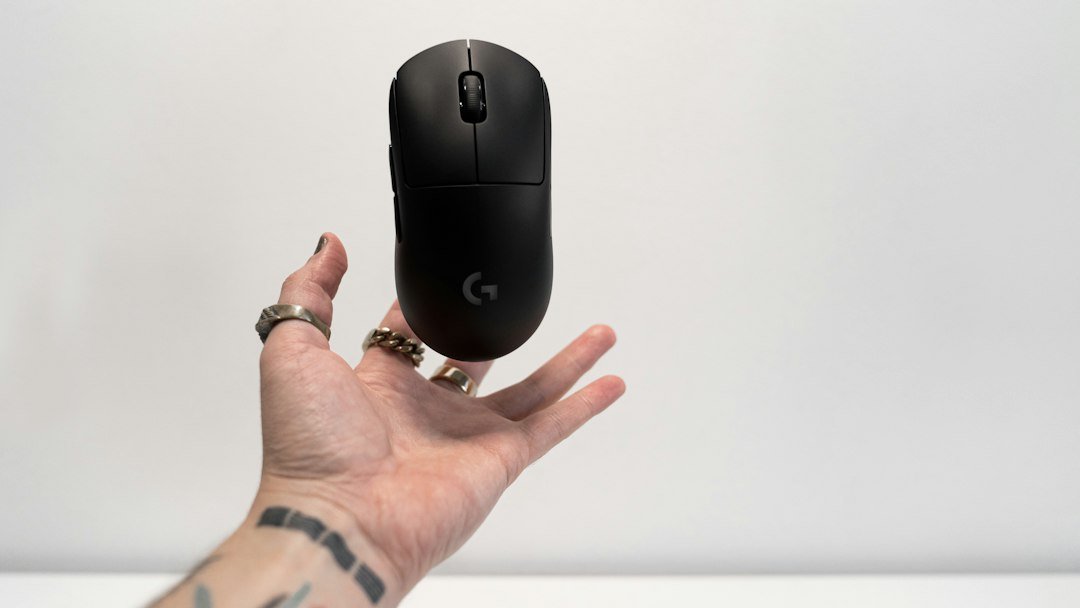
To learn how to jitter click without hurting your wrist, start with a relaxed grip, keep your forearm supported, and practice short bursts before building speed. This approach lets you increase clicks per second while protecting tendons and joints.
Try it now: use our free CPS test right in your browser, no download or sign-up needed.
Key Takeaways
- Use a light, neutral grip and keep the wrist straight.
- Warm up muscles with stretches and low‑intensity clicks.
- Practice in timed intervals and track results with a free CPS test.
- Take micro‑breaks every few minutes to avoid fatigue.
- Adjust mouse settings and ergonomics for less strain.

Why wrist health matters for jitter clicking
Jitter clicking relies on rapid finger vibration, which can place repetitive stress on the wrist tendons. Overuse may lead to tendonitis, carpal tunnel syndrome, or chronic pain that hinders gaming and daily tasks. Protecting the wrist ensures you can keep improving your CPS without long‑term injury.
Step‑by‑step safe jitter‑click technique
Follow these concrete steps each time you practice. The sequence builds muscle memory while keeping tension low.
- Position your arm. Rest your forearm on the desk or a wrist pad. The elbow should be at a roughly 90‑degree angle, keeping the wrist in line with the forearm.
- Choose a light grip. Hold the mouse with your thumb on the side button and your index finger ready on the left click. Avoid squeezing the mouse tightly.
- Engage the finger. Use a quick, controlled vibration of the index finger, letting the finger’s natural tremor generate clicks. Do not force the wrist to move.
- Control the rhythm. Start with 5‑second bursts, then gradually extend to 30‑second intervals as comfort improves.
- Monitor fatigue. If you feel tingling or a dull ache, stop immediately and stretch.
After you’ve mastered the basic motion, you can experiment with slight variations – such as using the middle finger for a secondary click – but always return to the core principle of minimal wrist movement.
Warm‑up routine before jitter clicking
Warming up reduces muscle stiffness and prepares the tendons for rapid motion. Perform each stretch for about 10‑15 seconds.
- Wrist flexor stretch: extend arm, palm up, gently pull fingers back with the other hand.
- Wrist extensor stretch: palm down, pull hand toward you.
- Finger flicks: rapidly tap each finger on a flat surface for 30 seconds.
- Light click drill: click at a comfortable pace for 20 seconds.
How to use a free CPS test to track progress
Measuring clicks per second gives you objective feedback and helps you avoid over‑exertion. Use the CPS test directly in your browser – no sign‑up required. Choose a 30‑second or 60‑second interval, click at your current jitter speed, and note the result. Record the numbers in a simple log to see gradual improvement without pushing past comfort.
Adjusting mouse settings for less strain
While hardware does not replace good technique, certain settings can make jitter clicking easier on the wrist.
- Polling rate. A higher polling rate (e.g., 1000 Hz) reduces input lag, allowing smoother finger vibrations.
- DPI. Keep DPI moderate; too high can cause the hand to over‑compensate.
- Button actuation. Some mice offer lighter click resistance – choose a model with a low actuation force.
For deeper insight on polling rates, see our post on understanding keyboard polling rate.
Ergonomic desk setup tips
Even the best technique can cause strain if your workstation is poorly arranged.
- Desk height should allow elbows to rest at or slightly above the surface.
- Use a wrist pad that supports the palm without forcing the wrist upward.
- Keep the mouse close to the keyboard to avoid reaching.
- Maintain a neutral spine; slouching adds tension to the shoulders and arms.
Common mistakes and how to avoid them
Many players develop bad habits that lead to pain.
- Gripping too tightly. This creates constant pressure on the wrist. Relax the hand and let the finger do the work.
- Using the whole arm. The jitter motion should come from finger tremor, not shoulder or forearm swing.
- Skipping breaks. Continuous clicking for minutes can cause micro‑tears. Follow a 5‑minute work, 1‑minute rest rule.
- Neglecting warm‑up. Jumping straight into high speed increases the risk of strain.
When to seek professional advice
If you notice persistent pain, swelling, or numbness, stop jitter clicking and consult a medical professional such as a physiotherapist or orthopedic specialist. Early intervention prevents chronic issues.
Alternative click styles for lower wrist load
If jitter clicking still feels uncomfortable after weeks of practice, consider these lower‑impact techniques.
- Butter clicking. Uses rapid thumb taps on the mouse button, reducing wrist vibration.
- Drag clicking. Involves dragging the finger across the button surface; it can produce high CPS with less wrist movement but may wear the mouse faster.
- Tap clicking. Simple rapid taps without finger vibration; slower CPS but safest for the wrist.
For a broader view of click styles, the MeasureHuman guide outlines the differences.

Putting it all together: a weekly practice plan
Structure your training to balance improvement and recovery.
- Monday‑Wednesday‑Friday: Warm up, 3 × 30‑second jitter sessions, 1‑minute rest between sets, record CPS.
- Tuesday‑Thursday: Light finger drills (butter clicking) and stretching, no high‑speed bursts.
- Weekend: Full rest or casual gaming without focused clicking.
Track your weekly averages in a spreadsheet. If your CPS plateaus while wrist comfort remains high, you’re likely ready to increase session length by 5‑10 seconds.
Building wrist strength for sustainable jitter clicking
Strong, flexible forearm and wrist muscles let you maintain high CPS (clicks per second) without fatigue. Below is a concise strength‑building routine you can fit into a 10‑minute daily slot.
Core exercises
- Wrist curls – Sit with your forearm on a table, palm up, holding a light dumbbell (1‑2 lb). Curl the weight toward you, then lower slowly. Perform 2 sets of 12‑15 reps.
- Reverse wrist curls – Same position, palm down. Lift the weight, then lower. 2 sets of 12‑15 reps.
- Finger extensions – Place a rubber band around all five fingers and spread them outward against the resistance. 3 sets of 20 extensions.
- Grip squeezes – Use a stress ball or grip trainer, squeezing for 5 seconds, then releasing. 3 sets of 15 squeezes.
Dynamic stretches
Dynamic stretches prepare the joints for rapid movement and improve range of motion.
- Prayer stretch – Press palms together in front of the chest, elbows out. Hold 15 seconds, repeat 3 times.
- Wrist rotations – Extend an arm, rotate the hand clockwise 10 times, then counter‑clockwise 10 times.
- Finger pull‑backs – With the palm facing you, gently pull each finger back with the opposite hand, holding 5 seconds per finger.
Integrating strength work with jitter‑click practice
After a short warm‑up, do one set of each strength exercise, then immediately perform a 30‑second jitter‑click burst at a comfortable speed. This pairing trains the muscles under realistic conditions and helps you notice any tension early.
Gradually increase weight or repetitions only when you can complete the jitter‑click bursts without pain. If you feel any sharp discomfort, scale back and focus on mobility before adding load.
Choosing the right mouse for low‑impact jitter clicking
The mouse you use can amplify or reduce wrist strain. Below is a practical decision framework that weighs three key factors: actuation force, shape, and weight.
Actuation force
Lower actuation force means each click requires less finger pressure, which translates to less wrist tension.
- Mechanical switches – Look for switches rated 30 g or less (e.g., Cherry MX Red, Kailh Speed Silver). They provide a light, linear feel.
- Optical switches – These often have even lower click resistance and no physical contact, further reducing wear.
Shape and grip style
Mouse geometry influences how your wrist and forearm align during rapid clicks.
- Flat, low‑profile mice – Keep the hand in a neutral position, which is easier on the wrist for jitter clicking.
- Ergonomic contours – If you naturally rest your palm, a mouse with a subtle scoop can distribute pressure across the hand rather than concentrating it on the index finger.
Weight considerations
A lighter mouse reduces the effort needed to reposition between clicks, but it should not be so light that you lose control.
- Under 70 g – Ideal for most jitter‑clickers who value speed over precise aiming.
- Adjustable weights – Some models let you add or remove small weights (2‑5 g) to fine‑tune the feel.
Decision checklist
| Criterion | What to look for | Why it matters |
|---|---|---|
| Actuation force | ≤30 g, linear or optical | Less finger pressure → lower wrist load |
| Shape | Flat or mildly contoured, fits your grip | Promotes neutral wrist alignment |
| Weight | 60‑70 g, optional fine‑tuning | Reduces arm fatigue during long sessions |
When you combine a low‑force switch with a shape that matches your natural grip, you’ll notice a drop in wrist tension after just a few practice runs. Test a mouse for at least 10 minutes before committing; the feel can change once you start jitter clicking at high speed.
FAQ
Can I jitter click with a laptop touchpad?
Yes, but the touchpad’s surface and actuation force differ from a mouse, often making high CPS harder. Use the same warm‑up and short‑burst approach, and monitor comfort closely.
How many clicks per second is considered safe?
There is no universal limit, but most players find 8‑10 CPS sustainable with proper technique. Exceeding 12 CPS regularly increases strain risk.
Do I need special software to measure my jitter clicks?
No special software is required. The free CPS test runs in any browser and works with mouse, trackpad, or touchscreen.