
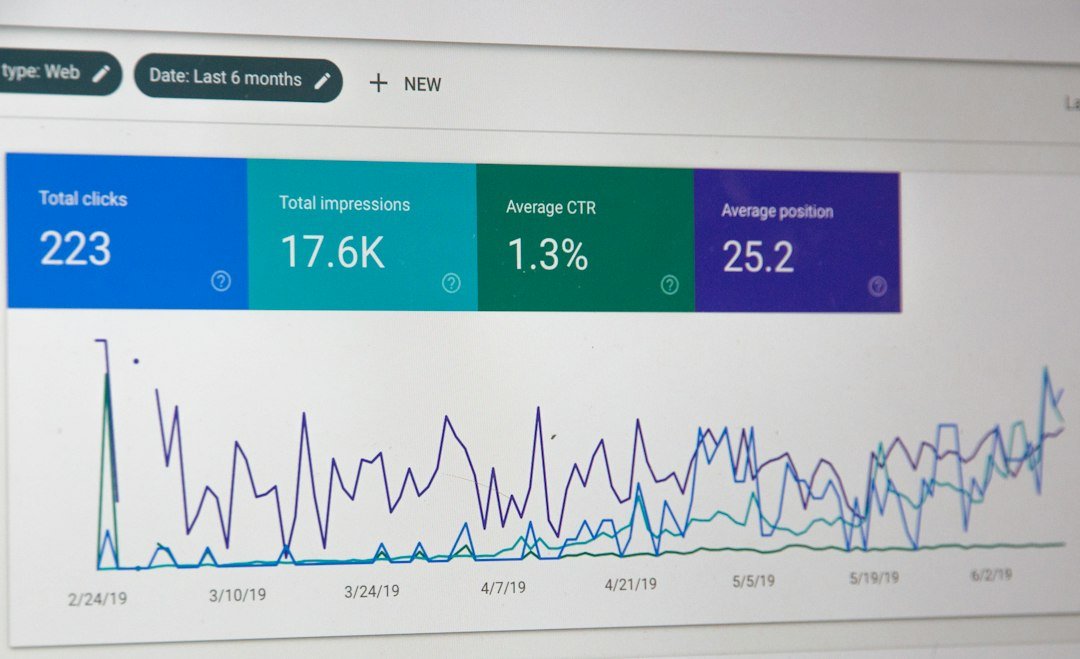
How to Track Your Clicking Progress starts with choosing a reliable method to record each session and reviewing the numbers over time. The quickest answer: use a free online click counter, note the result in a simple spreadsheet, and compare daily averages.
Key Takeaways
- Free click‑counter sites give instant CPS numbers.
- Log results in a spreadsheet to see trends.
- Set realistic weekly goals based on your baseline.
- Combine tracking with technique practice for improvement.

Why Tracking Matters
Without data you can’t tell whether a new technique actually helps. Tracking turns vague feelings into concrete numbers, letting you spot plateaus, celebrate gains, and adjust training routines.
Choose the Right Tool
Several free tools work well:
- Clicker Test & Click Per Second Test – gives a live CPS readout and stores your best score.
- MiniWebTool Click Counter – lets you count up to ten separate tallies, useful for comparing multiple attempts.
- APlusCalc Click Counter – simple interface with a downloadable CSV of results.
Pick one that matches your workflow; the core data (clicks per second) is the same.
Set Up a Simple Tracking Spreadsheet
Google Sheets or Excel works fine. Create columns for:
- Date
- Tool used
- Test duration (seconds)
- Total clicks
- CPS (total clicks ÷ duration)
- Notes (technique, hand position, fatigue)
Enter a new row after each session. Over weeks you can insert a line chart to visualize progress.
Daily Logging Routine
Consistency beats intensity. Spend 2–3 minutes at the same time each day, run a 10‑second test, and record the result. This eliminates variables like warm‑up level or time‑of‑day fatigue.
Analyzing the Data
Look for three patterns:
- Upward trend – indicates your technique is working.
- Plateau – suggests you need a new training focus.
- Drop – may be caused by fatigue or improper hand posture.
Use the spreadsheet’s filter function to isolate sessions where you tried a specific technique, such as drag clicking, and compare the average CPS.
Integrate Goal Setting
Based on your baseline, set a modest weekly target, for example “increase average CPS by 0.2”. Record the target in the same sheet and check off achievements. Small, measurable goals keep motivation high.

Combine Tracking with Training Techniques
Tracking alone won’t improve speed; pair it with proven methods:
- Practice the How to Click Faster on a Mouse drills.
- Try drag clicking (step‑by‑step guide) and log the results separately.
- Use the cps test for kids page for beginner-friendly warm‑up routines.
Each technique gets its own row in the spreadsheet, making comparison straightforward.
Common Mistakes to Avoid
Even experienced clickers slip up:
- Skipping warm‑up – cold hands reduce accuracy.
- Changing test duration – a 5‑second test inflates CPS compared to a 30‑second run.
- Not resetting the counter – residual clicks from previous sessions skew results.
Stick to the same duration (10 seconds works well) and always start with a fresh counter.
When to Seek Professional Advice
If you notice pain, numbness, or repetitive‑strain symptoms, stop the tracking routine and consult a medical professional. Speed gains are not worth injury.
Next Steps After You’ve Collected Data
Once you have a month of data, evaluate:
- Average CPS increase – is it meeting your weekly targets?
- Technique effectiveness – which method yields the highest lift?
- Consistency – are there days you consistently underperform?
Use these insights to refine your practice schedule. For deeper analysis, you can export the CSV from the click‑counter tool and import it into a data‑visualisation app.
For more background on CPS basics, check out the How to Measure and Boost Your Click Speed post on our site.
Visualizing Your Click Data
Seeing raw numbers can be overwhelming. Turning those figures into clear visual cues helps you spot trends faster and makes adjustments feel more concrete.
Choose the right chart type
- Line chart: Ideal for daily CPS (clicks per second) trends over weeks or months.
- Bar chart: Useful when comparing performance across different games or mouse settings.
- Scatter plot: Shows the relationship between variables such as hand temperature and CPS.
Step‑by‑step guide to create a line chart in Google Sheets
- Enter your date column (A) and CPS column (B) in the spreadsheet.
- Select the two columns, then click Insert → Chart.
- In the Chart editor, pick Line chart under Chart type.
- Under Customize → Series, enable data points so you can see each day’s exact value.
- Label the axes: X‑axis as “Date”, Y‑axis as “CPS”.
Once the chart is in place, add a trendline (Chart editor → Customize → Series → Trendline). The slope of the line instantly tells you whether your average CPS is climbing, plateauing, or slipping.
Interpreting visual cues
- Steady upward slope: Your training routine is effective.
- Flat periods lasting 5+ days: Consider a short rest or a change in technique.
- Sharp spikes: Might indicate a one‑off high‑energy session; verify if it’s repeatable.
Benchmarking Against Community Standards
Tracking your own numbers is only half the story. Knowing where you stand relative to other clickers gives context and can motivate you to set realistic goals.
Finding reliable benchmarks
Look for active communities on platforms such as Reddit, Discord, or dedicated click‑training forums. Most of these groups publish weekly or monthly leaderboards that include average CPS ranges for different skill levels.
Creating a personal benchmark table
| Skill Level | Typical CPS Range | What It Means for You |
|---|---|---|
| Beginner | 2–4 CPS | Focus on consistency before speed. |
| Intermediate | 5–7 CPS | Introduce interval training and hand‑warm‑up drills. |
| Advanced | 8–10 CPS | Fine‑tune mouse grip and experiment with low‑latency settings. |
| Elite | 11+ CPS | Consider custom hardware and professional coaching. |
How to use the table
- Identify your current average CPS from your tracking sheet.
- Match it to the nearest skill‑level range.
- Set a short‑term target that moves you one tier up (e.g., from 5.2 to 5.8 CPS for an Intermediate boost).
Remember that benchmarks are averages; individual variation is normal. Use them as a compass, not a strict rule.
Automating Progress Tracking
Manually entering clicks after each session can become a chore, and missed entries reduce the reliability of your data. Automation removes friction and ensures you capture every click.
Using macro‑recording software
Programs like AutoHotkey (Windows) or Keyboard Maestro (macOS) can listen for mouse‑click events and write timestamps directly to a CSV file.
Simple AutoHotkey script
#Persistent
FileAppend, Date,Time,Clicks`n, tracking.csv ; header
~LButton::
 FileAppend, %A_YYYY%-%A_MM%-%A_DD%,%A_Hour%:%A_Min%:%A_Sec%,1`n, tracking.csv
return
This script appends a new line each time the left mouse button is pressed, recording the exact second of the click. You can later import the CSV into your spreadsheet for aggregation.
Scheduling daily summaries
Set a daily task (Windows Task Scheduler or macOS Automator) that runs a small script at midnight to sum the day’s clicks and paste the total into your master sheet. Example in Python:
import csv, datetime, pandas as pd

data = pd.read_csv('tracking.csv')

today = datetime.date.today().strftime('%Y-%m-%d')

today_total = data[data['Date']==today].shape[0]

with open('daily_summary.csv','a') as f:
 writer = csv.writer(f)
 writer.writerow([today, today_total])
After a week, the daily_summary.csv file becomes a ready‑to‑import source for your “Daily Logging Routine” sheet.
Potential pitfalls and how to avoid them
- Duplicate entries: Ensure the script only logs genuine clicks, not system‑generated ones. Add a filter for the active window if needed.
- File corruption: Write to a temporary file first, then rename it to avoid partial writes if the program crashes.
- Performance impact: Keep the script lightweight; logging a simple timestamp costs negligible CPU.
By automating data capture, you free mental space for the actual training, and your dataset stays clean and complete.
Using Macro Scripts to Capture Click Data
If you want to eliminate manual entry and reduce human error, a small macro script can record each click automatically. The basic idea is to let the script listen for mouse‑button events, timestamp them, and write the results to a CSV file that your spreadsheet can import.
Step‑by‑step setup for Windows
- Download a free macro utility such as AutoHotkey.
- Create a new script file (e.g.,
ClickLogger.ahk) and paste the following code:~LButton:: FileAppend, %A_Now%,-1, Clicks.csv Return ~RButton:: FileAppend, %A_Now%,-2, Clicks.csv Return
This records left‑clicks as
-1and right‑clicks as-2with a precise timestamp. - Run the script before each training session. It will run silently in the background, appending a new line for every click.
- At the end of the day, open
Clicks.csvin your tracking spreadsheet and use a simple formula to count the rows, giving you the total CPS for that session.
Tips for reliable logging
- Keep the script active only while you are training; otherwise background activity will inflate your numbers.
- Synchronize the computer clock with an internet time server to ensure timestamps are consistent across days.
- Back up the CSV file daily, either manually or with a cloud‑sync folder, to avoid data loss.
Using a macro removes the temptation to “guess” your CPS after a session, which is a common source of inaccurate self‑assessment.
Evaluating Click Consistency Over Time
Raw CPS numbers tell you how fast you can click at a peak moment, but consistency reveals whether you can sustain that speed. Measuring variance helps you spot fatigue patterns and informs training intensity.
Calculate the standard deviation of your CPS
- In your tracking spreadsheet, add a column for session CPS (total clicks divided by session minutes).
- Use the built‑in function
STDEV.P(orSTDEV.Sfor a sample) on the last 7‑day range to get a weekly consistency score. - A lower standard deviation ( 10 CPS) suggests large swings between sessions.
Practical consistency checklist
- Warm‑up baseline: Record the first 30 seconds of each session. If this baseline drops more than 10 % compared to the previous day, you may be under‑recovered.
- Mid‑session dip: Split a 5‑minute session into 30‑second blocks. Identify any block where CPS falls below 80 % of the session average.
- End‑of‑session fade: Compare the final 30‑second block to the initial block. A drop of more than 15 % often signals technique fatigue.
Adjusting training based on consistency
When you notice a pattern of high variance, consider these adjustments:
- Introduce short micro‑breaks (10‑15 seconds) every 2 minutes to reset muscle tension.
- Rotate between different click‑type drills (single‑click, double‑click, drag‑click) to avoid over‑use of the same finger motion.
- Track ergonomics – hand height, mouse grip, and desk angle – as subtle changes can affect endurance.
By regularly reviewing both the average CPS and its consistency metrics, you gain a fuller picture of progress and can fine‑tune your practice routine for sustainable improvement.
You can find more guides on this topic and related ones at CPS Test.
FAQ
What is the best free tool to track CPS?
All three listed tools are reliable; choose the one with a simple interface and export option that fits your workflow.
How often should I record my clicking progress?
Daily short sessions (2‑3 minutes) give the most consistent data while keeping fatigue low.
Can tracking alone improve my click speed?
No. Tracking shows where you stand; combine it with technique drills and ergonomic practice for real gains.