
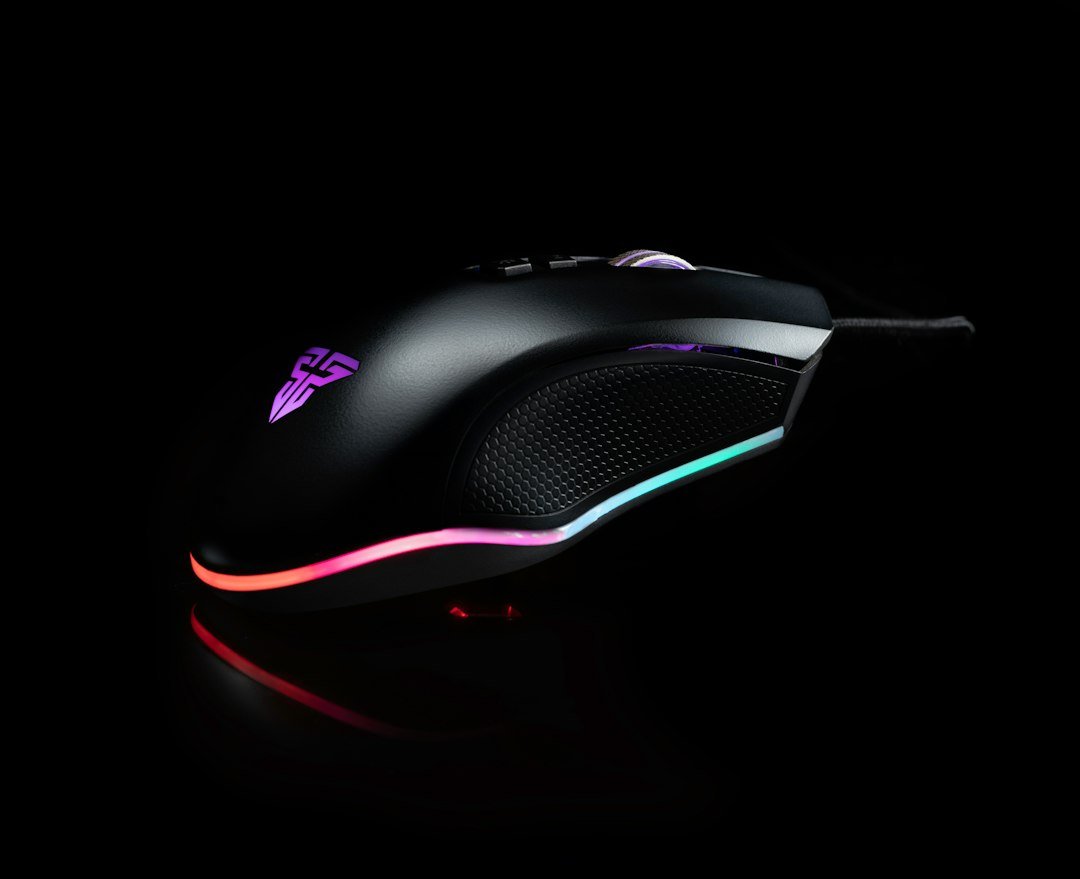
Mouse DPI and Clicking Test: How to Find Your Best DPI is the quickest way to discover the sensitivity that matches your hand size, grip style, and gaming or productivity needs. Run the free browser‑based test, note the DPI that feels smooth yet responsive, and adjust your settings accordingly.
Try it now: use our free mouse test right in your browser, no download or sign-up needed.
Key Takeaways
- Use the free online mouse test to measure DPI and click consistency without installing software.
- Identify the DPI range that balances speed and control for your specific tasks.
- Combine DPI findings with polling rate and click speed data for a complete performance profile.
- Adjust in‑game or OS settings gradually; small changes make big differences.
- Re‑test after any hardware or software changes to keep performance optimal.

Why a Dedicated DPI and Clicking Test Matters
Most users rely on default mouse settings or guesswork, which can lead to missed clicks, overshooting targets, or unnecessary strain. A dedicated test isolates three variables: raw DPI, effective eDPI (DPI multiplied by sensitivity), and click consistency. Knowing these numbers lets you tailor your setup for competitive gaming, graphic design, or everyday navigation.
Step‑by‑Step Guide to Running the Test
Start with the mouse test on our site. It checks the left, middle and right buttons, spots double clicking, and runs directly in your browser – no sign‑up required.
- Open the test page on a stable internet connection.
- Follow the on‑screen prompts to click each button three times.
- When the DPI reading appears, note the value and any double‑click warnings.
- Repeat the test after adjusting your mouse DPI in the driver software.
- Record the results in a simple table to compare before and after values.
For a deeper dive into interpreting DPI numbers, you can also consult the Mouse DPI Calculator on GameplayKing, which explains how DPI translates to on‑screen movement.
Understanding DPI, eDPI, and Sensitivity
DPI (dots per inch) measures how far the cursor moves on the screen for each inch the mouse travels. eDPI combines DPI with in‑game sensitivity, giving a single figure that reflects actual movement speed. For example, a 800 DPI mouse with a sensitivity of 2.5 yields an eDPI of 2000.
Higher DPI means faster cursor movement but can reduce precision, especially in fine‑aim scenarios. Lower DPI offers tighter control but requires larger hand motions. Your “best” DPI is the point where you can aim or select objects accurately without fatigue.
How Polling Rate Interacts with DPI
Polling rate (measured in Hz) indicates how often the mouse reports its position to the computer. A higher rate (e.g., 1000 Hz) reduces input lag, which becomes more noticeable at high DPI settings. After you find a comfortable DPI, run a mouse polling rate test to ensure the reporting speed supports your chosen sensitivity.
Common Mistakes When Choosing DPI
- Setting DPI too high and relying solely on software sensitivity, which can introduce scaling issues.
- Ignoring the ergonomics of hand size; small hands often benefit from 400‑800 DPI, while larger hands may feel comfortable at 1200‑1600 DPI.
- Changing DPI without re‑testing click consistency, leading to missed double‑clicks or jitter.
- Assuming a higher DPI always means better performance; precision tasks usually need lower DPI.
Adjusting DPI on Different Platforms
Most modern mice come with dedicated DPI buttons. For software‑controlled adjustments:
- Windows: Use the mouse manufacturer’s control panel (Logitech G Hub, Razer Synapse, etc.) to set custom DPI profiles.
- macOS: Open System Preferences → Mouse and use third‑party tools like SteerMouse for fine‑tuned DPI.
- Linux: Use
xinputor thelibinpututilities to modify DPI values.
After each change, re‑run the mouse test to confirm that click registration remains reliable.
Integrating DPI Findings with Click Speed
Click speed (CPS) influences how quickly you can fire actions in games or execute macros. Pair your DPI results with a CPS measurement to see the full picture. Our clicking progress tracker helps you monitor improvements over time.
When to Re‑Test Your Settings
Any of the following events warrant a fresh test:
- Installing new mouse firmware or drivers.
- Switching to a different surface (mousepad, desk, glass).
- Changing grip style (palm, claw, fingertip).
- Adding a new monitor or changing resolution.
Regular testing ensures your setup stays optimal as your habits evolve.

Alternative Online DPI Checkers
If you want a second opinion, the Mouse DPI Analyzer offers an online checker that measures DPI by moving the mouse across a known distance. Another option is the free DPI checker on GamepadTools, which also includes an eDPI calculator. These tools can complement our primary test but are not required.
Putting It All Together: A Simple Decision Framework
Use this three‑step checklist to lock in your best DPI:
- Measure: Run the mouse test, note DPI and click consistency.
- Adjust: Change DPI in small increments (100‑200) and re‑test.
- Validate: Confirm polling rate and CPS are still within comfortable ranges.
When each step checks out, you’ve found a stable configuration.
Next Steps and Further Resources
Now that you have a reliable DPI setting, consider fine‑tuning other mouse parameters such as acceleration, lift‑off distance, and button mapping. Our Master mouse DPI clicking guide walks you through those advanced tweaks.
For broader performance tracking, explore the CPS test online to gauge click speed alongside DPI.
Real‑World DPI Scenarios: How Different Game Genres Influence Your Choice
Not every game rewards the same mouse speed. Understanding the demands of your favorite genre helps you pick a DPI that feels natural and improves performance.
First‑person shooters (FPS)
FPS titles often require precise aiming, especially at long range. Players typically use a lower DPI (400‑800) combined with a high in‑game sensitivity to keep hand movements small and accurate.
- Example: In a tactical shooter, a 600 DPI mouse with a 0.5 in‑game sensitivity yields an effective DPI (eDPI) of 300, which many pros consider a sweet spot for headshots.
- Tip: Keep your arm relaxed and use a mouse pad that offers consistent glide; this reduces micro‑jitter that can throw off small adjustments.
Real‑time strategy (RTS) and MOBA games
These games demand rapid unit selection and swift camera pans. A slightly higher DPI (800‑1200) lets you sweep across the map without lifting the mouse.
- Example: In a MOBA, a 1000 DPI setting with a 1.2 in‑game sensitivity gives an eDPI of 1200, allowing you to click heroes and issue commands quickly.
- Tip: Pair a higher DPI with a moderate polling rate (500‑800 Hz) to keep cursor movement smooth while avoiding unnecessary CPU load.
Simulation and creative titles
Flight simulators, design software, and video editing benefit from very high DPI (1600‑3200) because you need to move the cursor across a large virtual canvas.
- Example: In a CAD program, a 2500 DPI mouse lets you drag precise lines across a 4K monitor without excessive arm movement.
- Tip: If you find the cursor too jittery, lower the DPI slightly and increase the mouse’s acceleration setting (if your OS allows it) to maintain speed without sacrificing control.
Building a Personal DPI Testing Routine: From Calibration to Habit
Running a one‑off test gives you a snapshot, but habits form when you repeat the process and refine the data. Below is a repeatable routine you can embed into weekly practice.
1. Calibration Day
Choose a day when you have at least an hour of uninterrupted play. Follow these steps:
- Set your monitor resolution and refresh rate to their native values.
- Open a DPI testing tool (the one you used in the initial test).
- Start with the manufacturer’s default DPI, note the reported eDPI.
- Adjust DPI in 100‑point increments, recording how many centimeters of mouse travel correspond to a 360° turn in your primary game.
- Mark the setting that feels most comfortable and note the associated eDPI.
2. Skill‑Specific Drills
After calibration, run short drills that mimic real gameplay. For an FPS, try a 30‑second aim‑training map; for an RTS, practice rapid unit selection for one minute. Record hit‑rate or action‑per‑minute (APM) for each DPI setting you tested.
3. Weekly Review
At the end of each week, compare the metrics you logged. Look for a DPI that consistently yields higher performance without increasing fatigue. If two settings are close, choose the one that feels less strenuous on your wrist.
4. Adjust for Physical Changes
Factors like a new desk height, a different chair, or even a minor wrist injury can shift your optimal DPI. Re‑run the calibration step whenever you notice a change in comfort or performance.
Comparing Popular DPI Testing Methods: Software vs. Hardware Solutions
Not all DPI tests are created equal. Some rely purely on software calculations, while others incorporate physical measurement tools. Understanding the trade‑offs helps you select the method that matches your precision needs.
Software‑Only Tests
These tools read the mouse’s reported DPI and calculate eDPI based on your in‑game settings. They are quick to set up and work on any PC.
- Pros: No extra equipment, easy to repeat, often free.
- Cons: Accuracy depends on the mouse’s firmware reporting; some cheap mice misreport DPI values.
Hybrid Software + Physical Ruler
This approach uses a software overlay to display a virtual line while you move the mouse across a real ruler. You measure the distance traveled for a known rotation.
- Pros: Adds a tangible reference, catches firmware misreports.
- Cons: Requires a stable surface, a ruler marked in centimeters or inches, and a bit more setup time.
Dedicated Hardware Testers
Specialized devices, such as a USB‑connected motion sensor pad, directly measure the mouse’s output in counts per inch (CPI). They are common in professional esports labs.
- Pros: Highest accuracy, independent of mouse firmware, useful for benchmarking multiple devices.
- Cons: Expensive, overkill for casual players, may require driver installation.
Which Method Suits You?
If you play competitively and want the most reliable data, a hardware tester is worth the investment. For most gamers, a hybrid software‑plus‑ruler method strikes a good balance between cost and precision. Keep a simple spreadsheet to log each method’s results so you can spot discrepancies over time.
You can find more guides on this topic and related ones at CPS Test.
FAQ
What is the ideal DPI for gaming?
There is no universal answer; most professional shooters use 400‑800 DPI combined with a sensitivity that yields an eDPI around 2000‑3000. Your comfort and accuracy matter more than a specific number.
Can I use the mouse test on a laptop touchpad?
The test is designed for physical mice. Touchpads have different sensor mechanics, so DPI readings will not be accurate.
Do I need to calibrate my mouse after changing the surface?
Yes. Different textures affect sensor tracking, so re‑run the test after switching pads to ensure consistent DPI and click detection.