
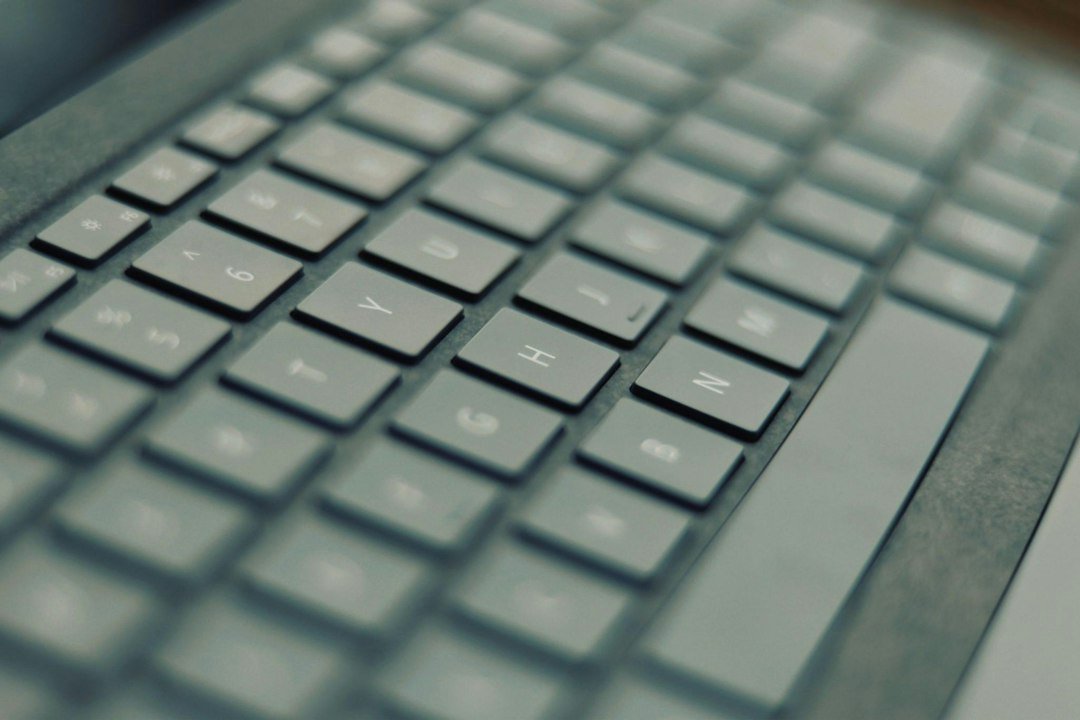
Looking for a way to preview how a mechanical keyboard sounds before you buy one? A keyboard simulator is a browser-based tool that plays recorded or synthesized audio of specific switch types as you type. You do not need to install software or sign up for an account.
Try it now: keyboard tester
Most of these tools let you pick a switch model, type on your physical keyboard, and hear the press and release sounds instantly. This helps you decide if the sound profile fits your preference without spending money on a board you might not like.
Key Takeaways
- A keyboard simulator lets you hear switch sounds in real-time while typing on your current hardware.
- You can compare different switch families, such as linears, tactiles, and clickies, to find your preferred audio profile.
- These tools are useful for diagnosing whether you prefer a loud clicky sound or a quieter thocky feel.
- While simulators show sound, they cannot replicate the physical tactile bump or travel distance of a real switch.
What exactly is a keyboard simulator?
A keyboard simulator is a web application that mimics the auditory feedback of a mechanical keyboard. When you press a key on your physical device, the tool detects the input and plays a specific audio file corresponding to the selected switch.
This allows you to experience the “thock,” “click,” or “clack” associated with different mechanical components. It is primarily an auditory preview tool. It does not change how your keys feel under your fingers, but it gives you a clear idea of the noise level and tone.
For gamers and typists who are sensitive to sound, this preview can be the deciding factor in a purchase.
If you are also checking for hardware faults, you might want to use a keyboard tester alongside your sound preview. This ensures your current input device is registering all keys correctly before you evaluate new sounds.

Which switch sounds can you preview?
Most simulators offer a wide library of switch sounds. You can typically browse by manufacturer or by sound profile. Common categories include clicky switches, which produce a distinct snap; linear switches, which are smooth and often described as creamy or thocky; and tactile switches, which have a physical bump and a muted sound.
Some tools allow you to mix and match top and bottom cases, which changes the pitch and resonance of the sound. This is important because the sound of a switch is not isolated; it interacts with the keyboard case material and stabilizers.
By testing different combinations, you can get a closer approximation of the final product. For example, a linear switch in a thick aluminum case sounds very different from the same switch in a thin plastic case.
How to use a browser-based simulator
Using these tools is straightforward. First, select the switch model you want to test from the dropdown menu or grid. Next, ensure your browser allows audio playback. Then, type on your physical keyboard. The simulator maps your keystrokes to the selected sound.
You can type normally or tap individual keys to hear the specific press and release phases. Some advanced simulators let you adjust the volume or toggle between different recording samples. This is helpful if you want to hear the difference between a new switch and a worn one. The process takes only a few minutes.
You can test ten different switches in under five minutes. This speed makes it easy to narrow down your choices before making a purchase.
Simulator vs. physical testing: what is missing?
A keyboard simulator cannot replace a physical test for every aspect of the experience. The most significant missing element is the tactile feedback. If you are choosing between a tactile switch and a linear switch, the simulator will only show you the sound difference. You will not feel the bump under your fingertip.
Similarly, the travel distance and bottom-out feel are not replicated. Sound is a major part of the mechanical keyboard experience, but it is not the whole story. Use the simulator to shortlist your top three or four options based on audio.
Then, if possible, try to feel those switches in person or buy a small sample pack. This hybrid approach saves you from buying a full board that sounds right but feels wrong.
Best uses for gamers and typists
For gamers, the noise level is often the primary concern. If you play in a shared space or record content, a loud clicky switch might be distracting. A simulator helps you verify that a “silent” switch is actually quiet enough for your environment. For typists, the consistency of the sound matters.
A creamy, consistent thock can make long typing sessions more enjoyable. You can use the simulator to compare different brands to see which sound profile resonates with you. Some users find that a darker, lower-pitched sound reduces fatigue. Others prefer a brighter, higher-pitched clack.
There is no right answer, but hearing the sound before buying removes guesswork.
Understanding how your input device responds is part of a broader setup. You might also check our guide on keyboard latency to ensure your timing is precise. Sound and speed are two sides of the same coin in performance typing.

Common mistakes when using audio previews
One common mistake is assuming the simulator sound is exactly how the board will sound. The audio files are recorded in specific conditions. Your listening environment, speaker quality, and even the angle of your keyboard will change the perceived sound. Do not expect a perfect match. Another mistake is ignoring the release sound.
Many simulators play both the press and release. Some users only listen to the press and miss the release, which can be just as loud. Listen to the full cycle. Finally, do not rely solely on the simulator if you are sensitive to noise. The volume in the simulation is often normalized.
A switch that sounds moderate in the simulator might be louder in a quiet room. Use the simulator as a guide, not a guarantee.
How to combine sound testing with hardware checks
Before you invest in a new board, make sure your current setup is free of issues. If you have dead keys or stuck switches, your new board might seem better simply because it works correctly. Use a diagnostic tool to verify your current keyboard is functioning properly. This gives you a baseline.
Once you know your current hardware is healthy, you can focus on the upgrade. If you are considering a specific brand, look for reviews that mention both sound and feel. The simulator gives you the sound, but reviews give you the feel. Combining these two sources of information gives you a complete picture.
This is especially important if you are buying a pre-built board rather than a kit. Pre-builts have fixed case materials and lubrication levels, which significantly impact the final sound.
What to do next
Start by visiting a reputable keyboard simulator site. Pick three switches that you have considered for your next build. Type a paragraph of text on each one. Note the volume and tone. Then, check a diagnostic tool to ensure your current keyboard is registering all inputs correctly.
Finally, read a few reviews for your top two choices to confirm the tactile feel matches your preference. This three-step process takes less than ten minutes and can save you from a disappointing purchase.
How to calibrate your volume for accurate testing
Many users make the mistake of judging switch sounds at inconsistent volumes. If you listen to a linear switch at 10% volume and a clicky switch at 50%, the tactile difference gets masked by the dynamic range of your speakers. Start by setting your system volume to a moderate level, around 40-50%. This ensures that both the quietest thock of a heavy linear switch and the sharp ping of a clicky mechanism are audible without distorting your speakers.
Use a flat response audio device if possible. Gaming headsets often boost bass frequencies, which can make mechanical switches sound deeper and more沉闷 (muffled) than they actually are. Standard computer speakers or neutral headphones give a more honest representation of the high-frequency click and low-frequency thock. If you only have one type of audio output, stick with it. Consistency matters more than perfect fidelity when comparing two options.
Why headsets can mislead your switch choice
Audio processing in headsets is a major culprit behind poor switch decisions. Many gaming headsets apply virtual surround sound and bass enhancement. These effects alter the timbre of mechanical sounds, making linear switches sound overly boomy and clicky switches sound harsher than they are in reality. A switch that sounds pleasant through a boosted headset might feel annoying in a quiet office environment with standard speakers.
To avoid this, try listening to the same simulator clip on two different devices. If the impression changes drastically, trust the device with the flatter frequency response. For most people, that is a pair of in-ear monitors or standard desktop speakers. If you are buying for a specific setup, match your testing environment to where you will actually type. Testing on a loud gaming rig is useless if you plan to use the keyboard in a silent library.
Pairing sound files with tactile expectations
Sound is only half the experience. A linear switch might sound clean and quiet, but if you prefer a tactile bump, the audio preview will not tell you that you are missing the physical feedback you need. Use the simulator to narrow down the top three sound profiles you like. Then, cross-reference those with the tactile specifications. Look for terms like “tactile bump” or “click jacket” in the switch description.
- Linear switches: Listen for smoothness and lack of friction noise. If the audio sounds scratchy, the switch may be poorly lubricated.
- Tactile switches: Listen for a distinct peak in the sound wave. It should be audible but not sharp.
- Clicky switches: Listen for a crisp, high-pitched ping. If it sounds like a rattle, the click mechanism may be loose.
Remember that sound files are recorded in ideal conditions. Real-world typing speed and force vary. A switch that sounds perfect in a slow, deliberate recording might sound chaotic when you type at full speed. Use the simulator to check the baseline, but always consider your own typing rhythm.
You can find more guides on this topic and related ones at CPS Test.
Frequently Asked Questions
Do keyboard simulators work on mobile devices?
Yes, most modern simulators are built with responsive design. You can tap the on-screen keys to hear the sound. However, you will not hear the sound of your physical keyboard, as mobile devices do not have physical keys. This makes mobile use less effective for previewing your actual typing experience, but it is still useful for comparing sound profiles.
Can I upload my own switch sounds?
Generally, no. Most simulators use a curated library of pre-recorded sounds from specific switch models. They do not support user uploads. This ensures consistency and accuracy, as the sounds are sourced from verified recordings. If you want to hear a custom modification, you would need to find a video or audio file of that specific build and listen to it directly.
Is the sound in the simulator accurate?
The sound is accurate to the specific recording used. However, it is a snapshot. It does not account for the board’s case material, plate, or stabilizers. These factors significantly alter the final sound. Treat the simulator sound as the switch’s voice, not the board’s voice. The final product will be a blend of the switch and the surrounding components.