
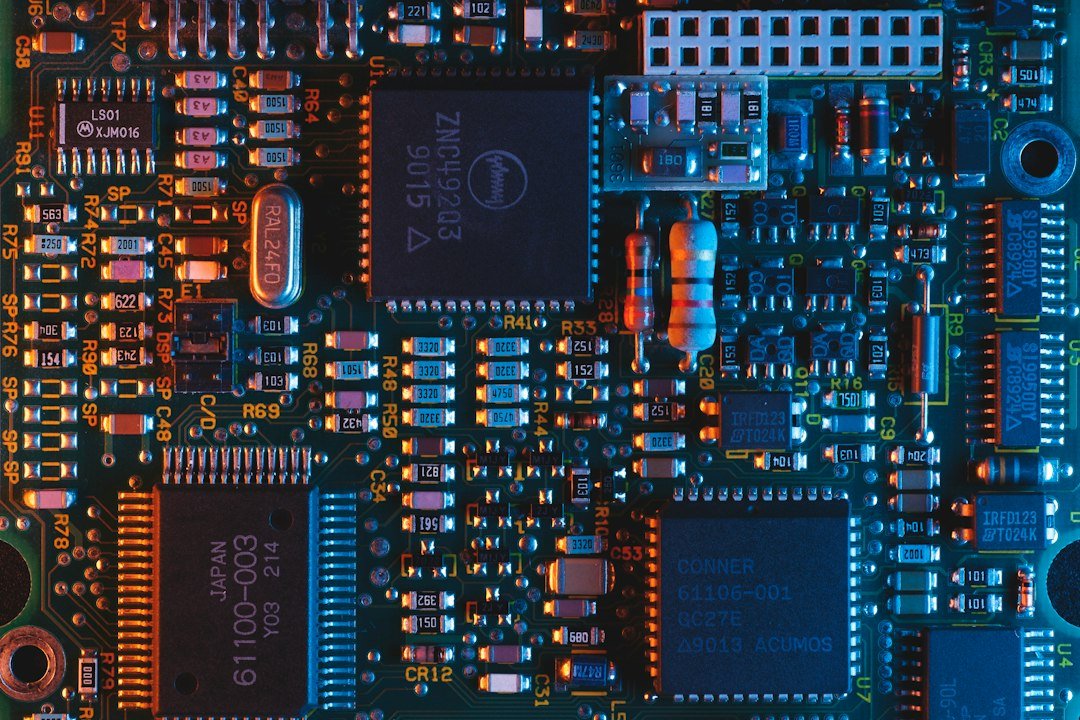
What is a motherboard chipset? It is a collection of electronic components on your motherboard that manages data flow between key hardware parts like the CPU, GPU, RAM, and storage. Think of it as the traffic controller for your computer, ensuring information moves efficiently between the processor and everything else plugged in. Without it, components cannot communicate, and your system fails to boot or function correctly.
Key Takeaways
- The chipset acts as the “glue” holding the motherboard together, facilitating communication between the CPU and peripherals.
- It determines compatibility: if your CPU or RAM doesn’t match the chipset’s supported list, they won’t work together.
- Chipsets define feature limits, including the maximum number of USB ports, PCI Express lanes, and storage connections.
- Higher-tier chipsets often support CPU and memory overclocking, while budget tiers usually lock these features.
- For standard builds, almost any compatible chipset works, but specific needs like RAID or extreme overclocking require careful selection.
Understanding the chipset is less about memorizing model numbers and more about knowing what it controls. It sits between the central processing unit and the rest of the system.
In modern designs, this role is often split into two parts: the Platform Controller Hub (PCH) and the CPU itself, which handles direct communication with fast components like RAM and primary graphics cards. The PCH then handles slower peripherals, storage, and USB connections. This division of labor helps manage bandwidth and power efficiency.

How the Chipset Acts as a Traffic Controller
The term “traffic controller” is more than a metaphor. Data packets constantly move from your applications to the hardware. When you open a file, the CPU sends a request to the chipset. The chipset routes that request to the storage drive. When you move your mouse, the input signal travels through the chipset to the CPU. If the chipset is overloaded or incompatible with the hardware, these signals slow down or drop entirely.
This routing capability defines the system’s overall responsiveness. A chipset with more lanes and higher bandwidth allows more data to flow simultaneously. For example, connecting multiple high-speed NVMe drives requires specific PCIe lanes managed by the chipset. If you allocate too many lanes to one component, others might lose connectivity or run at lower speeds. This is why checking the lane allocation table in a motherboard’s manual is essential before building a complex system.
Why Compatibility Is the Biggest Factor
Compatibility is the primary reason to check the chipset before buying parts. The chipset dictates which processors can be installed in the socket. It also determines the type of memory supported, such as DDR4 or DDR5, and the maximum capacity. If you buy a CPU that requires a newer chipset than the one in your motherboard, it simply will not work. There is no software fix for this; it is a physical and logical mismatch.
Memory compatibility is another strict rule. The chipset defines the supported voltage and speed ranges for RAM. While you can install faster memory, it will only run at the maximum speed the chipset and CPU allow. This means buying the most expensive RAM does not guarantee the highest possible speed if the chipset locks the frequency. Always verify the qualified vendor list (QVL) provided by the motherboard manufacturer to ensure memory modules are tested and supported.
Chipset Tiers: What the Letters Mean
Manufacturers like Intel and AMD use letter-based naming conventions to indicate chipset grades. These tiers signal which features are enabled or disabled. Generally, higher letters or numbers indicate more features, such as additional ports or overclocking support. Lower tiers cut costs by removing features that casual users might not need.
| Tier | Typical Features | Best For |
|---|---|---|
| Entry-Level | Basic connectivity, no CPU overclocking, fewer USB ports | Office PCs, basic gaming |
| Mid-Range | Balanced ports, possible memory overclocking, standard gaming features | General gaming, multimedia |
| High-End | Maximum USB/PCIe lanes, full CPU and memory overclocking, RAID support | Enthusiasts, professional workstations |
The specific features vary by generation and manufacturer. An entry-level chipset from one year might have more features than a high-end chipset from two years prior. Always check the specific generation’s feature list rather than relying solely on the letter.
How Chipsets Affect Overclocking and Performance
Overclocking pushes hardware beyond its factory defaults for extra performance. The chipset plays a critical role here. Most entry-level chipsets lock the CPU multiplier, preventing you from raising the clock speed. Mid-range chipsets might allow memory overclocking but keep the CPU locked. High-end chipsets unlock both, allowing for significant performance gains if the cooling and power supply can handle it.
However, overclocking is not just about speed; it is about stability. The chipset manages power delivery and voltage adjustments. Incorrect settings can lead to system crashes or hardware damage. If you are not experienced with BIOS adjustments, sticking to stock speeds is the safest route. The performance difference between a stock and a mildly overclocked system is often negligible for everyday tasks and many games.

Identifying Your Current Motherboard Chipset
Do you need to check your current system’s chipset? You can find this information without opening the case. On Windows, you can use the System Information tool. Open it by typing “msinfo32” in the Start menu search bar. Look for the “Baseboard” section, which usually lists the chipset model. Alternatively, third-party hardware detection tools can read this data directly from the system firmware.
Knowing your chipset helps when troubleshooting issues. If you are experiencing random crashes, checking the chipset’s power management settings in the BIOS can sometimes resolve instability. If you are planning an upgrade, your current chipset determines which new parts you can add. For instance, if you want to add a second NVMe drive, check if your chipset has available M.2 slots and if they are wired to the correct PCIe lanes.
Common Mistakes When Choosing a Chipset
Many builders make the same errors when selecting a motherboard. The first mistake is buying a motherboard because it looks good, without checking the chipset’s feature set. A beautiful board with an entry-level chipset might lack the USB ports or expansion slots you actually need. The second mistake is assuming that the latest chipset is always the best. Newer platforms often have higher minimum costs for parts, and the performance boost for gaming might not justify the price increase.
Another common error is ignoring BIOS updates. Newer CPUs sometimes require a BIOS update on older motherboards to function. Check the motherboard manufacturer’s website to see if your specific chipset version supports your desired CPU. If not, you may need to buy a new motherboard or find a way to flash the BIOS, which can be risky if the system won’t boot.
For gamers who focus on input precision, understanding hardware stability is key. A stable chipset ensures that your clicks and keystrokes are registered without lag or dropouts. You can monitor your input consistency using tools like a free online click speed test to verify that your hardware setup is responding as expected during intense sessions.
What to Do Next
If you are building a new PC, start by selecting your CPU. Then, check the compatible chipset list from the manufacturer. Read the feature comparison table for those chipsets to see which one offers the ports and overclocking options you need.
If you are troubleshooting an existing PC, identify your current chipset using system information tools. Check the motherboard manual for available expansion slots and port mappings. Finally, ensure your BIOS is up to date to maximize compatibility with newer hardware.
Real-World Cost Differences by Tier
Price gaps between entry-level and high-end chipsets can be significant, but they do not always translate to proportional performance gains for the average user. A Z-series motherboard might cost $200 more than a B-series equivalent with the same CPU.
You will pay for features like more PCIe lanes, higher memory support, and better VRM cooling for sustained loads. If you are building a workstation for video editing or 3D rendering, those extra lanes for multiple NVMe drives and GPUs justify the premium.
However, if you are assembling a general-purpose desktop for office work and light gaming, the B-series or H-series offers nearly identical frame rates in most titles. The money saved often goes further into a better GPU or more RAM, which yields a more noticeable daily improvement.
When to Skip the Top-Tier Chipset
Buying the most expensive chipset is a common mistake driven by the fear of missing out on future upgrades. Unless you have a specific professional workflow that requires maximum I/O, skipping the top tier is usually the smarter financial decision. Consider these scenarios where a mid-range chipset is sufficient:
- You are using a locked CPU that does not support overclocking.
- Your storage needs are limited to two or three SSDs.
- You do not plan to use multi-GPU setups or complex professional peripherals.
The primary benefit of high-end chipsets is flexibility, not raw speed. If your usage pattern is static, paying for unused bandwidth is wasted capital. Instead, allocate that budget to a high-quality power supply or a faster solid-state drive, components that impact system responsiveness more directly than chipset tier.
Verifying Features Before You Buy
Marketing materials often group features under broad headings like “advanced connectivity,” but the actual specifications vary widely between motherboards using the same chipset. You must check the specific manufacturer’s datasheet rather than relying on the chipset name alone.
Look for the exact number of USB 3.2 Gen 2 ports, the maximum RAM speed supported, and the PCIe lane configuration. A motherboard with a Z690 chipset, for example, may differ significantly in VRM quality and port count from another with the same chipset.
Verify the BIOS version compatibility if you plan to use a newer CPU on an older board. This step prevents the frustration of buying a board that technically fits your CPU but lacks the necessary firmware support out of the box.
Impact on Future Upgrade Paths
Your chipset choice dictates how easily you can upgrade components in two to three years. If you plan to move to a newer CPU generation that uses the same socket, ensure your current board supports it via a BIOS update.
However, if you are looking to jump to a new socket architecture, the motherboard and chipset will need to be replaced entirely. In this case, the immediate cost of a top-tier chipset is less relevant than the total cost of ownership over your planned hardware lifecycle.
For long-term users, choosing a board with robust power delivery is critical, as it ensures stability when you eventually install a more power-hungry processor. For short-term builders, prioritizing current price and port availability makes more sense than investing in future-proofing that may never be utilized.
Frequently Asked Questions
Does the chipset affect gaming FPS?
Directly, no. The CPU and GPU determine frames per second. However, the chipset affects system stability and input latency. A poorly configured or incompatible chipset can cause stutters or input lag, which indirectly impacts your gaming experience and performance in competitive play.
Can I upgrade my chipset later?
No. The chipset is soldered onto the motherboard. You cannot replace it separately. If you need a different chipset, you must buy a new motherboard. This is a major upgrade that usually requires reinstalling your operating system and drivers.
What is the difference between the CPU and the chipset?
The CPU is the brain that executes instructions. The chipset is the manager that handles data flow and connectivity. The CPU talks directly to fast components like RAM, while the chipset handles slower components like USB ports, audio, and storage. They work together, but they have distinct roles in the system architecture.