
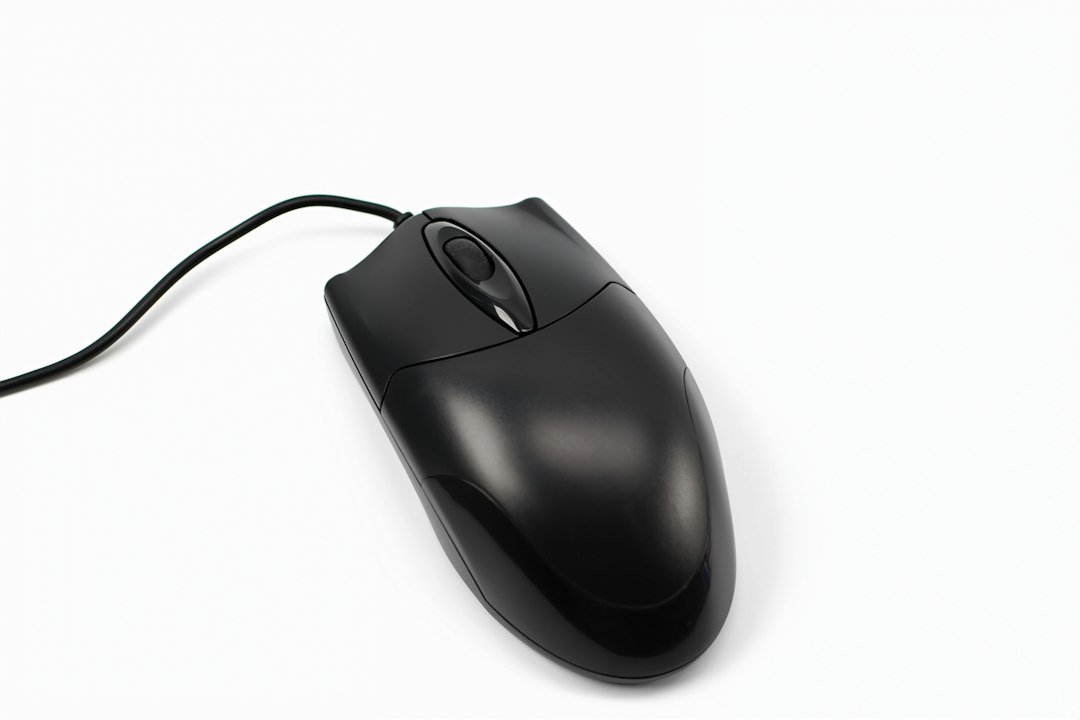
If your mouse registers a double click when you only press once, you need to know how to fix mouse double clicking quickly. The problem is usually caused by worn‑out switches, software settings, or debris inside the button.
Key Takeaways
- Identify whether the issue is hardware or software before opening the mouse.
- Clean the button mechanism with compressed air or isopropyl alcohol.
- Adjust Windows double‑click speed or disable click‑assist features.
- Apply a thin layer of dielectric grease or replace the switch if cleaning fails.
- Consider warranty replacement or a new mouse when repairs become costly.

Understanding Why a Mouse Double Clicks
Most mice use a mechanical micro‑switch that registers a click when the contacts close. Over time the spring tension can weaken, or dust can interfere, causing the switch to close twice on a single press. Software can also mimic the problem: an aggressive double‑click speed setting or a corrupted driver may interpret one click as two.
Step 1: Test the Mouse on Another Computer
Before you open the device, plug it into a different PC. If the double‑click persists, the issue is almost certainly hardware. If it behaves normally, focus on drivers or OS settings.
Step 2: Check Windows Double‑Click Settings
Windows lets you control how fast two clicks must occur to be recognized as a double click. A setting that is too low can make a single click feel like a double.
- Open Control Panel → Mouse.
- In the Buttons tab, move the Double‑click speed slider toward “Slow”.
- Click Apply and test the left button.
If the problem disappears, you have solved it without hardware work.
Step 3: Update or Reinstall Mouse Drivers
Corrupt drivers can send duplicate signals. Visit the manufacturer’s website, download the latest driver, and install it. For generic USB mice, use Device Manager to uninstall the driver and let Windows reinstall it on reboot.
Step 4: Clean the Mouse Buttons
Dust, hair, or spilled liquids can lodge under the button caps. Cleaning is often enough to restore proper contact.
- Turn the mouse upside down and shake gently to dislodge loose particles.
- Use a can of compressed air to blow out debris around the left button.
- Dip a cotton swab in 90% isopropyl alcohol, squeeze out excess, and gently rub the button edges.
- Let the mouse dry for at least 10 minutes before testing.
Step 5: Lubricate or Replace the Switch
If cleaning doesn’t help, the switch contacts may be worn. Applying a tiny amount of dielectric grease can improve conductivity without attracting dust.
- Unscrew the mouse (most have four small Phillips screws under stickers).
- Gently lift the top shell; the left button’s micro‑switch is visible.
- Apply a pea‑size drop of dielectric grease to the contacts.
- Reassemble and test. If the click still doubles, consider replacing the switch with an identical Omron or Alps part.
Switch replacement requires soldering skills; if you’re not comfortable, seek a professional repair service.
Step 6: Use Software Utilities to Mitigate the Issue
When hardware repair isn’t feasible, third‑party tools can filter out unintended double clicks.
- How to Perform a Double Click Test and Interpret the Results provides a simple script to confirm the click pattern.
- Programs like Debounce or AutoHotkey can enforce a minimum interval between clicks, effectively ignoring accidental double clicks.
Step 7: Evaluate Warranty and Replacement Options
Many manufacturers offer a 1‑year limited warranty that covers premature switch failure. Check the purchase receipt and the brand’s support page. If the mouse is still under warranty, request a replacement rather than attempting a DIY repair that could void coverage.
Step 8: Choose a More Durable Mouse for the Future
If you frequently experience double‑click issues, consider a mouse designed for heavy clicking, such as a gaming model with rated switch life (e.g., 20‑50 million clicks). The BenQ Zowie FK2‑DW 4K Wireless Gaming Mouse Review and Guide discusses durability and switch quality.
Common Mistakes to Avoid
- Using excessive force when cleaning; this can bend the switch contacts.
- Applying oil‑based lubricants; they attract dust and worsen the problem.
- Skipping the driver update; a simple software fix is often overlooked.
- Attempting solder repairs on a sealed‑unit mouse; many modern mice are not meant to be opened.
Cost Overview of Fix Options
| Fix | Typical Cost | Skill Level |
|---|---|---|
| Adjust Windows settings | Free | Beginner |
| Driver reinstall | Free | Beginner |
| Cleaning with compressed air | $5‑$15 (air can) | Easy |
| Dielectric grease | $3‑$7 per tube | Easy |
| Switch replacement | $2‑$5 per switch + soldering tools | Intermediate |
| Professional repair | $20‑$40 | None (service) |
| New mouse | $20‑$150 depending on model | None |
When to Seek Professional Help
If the mouse is a high‑end device with integrated sensors, opening it may void the warranty and risk damaging the sensor. In such cases, contact the manufacturer’s support or a certified repair shop. For gamers who need precise performance, a professional fix ensures the sensor alignment remains intact.
Next Steps After Fixing the Issue
Once the mouse behaves normally, run a quick click test to confirm stability. The double click test guide shows how to log click intervals. Keep the mouse clean, avoid eating over it, and store it in a dust‑free area to prolong switch life.
Diagnosing the Root Cause Before You Start Repairing
Even if the mouse appears to be the problem, the double‑click behavior can stem from software conflicts, hardware wear, or a combination of both. Pinpointing the exact cause saves time and prevents unnecessary tinkering.
1. Observe the Click Pattern
- Consistent double clicks: Every press registers as two clicks. This usually indicates a mechanical issue with the button switch.
- Intermittent double clicks: The problem appears only under certain conditions (e.g., after the mouse warms up). This suggests worn contacts or a failing sensor.
- Only in specific applications: If the issue is limited to a game or design software, a driver or software setting is likely at fault.
2. Test with Different Operating Systems
If you have access to a Mac, Linux, or a bootable USB with a fresh OS, plug the mouse in and perform a simple click test. Identical behavior across OSes points to hardware; differing results hint at OS‑specific settings.
3. Use a Click‑Testing Utility
Free utilities such as MouseTester (Windows) or ClickTest (macOS) display the exact number of clicks registered per press. Run the program and click the left button ten times. Note any discrepancies between physical presses and logged clicks.
4. Check for Firmware Updates
Some modern mice (especially gaming models) have firmware that can be updated via the manufacturer’s utility. An outdated firmware version may misinterpret button debounce timing, causing false double clicks.
5. Record Environmental Factors
Temperature, humidity, and dust accumulation affect the electrical contacts inside a mouse. If the problem worsens after long gaming sessions or in a dusty workspace, consider cleaning or replacing the mouse sooner rather than later.
Advanced Repair Techniques for Persistent Double‑Click Issues
When basic cleaning and driver updates don’t resolve the problem, a more hands‑on approach may be required. The following methods are intended for users comfortable with opening electronic devices and using basic tools.
1. Disassemble the Mouse Safely
- Gather tools: Small Phillips #00 screwdriver, a plastic spudger, tweezers, and a clean, static‑free work surface.
- Power down: Unplug the mouse or remove its battery if it’s wireless.
- Remove screws: Most mice have four screws hidden under stickers or the mouse feet. Peel back the stickers gently to expose them.
- Separate the shell: Use the spudger to pry the top half away, starting at a corner to avoid snapping internal clips.
2. Inspect and Replace the Click Switch
The left‑button switch is a tiny tactile component (often a Omron micro‑switch). Over time, the metal contacts can oxidize or the spring can lose tension.
- Locate the switch: It sits directly under the left button housing, soldered to the PCB.
- Test continuity: With a multimeter set to continuity, press the button. A clean “click” should show a brief connection. Inconsistent readings indicate a faulty switch.
- Desolder the old switch: Heat the two solder joints with a soldering iron and gently lift the switch using tweezers.
- Solder a replacement: Align the new switch’s pins with the pads, apply a small amount of solder, and ensure the switch moves freely.
3. Re‑tape the Button Membrane (If Applicable)
Some low‑cost mice use a rubber membrane rather than a mechanical switch. A worn membrane can cause “bounce,” registering extra clicks.
- Apply a thin layer of conductive copper tape (1 mm wide) over the worn area.
- Press the membrane firmly and test with the click‑testing utility.
4. Re‑apply a Professional‑Grade Lubricant
For mechanical switches, a light coating of dielectric grease (e.g., Super Lube) can improve contact stability without attracting dust.
- Use a micro‑brush to apply a pea‑sized dot on each contact surface.
- Avoid excess; too much lubricant can cause the button to feel mushy and may lead to later buildup.
5. Re‑assemble and Calibrate
After any internal work, re‑close the mouse shell, replace the screws, and re‑attach any mouse feet. Then run a calibration routine:
- Open the mouse settings panel.
- Set the double‑click speed to the middle position.
- Use the click‑testing utility to verify a single physical press registers as one click.
Common Pitfalls When Performing Advanced Repairs
- Static discharge: Touch a grounded metal object before handling the PCB to prevent damage.
- Over‑heating solder joints: Keep the iron on each joint for no more than 2–3 seconds to avoid lifting pads.
- Using the wrong switch type: Ensure the replacement switch matches the original’s travel distance and actuation force (typically 1.5 mm, 50 g).
- Neglecting to re‑apply mouse feet: Missing feet can change the angle of the button housing, leading to premature wear.
These techniques extend the life of a mouse that would otherwise be discarded. However, if the PCB itself shows signs of corrosion or the mouse is under warranty, contacting the manufacturer may be the safer route.
FAQ
Why does my mouse double click only on the left button?
The left button typically uses a separate micro‑switch that wears faster due to more frequent use. Cleaning or replacing that specific switch usually resolves the issue.
Can software completely eliminate a hardware double‑click problem?
Software can mask the symptom by ignoring rapid successive clicks, but it does not repair the underlying switch. For reliable performance, a hardware fix or replacement is recommended.
Is it safe to use a mouse that double clicks occasionally?
Occasional double clicks can cause frustration in gaming or productivity tasks and may indicate imminent switch failure. If the mouse is under warranty, replace it; otherwise, apply a fix soon to avoid loss of functionality.
1 thought on “How to Fix Mouse Double Clicking: Step‑by‑Step Guide”