
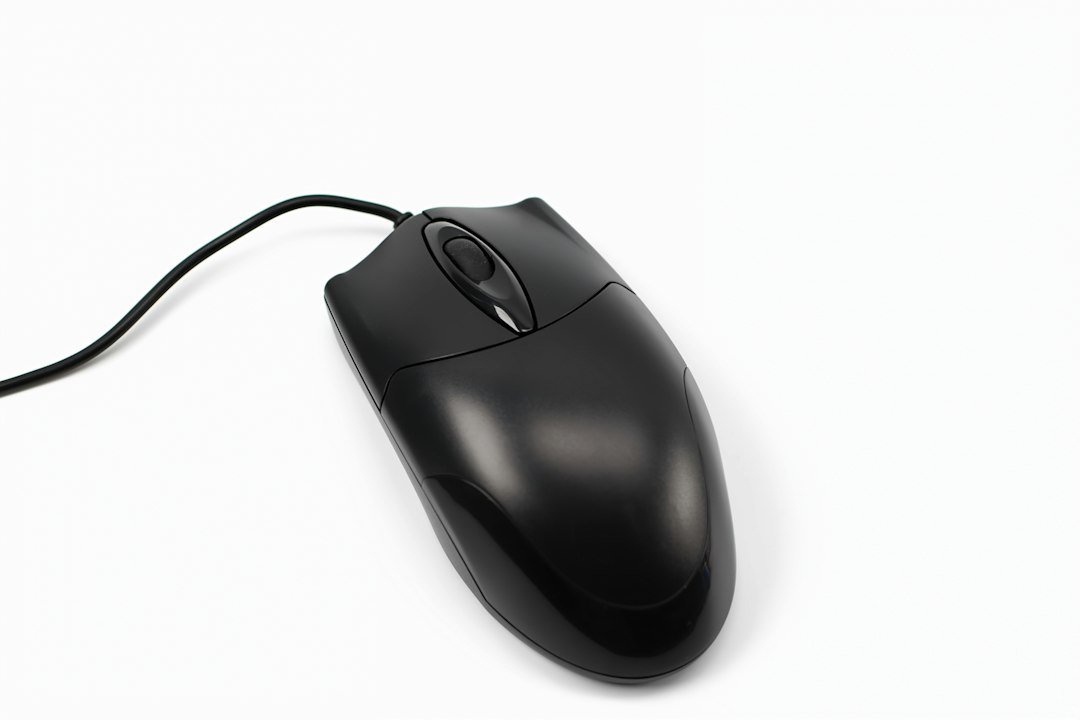
The double click test is a quick way to see if your mouse registers two rapid clicks as a single double‑click event, which is essential for gaming, typing, and everyday computer work.
Key Takeaways
- Use an online double click test tool to measure click timing and accuracy.
- Interpret latency, miss‑click rate, and consistency to diagnose hardware or software issues.
- Common fixes include cleaning the switch, adjusting debounce settings, or replacing the mouse.
- Regular testing helps maintain performance for gamers and professionals who rely on high CPS.

What Is a Double Click Test?
A double click test measures how reliably a mouse can register two clicks within a short interval—usually under 500 ms. The test records each click, calculates the time between them, and reports any missed or extra clicks.
Why You Should Run a Double Click Test
Even brand‑new mice can develop switch wear, and software settings (like debounce time) can affect responsiveness. Running a test helps you:
- Confirm that the mouse is functioning as advertised.
- Identify early signs of mechanical failure before they become noticeable in games or work tasks.
- Compare different mice or settings to choose the most comfortable configuration.
Choosing a Reliable Test Tool
Several free online tools provide accurate measurements:
- MouseTester double click test – shows click timestamps and visual feedback.
- DoubleClickTest.app – simple interface with success/failure counters.
- TestYourMouse double click checker – includes health rating based on miss‑click frequency.
All three are browser‑based, require no download, and work on Windows, macOS, and Linux.

Step‑By‑Step Guide to Running the Test
- Open the test page. Navigate to one of the tools listed above.
- Set the test parameters. Most sites let you choose a target interval (e.g., 250 ms). Keep the default unless you have a specific need.
- Perform the double click. Click the designated area twice as quickly as you normally would. Try a few times to get a feel for consistency.
- Review the results. The page will display the time between clicks, any missed double clicks, and a success rate.
- Record the data. For troubleshooting, note the average interval and miss‑click percentage.
Understanding the Metrics
The test typically shows three key numbers:
- Interval (ms): The time between the first and second click. Lower values indicate faster double‑click capability.
- Miss‑click rate: Percentage of attempts where the second click was not registered as part of a double click.
- Consistency score: How stable the intervals are across multiple attempts. High variance can signal a worn switch.
For most users, a miss‑click rate below 5 % and an interval under 300 ms are acceptable. Competitive gamers often aim for sub‑200 ms intervals with near‑zero miss‑clicks.
Common Issues Detected by a Double Click Test
| Issue | Symptoms in Test | Typical Fix |
|---|---|---|
| Worn switch | High miss‑click rate, inconsistent intervals | Clean the switch, replace mouse, or use software debounce adjustment |
| Debounce setting too high | Long intervals, occasional missed double clicks | Lower debounce value in mouse driver or third‑party software |
| Software conflict | Random failures only in certain applications | Update or reinstall mouse drivers, disable conflicting utilities |
| Physical debris | Intermittent misses, especially after long use | Compressed air cleaning, gentle contact‑point cleaning |
How to Fix a Failing Double Click
Start with the least invasive steps and move toward hardware replacement if needed.
- Adjust debounce. Many gaming mice let you set debounce time in the companion app. Reduce it by 1‑2 ms and retest.
- Clean the switch. Unplug the mouse, use a soft brush or compressed air to remove dust around the button.
- Update drivers. Visit the manufacturer’s site for the latest firmware; outdated firmware can cause timing glitches.
- Test on another computer. If the problem persists, it’s likely hardware‑related.
- Consider replacement. Mechanical switches have a finite lifespan; if the miss‑click rate stays high, a new mouse is the safest option.
When to Use a Double Click Test in Your Routine
Regular testing is especially useful for:
- Gamers who rely on high CPS (clicks per second) for shooters or click‑based games.
- Professionals who use double‑click shortcuts extensively, such as graphic designers or developers.
- Anyone who notices occasional double‑click failures but isn’t sure why.
Running the test once a month can catch wear early, preventing frustration during critical moments.
Related Tools and Techniques
If you’re already exploring mouse performance, you might also find these guides helpful:
- How to Use a Space Bar Counter for Faster Typing and Gaming
- Spacebar Clicker: Complete Guide to Play, Master, and Use It Safely
- Mastering Jitter Clicking: Techniques, Risks, and Best Practices
- How to Increase CPS: Proven Methods for Faster Clicking
Cost Considerations
Running a double click test costs nothing; the tools are free. However, if the test reveals a hardware problem, replacement mice range from $20 for basic models to $150+ for high‑end gaming units. Weigh the cost against the importance of reliable clicks for your workflow.
Alternatives to Online Tests
For users who prefer offline solutions, many mouse manufacturers include built‑in diagnostics in their software suites (e.g., Logitech G Hub, Razer Synapse). These tools can log click events without an internet connection and sometimes offer firmware updates that improve switch performance.
Next Steps After Testing
Once you have your results, follow this quick decision checklist:
- Miss‑click rate < 5 %? → No immediate action needed.
- Rate 5‑15 %? → Try debounce adjustment and cleaning.
- Rate > 15 %? → Test on another PC; if still high, plan for replacement.
Document the date of each test; a sudden increase can indicate rapid wear and help you claim warranty if applicable.
Real‑World Example: Diagnosing a Double Click Issue
Below is a walk‑through of a typical scenario that many developers or QA engineers encounter. The example uses a simple web form with a submit button that unexpectedly registers two submissions when a user clicks once.
1. Reproduce the problem in a controlled environment
- Open the page in a fresh browser session (incognito mode helps avoid cached scripts).
- Use the double click test tool to record the click event stream on the submit button.
- Note the timestamps: a genuine double click will show two
mousedown/mouseuppairs within 300‑500 ms. If the tool reports a single click but two form submissions occur, the problem is likely downstream.
2. Inspect the event listeners
Open the browser’s developer console and run:
getEventListeners(document.querySelector('button[type="submit"]'))Look for multiple listeners attached to the same element. Common pitfalls include:
- Both a
clickand asubmithandler that each trigger a request. - Framework‑level listeners (e.g., React’s synthetic events) layered on top of a native listener.
3. Check for asynchronous side effects
Sometimes a single click fires an async function that, on completion, programmatically triggers another click or form submit. Search the codebase for patterns such as:
button.click();
form.submit();
If these calls are inside a .then() or await block, they can execute after the original click, creating a double submission.
4. Verify debounce or throttling logic
Properly implemented debounce functions will ignore rapid repeats within a set interval. A faulty implementation may reset the timer on each click, effectively allowing every click through. Example of a correct debounce:
function debounce(fn, delay) {
  let timer;
  return function(...args) {
    clearTimeout(timer);
    timer = setTimeout(() => fn.apply(this, args), delay);
  };
}

button.addEventListener('click', debounce(handleSubmit, 300));
If the clearTimeout line is missing, the function runs on every click, defeating the purpose.
5. Test the fix
After removing the extra listener or correcting the debounce, rerun the double click test:
- Click once and confirm the tool logs a single click event.
- Submit the form and verify that only one network request is sent (check the Network tab).
If the issue persists, repeat steps 2‑4, focusing on any third‑party scripts that may inject their own listeners.
Checklist for Ongoing Double Click Prevention
Even after a successful fix, it’s easy for new code changes to re‑introduce double‑click bugs. Use the following checklist during code reviews, CI pipelines, and post‑deployment monitoring.
Code Review Items
- Single source of truth for click handling: Ensure only one component is responsible for the action.
- Explicit debounce/throttle: Verify that any rapid‑click scenarios are guarded by a proven utility function.
- Avoid manual
click()calls: Prefer state changes over programmatic clicks. - Document side effects: Any async operation that may trigger a second request should be noted in comments.
Automated Testing Practices
- Include a
doubleClickTest()step in your end‑to‑end test suite (e.g., Cypress, Playwright). - Assert that a single user click results in exactly one network call or state transition.
- Run the test on multiple browsers to catch platform‑specific event quirks.
CI / Build Pipeline Hooks
Integrate a lightweight script that runs the double click test against a headless instance of your app. If the script detects more than one click event for a single user action, fail the build.
Post‑Deployment Monitoring
- Track duplicate submissions in analytics (e.g., count of identical order IDs within a short window).
- Set up alerts for spikes in error logs that mention “already submitted” or similar messages.
- Periodically sample real‑user sessions with the test tool in a non‑intrusive mode to verify behavior.
Team Practices
- Schedule a brief “double‑click hygiene” demo when onboarding new developers.
- Maintain a shared snippet library for debounce and throttle utilities to avoid reinventing the wheel.
- Encourage reporting of any unexpected double actions, even if they seem minor; they often indicate deeper event‑handling issues.
FAQ
Can a double click test detect a single‑click issue?
The test focuses on the timing between two clicks, so it won’t directly reveal a single‑click failure. However, a high miss‑click rate often coincides with overall switch wear, which may affect single clicks as well.
Do software debouncing settings affect the test results?
Yes. Debounce filters can artificially lengthen the interval, making a perfectly healthy switch appear slower. Turn off or lower debounce in the driver before testing for the most accurate measurement.
Is it safe to open a mouse to clean the switch?
Opening a mouse voids most warranties, but if the device is out of warranty, a careful cleaning with isopropyl alcohol and a soft brush is generally safe. Always disconnect the mouse first.
3 thoughts on “How to Perform a Double Click Test and Interpret the Results”