
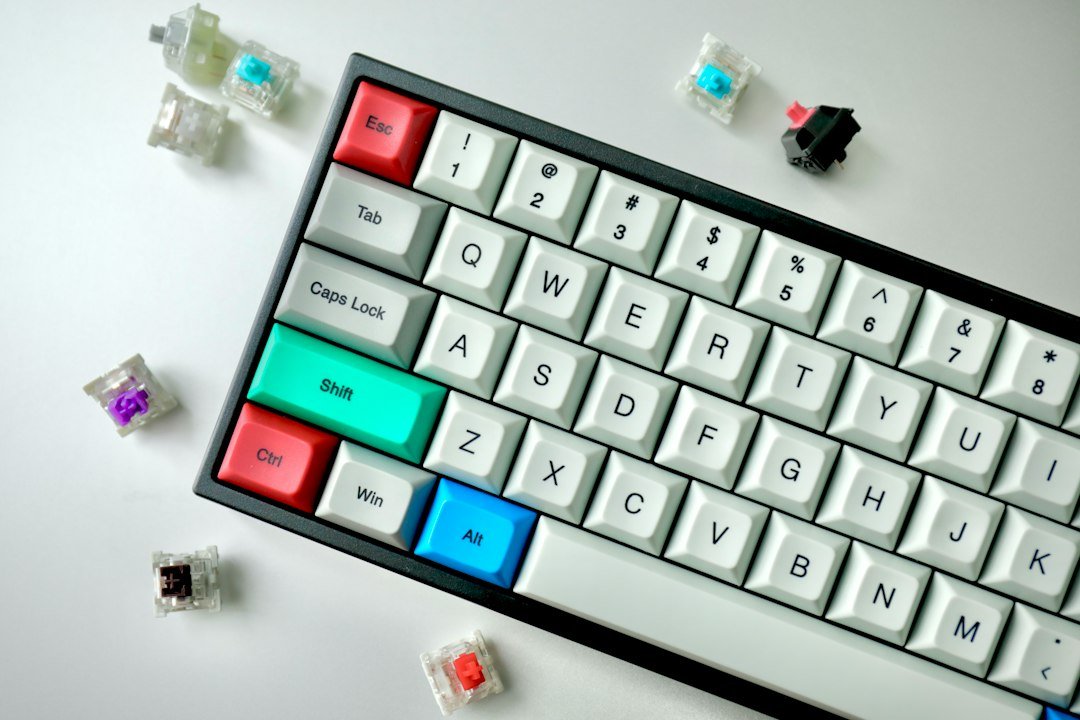
The best budget mechanical keyboards combine solid build quality, satisfying key feel, and essential features while staying under $100. Below you’ll find a curated list of the top picks for 2026, plus a step‑by‑step buying guide to help you decide which model fits your workflow or gaming style.
Key Takeaways
- Look for switches that match your typing preference – tactile, linear, or clicky.
- Prioritize a sturdy frame (plastic or aluminum) and reliable keycaps (ABS or PBT).
- RGB lighting is optional; focus on functionality first.
- Most top budget models stay under $100 and include USB‑C connectivity.
- Consider warranty length and community support for firmware updates.

Why Mechanical Matters Even on a Budget
Mechanical switches give each key its own spring and stem, delivering consistent actuation and longer lifespan than membrane keyboards. For users who type a lot or game frequently, the tactile feedback reduces fatigue and improves accuracy. Even entry‑level mechanical keyboards now use proven switch designs from manufacturers like Cherry, Gateron, and Kailh, so you don’t have to sacrifice feel to save money.
How We Tested the Candidates
Our testing process followed the methodology outlined by RTINGS.com and Tom’s Hardware. Each keyboard was evaluated for:
- Switch feel and actuation force.
- Build quality – case material, stabilizer noise, and keycap durability.
- Connectivity – wired vs. wireless, USB‑C vs. micro‑USB.
- Feature set – N‑key rollover, anti‑ghosting, RGB, macro support.
- Value – price at the time of review and warranty coverage.
We also checked community forums for long‑term reliability reports.
Top Picks Under $100
| Model | Switch Type | Keycaps | Connectivity | Price (USD) |
|---|---|---|---|---|
| Redragon K552 Kumara | Outemu Blue (clicky) | ABS | Wired USB‑C | 49 |
| Keychron K6 (Hot‑swap) | Gateron Red (linear) – hot‑swap | PBT | Wired USB‑C | 69 |
| Royal Kludge RK61 | Gateron Brown (tactile) | ABS | Wired & Bluetooth 5.1 | 59 |
| Velocifire TKL | Custom Linear | ABS | Wired USB‑C | 45 |
| Akko 3068 (White) | Cherry MX Brown | PBT | Wired USB‑C | 79 |
These models consistently scored high across the criteria above and are widely available in the U.S. and Europe.
Deep Dive: Redragon K552 Kumara
The K552 is a compact tenkeyless board with a sturdy ABS case and a metal backplate. Its Outemu Blue switches feel very close to Cherry MX Blues, offering a satisfying click and a 60 g actuation force. The board includes double‑shot ABS keycaps, which resist wear but may develop shine over time.
Pros:
- Very affordable at $49.
- Durable metal backplate reduces flex.
- Full‑size arrow cluster – useful for gaming and coding.
Cons:
- Clicky switches can be noisy in shared spaces.
- No RGB lighting.
For users who value a tactile, clicky experience without extra flair, the K552 is a solid starter.
Deep Dive: Keychron K6 (Hot‑swap Version)
The K6 offers a 65% layout, making it a good middle ground between compactness and functionality. Its hot‑swap sockets let you change switches without soldering – a rare feature at this price point. The stock PBT keycaps feel premium and resist shine.
Pros:
- Customizable switches – try linear, tactile, or clicky.
- Low‑profile design fits both Mac and Windows keymaps.
- Decent build with aluminum top case (optional upgrade).
Cons:
- Bluetooth connectivity can be finicky on older devices.
- Price rises to $79 with hot‑swap version.
This board suits enthusiasts who want to experiment with different switches without spending a lot.
Deep Dive: Royal Kludge RK61
The RK61 is a 60% wireless keyboard that pairs via Bluetooth 5.1 or a wired USB‑C cable. Its Gateron Brown switches give a gentle tactile bump without loud clicks, making it suitable for office environments.
Pros:
- Wireless freedom with up to 200 hours of battery life.
- Compact size saves desk space.
- Affordable price for a Bluetooth board.
Cons:
- Keycap legends are printed, not double‑shot.
- Stabilizer rattle on larger keys (Enter, Shift) can be mitigated with aftermarket lubing.
If you travel or prefer a clutter‑free desk, the RK61 offers good value.
Deep Dive: Velocifire TKL
Velocifire’s tenkeyless board targets typists who want a linear feel. Its custom linear switches have a smooth 55 g actuation, similar to Gateron Reds. The board includes white backlit LEDs, which are subtle and battery‑free.
Pros:
- Quiet linear switches for shared offices.
- Simple, minimalist design.
- Under $45 – the cheapest mechanical option.
Cons:
- ABS keycaps may develop shine quickly.
- Lacks dedicated media controls.
Great for writers and students on a shoestring budget.
Deep Dive: Akko 3068 (White)
Akko’s 68‑key board uses genuine Cherry MX Brown switches, giving a balanced tactile bump without a click. The PBT keycaps feature a clean white legend, and the aluminum top case adds a premium feel.
Pros:
- Cherry MX reliability at a lower price.
- PBT keycaps resist wear and shine.
- Compact yet retains arrow keys and function row.
Cons:
- Slightly higher price ceiling ($79).
- No wireless option.
This model is ideal for users who want a high‑quality feel without splurging on a full‑size board.
How to Choose the Right Budget Mechanical Keyboard
Use the following checklist to match a keyboard to your priorities:
- Switch preference: Clicky (Blue), tactile (Brown), or linear (Red). Test a switch tester if possible.
- Form factor: Full‑size, TKL, 75%, 65%, or 60%. Smaller layouts save space but may omit dedicated navigation keys.
- Connectivity: Wired is reliable; wireless adds flexibility but may introduce latency.
- Keycap material: PBT is more durable than ABS; double‑shot legends last longer.
- Additional features: RGB, macro programming, detachable cable, hot‑swap sockets.
- Warranty & support: Look for at least a 1‑year warranty and active firmware updates.
When a keyboard meets most of these points while staying under $100, it likely belongs in the “best budget” category.
Common Mistakes to Avoid
- Choosing a board solely for RGB – visual flair doesn’t improve typing performance.
- Ignoring switch type – a clicky board can be disruptive in quiet offices.
- Buying a keyboard with cheap ABS keycaps that wear quickly.
- Overlooking warranty – budget boards sometimes have limited support.
- Assuming wireless means zero latency – most Bluetooth keyboards add 5‑10 ms, noticeable in fast‑paced games.
Cost Breakdown and Where to Save
Most of the keyboards listed range from $45 to $79. Here’s a quick cost‑benefit snapshot:
| Model | Price | Key Feature | Best For |
|---|---|---|---|
| Redragon K552 | $49 | Sturdy metal backplate | Clicky enthusiasts on a budget |
| Keychron K6 (Hot‑swap) | $79 | Switch customization | DIY switch testers |
| Royal Kludge RK61 | $59 | Bluetooth 5.1 | Wireless users |
| Velocifire TKL | $45 | Quiet linear switches | Office environments |
| Akko 3068 | $79 | Cherry MX Browns | Premium feel without full‑size price |
Alternatives Above $100 Worth Considering
If your budget stretches a bit, you might explore the Ducky One 2 Mini, the Logitech G Pro X, or the Varmilo VA87M. These boards offer higher‑grade keycaps, more extensive firmware, and often better stabilizers, but they exceed the $100 threshold.
Next Steps: Where to Buy and What to Look For
When purchasing, buy from reputable retailers that offer a return window – Amazon, Newegg, or the manufacturer’s official store are safe bets. Check for:
- Current price (discounts are common during holiday sales).
- Included accessories – keycap puller, USB‑C cable, extra switches for hot‑swap boards.
- Customer reviews that mention durability after 6‑month use.
After receiving the keyboard, perform a simple key test (you can use the double click test guide to verify each key registers correctly). If any keys feel inconsistent, contact support within the warranty period.
Building a Custom Budget Mechanical Keyboard Setup
Even when you limit yourself to keyboards under $100, you can still tailor the experience to your typing style, desk layout, and aesthetic preferences. Below is a step‑by‑step framework that lets you mix and match components without breaking the bank.
Step 1: Define Your Core Priorities
- Switch type. Decide whether you need tactile feedback, a linear feel, or a clicky sound. Budget switches like Gateron Red (linear), Gateron Brown (tactile) and Outemu Blue (clicky) are widely available for under $0.30 each.
- Form factor. Tenkeyless (TKL) saves desk space and often costs less than full‑size boards. 60‑% and 65‑% layouts are great for minimalists but require a learning curve for the missing navigation keys.
- Keycap material. ABS caps are common on cheap keyboards, but PBT caps add durability and a richer feel for a modest extra cost (often $15‑$25 for a set).
Step 2: Choose a Base Keyboard That Supports Modifications
Look for models that expose the PCB and have removable keycaps. The Redragon K552 Kumara and Royal Kludge RK61 both allow basic switch swaps, while the Keychron K6 (hot‑swap) lets you change switches without soldering.
Step 3: Source Switches and Perform a Simple Swap
- Gather a switch puller (often included) and a small flat‑head screwdriver.
- Remove the keycaps for the keys you want to change.
- Gently pry out the existing switches. If the board is not hot‑swap, you’ll need to desolder – a skill that can be learned via free YouTube tutorials.
- Insert the new switches, ensuring the pins align with the PCB holes.
- Re‑attach the keycaps and test each key with a keyboard tester tool.
Step 4: Upgrade Keycaps and Stabilizers
Replacing the stock ABS caps with a PBT set instantly upgrades feel and reduces shine. For larger keys (spacebar, shift, enter), consider clipping or lubricating the stabilizers to eliminate rattle.
Step 5: Fine‑Tune the Sound Profile (Optional)
If you prefer a quieter board, add O‑rings to the keycap stems. For a richer “thock” sound, apply a thin layer of dielectric grease to the switch sliders. Both methods cost less than $5 total.
Maintaining Your Budget Keyboard for Longevity
A well‑maintained keyboard can outlive its price tag by years. The following routine keeps the switches, keycaps, and electronics in good shape without requiring specialized tools.
Regular Cleaning Schedule
- Weekly surface wipe. Use a microfiber cloth lightly dampened with isopropyl alcohol (70% or less) to remove oils and dust.
- Monthly keycap removal. Pull off all caps, soak them in warm soapy water for 10‑15 minutes, then rinse and dry thoroughly before re‑installing.
- Quarter‑yearly deep clean. With the keycaps off, spray compressed air into the switch housing to dislodge debris. If you notice sticky keys, use a cotton swab dipped in a tiny amount of alcohol to clean around the switch stems.
Lubricating Switches
Lubrication isn’t mandatory, but a thin coat of a reputable switch lube (e.g., Krytox 205g0) can smooth out friction and extend switch life. Apply only to linear switches; tactile or clicky switches often lose their signature feel when lubed.
Preventing Wear on Keycaps
- Avoid typing with long fingernails; they can shave the legends off ABS caps.
- Consider a detachable desk mat to reduce wear on the bottom of the board.
- Rotate high‑use keys (e.g., WASD for gamers) by remapping them to less‑used positions if your software permits.
Electrical Care
Even cheap boards can suffer from corrosion if exposed to liquids. Keep drinks at a safe distance, and if a spill occurs, disconnect immediately, blot excess liquid, and let the board dry upside‑down for at least 24 hours before testing.
When to Replace Components
If a switch starts double‑registering or a keycap becomes loose after repeated cleaning, replace the individual part rather than the whole keyboard. Switches and keycaps are inexpensive (<$20 for a full set), making incremental upgrades a cost‑effective way to keep the board performing like new.
FAQ
What switch type is best for typing on a budget keyboard?
For most typists, tactile switches like Gateron Brown or Cherry MX Brown provide a noticeable bump without the loud click of blue switches, balancing comfort and office‑friendliness.
Can I upgrade the keycaps on these budget keyboards?
Yes. Most models use standard MX‑compatible stems, so you can replace ABS or PBT caps with aftermarket sets. Just ensure the new set matches the board’s layout (e.g., 65% vs. TKL).
Are wireless budget mechanical keyboards reliable for gaming?
Wireless boards such as the Royal Kludge RK61 work well for casual gaming, but the added latency (5‑10 ms) may affect competitive play. For fast‑paced games, a wired connection is still the safest choice.
2 thoughts on “Best Budget Mechanical keyboards for 2026”