
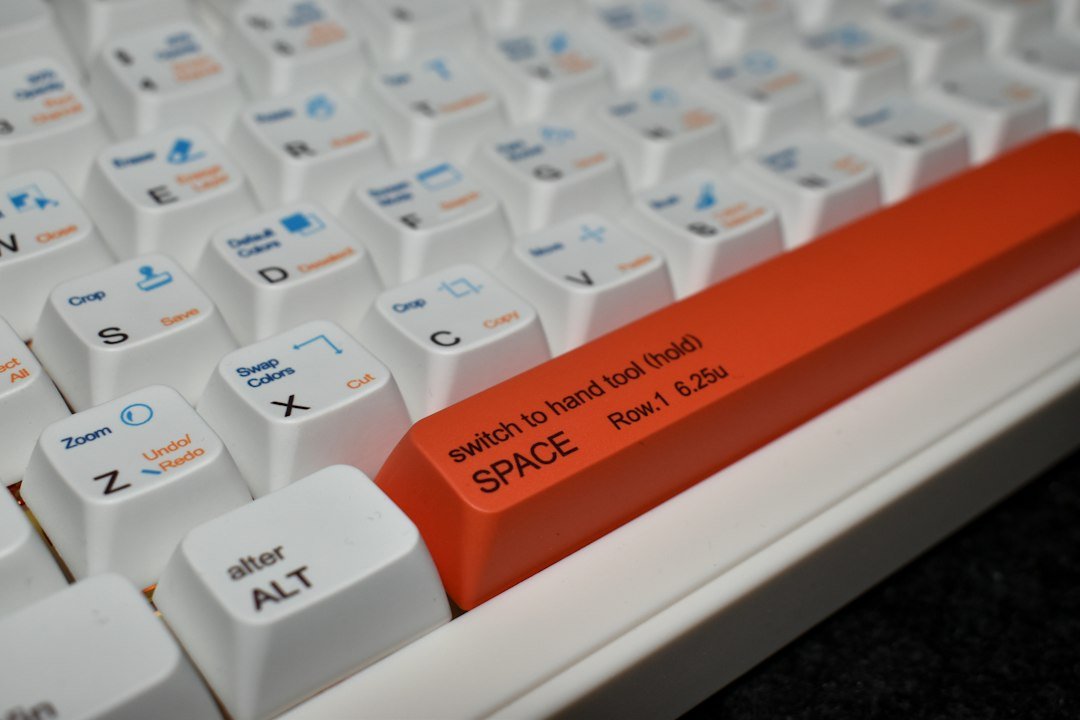
The space bar clicker is a simple yet addictive online game where you repeatedly press the space bar to earn points, unlock upgrades, and compete for high scores.
Key Takeaways
- Space bar clicker gameplay revolves around rapid space‑bar presses.
- Improving speed relies on posture, finger placement, and short‑interval training.
- Use a space‑bar counter tool to track clicks per second (CPS) and set realistic goals.
- Common pitfalls include hand fatigue and accidental key presses.
- The game can double as a typing warm‑up or a fun break during study sessions.

What Is a Space Bar Clicker?
A space bar clicker is a browser‑based clicker game that measures how many times you can press the space key within a set time limit, usually 30 seconds to one minute. Each press adds a point, and points can be spent on visual upgrades or temporary multipliers that increase the value of each click.
The concept is similar to classic idle clicker games, but the core mechanic is purely physical: the faster you tap, the higher your score.
How to Play the Space Bar Clicker
Getting started takes only a few seconds:
- Open the game page (for example, the free unblocked version on Hooda Math).
- Press the “Start” button to begin the countdown.
- Rapidly press the space bar. Each press registers as a click and adds to your total.
- When the timer ends, your final score appears. You can restart or spend points on upgrades.
The interface usually shows a large central button or a visual representation of a space bar, a timer, and a score counter.
Improving Your Click Speed
Speed improvement is a blend of technique and conditioning. Below are practical steps you can take:
- Posture: Sit upright with elbows close to your body. Keep wrists neutral to avoid strain.
- Finger placement: Use the side of your index finger or the pad of your thumb to tap. Experiment to find the most comfortable contact point.
- Warm‑up drills: Before a game session, do a 30‑second warm‑up where you tap at a comfortable pace, then gradually increase speed.
- Use a space‑bar counter: Tools like the space bar counter guide let you see your clicks per second (CPS) in real time, helping you set incremental goals.
- Short interval training: Practice 5‑second bursts of maximum speed, then rest for 10 seconds. This builds muscle memory without over‑fatiguing your hand.
Common Mistakes and How to Avoid Them
Even enthusiastic players fall into habits that limit their performance:
- Holding the key down: Some think a long press yields multiple counts, but the game only registers distinct presses.
- Using the whole hand: Pressing with the whole hand reduces speed and increases fatigue. Focus on a single finger or thumb.
- Ignoring breaks: Repetitive tapping can cause strain. Take a 30‑second break after each round to stretch your fingers.
- Skipping upgrades: Upgrades often provide visual feedback that encourages faster tapping. Ignoring them can make the game feel less rewarding.
Safety Tips for Prolonged Play
Because the game relies on rapid repetitive motion, it can lead to discomfort if played excessively. Follow these guidelines:
- Limit sessions to 5‑10 minutes at a time.
- Perform hand‑stretching exercises before and after each session.
- Maintain a neutral wrist position; avoid bending the wrist upward or downward.
- If you feel pain, stop immediately and rest. Persistent discomfort may require professional advice.
For any lingering pain, consult a medical professional, especially if you have a history of repetitive‑strain injuries.
Using Space Bar Clicker for Typing Practice
Beyond entertainment, the game can serve as a warm‑up for typing or gaming sessions. Pressing the space bar repeatedly activates the same finger muscles used for normal typing, helping you get into a rhythm.
Combine a short clicker round with a clicks‑per‑second measurement guide to gauge your baseline, then transition to a typing test. Many users report smoother keystrokes after a quick clicker warm‑up.
Upgrade System Explained
Most space bar clicker versions include an upgrade shop. Upgrades fall into two categories:
- Visual upgrades: Change the background, add particle effects, or animate the space bar. They don’t affect score directly but keep the experience fresh.
- Multiplier upgrades: Increase the points earned per click for a limited time (e.g., “Double Points for 10 seconds”). These are strategic; purchase them when you anticipate a high‑speed burst.
When deciding which upgrade to buy, consider your current CPS. If you’re averaging 8 CPS, a 2× multiplier for 10 seconds can add roughly 160 extra points, which may be more valuable than a purely cosmetic upgrade.
Comparing Popular Space Bar Clicker Variants
| Site | Features | Ads/Pop‑ups | Best For |
|---|---|---|---|
| ArealMe | Simple UI, daily streak bonus, leaderboards | None | Casual players who like competition |
| Hooda Math | Educational theme, unlockable math facts | Minimal | Students who want a learning twist |
| SpaceBarClicker.org | Customizable timers, API for CPS tracking | None | Power users tracking performance |
Choose the version that matches your goals—pure fun, educational integration, or detailed performance tracking.

Cost and Accessibility
All listed versions are free to play in a web browser. No download or installation is required, making them accessible on desktops, laptops, and many tablets with external keyboards. Some sites may display non‑intrusive ads, but none require payment for core gameplay.
Next Steps: Turning Clicks into Real Skill
If you enjoy the space bar clicker and want to translate that speed into practical skill, consider these follow‑up activities:
- Practice touch‑typing drills focusing on the space bar and surrounding keys.
- Use a programmable macro pad to simulate rapid space presses for gaming scenarios.
- Track your CPS weekly with a space‑bar counter and aim for a 5‑10% improvement each week.
These steps keep the fun element while building genuine typing or gaming proficiency.
Designing a Personal Training Regimen with the Space Bar Clicker
Before you chase raw speed, decide what you want to improve: endurance, reaction time, or fine‑motor control. A clear goal lets you structure sessions so each minute of clicking adds measurable value.
Step‑by‑step plan for a 4‑week regimen
- Week 1 – Baseline & Warm‑up:
- Record your average clicks per 30 seconds using the built‑in timer.
- Perform three 30‑second warm‑up bursts at 50 % of that baseline, resting 45 seconds between sets.
- End each session with 2 minutes of slow, deliberate presses to reinforce finger placement.
- Week 2 – Incremental Load:
- Increase target speed by 10 % each day.
- Introduce a “peak” set: 10 seconds at maximum comfortable speed, followed by a 60‑second recovery.
- Track perceived effort on a 1‑10 scale; stop if it exceeds 7.
- Week 3 – Endurance Blocks:
- Run three 2‑minute blocks at 80 % of your Week 2 peak speed.
- Rest 2 minutes between blocks; use a timer that vibrates to avoid looking at the screen.
- After each block, stretch the index finger, thumb, and wrist for 15 seconds.
- Week 4 – Skill Transfer:
- Combine the clicker with a typing drill (e.g., type a paragraph while maintaining a steady click rhythm).
- Record both click count and words‑per‑minute; aim for less than a 5 % drop in typing speed.
- Finish with a 5‑minute cool‑down: slow presses, deep breaths, and gentle hand rolls.
Adjust the timeline if you feel fatigue or notice a plateau. Consistency beats occasional marathon sessions.
Integrating the Space Bar Clicker into Existing Productivity Tools
Many users adopt the clicker as a gamified break activity, but it can also reinforce habits in tools you already use.
Using macros to trigger clicks during Pomodoro cycles
Set up a simple macro (e.g., with AutoHotkey on Windows or Keyboard Maestro on macOS) that presses the space bar automatically for 5 seconds at the start of each 25‑minute work interval. This brief burst re‑engages finger muscles without pulling you away from the task.
Embedding clicker metrics in project dashboards
If you track personal KPIs in a spreadsheet, add a column for “daily click count”. Over a month you can spot correlations between high click days and increased typing speed, helping you decide when to schedule dedicated practice.
Pairing with habit‑tracking apps
- Create a habit called “Space Bar Sprint” with a target of 1 minute per day.
- Link the habit to a notification that reminds you to start the sprint after lunch.
- Review streaks weekly; a broken streak is a cue to evaluate ergonomics or fatigue.
These integrations keep the clicker from becoming an isolated pastime and turn it into a measurable component of your workflow.
Advanced Customization: Modifying Settings for Targeted Skill Development
The default clicker offers a single speed slider, but most versions expose hidden parameters that let you tailor the experience.
Adjusting debounce timing
Debounce controls how quickly the software registers consecutive presses. Reducing the debounce interval (e.g., from 30 ms to 15 ms) forces your fingers to separate each tap more precisely, which is useful for building fine‑motor discrimination.
Enabling variable difficulty modes
- Randomized Pace: The clicker fluctuates target speed every 10 seconds, training you to adapt on the fly.
- Progressive Ramp: Speed ramps up linearly over a set period (e.g., 30 seconds to 200 cps), mimicking real‑world typing bursts.
- Target Zones: Visual bars appear indicating a “green zone” of acceptable speed; staying inside improves consistency.
Mapping the space bar to alternative keys
If you experience discomfort, reassign the click action to a less‑used key (e.g., left Alt). Most clicker apps let you change the input key in the settings menu. Test the new key for at least one session before committing to it.
Saving and sharing profiles
After fine‑tuning parameters, export the profile (usually a .json file). You can load the same profile on multiple devices, ensuring continuity whether you practice at home or on a laptop in a café.
These customizations let you shift the clicker from a simple reflex game to a focused training instrument aligned with your personal goals.
FAQ
Is the space bar clicker safe for children?
Yes, the game is safe, but parents should monitor playtime to prevent hand fatigue. Short sessions and regular breaks are recommended.
Can I use the space bar clicker to improve my gaming performance?
It can help with reaction speed and finger endurance, which are useful in games that require rapid key presses. Pair it with specific game practice for best results.
Do I need a special keyboard to get high scores?
No special hardware is required. A standard keyboard works fine, though mechanical keyboards with tactile feedback may feel more responsive for some players.
1 thought on “Space Bar Clicker: How to Play, Master, and Use It Safely”