
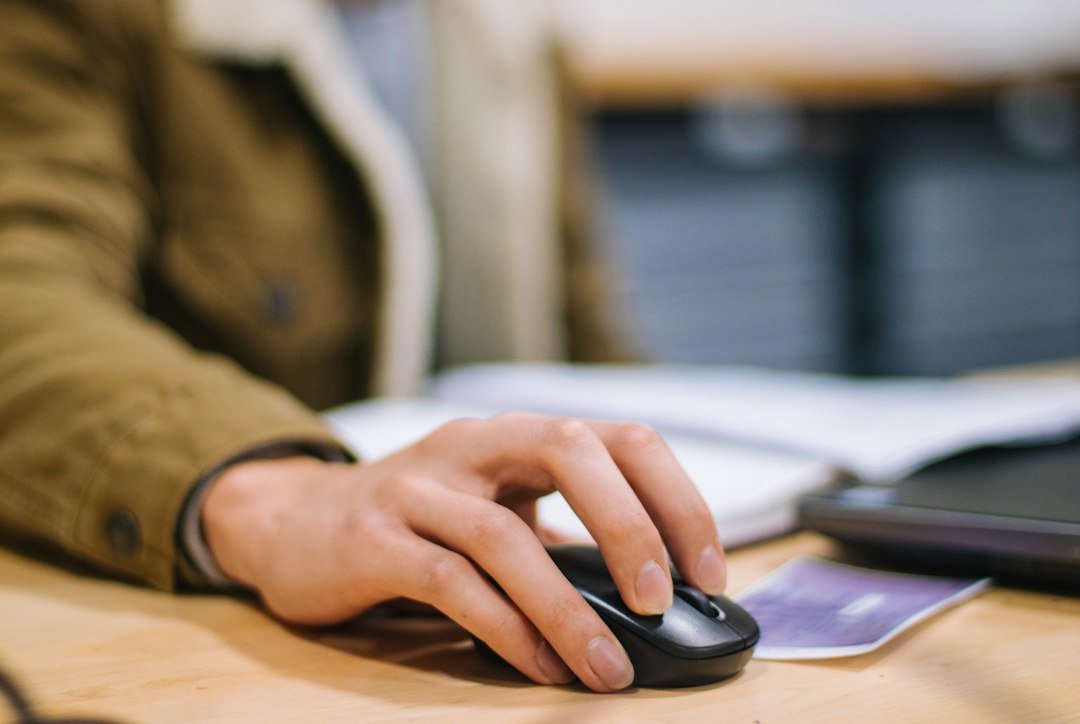
cps score is a simple metric that tells you how many clicks you can generate in one second, typically measured with an online click counter or a dedicated testing tool. It’s used by gamers, productivity enthusiasts, and anyone who wants to gauge hand speed.
Key Takeaways
- A cps score measures clicks per second, not total clicks.
- Testing tools range from browser-based counters to specialized software.
- Improving your cps score involves technique, hardware, and practice routines.
- Consistent tracking helps you spot plateaus and measure progress.
- cps score can also refer to program evaluation scores in education, such as Chicago Public Schools athletics programs.

What Is a CPS Score?
The term cps score stands for “clicks per second score.” It quantifies how many discrete mouse or keyboard clicks you can register in a single second. The score is usually expressed as a decimal (e.g., 8.5 cps) and is derived from a short timed test, often 5 or 10 seconds long.
Because the test window is brief, the score reflects peak hand speed rather than endurance. This makes it useful for games that rely on rapid clicking, such as idle clickers, competitive shooters, or rhythm games.
How CPS Scores Are Calculated
Most click‑testing tools follow a straightforward formula:
- Start the timer (usually 5 or 10 seconds).
- Count every valid click registered during the interval.
- Divide the total clicks by the number of seconds.
For example, 45 clicks in a 5‑second test yields a cps score of 9.0.
Some advanced tools filter out double‑clicks that occur faster than the hardware can physically register, ensuring the score reflects realistic human capability.
Choosing a Reliable Test Tool
Not all click counters are created equal. A good tool should:
- Provide a clear start/stop timer.
- Display the raw click count and the calculated cps score.
- Allow you to export or log results for later analysis.
Our guide on choosing and using a click counter walks through popular options, from simple web pages to desktop applications.

Interpreting Your CPS Score
Understanding where you stand helps set realistic goals:
| Score Range | Typical Skill Level |
|---|---|
| 0–3 cps | Beginner, casual gamers |
| 3–6 cps | Average user, comfortable with fast clicking |
| 6–9 cps | Experienced players, competitive clickers |
| 9+ cps | High‑performance gamers, professional clickers |
These brackets are not official standards; they serve as a practical reference. Your personal target should consider the games or tasks you care about.
Common Mistakes That Skew Your CPS Score
- Using the wrong mouse button. Some tools only count left‑clicks; mixing buttons can lower the count.
- Holding the button down. A continuous press registers as one click, not multiple.
- Not resetting between attempts. Residual clicks can carry over, inflating the score.
- Testing on a laggy browser. High latency can miss rapid clicks, giving a falsely low score.
Eliminate these errors by using a dedicated testing app and a reliable mouse.
Techniques to Increase Your CPS Score
Improving speed is a blend of ergonomics, technique, and practice:
- Finger placement. Keep your index and middle fingers relaxed and hover just above the button.
- Roll clicking. Rotate the finger from the pad to the tip in a rolling motion; this can add 0.5–1 cps.
- Butterfly clicking. Use two fingers alternately; common among high‑CPS gamers.
- Jitter clicking. Rapidly vibrate the hand; effective but can cause strain.
- Use a lightweight mouse. Lower actuation force reduces the effort per click.
Our article on increasing CPS dives deeper into each method, including safety tips.
Practice Routines and Tracking Progress
Consistent practice beats occasional marathon sessions. A simple routine:
- Warm up with 2 minutes of light clicking.
- Perform three 5‑second tests, recording each score.
- Rest 30 seconds between attempts to avoid fatigue.
- Log results in a spreadsheet; note technique used.
Review weekly trends. If your average plateaus, try a new technique or adjust your mouse grip.
Hardware Considerations
Even the best technique can be limited by equipment:
- Mouse polling rate. Higher rates (1000 Hz) report clicks more accurately.
- Button durability. Cheap switches may fail under rapid clicking.
- Keyboard vs. mouse. Some users achieve higher CPS with a mechanical keyboard’s rapid actuation.
Investing in a gaming‑grade mouse with durable Omron switches can make a measurable difference.
Beyond Gaming: CPS Score in Other Contexts
While most readers associate cps score with gaming, the metric is also useful for productivity tools that rely on rapid clicking, such as data entry macros or accessibility software.
In education, “CPS score” can refer to program evaluation scores used by Chicago Public Schools (CPS) to assess elementary sports programs. The CPS athletics overview notes that schools receive scores based on participation, safety, and performance metrics. Though unrelated to clicking speed, the shared acronym highlights the importance of context when searching for “cps score.”
For more on the CPS program, see the CPS Score! Program Overview from Chicago Public Schools.
When to Seek Professional Advice
If you experience pain, numbness, or repetitive‑strain symptoms while trying to boost your cps score, consult a medical professional. Overuse injuries are real, and proper ergonomics can prevent long‑term damage.
Real‑World Scenarios: How Different Play Styles Affect Your CPS Score
Understanding a CPS (clicks‑per‑second) score becomes clearer when you see how it translates to actual gameplay. Below are three common play styles and what a typical CPS range looks like for each.
1. Rapid‑Fire Shooters (e.g., “Apex Legends”, “Valorant”)
- Typical CPS range: 6–9 clicks / second during peak engagements.
- Why it matters: These games reward quick‑fire bursts for headshots or ability activation. A higher CPS can shave milliseconds off reaction time, but consistency is more valuable than occasional spikes.
- Practical tip: Use a lightweight mouse with a low click‑latency sensor and practice “tap‑fire” drills (see the next section) to turn raw speed into repeatable accuracy.
2. Rhythm‑Based Clickers (e.g., “Osu!”, “Beat Saber” with controllers)
- Typical CPS range: 8–12 clicks / second during high‑intensity songs.
- Why it matters: Success depends on syncing clicks with musical beats. A steady CPS that matches the BPM (beats per minute) yields higher scores than an erratic, faster rate.
- Practical tip: Train with a metronome app set to the song’s BPM. Count clicks aloud or tap a desk to reinforce the rhythm before moving to the game.
3. Strategy/Simulation Games (e.g., “Civilization VI”, “Factorio”)
- Typical CPS range: 2–4 clicks / second during macro‑management phases.
- Why it matters: Speed is less critical than precision; a high CPS can actually lead to mis‑clicks that disrupt complex builds.
- Practical tip: Switch to a mouse with programmable macro buttons for repetitive actions, allowing you to keep your CPS low while still executing many commands quickly.
Step‑by‑Step Guide to Building a Sustainable CPS Improvement Plan
Improving a CPS score isn’t about cranking out endless clicks; it’s about structured practice, measurement, and recovery. Follow this five‑phase plan to see measurable gains without injury.
Phase 1 – Baseline Assessment (Days 1‑2)
- Choose a reputable test tool (e.g., ClickSpeedTest.com or an offline executable that logs timestamps).
- Run three 10‑second trials, resting 30 seconds between each.
- Record the highest CPS and note any irregularities (missed clicks, hand fatigue).
- Calculate your average CPS; this becomes your starting point.
Phase 2 – Technique Refinement (Days 3‑7)
- Grip check: Experiment with palm, claw, and fingertip grips. The fingertip grip often yields the highest raw CPS, but the claw grip can balance speed with accuracy for shooters.
- Finger placement: Keep your index and middle fingers on the left and right mouse buttons respectively; avoid resting the thumb on the side buttons, which can limit range of motion.
- Stroke consistency: Practice “single‑tap” versus “double‑tap” strokes. Single‑tap minimizes travel distance, while double‑tap can be useful for games that register double‑clicks as a single action.</n
Phase 3 – Targeted Drills (Weeks 2‑3)
Incorporate three drill types into each 30‑minute session.
- Speed bursts: 5‑second max‑CPS sprints, 10 repetitions. Focus solely on speed, not accuracy.
- Endurance runs: 30‑second steady clicks at 80 % of your max. This builds muscular endurance and reduces fatigue during long gaming sessions.
- Accuracy blocks: Click a target on a screen that appears randomly; each successful hit counts only if the click lands within a 5‑pixel radius. This trains precision under speed pressure.
Phase 4 – Data‑Driven Adjustments (Weeks 4‑5)
- Log each session in a simple spreadsheet: date, drill type, max CPS, average CPS, perceived fatigue (scale 1‑5).
- Identify trends: if endurance runs plateau while speed bursts improve, shift 20 % of weekly time to endurance.
- Adjust hardware if needed: a mouse with a higher polling rate (1000 Hz) can shave 0.1‑0.2 ms per click, which adds up over hundreds of clicks.
Phase 5 – Maintenance & Injury Prevention (Ongoing)
Even elite clickers schedule rest. Follow the 20‑20‑20 rule for the hands: after 20 minutes of clicking, rest 20 seconds and stretch the fingers (spread‑and‑hold for 5 seconds). If you feel tingling or persistent soreness, pause the program for at least 48 hours and consider consulting a physiotherapist.
Comparing Popular Click‑Testing Tools: Features, Accuracy, and Privacy
Not all click‑testing sites are created equal. Below is a concise comparison of four widely used tools, highlighting what matters for serious improvement.
| Tool | Free/Paid | Measurement Method | Data Export | Privacy Notes |
|---|---|---|---|---|
| ClickSpeedTest.com | Free | JavaScript timestamps, 10‑second window | CSV download | Stores IP for analytics; no personal identifiers. |
| MouseTester (offline exe) | Free (open‑source) | System‑level event logging, customizable duration | JSON or plain‑text log | No network activity; fully local. |
| SpeedClicker Pro | Paid ($4.99 one‑time) | High‑precision timer (nanosecond resolution) | Excel export, trend graphs built‑in | Collects email for license; no click data sent. |
| GameBench Click Analyzer | Free tier / Paid tier ($9/mo) | Integrates with game overlay, records in‑game click timestamps | Cloud dashboard, API access (paid) | Requires account; stores click timestamps for up to 30 days. |
For most users, the free online option suffices for casual benchmarking. Competitive players who need granular data and offline privacy should opt for the open‑source MouseTester or the paid SpeedClicker Pro, which both avoid any external data collection.
FAQ
What is a good cps score for competitive gaming?
Most competitive click‑based games consider 6–9 cps strong, but elite players often exceed 9 cps using advanced techniques.
Can a keyboard be used to achieve a higher cps score than a mouse?
Yes, mechanical keyboards with fast actuation can register clicks quickly, and some users achieve higher scores with key presses rather than mouse clicks.
Is there a way to automate cps testing?
Automation tools exist, but using them defeats the purpose of measuring genuine human speed and may violate game rules.
1 thought on “Understanding Your CPS Score: What It Means and How to Improve It”