
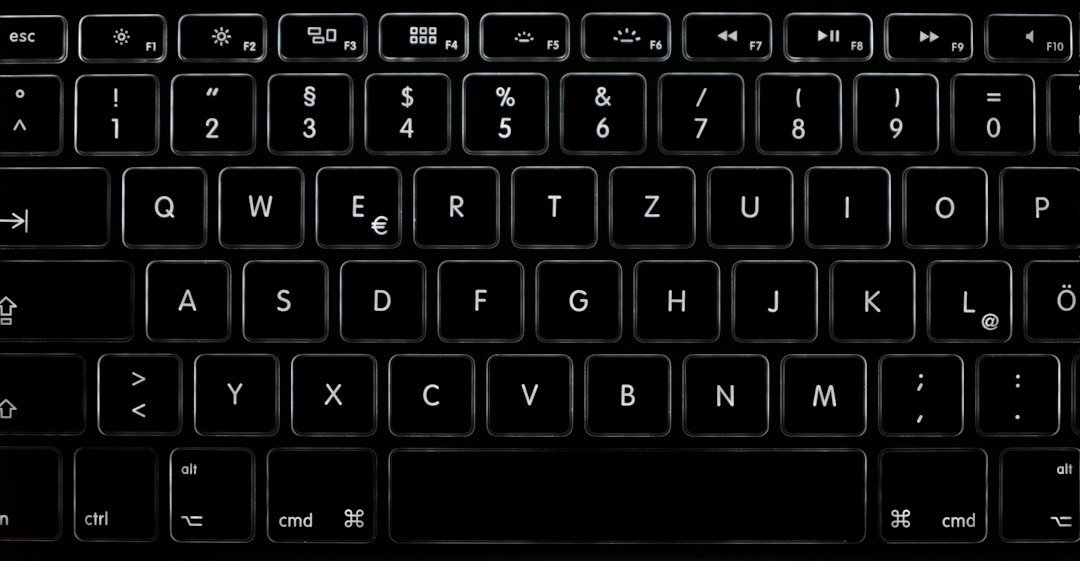
The wooting keyboard stands out because it uses analog key switches that let you register how far a key is pressed, giving gamers precise control over movement and actions.
Key Takeaways
- Analog switches provide variable input, unlike binary on/off keys.
- Wootility software lets you customize actuation points, lighting, and macros.
- Best for FPS, racing, and rhythm games where pressure sensitivity matters.
- Consider price, learning curve, and compatibility before buying.
What Is a Wooting Keyboard?
A wooting keyboard is a mechanical keyboard that replaces traditional digital switches with analog switches. The switches report a range of values (0‑255) based on how far the stem is depressed, allowing the computer to interpret pressure levels instead of a simple press/release event.
Wooting’s first models, the Wooting One and Wooting Two, introduced this concept for gaming. The newer Wooting Two HE (Hot‑Swap) and Wooting Two RGB keep the same core technology while adding hot‑swap sockets, improved RGB zones, and a more robust build.
How Analog Switches Work
Each analog switch contains a Hall‑effect sensor that measures the magnetic field generated by the moving stem. As the stem travels, the sensor outputs a voltage proportional to the distance traveled. The firmware translates that voltage into a numeric value that the operating system can read.
Because the signal is continuous, developers can map different pressure thresholds to distinct actions. For example, a light press might cause a character to walk, while a deeper press makes them run.
Key Features of the Wooting Keyboard
- Analog Input: 0‑255 pressure levels per key.
- Wootility Software: Free Windows/macOS tool for remapping, lighting, and actuation curves.
- Hot‑Swap Sockets (HE model): Allows swapping switches without soldering.
- RGB Lighting: Per‑key lighting with multiple zones.
- Full‑size Layout: 104‑key with dedicated media controls.
- USB‑C Connection: Reliable data transfer and power.
n
Performance in Gaming
Analog input shines in games that support variable input. In first‑person shooters, you can set a low actuation point for quick taps and a higher point for gradual acceleration. Racing simulators benefit from analog throttle control, and rhythm games can detect subtle timing differences.
For titles that only read digital input, the keyboard defaults to a binary mode, acting like any other mechanical board. The transition is seamless; you don’t need to switch hardware or drivers.
Customization with Wootility
Wootility (https://wootility.io/) is the companion app that lets you fine‑tune every key. You can create multiple profiles, each with its own actuation curve, macro set, and lighting scheme. Profiles can be switched on the fly via a dedicated key combination.
Typical customization steps:
- Open Wootility and select the keyboard model.
- Choose a profile or create a new one.
- Adjust the “Actuation Start” and “Actuation End” sliders for each key.
- Assign macros or key‑rebinds as needed.
- Save and apply the profile.
Comparing Wooting to Traditional Mechanical Keyboards
| Aspect | Wooting Keyboard | Standard Mechanical |
|---|---|---|
| Input Type | Analog (0‑255) | Digital (on/off) |
| Customization | Wootility profiles, per‑key actuation | Limited to keycaps, lighting |
| Learning Curve | Moderate – need to set curves | Low – familiar to most gamers |
| Price (2026) | $150‑$200 | $70‑$150 |
| Compatibility | Windows/macOS, many games support analog | Universal |
While the price is higher, the added functionality can justify the cost for competitive gamers or streamers who want a unique edge.
Who Should Consider a Wooting Keyboard?
- FPS Enthusiasts: Variable actuation lets you fine‑tune aim‑assist thresholds.
- Racing Sim Players: Analog throttle improves realism.
- Content Creators: Ability to switch profiles quickly during live streams.
- Keyboard Modders: Hot‑swap version supports custom switches.
If you mainly play games that don’t read analog input, a high‑quality digital mechanical board may be more cost‑effective.
Potential Drawbacks
- Price: Significantly above entry‑level mechanical keyboards.
- Software Dependency: Full analog functionality requires Wootility.
- Learning Curve: Adjusting actuation curves takes time.
- Game Support: Not all titles recognize analog input.
Setup and First‑Time Use
When you unbox a wooting keyboard, follow these steps:
- Connect the keyboard via the supplied USB‑C cable.
- Download the latest Wootility version from the official site.
- Install the software and allow any driver prompts.
- Run the “Calibration” wizard to ensure the sensor is reading correctly.
- Create a default profile with a gentle actuation curve for everyday use.
- Test the keyboard in a supported game or the built‑in test mode.
Most users find the initial calibration quick—under five minutes.
Maintenance and Longevity
The analog switches are rated for 50 million keystrokes, comparable to high‑end mechanical switches. Regular cleaning with compressed air and a keycap puller keeps the board fresh. For the hot‑swap version, you can replace switches without soldering, extending the keyboard’s lifespan.
Alternatives to the Wooting Keyboard
If the analog concept isn’t a perfect fit, consider these options:
- Space Bar Clicker guide – a DIY solution for creating a pressure‑sensitive space bar for rhythm games.
- Standard mechanical keyboards with high‑speed actuation (e.g., Kailh Speed, Gateron Optical).
- Gaming controllers with analog sticks for throttle‑type control.
Each alternative offers a different balance of cost, customization, and learning curve.
Cost Considerations
The wooting keyboard’s price range in 2026 sits between $150 and $200, depending on the model and any bundled keycap sets. Factor in potential extra costs:
- Additional keycap sets ($30‑$80).
- USB‑C hub if you need more ports.
- Optional premium Wootility themes (free vs. paid community packs).
Budget‑conscious gamers may wait for seasonal sales, which often bring the price down 10‑15%.
Future Outlook and Firmware Updates
Wooting regularly releases firmware updates that improve sensor accuracy and add new game‑specific profiles. Keeping the keyboard’s firmware current ensures compatibility with emerging titles that adopt analog input standards.
Conclusion
The wooting keyboard delivers a genuinely new way to interact with games that benefit from pressure sensitivity. While the price and setup effort are higher than a typical mechanical board, the performance gains in supported games can be noticeable. Evaluate your game library, budget, and willingness to tweak settings before deciding.
Practical Guide to Setting Up Analog Controls for Specific Games
Analog switches shine when you can map the pressure curve to a game’s mechanics. Below is a step‑by‑step workflow that works for most PC titles, followed by concrete examples for popular genres.
Step‑by‑Step Setup Process
- Install Wootility and Update Firmware: Run the installer, connect your keyboard, and let the software check for the latest firmware. Keeping firmware current ensures the newest analog curve presets and bug fixes.
- Create a New Profile: In Wootility, click “Add Profile”. Name it after the game (e.g., “Valorant – Analog Aim”). Profiles keep settings isolated, so you can switch instantly when you launch a different title.
- Assign Analog Keys: Choose the keys you want to act as analog inputs (commonly WASD, mouse buttons, or thumb‑cluster keys). Drag them into the “Analog” slot.
- Choose a Curve: Wootility offers linear, exponential, and custom curves. Linear is a safe starting point; exponential gives finer control at low pressure, which many shooters benefit from.
- Map to In‑Game Actions: Open the game’s control settings and bind the same keys to the desired actions. Most games treat analog input as a simple “press” with a variable intensity, so the mapping is identical to a digital key.
- Test and Tweak: Use an in‑game training mode or a sandbox map. Adjust the curve or sensitivity in Wootility until the movement feels natural. Small increments (5‑10 %) prevent over‑correction.
- Save and Export: Save the profile and export it to a USB drive if you play on multiple PCs. Wootility can import the file without re‑creating the settings.
Genre‑Specific Examples
First‑Person Shooters (FPS)
- Analog Aim: Assign the right mouse button to an analog key (e.g.,
R). Set an exponential curve so a light press nudges the crosshair, while a full press snaps to maximum speed. This mimics a joystick’s gradual aim without sacrificing precision. - Movement Speed Control: Map the
Shiftkey to analog. Light pressure yields a walk, full pressure a sprint. Combine with the standardWASDanalog mapping for fluid acceleration.
Racing Simulators
- Throttle and Brake: Use the
Space(brake) andEnter(throttle) keys as analog inputs. A linear curve works well for most cars, but a custom curve can emulate the bite of a real pedal. - Gear Shifts: Assign
QandEto analog for smoother up‑shifts and down‑shifts, reducing the chance of missed gear changes.
Platformers and Metroidvania Titles
- Variable Jump Height: Map the jump key (
ZorSpace) to analog. Light taps produce short hops; holding longer yields higher jumps, replicating classic controller behavior. - Charge Attacks: Many action‑RPGs use a charge mechanic. An analog key lets you see the charge level in real time, improving timing.
By following the workflow and tailoring curves to each genre, you can extract the full benefit of Wooting’s analog capability without trial‑and‑error frustration.
Common Mistakes and How to Avoid Them When Using Wooting Keyboards
Even experienced mechanical‑keyboard users can run into pitfalls that diminish the analog experience. Below are the most frequent errors and practical steps to prevent them.
1. Ignoring Firmware Updates
Firmware releases often contain stability improvements for analog detection. Skipping updates can lead to missed keypresses or inconsistent pressure readings. Set Wootility to check for updates automatically, and schedule a quick reboot after each install.
2. Using Default Linear Curve for All Games
A linear curve feels predictable but rarely offers the nuance needed for precision tasks. For example, in a shooter, a linear curve makes the first 30 % of pressure feel sluggish, delaying micro‑adjustments. Switch to an exponential or custom curve for any game that requires fine‑grained control.
3. Overloading a Single Profile with Too Many Analog Mappings
Assigning every key to analog can cause “ghosting” where the keyboard struggles to report simultaneous pressure levels. Keep the number of analog keys to the essentials—usually 2‑4 per game—and leave the rest as digital.
4. Forgetting to Calibrate After Firmware Changes
When you flash new firmware, the baseline pressure values reset. Wootility includes a calibration tool; run it immediately after any update to ensure the software reads your keystrokes correctly.
5. Relying Solely on Software for Sensitivity
Wootility’s sensitivity sliders affect the software side, but the hardware’s actuation force remains constant (usually 45 cN for Wooting’s optical switches). If you find the keys too hard to press for subtle analog input, consider swapping to a lighter switch variant (e.g., Wooting’s low‑actuation “Linear” switches) rather than just tweaking software.
6. Neglecting In‑Game Settings
Many games have built‑in dead‑zone or sensitivity options. If you experience jitter, first reduce the game’s dead‑zone before adjusting Wootility’s curve. Over‑compensating in the software while the game still clips the input defeats the purpose of analog control.
7. Using the Keyboard for Non‑Analog Purposes
Analog mode adds processing overhead. For tasks like typing or macro-heavy workflows, switch the profile back to “Digital” mode. This eliminates any latency introduced by analog processing and preserves battery life on wireless models.
Checklist: Avoiding Analog Pitfalls
- Enable automatic firmware checks in Wootility.
- Select an appropriate curve (exponential for precision, linear for casual).
- Limit analog keys to 2‑4 per profile.
- Calibrate after every firmware update.
- Consider hardware switch weight if you need lighter actuation.
- Adjust in‑game dead‑zone before tweaking software sensitivity.
- Toggle to digital mode for typing or macro‑heavy sessions.
Following this checklist keeps the analog experience smooth, responsive, and reliable, letting you focus on gameplay rather than troubleshooting.
FAQ
Can the wooting keyboard be used for typing?
Yes. You can set a low actuation point so it behaves like a regular mechanical keyboard, making it comfortable for everyday typing.
Is the analog feature compatible with macOS?
Wootility supports macOS, and the analog data is recognized by most games that run on the platform, though some titles may require additional configuration.
Do I need to buy extra software for macros?
No. All macro creation and profile management are built into the free Wootility app.