
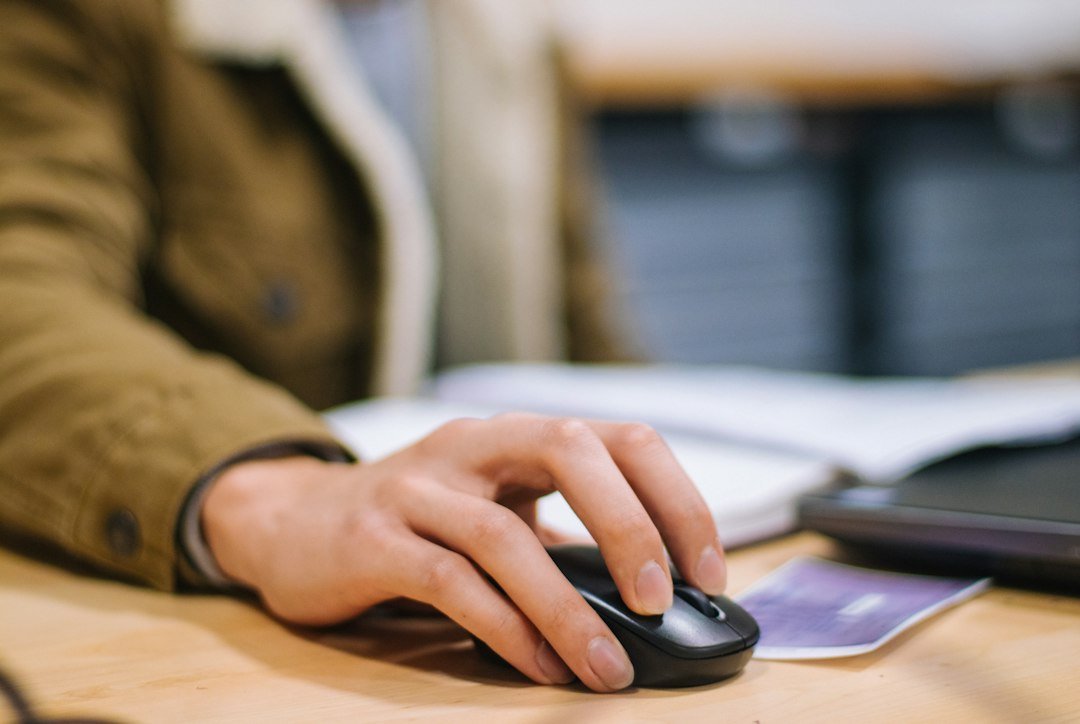
The click click test is an online tool that measures how many mouse clicks you can register in a short period, usually one or five seconds. It’s popular among gamers, esports athletes, and anyone who wants to gauge raw clicking speed.
Key Takeaways
- The click click test measures clicks per second (CPS) or clicks per minute (CPM) in a timed window.
- Accuracy, hand ergonomics, and consistent technique matter more than raw speed.
- Free web tools like CheckYourCPS, MouseTester, and CPMTest provide instant results.
- Improvement comes from practice, proper grip, and incremental goals.
- Watch for fatigue, repetitive‑strain risk, and cheating detection on leaderboards.

What Is a Click Click Test?
A click click test is a simple web‑based benchmark that records how many times you can press a mouse button within a set time. Most versions count left‑button clicks, but some allow right‑button or both. The result is usually expressed as CPS (clicks per second) or CPM (clicks per minute). The test is useful for:
- Comparing your raw clicking ability with friends or online leaderboards.
- Identifying whether a mouse’s polling rate or debounce time limits your performance.
- Tracking progress while training for games that rely on rapid clicking, such as clicker‑style shooters.
How the Test Works – Step‑by‑Step
- Open a reputable click test site. Popular choices include CheckYourCPS click test, MouseTester double‑click test, and CPM Test.
- Read the instructions – most ask you to click as fast as possible for 5 seconds.
- Place your hand on the mouse in a comfortable grip (see the grip section below).
- When the timer starts, click repeatedly. Avoid holding the button down; each distinct press counts.
- When the timer ends, the site displays your CPS/CPM and often a percentile rank.
- Record the score if you plan to track improvement over time.
Choosing the Right Tool
Not all click tests are created equal. Here’s a quick comparison:
| Tool | Time Options | Metrics | Extra Features |
|---|---|---|---|
| CheckYourCPS | 1 s, 5 s, 10 s | CPS, accuracy | Leaderboard, mouse‑type filter |
| MouseTester | 2 s double‑click | Double‑click speed | Visual latency graph |
| CPM Test | 60 s | CPM, average CPS | Export to CSV |
For most users, the 5‑second CPS test on CheckYourCPS offers a good balance of speed and repeatability.

Basic Grip Techniques
How you hold the mouse can add or subtract several clicks per second. Below are the three most common grips for click testing:
- Claw grip: Fingertips rest on the side buttons, thumb on the side, allowing rapid index‑finger tapping.
- Fingertip grip: Only the tips of the fingers touch the mouse, maximizing finger travel and speed.
- Hybrid grip: A mix of palm and claw, useful for players who need both control and speed.
Experiment with each; the one that feels natural and produces the highest CPS without pain is your best choice.
Improving Your CPS – Practical Training Plan
Speed gains follow the same principle as any motor skill: consistent, focused practice with short, measurable sessions.
- Baseline measurement: Take three 5‑second tests, note the highest CPS.
- Goal setting: Aim for a 5‑10% increase over two weeks.
- Daily micro‑sessions: Perform three 5‑second tests each day, focusing on smooth, even clicks.
- Technique drills: Alternate between single‑click bursts and double‑click bursts to develop finger endurance.
- Rest and recovery: Take a 30‑second break after each set; avoid more than 15 minutes of continuous clicking to reduce strain.
- Progress review: At the end of each week, compare weekly best scores and adjust goals.
Common Mistakes and How to Avoid Them
- Holding the button down: Some browsers count a held click as one, lowering your score. Keep each press distinct.
- Using a high‑DPI mouse with low polling rate: The mouse may not register every click. Check your mouse’s specifications; a 1000 Hz polling rate is ideal for click testing.
- Fatigue: Over‑clicking leads to hand cramps and inaccurate results. Stop if you feel pain.
- Cheating with auto‑clickers: Most reputable leaderboards detect software clicks and will disqualify you.
- Ignoring ergonomics: Poor wrist angle can cause strain. Keep your forearm neutral and your wrist slightly elevated.
Cost and Equipment Considerations
You don’t need expensive gear to start. A basic optical mouse works, but certain features help:
- Low debounce time: Debounce is the delay after a click before the mouse registers another. Gaming mice often advertise 1 ms debounce, which can shave off a few CPS.
- High polling rate: 500 Hz or 1000 Hz ensures each click is captured.
- Durable switches: Mechanical switches rated for millions of clicks last longer during intensive training.
If you already own a gaming mouse, you’re likely fine. If you’re buying new, look for models that list these specs.
Alternatives to the Click Click Test
While the click click test focuses on raw speed, other assessments give a broader view of clicking ability:
- Double‑click test: Measures how quickly you can perform two clicks in succession. Useful for games that require rapid double‑clicking.
- CPM (clicks per minute) test: Longer duration (60 s) provides a stamina metric.
- Reaction‑time test: Combines speed with decision making, often found on gaming training sites.
Consider mixing these tools if you want a well‑rounded skill set.
Next Steps After You Reach Your Target CPS
Once you consistently hit your goal, you have a few options:
- Enter online leaderboards: Many click test sites rank users globally. Compete responsibly and avoid auto‑clickers.
- Apply the skill in game: Games like Fortnite, Apex Legends, or rhythm shooters benefit from high CPS.
- Teach others: Share your training plan on forums or write a guide, linking to related posts such as Mastering Clicks per Second for deeper techniques.
- Focus on precision: Speed is only part of the equation; practice accurate targeting to avoid wasted clicks.
Related Resources on Helene Update
For more context on clicking performance, check these articles:
- Wooting Keyboard Review: Features, Benefits, and Buying Guide – discusses keyboards that can double as click‑friendly devices.
- Space Bar Clicker: How to Play, Master, and Use It Safely – explores alternative clicking methods.
- Understanding Your CPS Score: What It Means and How to Improve It – deep dive on interpreting results.
- How to Choose and Use a Click Counter for Gaming and Productivity – hardware options for tracking clicks.
Advanced Timing Strategies for Consistent CPS
Once you can hit a decent clicks‑per‑second (CPS) baseline, the next challenge is keeping that speed steady across longer sessions. Fluctuations usually stem from irregular finger motion, uneven hand positioning, or mental fatigue. Below are practical tactics to smooth out your rhythm.
1. Use a metronome or in‑game timer
- Set the tempo to match your target CPS (e.g., 10 Hz for 10 CPS).
- Play a short audio click on each beat and sync each mouse click to the sound.
- Gradually increase the tempo as you become comfortable, but never jump more than 1–2 CPS at a time.
2. Implement micro‑break intervals
Even a few seconds of rest every 30–45 seconds can reset muscle tension and prevent the dreaded “click drop‑off.” Try the 30‑second work / 5‑second rest pattern for the first week, then extend work periods as endurance improves.
3. Adopt a “two‑finger roll” technique
Instead of hammering with a single finger, alternate between the index and middle fingers. This distributes the load and reduces fatigue. Practice the roll on a blank document until the motion feels natural, then transfer it to the test tool.
4. Track variance with a simple spreadsheet
Log each 10‑second interval during a practice run. Note the CPS, perceived effort level (low/medium/high), and any distractions. Over time you’ll see patterns—such as a dip after 2 minutes—that signal when to insert a micro‑break.
Customizing Your Training Environment
The physical and digital surroundings in which you train can either amplify or hinder progress. Small adjustments often yield noticeable gains.
Ergonomic mouse placement
- Keep the mouse close enough that your elbow remains at a 90‑degree angle; a stretched arm forces the wrist into an unhealthy position.
- Use a mouse pad with a smooth surface to reduce friction, but avoid overly glossy pads that can cause slipping.
- If you use a gaming mouse with adjustable DPI, start at a moderate setting (800–1200 DPI) and fine‑tune based on comfort.
Lighting and visual cues
Bright, flicker‑free lighting reduces eye strain, which indirectly improves hand steadiness. Some users find a small visual cue—like a blinking LED on the mouse—helps maintain a consistent rhythm without looking at the screen.
Software configuration
- Disable mouse acceleration in the operating system; it introduces unpredictable cursor speed that can disrupt timing.
- Turn off background processes that might cause input lag (e.g., automatic updates, cloud sync).
- If the test platform allows, set the click detection threshold to “standard” rather than “high sensitivity” for a more realistic reading.
Temperature control
Cold fingers lose dexterity quickly. Keep your hands warm with a light wrist brace or a small desk heater. Conversely, overly warm hands may sweat, leading to slippage. Aim for a comfortable, neutral temperature.
Evaluating Progress: When to Adjust Your Plan
Improvement isn’t always linear. Knowing when to push harder, when to plateau, and when to switch tactics prevents burnout and keeps training efficient.
Plateau detection checklist
- Record your best CPS for three consecutive training days.
- If the numbers stay within a 1‑CPS range, you’re likely plateaued.
- Review your micro‑break log: are you resting enough?
- Check tool settings: have you unintentionally lowered DPI or increased click latency?
Adjustment options
- Increase rest frequency: add a 10‑second break every 20 seconds for a week.
- Switch grip: if you’ve been using a claw grip, try a fingertip grip for a fresh muscle pattern.
- Introduce resistance training: simple finger‑strength exercises (e.g., rubber band extensions) 2–3 times per week can boost endurance.
- Change the test duration: move from 10‑second bursts to 30‑second runs to train sustained speed.
When to seek external feedback
If you’ve tried the above adjustments for two weeks without measurable gain, consider recording a short video of your hand during the test. Watching the playback can reveal subtle tremors or unnecessary finger lifts that are hard to feel in real time.
Setting realistic milestones
For most casual gamers, reaching 12–15 CPS is sufficient for competitive play. Professional clickers often aim for 20 CPS or higher, but that level demands dedicated daily practice and strict ergonomics. Align your target with the games or tasks you intend to improve.
FAQ
How accurate are free online click tests?
Most free tests are accurate enough for personal benchmarking. Accuracy depends on your browser’s event handling and the mouse’s polling rate. For competition‑level precision, use a wired mouse with a 1000 Hz polling rate and run multiple trials.
Can I improve my CPS without a special mouse?
Yes. Technique, grip, and consistent practice have a larger impact than hardware for most users. A standard optical mouse works; just ensure the button isn’t overly stiff.
Is there a risk of injury from doing click click tests?
Repetitive clicking can lead to strain or tendonitis if done excessively. Follow the micro‑session approach, take breaks, and stop if you feel pain. If you have a pre‑existing condition, consult a medical professional before intensive clicking.
2 thoughts on “How to Master the Click Click Test for Better Speed”