
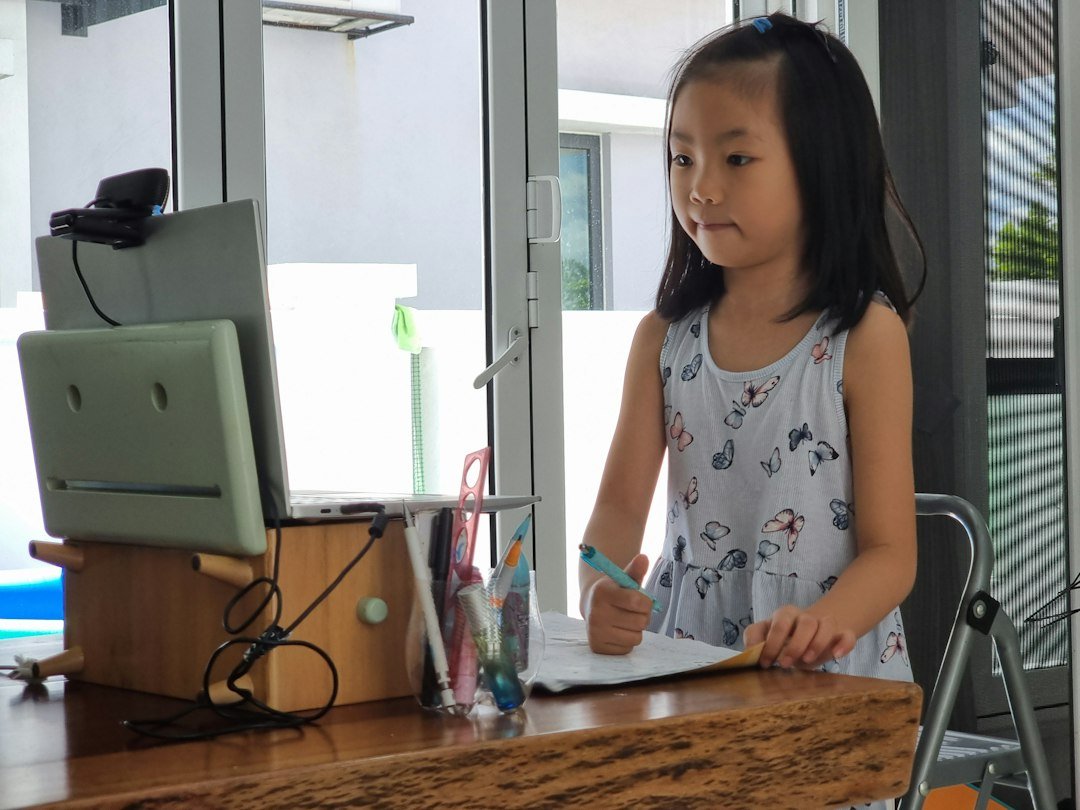
Running a cps test for kids is a simple way to see how quickly a child can click a mouse, trackpad, or touchscreen and to track progress over time.
Try it now: use our free CPS test right in your browser, no download or sign-up needed.
Key Takeaways
- Our free browser‑based CPS test measures clicks for 1, 5, 10, 30 or 60 seconds.
- Typical ranges for children vary by age and device.
- Practice should be short, fun, and balanced with other activities.
- Use the test before any other app – it needs no download.
- Monitor for fatigue and encourage good hand posture.

Why Use a CPS Test for Kids?
Parents and teachers often wonder if a child’s clicking speed matters. The main reasons are:
- Baseline measurement: Knowing the current speed helps set realistic goals.
- Game performance: Many kids play click‑intensive games; a higher CPS can make those games more enjoyable.
- Motor skill development: Fast, accurate clicking reflects hand‑eye coordination.
All of these can be observed with a quick online test. The free CPS test runs directly in the browser, so you can start without installing anything.
How to Run a CPS Test for Kids
- Open the CPS test page on a computer or tablet.
- Select the desired time interval – 5 seconds works well for younger children.
- Explain the goal: click as fast as possible on the target area.
- Press “Start” and let the child click for the chosen duration.
- When the timer stops, note the clicks‑per‑second result.
Repeat the test a few times and record the highest score. This simple routine takes less than a minute.
Typical CPS Ranges for Different Ages
There is no universal standard, but community data shows the following approximate ranges:
- 5‑7 years: 1–3 CPS
- 8‑10 years: 2–5 CPS
- 11‑13 years: 3–7 CPS
- 14‑16 years: 4–9 CPS
These numbers overlap because device type (mouse vs. trackpad) and individual interest affect performance. Use them as a guide, not a strict rule.
Choosing the Right Device
Kids may use a mouse, a laptop trackpad, or a touchscreen. Each has pros and cons:
| Device | Pros | Cons |
|---|---|---|
| Mouse | Precise control, easy to click rapidly | Requires a flat surface |
| Trackpad | Built‑in on laptops, portable | Often slower due to larger finger movement |
| Touchscreen | Intuitive for younger kids | Finger fatigue can appear quickly |
Start with the device the child is most comfortable with, then experiment to see if another device yields a higher CPS.
Safe Practice Guidelines
Clicking fast can be fun, but safety matters:
- Limit sessions to 5 minutes total per day.
- Take a 30‑second break after each test.
- Encourage a relaxed grip; avoid squeezing the mouse.
- Watch for signs of strain – redness, tingling, or soreness.
If any discomfort persists, pause the activity and consult a pediatric occupational therapist.
Simple Drills to Improve CPS
Improvement comes from short, enjoyable drills rather than long, repetitive clicking. Try these:
- Tap‑and‑Release: Click, release, and click again as quickly as possible for 10 seconds.
- Rhythm Click: Use a metronome set to 2 beats per second and try to match or exceed it.
- Target Switching: Place two small targets on the screen and alternate clicks between them.
Record the score after each drill with the CPS test to see incremental gains.
When to Use Alternative Tools
If you need a different interface, other free online testers are available after you’ve tried our tool. For example, Arealme’s click speed test offers a similar browser experience, and RapidTables provides a minimalistic layout. Use them only as secondary options.

Integrating CPS Testing into Learning Activities
Teachers can turn CPS testing into a classroom activity:
- Start the lesson with a 5‑second test to warm up.
- Link the results to a math exercise – calculate average CPS for the class.
- Reward consistent practice with stickers or digital badges.
Such integration keeps the activity educational and prevents it from becoming a mindless competition.
Common Mistakes to Avoid
- Over‑testing: Running the test many times in a row can cause fatigue and skew results.
- Focusing only on speed: Accuracy matters; clicking too hard can lead to missed clicks.
- Ignoring ergonomics: Poor posture can cause long‑term strain.
Next Steps After the First Test
Once you have a baseline, set a realistic goal – for example, improve by 0.5 CPS over two weeks. Use the drills above, track progress weekly, and celebrate small gains. If the child shows interest, you can explore related skills like mouse precision or reaction‑time games.
Designing Age‑Appropriate CPS Challenges
Not every click‑speed test works the same for a five‑year‑old and a twelve‑year‑old. Tailor the challenge to the child’s developmental stage to keep it fun and meaningful.
1. Choose a visual theme that matches interests
- Young children (5‑7): bright cartoon characters, animal sounds, or simple shapes that light up when clicked.
- Pre‑teens (8‑12): game‑like targets such as space ships, sports balls, or puzzle pieces that disappear after a set number of clicks.
When the visual cue is engaging, children are more likely to stay focused and give an accurate measure of their natural click speed.
2. Adjust the test duration
Shorter intervals prevent fatigue and keep the activity feeling like a game.
- 5‑second sprint: good for ages 5‑6; it captures the initial burst of speed without tiring the hand.
- 10‑second sprint: works well for ages 7‑9; it balances speed with a tiny endurance component.
- 15‑second sprint: suitable for ages 10‑12; older kids can maintain a steady rhythm and see improvement over multiple attempts.
3. Use a single‑button versus multi‑button setup
Most CPS tests for kids rely on a single mouse button or screen tap. However, introducing a two‑button version can help older children develop hand coordination.
- Single‑button: simple to understand; ideal for beginners.
- Alternating‑button: ask the child to click left then right repeatedly. This adds a coordination challenge and can reveal differences in bilateral dexterity.
Step‑by‑step example: Building a custom test in a spreadsheet
- Open a new Google Sheet and label columns Time (s) and Clicks.
- Insert a simple macro that records a mouse click and timestamps it (Google Apps Script can capture
onEditevents tied to a hidden cell). - Set a timer using
Utilities.sleep(10000)for a 10‑second test. - After the timer stops, calculate clicks per second by dividing the total clicks by 10.
- Display the result in a colored cell: green for >3 CPS, yellow for 2‑3 CPS, red for <2 CPS (adjust thresholds based on age).
This DIY approach gives parents and teachers full control over visual design, duration, and feedback style.
Tracking Progress Over Time: A Simple CPS Logbook
One test tells you a snapshot; a logbook reveals trends. Keeping a consistent record helps children see improvement, stay motivated, and understand that skill development is incremental.
What to record each session
- Date and time: note the day of the week; children often perform differently on weekdays vs. weekends.
- Device used: mouse, trackpad, or touchscreen. Different devices produce slightly different scores.
- Test parameters: duration, single‑ or alternating‑button, and any visual theme.
- Raw CPS score: the number of clicks divided by seconds.
- Subjective rating: a quick “how fun was it?” 1‑5 star rating can correlate enjoyment with performance.
Sample log entry
Date: 2026‑09‑20
Device: Bluetooth mouse
Test: 10‑second single‑button, cartoon stars
Score: 2.8 CPS
Fun rating: ★★★★
Notes: Slight wrist fatigue after second attempt.
Analyzing the data
After four weeks of weekly testing, plot the CPS scores on a simple line chart. Look for:
- Upward trend: indicates genuine skill gains.
- Plateau: may suggest the child needs a new challenge or a rest day.
- Sudden drop: could be due to a different device or fatigue; investigate the notes column.
When to adjust the difficulty
If the line stays flat for three consecutive sessions, consider:
- Increasing test duration by 5 seconds.
- Switching from single‑button to alternating‑button mode.
- Adding a small reward system (e.g., stickers for each 0.2 CPS increase).
Integrating the logbook into a classroom routine
Teachers can allocate a 5‑minute slot every Friday for a quick CPS run. Students fill out a printed log sheet, and the class collectively reviews the chart at the end of the month. This encourages peer support and normalizes the idea of tracking improvement.
Tips for maintaining consistency
- Same time of day: children’s motor skills can vary with energy levels.
- Consistent posture: sit with feet flat, elbows at a comfortable angle, and the mouse at elbow height.
- Limit distractions: turn off background TV or music that might pull focus away from the test.
By treating CPS testing as a regular, low‑pressure activity, you turn a simple metric into a tool for building confidence and fine‑motor awareness.
Creating a Fun CPS Challenge Game
Turning a CPS test into a game keeps kids motivated and turns practice into play. Here’s a quick way to set up a challenge that works with any tablet or computer.
Step‑by‑Step Setup
- Choose a simple, free click‑timer website or install a lightweight app.
- Set a timer for 10 seconds – the classic interval for most CPS tests.
- Give each child a colorful timer sticker or a small reward token to place on the screen when they start.
- After the timer ends, record the click count on a shared chart.
- Repeat three times and let the child pick their best score.
Adding Game Elements
To make the activity feel like a game, consider these tweaks:
- Score multipliers: Award extra points for consistency (e.g., if all three attempts are within 5 clicks of each other).
- Team play: Pair kids and let them take turns; the team with the highest combined total wins.
- Progress badges: Create simple paper badges for milestones such as “100 clicks in 10 seconds” or “Three perfect runs.”
These elements keep the focus on improvement rather than raw speed, which is important for younger users.
Balancing Speed and Accuracy
Kids often think faster always means better, but sloppy clicking can lead to inaccurate scores and frustration. Teaching a balance early helps develop fine‑motor control.
Why Accuracy Matters
- Mis‑clicks are not counted, so an erratic rhythm can lower the final CPS.
- Consistent hand placement reduces strain on small wrists.
Practical Tips for Maintaining Accuracy
- Use a fingertip, not the whole hand: Encourage children to rest the palm lightly on the device and tap with the index finger.
- Maintain a steady rhythm: Have them count silently “one‑two‑three…” to keep beats even.
- Take micro‑breaks: After 10‑15 seconds of rapid tapping, pause for a few seconds to reset hand position.
When a child notices a drop in their score, ask them to reflect on whether they were “rushing” or “missing clicks,” and guide them to adjust.
Comparing Physical vs. Digital CPS Tools
Not all CPS tests need a screen. Some educators prefer tactile tools that mimic real‑world clicking. Below is a quick comparison to help you choose the best fit for your classroom or home setting.
| Feature | Physical Clicker (e.g., button device) | Digital App/Website |
|---|---|---|
| Portability | Very portable – fits in a pocket | Requires a device with internet or an app installed |
| Setup Time | Minimal – just turn on | May need browser loading or app launch |
| Data Recording | Manual – write down scores | Automatic logging, often with graphs |
| Engagement | Hands‑on, good for kinesthetic learners | Visual feedback and sound effects can boost excitement |
| Cost | Low – inexpensive button kits | Often free or low‑cost digital options |
Choose a physical clicker for short, low‑tech sessions, and switch to a digital tool when you want automatic tracking and easy sharing of results. Either way, keep the focus on fun practice rather than competition.
FAQ
How often should kids take a CPS test?
Two to three times per week is enough to monitor progress without causing fatigue.
Is a higher CPS always better for gaming?
Higher speed can help in click‑intensive games, but strategy and accuracy are equally important.
Can a child improve CPS without a mouse?
Yes. Practice on a trackpad or touchscreen can still build hand‑eye coordination, though the maximum speed may be lower.