
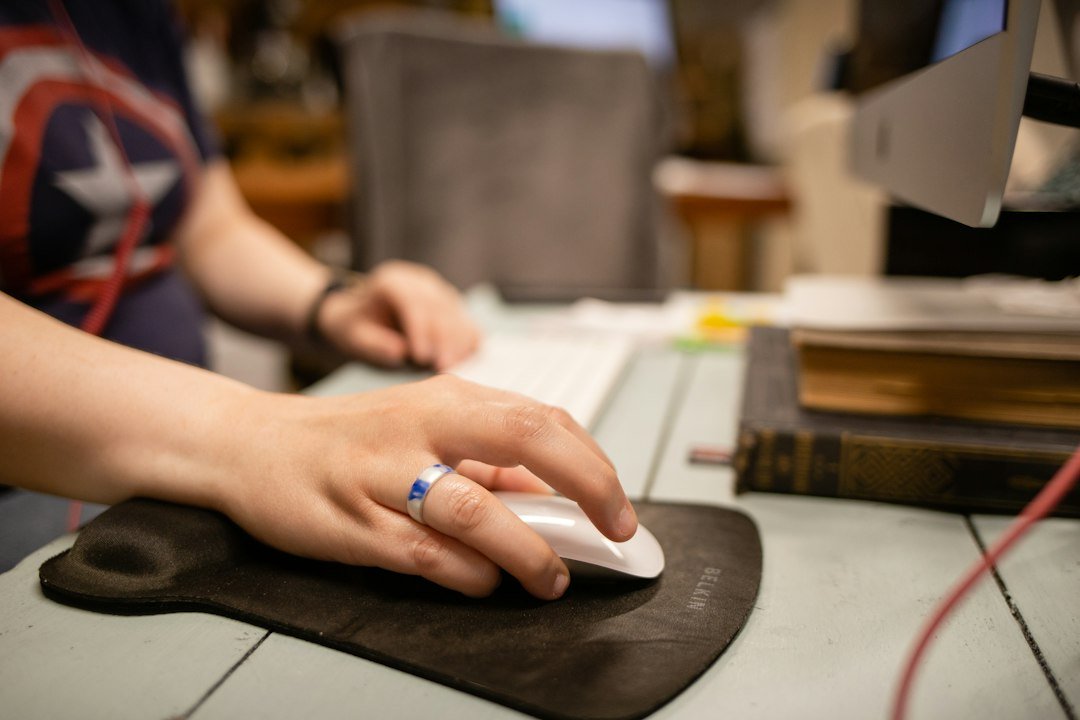
How many clicks per second is normal depends on the device you use, your hand coordination, and how much you practice. For most casual users the range falls between 4 and 8 CPS, while dedicated gamers often reach 10‑12 CPS and elite speed‑clickers push beyond 15 CPS.
Try it now: use our free CPS test right in your browser, no download or sign-up needed.
Key Takeaways
- Typical casual range: 4‑8 CPS.
- Gaming‑focused range: 9‑12 CPS.
- Professional speed‑clickers can exceed 15 CPS.
- Age, hand size, and device type all affect your baseline.
- Use a free online CPS test to get an accurate reading.

Understanding the Normal CPS Range
When you first ask yourself “how many clicks per second is normal,” the answer is not a single number but a spectrum. Studies of general computer users show an average click speed of about 5‑6 CPS, while gamers who train specifically for click‑intensive titles often settle around 9‑12 CPS. This aligns with data from popular click‑speed guides that label 5‑7 CPS as “good for everyday tasks” and 10+ CPS as “competitive level.”
If you want a quick, reliable measurement, try the CPS test. It runs in the browser, requires no sign‑up, and lets you test for 1, 5, 10, 30, or 60 seconds, or set a custom duration.
Factors That Influence Your Click Speed
Several personal and technical factors shape what is normal for you:
- Age and motor skills: Younger users typically have faster reflexes, while older adults may see a gradual decline.
- Device type: Mechanical mice often produce higher CPS than laptop trackpads or touchscreens.
- Hand size and grip: A comfortable grip reduces fatigue and allows quicker repetitions.
- Practice method: Techniques like jitter clicking, butterfly clicking, or drag clicking can boost numbers but require training.
- Game or task context: Some games limit effective CPS to 10‑12 due to in‑game mechanics.
How to Measure Your CPS Accurately
Accurate measurement is essential before you decide whether your speed is normal. Follow these steps:
- Open the free CPS test in a modern browser.
- Choose a test length that matches your typical use – 30 seconds works well for most gamers.
- Place your hand in a comfortable position and click as you normally would.
- Record the result and repeat twice to get an average.
- Compare the average to the ranges listed above.
For a deeper dive into click‑speed testing, the Click Speed Test site also offers a simple timer, but our own tool eliminates the need for additional downloads.
Common Misconceptions About CPS
Many people think that higher CPS always means better performance, but that’s not always true. In fast‑paced shooters, consistency matters more than raw speed. Also, some click‑boosting methods can cause strain or even injury if overused.
Another myth is that laptops are inherently slower. While trackpads usually yield lower CPS, a high‑quality mouse can bring a laptop’s performance in line with desktop setups.
Improving Your Click Speed Safely
If your current CPS falls below the typical range for your goals, consider these practical steps:
- Grip adjustment: Try a palm or claw grip to reduce finger travel.
- Strength training: Simple finger‑strength exercises (e.g., squeezing a stress ball) can help.
- Technique practice: Learn jitter or butterfly clicking with short, focused sessions.
- Device upgrade: A low‑latency, lightweight mouse often yields a noticeable bump.
- Breaks and ergonomics: Take a 5‑minute break every 20 minutes to avoid fatigue.
When to Seek Professional Advice
If you experience pain, numbness, or persistent fatigue while clicking, consult a medical professional. Repetitive‑strain injuries are real, and early intervention can prevent long‑term issues.
Comparing CPS Across Popular Platforms
Below is a quick comparison of typical CPS ranges you might see on different platforms. These numbers are based on community reports and the external guides cited earlier.
| Platform | Typical Casual CPS | Competitive CPS |
|---|---|---|
| Desktop mouse | 5‑8 | 10‑14 |
| Laptop trackpad | 3‑5 | 7‑9 |
| Touchscreen | 4‑6 | 8‑11 |
For a deeper look at why trackpads lag behind mice, see our article on trackpad vs mouse CPS differences.

Tools and Resources for Faster Clicking
Beyond the free CPS test, several resources can help you refine your technique. The How to Click Faster on a Mouse guide walks through grip adjustments and practice drills. If you’re curious about the limits of human clicking, the World Record for Clicks per Second page showcases the fastest recorded speeds.
For Minecraft players, specific CPS benchmarks matter. The average CPS of pro Minecraft players article breaks down what top PvP competitors achieve, while the Is 8 CPS Good for Minecraft PvP? post explains why that number is often a practical target.
Decision Checklist: Is Your CPS Normal?
Use this quick checklist to decide if you’re within a normal range for your needs:
- Did your average CPS fall between 4‑8 on a casual test? → Yes = Normal for everyday tasks.
- Are you playing a fast‑paced competitive game? → Target 9‑12 CPS.
- Do you experience hand pain after testing? → Reduce frequency and seek advice.
- Is your device a mouse rather than a trackpad? → Expect higher numbers.
- Have you practiced a specific clicking technique? → Compare technique‑specific benchmarks.
Next Steps After Measuring Your CPS
Once you know where you stand, consider these actions:
- Log your CPS weekly to track improvement.
- Experiment with one new technique at a time.
- Upgrade to a mouse with a high polling rate (1000 Hz) if you’re serious about competitive play.
- Maintain ergonomic posture to protect your hands.
Real‑World Scenarios: How CPS Affects Different Activities
Gaming – fast‑paced shooters and click‑intensive titles
In games that require rapid firing or building, such as arena shooters or sandbox builders, a CPS of 6‑9 is often enough to stay competitive. Players who regularly exceed 10 CPS may notice a smoother experience, but the advantage tapers off because the game itself limits the maximum rate of fire.
- Typical need: 6‑9 CPS for most matches.
- When higher helps: Speed‑run challenges, custom maps with no fire‑rate caps.
- Potential downside: Excessive clicking can cause hand fatigue and reduce accuracy.
Productivity – double‑clicking and drag‑clicking tasks
For everyday computer work, the speed of double‑clicking to open files or drag‑selecting items rarely exceeds 4‑5 CPS. If you find yourself needing to double‑click faster than that, it may indicate a habit that could strain your hand over time.
- Typical need: 2‑4 CPS for normal desktop navigation.
- When higher helps: Data entry or graphic‑design shortcuts that rely on rapid repeated clicks.
- Potential downside: Faster clicks can increase the chance of mis‑clicks, slowing you down.
Accessibility – users with motor‑control challenges
People who use adaptive devices often have a lower natural CPS, sometimes below 2. Software that allows click‑rate customization can help them achieve the same functional speed as a typical user without requiring physical strain.
- Typical need: 1‑2 CPS with assistive tools.
- When higher helps: When the software supports auto‑repeat or macro features.
- Potential downside: Relying on macros may violate terms of service in some online games.
Step‑by‑Step Guide to Building a Safe Click‑Training Routine
1. Establish a Baseline
Use a reliable CPS tester to record your current average over three 10‑second intervals. Write the numbers down; this will be your reference point.
2. Set Incremental Goals
Increase your target CPS by no more than 0.5–1 click per second each week. Small, consistent gains reduce the risk of tendon strain.
3. Warm‑Up Properly
Before each session, spend 2‑3 minutes rotating your wrists, stretching your fingers, and doing light hand squeezes. This prepares the muscles and improves blood flow.
4. Practice with Structured Drills
- Timed bursts: Click as fast as possible for 5 seconds, then rest for 20 seconds. Repeat 5 times.
- Steady‑state clicks:
- Maintain a target CPS (e.g., your baseline + 0.5) for 30 seconds, focusing on smooth motion.
- Alternating hands: Switch hands every minute to balance load.
5. Cool‑Down and Stretch
After the session, gently stretch each finger back toward the forearm and shake out the hand for 30 seconds. This helps dissipate any built‑up tension.
6. Track Progress and Adjust
Record your post‑session CPS and note any discomfort. If pain appears, reduce the intensity or take a rest day. Consistency beats intensity for long‑term improvement.
Common Mistakes to Avoid When Trying to Increase Your CPS
Relying on Unverified “Click‑Boost” Software
Third‑party programs that claim to automate clicking often violate the terms of service of many platforms and can introduce malware. They also give a false sense of progress because the improvement isn’t coming from your own skill.
Skipping Rest Days
Muscles and tendons need recovery time. Training every day without a break can lead to repetitive‑strain injuries, which may force you to stop clicking altogether.
Using Excessive Grip Strength
Pressing the mouse button with maximum force doesn’t increase speed; it actually slows the rebound of the click mechanism. Aim for a light, rapid tap rather than a hard press.
Neglecting Ergonomic Setup
A mouse that’s too heavy or a desk height that forces you to lift your wrist can limit your natural click rate. Choose a mouse with a low actuation force and keep your forearm relaxed.
Focusing Solely on Speed Over Accuracy
In many contexts – especially gaming – accuracy matters more than raw CPS. Practicing precise clicks at a moderate speed builds muscle memory that later translates into faster, more reliable performance.
FAQ
What is the average CPS for most computer users?
Most casual users hover around 5‑6 CPS, which is sufficient for everyday browsing and office work.
Can I improve my CPS without risking injury?
Yes, by practicing short sessions, using proper ergonomics, and incorporating finger‑strength exercises you can boost speed safely.
Do touchscreens affect CPS results?
Touchscreens usually produce slightly lower CPS than a mouse because the contact surface is larger, but skilled users can still reach 8‑11 CPS.