
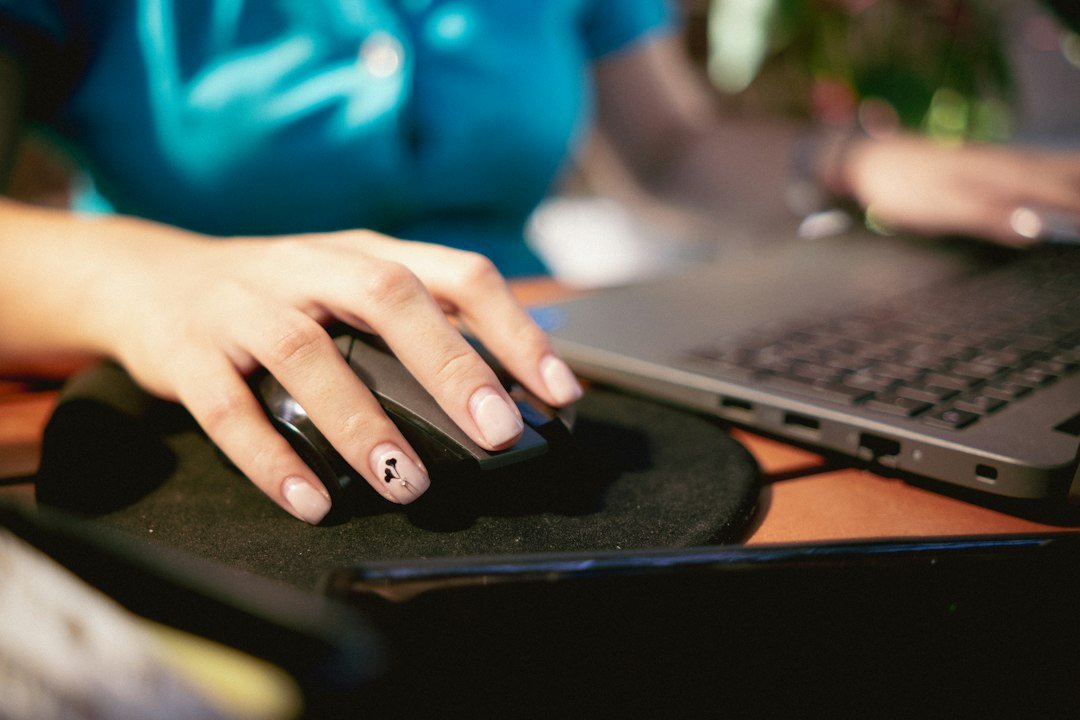
How fast can you click is a question many gamers, programmers, and office workers ask when they want to gauge their reflexes or improve performance. The answer depends on your equipment, technique, and practice, but you can measure it precisely with a simple online test and then work on specific drills to raise your clicks per second (CPS).
Key Takeaways
- Click speed is measured in clicks per second (CPS) or clicks per minute (CPM).
- Typical human limits range from 5 CPS for casual users up to 15 CPS for trained fast clickers.
- Online tools like the 5‑Second CPS Test give a quick baseline.
- Improving CPS involves ergonomics, hand warm‑up, and specific clicking methods.
- Consistent practice and tracking prevent injury and yield steady gains.

Understanding Click Speed Metrics
When you ask “how fast can you click,” the most common metric is clicks per second (CPS). Some sites also display clicks per minute (CPM), which is simply CPS multiplied by 60. CPS gives a real‑time sense of how quickly you can register individual clicks, while CPM is useful for longer sessions such as typing tests.
Human CPS varies widely. Untrained users often stay below 5 CPS, whereas competitive gamers and speed‑click enthusiasts can regularly hit 10‑12 CPS. A handful of world‑record holders have demonstrated bursts of 15 CPS or more, but sustaining that level is rare and can strain the hand.
How to Measure Your Click Speed Accurately
Several free online tools let you see exactly how fast you can click. The simplest is the 5 Second CPS Test, which counts clicks in a five‑second window and shows your CPS instantly.
For a more detailed view, the CPS Test – Check Clicks per Second records each click’s timestamp, allowing you to spot fluctuations during a longer test (e.g., 30 seconds). Both tools work with mouse clicks and space‑bar taps, so you can compare hand and finger performance.
When you run a test, follow these steps:
- Close background programs that might lag your browser.
- Place your hand in a comfortable position, wrist straight.
- Start the test and click as fast as you can for the full duration.
- Record the CPS shown and repeat three times; use the average as your baseline.
Consistency matters more than a single high score, because it reflects sustainable speed rather than a brief adrenaline spike.
Common Clicking Techniques
Different techniques produce different CPS ranges. Here are the most popular methods and their typical results:
- Single‑finger tapping: Use the index finger to tap rapidly. This is the most natural method and yields 5‑8 CPS for most people.
- Jelly‑roll (or butterfly) clicking: Two fingers alternate on the same button, creating a “roll” motion. Skilled users often reach 10‑12 CPS.
- Drag clicking: Drag the mouse across a surface to generate multiple clicks from a single motion. This can produce 15 CPS or higher but may wear out mouse switches faster.
- Butterfly clicking: Similar to jelly‑roll but with both index and middle fingers striking simultaneously, useful for short bursts in competitive games.
Choose a technique that feels comfortable and does not cause pain. If you experience numbness or soreness, stop and reassess your ergonomics.
Ergonomic Setup for Faster Clicking
Even the fastest technique will suffer if your workstation is poorly arranged. Follow this checklist to create a click‑friendly environment:
- Mouse height: Keep the mouse at elbow level to avoid shoulder strain.
- Grip style: A palm grip offers stability; a fingertip grip allows quicker finger movement.
- Surface: Use a mouse pad with low friction for drag clicking, but ensure it’s not too slick for regular clicking.
- Hand warm‑up: Warm hands with a quick shake or a few stretches before testing.
These adjustments can add 0.5‑1 CPS simply by reducing resistance and fatigue.
Training Your Click Speed
Improvement follows the same principle as any motor skill: deliberate practice, feedback, and progressive overload. Below is a simple weekly plan:
- Day 1 – Baseline test: Record your CPS with the 5‑second test.
- Day 2‑4 – Short bursts: Perform three 10‑second drag‑click sessions, resting 30 seconds between sets.
- Day 5 – Endurance: Click continuously for 60 seconds, aiming for a steady CPS rather than a peak.
- Day 6 – Technique focus: Practice jelly‑roll for 5 minutes, counting successful alternations.
- Day 7 – Rest: Allow muscles to recover to prevent tendonitis.
Track your scores in a simple spreadsheet; note the technique, duration, and any discomfort. Over weeks you should see a gradual rise of 0.2‑0.5 CPS per month.
When Click Speed Matters
Understanding how fast can you click helps in specific contexts:
- Competitive gaming: Games like Minecraft PvP or Fortnite rely on rapid firing; higher CPS can translate to more shots per second.
- Data entry: Professionals who repeatedly press the spacebar or enter key benefit from a smoother rhythm.
- Software testing: Automated click tests mimic user behavior; knowing your manual CPS sets realistic expectations.
If your work does not involve high‑frequency clicking, focus on accuracy and ergonomics instead of raw speed.
Potential Risks and How to Avoid Them
Chasing higher CPS without proper care can lead to repetitive‑strain injuries (RSI). Warning signs include tingling, persistent pain, or reduced grip strength. If any of these appear, stop the training and consult a medical professional.
To minimize risk:
- Take a 5‑minute break after every 10 minutes of intensive clicking.
- Stretch fingers, wrists, and forearms regularly.
- Use a mouse with a high‑quality switch rated for millions of clicks.
Balancing speed with health ensures long‑term improvement.
Tools and Resources for Ongoing Tracking
Beyond the basic CPS tests, you can integrate click tracking into daily routines. The Spacebar Clicks in 5 Seconds Test lets you compare finger versus thumb performance. For mouse‑specific data, the Mouse DPI and Clicking Test shows how DPI settings affect click timing.
Combine these tools with a simple habit‑tracker app to log each session. Over time the data will reveal patterns – such as which days you click faster or which technique yields the most consistent results.

Alternative Ways to Measure Reaction Speed
Click speed is one side of the reflex equation; reaction time is the other. Understanding both gives a fuller picture of your overall responsiveness. The Reaction Time Definition article explains how to measure the time between a visual cue and your first click. Pairing reaction time results with CPS data can help you identify whether you need to work on speed, timing, or both.
Applying Click Speed to Competitive Gaming
If you play fast‑paced games such as first‑person shooters, real‑time strategy titles, or rhythm games, your click speed can directly affect your performance. The goal isn’t just raw clicks per second; it’s translating those clicks into meaningful in‑game actions.
Step‑by‑step integration
- Identify the in‑game action that benefits most from rapid clicking. In many shooters this is firing rate; in strategy games it might be unit selection or building placement.
- Map the action to a single mouse button. Avoid using multiple buttons for the same task, as it adds cognitive load and slows response.
- Practice with a custom macro‑free training map. Many games include a practice arena where you can repeatedly perform the action without opponents.
- Measure your clicks per second (CPS) in‑game. Use the measurement method described earlier in the article, but pause the game to avoid skew from lag.
- Set a target CPS that matches the game’s optimal rate. For example, a popular shooter may have a practical ceiling of 12 CPS due to weapon fire‑rate limits.
- Iterate. After each gaming session, note any drops in CPS and adjust your hand position or grip accordingly.
Common mistakes to avoid
- Relying on double‑clicking instead of rapid single clicks; double‑clicking introduces a delay that can cost milliseconds.
- Using software macros that automate clicking. While they can boost numbers, most competitive platforms consider them cheating.
- Neglecting mouse DPI settings. A DPI that is too high can make precise aiming difficult, forcing you to slow down.
Using Click Speed Data for Productivity Tasks
Beyond gaming, click speed can influence everyday computer work, especially in roles that involve repetitive clicking such as data entry, graphic design, or digital art.
Identify high‑click tasks
Make a short list of tasks where you click repeatedly: selecting cells in a spreadsheet, placing objects in a design program, or approving items in a workflow system.
Apply a simple productivity framework
- Baseline measurement. Record your CPS during a typical work session using a free online click counter.
- Set a realistic improvement goal. A 10‑15 % increase is often enough to notice a time saving without risking strain.
- Introduce micro‑adjustments. Experiment with grip changes, mouse weight, or a slightly higher polling rate (e.g., 1000 Hz) and re‑measure.
- Iterate or revert. If the changes lead to fatigue, revert to the previous setup.
li>Track time saved. After a week, compare the number of clicks performed and the total time spent on the task.
Practical tips
- Use keyboard shortcuts where possible; they reduce click reliance entirely.
- Enable “click‑and‑drag” selection modes that let you select multiple items with a single drag motion.
- Consider a programmable mouse with a dedicated macro button for repetitive actions, but keep the macro simple (e.g., a single double‑click) to stay within policy guidelines.
Benchmarking Your Click Speed Against Community Standards
Understanding where you stand helps keep motivation high and prevents over‑training. Community benchmarks are often shared on gaming forums, speed‑clicking subreddits, and hobbyist websites.
How to find reliable benchmarks
- Look for threads that include raw CPS numbers measured with the same method you use (e.g., a 10‑second click test).
- Prefer sources that provide a range (minimum, average, maximum) rather than a single figure.
- Check the date of the post; click‑speed techniques evolve, so newer data is more relevant.
Interpreting the numbers
Typical casual users often fall between 4 CPS and 7 CPS. Enthusiasts who practice regularly may reach 9 CPS to 12 CPS. Professional gamers in certain titles can sustain 12 CPS to 15 CPS during short bursts. If your numbers are below the casual range, focus first on ergonomics and basic technique before chasing speed.
Creating a personal benchmark table
| Category | Typical CPS Range | What It Means for You |
|---|---|---|
| Casual user | 4–7 | Adequate for most office work; focus on comfort. |
| Enthusiast | 8–12 | Good for competitive gaming and high‑click tasks. |
| Professional gamer | 12–15+ | Requires dedicated training and optimal hardware. |
Using the benchmark to set goals
- Start with your current average CPS.
- Choose the next category you aim to reach.
- Break the gap into weekly micro‑goals (e.g., increase by 0.5 CPS per week).
- Re‑measure at the end of each week and adjust your training plan.
Remember that speed is only one piece of the performance puzzle; accuracy, consistency, and hand health are equally important.
FAQ
What is a realistic CPS for most people?
For casual users, 4‑6 CPS is typical. With focused practice and a comfortable grip, many reach 9‑12 CPS. Anything above 15 CPS is usually achieved by using specialized techniques like drag clicking.
Can I improve my click speed without a gaming mouse?
Yes. A standard ergonomic mouse works fine for most techniques. The key is consistent practice, proper hand position, and using a surface that allows smooth movement.
Is there a health risk to clicking very fast?
High‑frequency clicking can contribute to RSI if done without breaks or proper ergonomics. Listen to your body, take regular rests, and stop if you feel pain. Consulting a physiotherapist is advisable for persistent symptoms.