
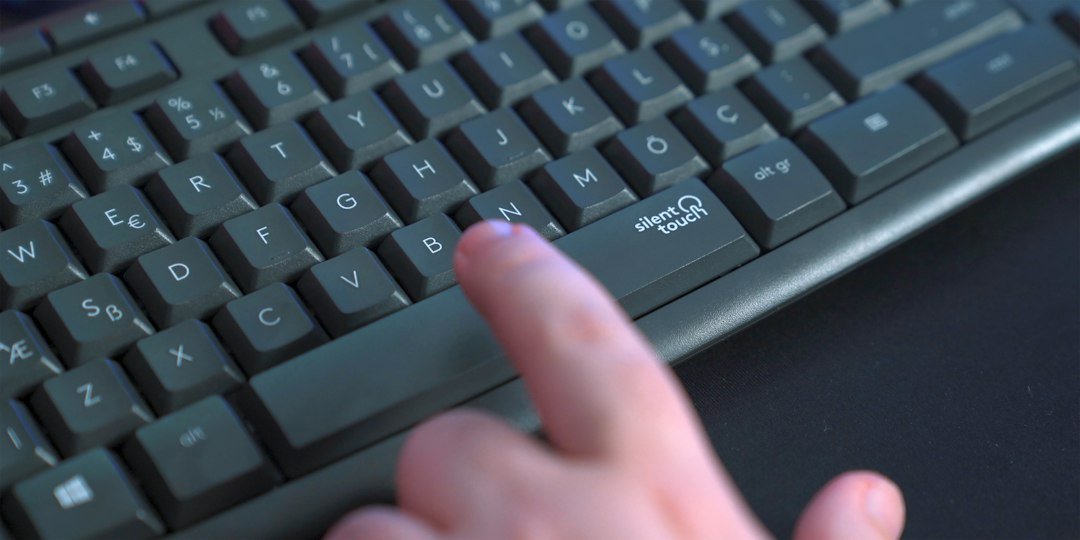
The fastest way to gauge your typing reflexes is to run a spacebar clicks in 5 seconds test – it tells you exactly how many times you can tap the space bar in a short burst. You can start right now with a free spacebar test that runs in your browser, no download required.
Try it now: use our free spacebar test right in your browser, no download or sign-up needed.
Key Takeaways
- Our online spacebar test measures taps in a 5‑second window, free and instant.
- Typical scores range from 15 taps for casual users to 30+ for gamers.
- Improving speed involves hand positioning, finger strength, and practice drills.
- Use the test to track progress over weeks, not just a single attempt.
- Compare your result with other free tools like CPS Test or ClickTests for context.

How the Spacebar Clicks in 5 Seconds Test Works
The test starts a visible countdown, then counts each press of the space bar until the timer hits zero. The final number appears on screen, giving you an immediate CPS (clicks per second) figure. Because the interval is short, the result reflects raw reflex speed rather than endurance.
Our tool is built to be lightweight: it runs entirely in JavaScript, so there is no lag that could affect the count. Simply press the space bar as fast as you can when the timer begins, and watch the tally update in real time.
Why 5 Seconds?
Five seconds is long enough to capture a meaningful burst of speed, yet short enough to keep the test simple. Longer intervals can introduce fatigue, which masks pure reaction time. The 5‑second window is also the standard used by other popular CPS sites, making it easy to compare scores.
Interpreting Your Score
After the test, you’ll see a raw number and a CPS value (taps ÷ 5). Here’s a rough guide:
- 15‑18 taps – average for most office workers.
- 19‑24 taps – typical for casual gamers and frequent typists.
- 25‑30 taps – strong performance, often seen in competitive gamers.
- 31+ taps – elite speed, usually achieved through dedicated practice.
Remember that individual factors such as hand size, keyboard travel, and even the type of key switch can shift these ranges.
Common Mistakes That Lower Your Count
- Starting Too Early – Hitting the space bar before the countdown begins adds extra taps that are discarded, lowering the final count.
- Uneven Rhythm – Pausing mid‑burst reduces average CPS; aim for a steady, rapid rhythm.
- Keyboard Lag – Low‑quality keyboards may have debounce delays that miss rapid presses.
li>Using the Wrong Finger – Most people use the thumb; switching to a finger can feel slower and cause missed taps.
Fixing these issues often yields a 2‑5 tap improvement on the first repeat attempt.
Practical Ways to Improve Your Spacebar Speed
Improvement is a mix of technique and conditioning. Try the following routine three times a week:
- Warm‑up: Lightly tap the space bar for 30 seconds at a comfortable pace.
- Burst Drills: Set a timer for 5 seconds and aim for maximum taps, repeat 5 × with 30‑second rests.
- Finger Strength: Use a small hand‑grip exerciser for 2 minutes to build thumb endurance.
- Keyboard Settings: Reduce key repeat delay in your OS settings to allow faster successive presses.
Track your progress using our test and note any upward trends over weeks.
Tracking Progress Over Time
Consistency is key. Record your score after each session in a simple spreadsheet: date, taps, CPS, and any notes about fatigue or equipment changes. Over a month, you’ll see patterns – perhaps a plateau that indicates you need to adjust your practice routine.
For a deeper dive, read our post on how to track your clicking progress for better CPS. It explains how to visualize trends and set realistic goals.

Comparing Free Online Alternatives
If you want a second opinion, the following sites also offer a 5‑second spacebar counter:
- Spacebar Clicker on CPS Test – counts taps in five seconds, similar interface.
- Spacebar Clicker on ClickTests – provides a visual meter alongside the count.
- Official 5‑Second Spacebar Counter – includes a leaderboard for competitive comparison.
All three are free, browser‑based, and require no sign‑up, just like our own tool. Use them to verify that your browser isn’t introducing a timing bias.
When to Use the Test Beyond Gaming
While gamers often chase high CPS numbers, the test can also help:
- Typing instructors assess students’ finger agility.
- Ergonomic researchers evaluate keyboard layouts.
- Software developers who need to benchmark input latency.
In any professional setting, treat the result as a baseline rather than a definitive skill rating.
Integrating the Test Into Your Routine
Place the test on your desktop or bookmark the page. Before a gaming session, do a quick 5‑second run to warm up your hand. After long typing periods, repeat the test to see if fatigue has impacted speed.
For a broader view of your input performance, you might also run a mouse DPI and clicking test to ensure your mouse and keyboard are both optimized.
Setting Up Your Environment for Accurate Results
Before you start counting spacebar clicks, create a consistent testing environment. Small changes – like keyboard layout, hand position, or background distractions – can shift your score by several clicks.
Choose the right keyboard
- Mechanical vs. membrane: Mechanical switches usually require less actuation force, letting you tap faster. If you have a membrane keyboard, expect a slightly lower count.
- Key travel distance: Shorter travel (e.g., Cherry MX Red) reduces the time your finger spends moving down and up.
- Keycap shape: Flat or low‑profile caps tend to feel smoother for rapid tapping.
Standardize hand placement
Place your dominant hand so the index finger rests lightly on the spacebar. Keep the wrist relaxed and avoid gripping the keyboard. A quick “hand‑reset” before each trial – lifting the finger off the key for a second – helps maintain the same starting point.
Control external variables
- Turn off notifications and mute background music that could cause involuntary pauses.
- Use a flat surface; a sloping desk can tilt the keyboard and affect key travel.
- Test at the same time of day if you plan to track progress, because fatigue levels vary.
By documenting these conditions (keyboard model, hand position, ambient noise level), you create a baseline you can compare future scores against.
Using the Test to Train Reflexes for Competitive Gaming
Many fast‑paced games – first‑person shooters, rhythm titles, and battle‑royales – reward split‑second reactions. The spacebar click test can become a low‑tech reflex drill that translates into better in‑game performance.
Linking clicks to game actions
Identify a game mechanic that relies on a single key press, such as sprinting, reloading, or a quick‑chat macro. Practice the 5‑second click rhythm while visualizing the in‑game action. Over time your brain builds a neural pathway that couples the rapid finger motion with the game response.
Step‑by‑step training routine
- Warm up with a 30‑second hand stretch to avoid strain.
- Run the spacebar test at 70 % of your max effort. Record the count.
- Immediately switch to a short in‑game drill that mirrors the same timing (e.g., sprint for 5 seconds, stop, repeat).
- Return to the test, aiming to beat the previous count by one or two clicks.
- Repeat the cycle three times, then take a 2‑minute break before the next set.
This alternating pattern trains both pure speed and the ability to apply it under game pressure.
Common pitfalls for gamers
- Over‑tapping: Hitting the spacebar faster than the game can register leads to missed inputs. Practice at a tempo the game can handle.
- Neglecting accuracy: Speed without consistent key registration is useless. Verify that each tap registers in the test before assuming it will in‑game.
- Ignoring fatigue: Gaming sessions can last hours; building endurance by gradually extending the test to 10‑second intervals helps prevent burnout.
Integrating the test into your regular warm‑up routine can make reflexes feel more natural, especially when you’re under competitive pressure.
Advanced Variations: Extending the Test and Measuring Consistency
The basic 5‑second version gives a quick snapshot, but deeper insight comes from variations that examine stamina and repeatability.
10‑second and 30‑second extensions
Longer windows reveal whether you can sustain speed or if you experience a rapid drop‑off. Run the test for 10 seconds, note the total clicks, then divide by two to compare with the 5‑second baseline. A similar count suggests good endurance; a sharp decline indicates a need for stamina work.
Consistency drills
Perform three back‑to‑back 5‑second trials with a 15‑second rest between each. Record all three scores and calculate the standard deviation:
SD = sqrt(((x1‑mean)² + (x2‑mean)² + (x3‑mean)²) / 3)
A low deviation (e.g., less than 2 clicks) shows reliable performance, while a high deviation signals inconsistency that may affect competitive scenarios.
Introducing a metronome
Set a metronome to a beat that matches your target click rate (e.g., 12 beats per second for 60 clicks in 5 seconds). Practice syncing each tap to the beat. This trains timing precision and can improve the smoothness of your keystrokes.
Tracking progress with a simple spreadsheet
- Column A: Date
- Column B: Keyboard model
- Column C: 5‑second count
- Column D: 10‑second count (optional)
- Column E: Standard deviation of three trials
- Column F: Notes on fatigue or distractions
Review the sheet weekly. Look for trends – steady increases, plateaus, or sudden drops – and adjust your practice routine accordingly.
When to pause the test
If you feel tingling, numbness, or pain in the fingers or wrist, stop immediately. Repeating the test while injured can lead to long‑term strain. Rest, stretch, and consider ergonomic adjustments before resuming.
FAQ
How many taps are considered a good score?
A good score depends on your baseline. Most casual users hit 15‑18 taps; competitive gamers often exceed 25 taps. Aim for a steady improvement rather than a specific number.
Does keyboard type affect the result?
Yes. Mechanical switches with low actuation force usually register faster taps than membrane keyboards. However, technique can outweigh hardware differences for many users.
Can I use a mobile device for the test?
The test is designed for physical keyboards, so using a virtual on‑screen keyboard on a phone will give lower counts. For accurate results, stick to a desktop or laptop keyboard.