
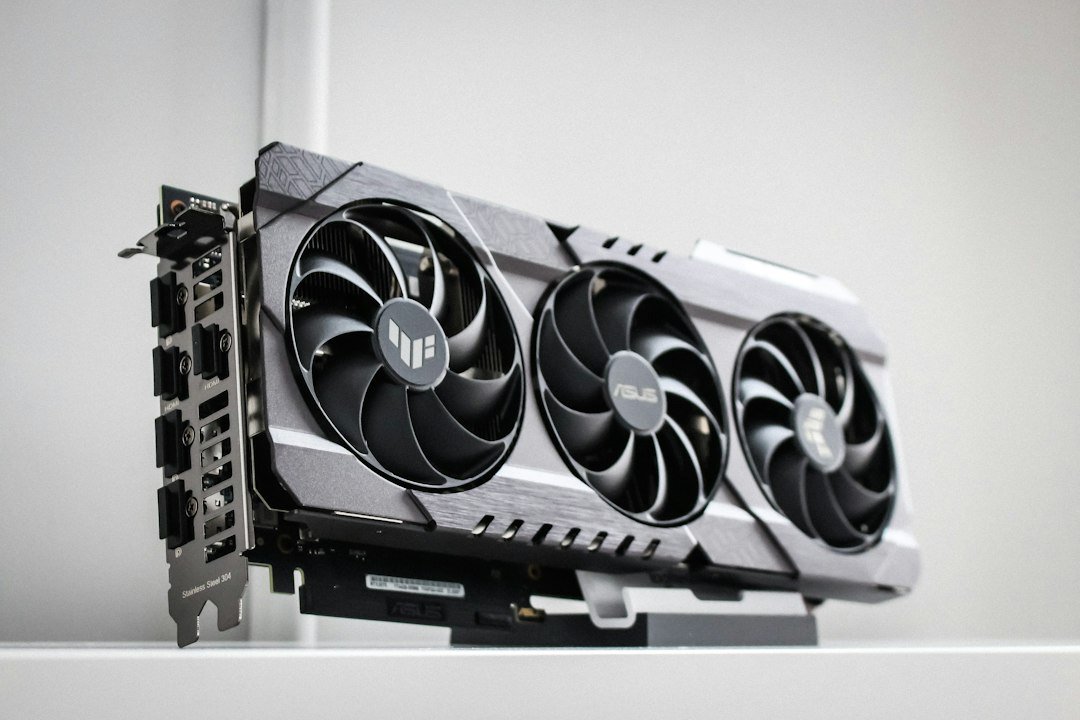
Graphics card repair starts with identifying the symptom, then deciding whether you can fix it yourself or need a professional service.
Key Takeaways
- Most common GPU failures are overheating, faulty VRAM, and power‑stage issues.
- Simple cleaning and reseating can solve up to 40% of problems.
- Professional repair costs range from $50 to $150, depending on the fault.
- Check warranty status before opening the card.
- Choose a reputable service that offers a clear warranty on the repair.

Understanding Common GPU Failures
Before you start any repair, know which failure mode you are dealing with. The most frequent issues are:
- Overheating: Dust buildup, dried thermal paste, or a failing fan.
- VRAM corruption: Bad memory chips or solder cracks.
- Power delivery problems: Damaged MOSFETs, broken capacitors, or a faulty PCIe connector.
- Physical damage: Bent pins, cracked PCB, or impact damage.
Identifying the category narrows down the tools you’ll need and helps you decide if a DIY approach is realistic.
Basic Troubleshooting Checklist
Run through this checklist before opening the card. It often saves time and money.
- Check the display output on another monitor or cable.
- Swap the GPU into a known‑good PCIe slot.
- Boot with integrated graphics only; if the system runs fine, the GPU is likely at fault.
- Listen for unusual fan noises or see if the fan spins at startup.
- Run a stress test like click speed test to confirm the system is otherwise stable.
When DIY Is Worth It
If the problem is overheating or a loose connection, a DIY fix can be quick and inexpensive.
- Cleaning: Use compressed air to remove dust from heatsink fins and fan blades.
- Thermal paste replacement: Remove the old paste with isopropyl alcohol, apply a pea‑sized amount, and reseat the cooler.
- Reseating the card: Power down, unplug, and firmly press the GPU into the slot to ensure proper contact.
These steps usually take under an hour and cost less than $20 in supplies.
When to Seek Professional Repair
Complex issues like VRAM failure, broken solder joints, or power‑stage damage require specialized equipment.
Professional services such as Zapfixers’ GPU repair or the EWEL repair center can re‑ball chips, replace capacitors, and test the card under load. They also typically provide a limited warranty on the work.
Cost Factors to Consider
Repair costs vary based on part prices and labor intensity. Here’s a rough breakdown:
- Cleaning and thermal paste: $10‑$20 (DIY) or $30‑$40 (service).
- VRAM replacement: $50‑$100 for parts plus $30‑$50 labor.
- Power‑stage repair (MOSFETs, capacitors): $70‑$150 total.
- Full board re‑balling: $120‑$200, often the most expensive option.
Always ask for a quote before authorising work. Some shops, like Micro Center’s replacement service, offer flat‑rate pricing for common models.
Warranty and Risk Management
Opening a GPU typically voids the manufacturer’s warranty. Check the warranty status on the card’s serial number first. If the card is still covered, contact the manufacturer’s support before attempting any repair.
Even when a warranty has expired, reputable repair shops will give a short warranty on their work – usually 30 days for functional issues and 90 days for component failure.
Choosing the Right Repair Service
Use this decision checklist to compare providers:
| Criterion | What to Look For |
|---|---|
| Turnaround time | 7‑10 business days is typical; faster may cost more. |
| Warranty on repair | At least 30 days for functionality. |
| Transparency | Detailed quote, itemized parts list, and photos of the damaged board. |
| Reviews | Positive feedback on forums or Google Business listings. |
| Location | Local shops reduce shipping risk; mail‑in services should use insured packaging. |
For example, Zapfixers offers insured shipping and a 90‑day warranty on most repairs, while some budget mail‑in services may lack clear return policies.
Preparing Your Card for Shipping
If you decide on a mail‑in service, pack the GPU carefully to avoid further damage.
- Place the card in an anti‑static bag.
- Wrap it in bubble wrap, covering the PCB and cooler.
- Use a sturdy box with packing peanuts to prevent movement.
- Include a copy of the quote and a brief description of the issue.
- Insure the package for the card’s value.
Post‑Repair Testing and Maintenance
After you receive the repaired card, run these checks before returning to regular use:
- Install the latest driver from the GPU manufacturer’s website.
- Run a stress test (e.g., 3DMark or a game benchmark) for at least 15 minutes.
- Monitor temperatures; they should stay below the card’s rated maximum (usually 85‑90 °C).
- Check for visual artifacts or crashes during the test.
If any issue reappears, contact the repair shop within the warranty window.

Alternative: Replacing the GPU
Sometimes the repair cost approaches the price of a new card, especially for older models. Compare the repair quote to current market prices. If a new GPU offers better performance and efficiency, replacement may be the smarter choice.
Diagnosing Specific GPU Issues with Simple Tests
Before you open the card, run a few low‑effort tests to confirm the problem. This saves time and reduces the chance of opening a perfectly fine unit.
1. Visual artifact check
- Run a demanding game or benchmark (e.g., Shadow of the Tomb Raider or a stress test like FurMark) for 5‑10 minutes.
- Watch for flickering, missing textures, or colored lines that appear consistently.
- If artifacts disappear when you lower the graphics settings, the issue may be memory‑related.
2. Temperature and fan behavior
- Use a monitoring tool (such as HWMonitor) to record idle and load temperatures.
- Temperatures above 85 °C under load suggest inadequate cooling or degraded thermal paste.
- Listen for irregular fan sounds; a grinding or rattling fan often points to a mechanical fault.
3. Power delivery test
- Swap the PCI‑e power connectors with known‑good cables from another component.
- If the card boots after the swap, the original cable or PSU rail may be at fault.
These quick checks let you narrow the culprit to one of three broad categories: firmware, cooling, or power. Knowing the category guides the next steps and prevents unnecessary disassembly.
Step‑by‑Step Repair Workflow for Common Failures
When you’ve identified the failure type, follow a structured workflow. Treat each step as a checklist item; skipping a step often leads to recurring problems.
Step 1 – Gather tools and workspace
- Anti‑static wrist strap and mat.
- Phillips #00 screwdriver, plastic spudger, and a set of tweezers.
- Isopropyl alcohol (90 %+), lint‑free wipes, and a small brush.
- Thermal paste (non‑metallic, ceramic‑based) and a clean surface.
Step 2 – Document the original state
Take photos of the card from multiple angles before you touch anything. Note the position of any screws, shims, or heatsink clips. This documentation speeds up re‑assembly and helps you spot missing parts later.
Step 3 – Remove the cooling assembly
- Unscrew all mounting screws; many modern cards use a “push‑pin” system – press the pins inward to release.
- Gently lift the heatsink; if resistance is felt, double‑check for hidden screws or clips.
- Do not force the PCB; bending can damage traces.
Step 4 – Clean and inspect
- Use the brush and alcohol to remove old thermal paste from the GPU die and memory chips.
- Inspect for bulging or cracked capacitors, burnt resistors, or corrosion on solder joints.
- If you see a capacitor with a dome‑shaped top, replace it; visual inspection is a reliable failure indicator.
Step 5 – Replace faulty components (if applicable)
For solder‑level repairs, you need a fine‑tip soldering iron and a hot‑air rework station. If you are not comfortable with re‑balling BGA chips, consider a professional service for that specific step.
Step 6 – Re‑apply thermal interface material
- Apply a pea‑sized dot of fresh thermal paste to the center of the GPU die.
- Spread it lightly with a plastic spreader, or let the heatsink pressure distribute it evenly during re‑assembly.
Step 7 – Re‑assemble and test
- Re‑attach the heatsink, ensuring all clips are fully engaged.
- Re‑install the card in the system and power on.
- Run the same stress test used in the diagnosis phase; watch for the disappearance of artifacts and stable temperatures.
If the problem persists, revisit the inspection step. Often, a second visual pass reveals a missed solder crack or a loose connector.
Common Mistakes to Avoid During GPU Repair
Even experienced hobbyists fall into traps that can turn a simple fix into a costly mistake. Below are the most frequent errors and how to sidestep them.
Skipping static protection
Electrostatic discharge can instantly fry a GPU’s delicate MOSFETs. Always wear a wrist strap, and touch a grounded metal object before handling the card.
Using the wrong screwdriver size
Oversized tips strip the tiny Phillips heads on modern GPUs. A set of precision screwdrivers (including Torx T6 for some models) prevents stripped screws and saves time.
Re‑using old thermal paste
Old paste hardens and loses conductivity. Even if it looks fine, replace it with fresh paste; the performance gain is noticeable in temperature drop of 3‑5 °C.
Over‑tightening heatsink screws
Screws that are too tight can warp the PCB, leading to micro‑cracks. Tighten to a firm hand‑tight feel; many manufacturers specify a torque of ~0.5 Nm, but a gentle press is sufficient for most cards.
Neglecting BIOS/firmware updates
Some GPU failures stem from buggy firmware. Before opening the card, check the manufacturer’s website for a newer BIOS version. Updating first can save you a disassembly entirely.
Improper component replacement
When swapping capacitors, match both voltage rating and capacitance. Using a lower voltage rating can cause premature failure, while a different capacitance can affect power stability.
Rushing the re‑flow process
If you attempt a re‑flow (heating the board to re‑melt solder) without a temperature‑controlled hot‑air gun, you risk delaminating layers or damaging nearby chips. Use a calibrated tool and follow a gradual temperature ramp (e.g., 150 °C → 220 °C over 30 seconds).
By keeping these pitfalls in mind, you increase the odds that your repair will be successful on the first attempt, saving both time and money.
You can find more guides on this topic and related ones at CPS Test.
FAQ
Can I repair a graphics card that is still under warranty?
Opening the card usually voids the manufacturer’s warranty. Contact the maker first; they may offer a RMA or replacement instead of a repair.
How long does a typical GPU repair take?
Most mail‑in services need 7‑10 business days for diagnosis and repair. Local shops can often finish in 2‑3 days if parts are on hand.
Is it safe to ship a graphics card without insurance?
No. Shipping uninsured risks losing the card if it’s damaged in transit. Insure for the card’s full value to protect your investment.