
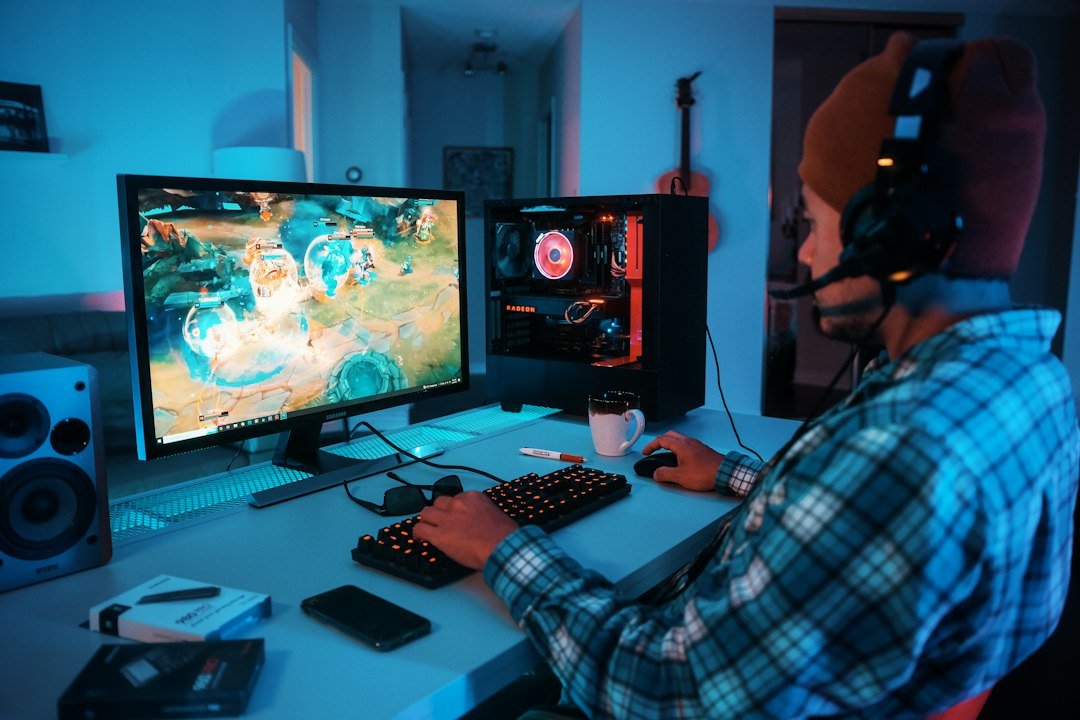
What is latency the delay between an action you take on your device and the response you see on the screen? In online gaming and click‑speed tests, high latency can make you feel sluggish, miss shots, or see lower clicks per second. Below we explain the concept, show how to measure it, and give actionable ways to keep it low.
Try it now: use our free CPS test right in your browser, no download or sign-up needed.
Key Takeaways
- Latency is the time it takes for data to travel between your device and a server.
- Low latency (150 ms hurts gaming and click speed.
- Use the free CPS test to see how click speed changes with different latency levels.
- Improving Wi‑Fi placement, using wired Ethernet, and choosing nearby game servers all reduce latency.
- Regularly check your hardware and software settings to keep latency low.

Understanding Latency: The Basics
Latency, often measured in milliseconds (ms), is the round‑trip time for a packet of data to travel from your computer to a remote server and back. It is not the same as bandwidth, which describes how much data can be transferred per second. Even a fast connection can feel slow if latency is high.
According to IBM, latency can be caused by physical distance, network congestion, and processing delays at each hop. In gaming, each millisecond adds to the time between pressing a button and seeing the result on screen.
Why Latency Matters for Online Gaming
First‑person shooters, real‑time strategy games, and battle‑royale titles all rely on precise timing. When latency exceeds about 100 ms, you may notice:
- Delayed character movement.
- Inaccurate hit registration.
- Rubber‑banding, where your position jumps back and forth.
Competitive players aim for sub‑20 ms ping to keep their actions in sync with the server. Even casual gamers notice a difference between 30 ms and 80 ms when trying to land a headshot.
How Latency Affects Click Speed Tests
Click‑speed tools count how many clicks you can register within a set time. If the tool runs on a remote server, each click must travel to that server and back. Higher latency adds a small delay to every click, lowering the reported clicks per second.
Testing locally (on the same machine) eliminates network latency, showing your true mechanical speed. The free CPS test runs entirely in the browser, so you can compare results with and without an internet connection to see latency’s impact.

Measuring Your Latency
There are three common ways to measure latency:
- Ping command: Open a terminal or command prompt and type
ping example.com. The reply time shows the round‑trip latency. - Online ping tools: Websites provide a quick ping to their own servers. Choose a site that offers servers near your game region.
- In‑game network stats: Most games display ping or latency in the settings menu.
For a deeper view, you can run a traceroute to see each hop’s delay. This helps identify whether the bottleneck is your ISP, a congested router, or the game server itself.
Quick Ways to Reduce Latency Right Now
Try these steps before buying new hardware:
- Switch to wired Ethernet: A cable connection removes Wi‑Fi interference and typically cuts latency by 5‑15 ms.
- Move closer to the router: If you must use Wi‑Fi, reduce distance and avoid obstacles.
- Choose a server nearby: Many games let you select a region; pick the one with the lowest ping.
- Close background apps: Streaming, cloud backups, and large downloads consume bandwidth and can increase latency.
- Update network drivers: Manufacturers often release firmware that improves packet handling.
Hardware Considerations for Low Latency
While software tweaks help, some hardware choices make a noticeable difference:
- Gaming‑grade routers: Features like QoS (Quality of Service) prioritize gaming traffic.
- Network cards with low interrupt latency: Modern NICs handle packets faster than older models.
- Monitors with low input lag: Even if network latency is low, a monitor that adds 10‑20 ms of delay can affect perceived responsiveness.
For more on hardware, see our Graphics Card Repair guide which explains how component health can influence overall performance.
Testing Click Speed Under Different Latency Conditions
To see latency’s effect, run the CPS test on two setups:
- Directly on your computer with no internet connection (offline mode).
- Connected to the internet and pinging a distant server (e.g., a server on the other continent).
Record the clicks per second for each scenario. You’ll typically notice a drop of 5‑15 % when the ping is above 100 ms. This experiment helps you quantify how much latency matters for your specific clicking style.
Long‑Term Strategies for Consistently Low Latency
If you game regularly, consider these longer‑term actions:
- Upgrade to fiber optic internet: Fiber offers lower latency than cable or DSL because of fewer electrical conversions.
- Use a VPN with optimized routing: Some VPNs have servers designed for gaming, reducing hops to the game server.
- Choose an ISP with low peering latency: Research which providers have better routes to the game’s data centers.
- Regularly clean your PC: Dust can cause overheating, leading to throttling that adds processing delay.
When to Seek Professional Help
If you have tried the steps above and still see high ping, the issue may be with your ISP’s infrastructure or a faulty router. Contact your internet provider or a networking professional for a line test. For hardware‑related latency, a technician can check the network card and cabling.
Related Tools and Resources
Beyond our own CPS test, you might explore other utilities that focus on different aspects of performance:
- Key Tester to verify each key’s response time.
- How Fast Can You Click? for deeper click‑speed analysis.
- Reaction Time Definition to understand the broader concept of response delays.
Latency in Different Game Genres: What You Need to Know
Not all games treat latency the same way. Understanding the nuances helps you prioritize fixes based on what you play most.
First‑person shooters (FPS)
In fast‑paced shooters, every millisecond counts. A 50 ms delay can turn a headshot into a miss because your aim registration lags behind your mouse movement.
- Typical tolerance: 20‑30 ms for competitive play.
- Impact: Higher latency makes recoil patterns feel unpredictable.
- Quick fix: Use a wired Ethernet connection and enable game‑specific network optimizations.
Massively multiplayer online (MMO) games
MMOs often involve large, persistent worlds where actions are less time‑critical. Latency still matters, but the tolerance is broader.
- Typical tolerance: 80‑120 ms before you notice lag in combat.
- Impact: Spell casting or skill cooldowns may feel delayed, affecting raid timing.
- Quick fix: Choose servers located in the same region as your ISP and enable client‑side prediction if the game offers it.
Real‑time strategy (RTS) and turn‑based games
RTS titles sit somewhere between FPS and MMO in latency sensitivity. Turn‑based games are the least affected, but network‑based matchmaking can still suffer.
- Typical tolerance: 40‑70 ms for high‑level RTS play.
- Impact: Unit commands may arrive late, causing micro‑management errors.
- Quick fix: Reduce background traffic and, if possible, host games on a dedicated server.
Step‑by‑Step Guide to Diagnose and Fix Latency Spikes
When latency feels erratic, a systematic approach prevents wasted time and helps you pinpoint the real culprit.
1. Capture Baseline Data
Run a ping test to your game server for five minutes while you are idle. Record the average, minimum, and maximum values. This baseline shows what your connection looks like without gameplay load.
2. Isolate the Network Path
Use a traceroute (or tracert on Windows) to the server. Look for hops with sudden latency jumps. If a particular ISP node consistently adds 30 ms or more, you may need to contact your provider.
3. Eliminate Local Interference
- Turn off Wi‑Fi and connect via Ethernet. Wi‑Fi introduces variable latency due to signal interference.
- Close bandwidth‑heavy applications (streaming, cloud backups, large downloads).
- Disable Windows Update or other automatic background services during gaming sessions.
4. Test Game‑Specific Settings
Many games offer a “network buffer” or “tick rate” option. Lowering the buffer reduces perceived lag but may increase packet loss. Experiment by changing the setting in small increments and re‑run the ping test.
5. Verify Hardware Performance
High CPU or GPU usage can delay packet processing. Open your system monitor and ensure CPU usage stays below 70 % during gameplay. If it spikes, consider closing unnecessary background programs or upgrading cooling.
6. Re‑measure After Each Change
After each adjustment, repeat the five‑minute ping test. Compare the new numbers to your baseline. If the max latency drops by at least 10 ms, you’ve made a meaningful improvement.
Common Latency Mistakes and How to Avoid Them
Even experienced gamers fall into traps that sabotage latency performance. Recognizing these pitfalls saves frustration.
Mistake 1: Assuming “Low Ping = Low Lag”
Ping measures round‑trip time, but packet loss and jitter can still cause lag. A stable 30 ms ping with 5 % packet loss feels worse than a fluctuating 50 ms ping with no loss. Use tools that display both ping and packet loss to get the full picture.
Mistake 2: Relying Solely on ISP Speed Claims
Advertised download speeds (e.g., 200 Mbps) don’t guarantee low latency. Latency depends on routing efficiency and network congestion. A slower plan with a direct route to the game server can outperform a faster plan that routes through multiple hops.
Mistake 3: Ignoring QoS Settings
Quality of Service (QoS) can prioritize gaming traffic over other devices. Forgetting to enable or correctly configure QoS means a family member streaming video can push your gaming packets down the queue, raising latency.
Mistake 4: Overlooking Firmware Updates
Routers and network cards receive firmware updates that fix bugs and improve latency handling. Running outdated firmware can cause unnecessary delays. Check the manufacturer’s website quarterly.
Mistake 5: Using Multiple VPNs Simultaneously
VPNs add encryption overhead and extra hops. Stacking a gaming‑focused VPN with a privacy‑oriented VPN doubles the latency impact. Choose one VPN that meets your primary need and stick with it during gameplay.
Quick Checklist to Prevent These Errors
- Monitor both ping and packet loss.
- Test latency on a wired connection before blaming the ISP.
- Enable QoS and set gaming devices as high priority.
- Update router and NIC firmware regularly.
- Use only one VPN and select servers close to the game host.
FAQ
What is a good latency for online gaming?
Most competitive players aim for under 20 ms ping. Casual gaming is still enjoyable up to about 80 ms, but anything above 150 ms can cause noticeable lag.
Does Wi‑Fi always increase latency?
Wi‑Fi can add 5‑30 ms depending on signal strength, interference, and router quality. Switching to Ethernet removes most of that extra delay.
Can I improve my click speed without changing latency?
Yes. Practicing with tools like the free CPS test, using a responsive mouse, and reducing hand fatigue all boost clicks per second independent of network delay.