
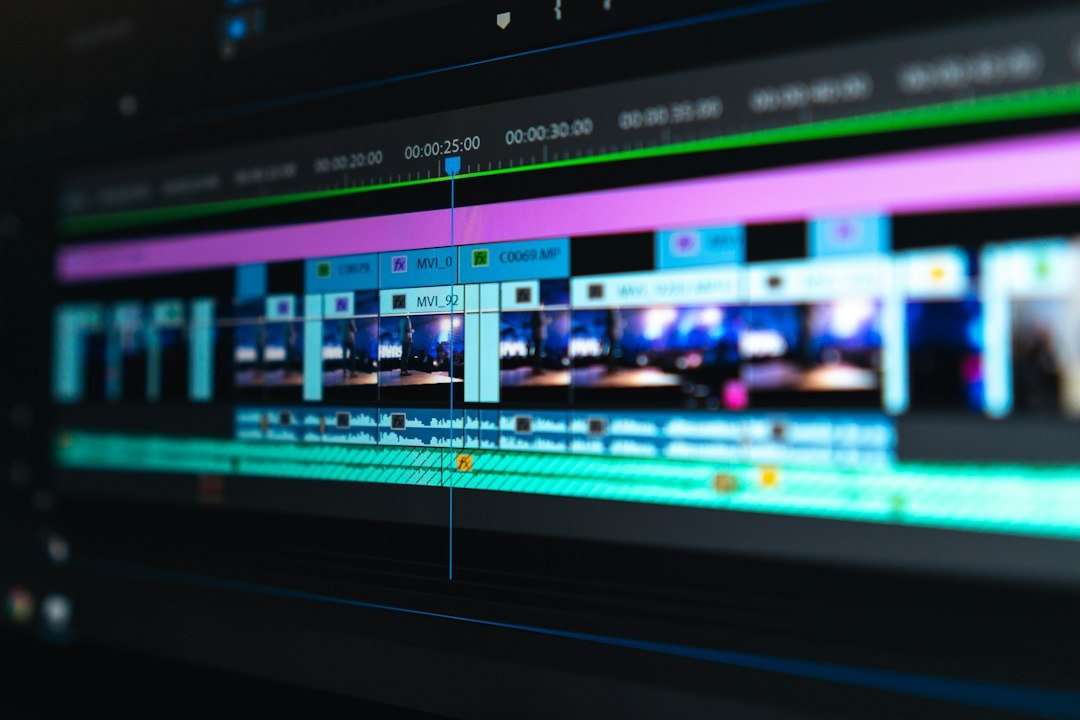
When you need free video editing software to turn raw gameplay into share‑ready clips, the right tool can save hours of trimming, adding effects, and syncing audio. Below is a concise answer: OpenShot, DaVinci Resolve, Shotcut, and HitFilm Express are the most capable free editors for gaming highlights, each offering a different balance of power and learning curve.
Key Takeaways
- OpenShot is ideal for quick edits and beginners.
- DaVinci Resolve delivers professional‑grade color grading but requires a stronger PC.
- Shotcut offers a modular interface with strong format support.
- HitFilm Express adds visual effects without a price tag.
- Choose based on your hardware, editing speed, and desired effects.

Why Free Video Editing Matters for Gamers
Gaming clips are often short, fast‑paced, and need eye‑catching overlays. Paying for a subscription can be unnecessary when several free programs already include multi‑track timelines, keyframe animation, and export presets for platforms like YouTube and TikTok. Using a free editor also lets you experiment with different styles without financial pressure.
OpenShot: Simple, Open‑Source, and Fast to Learn
OpenShot is a community‑driven project that runs on Windows, macOS, and Linux. Its drag‑and‑drop timeline lets you trim footage, add titles, and apply basic transitions in minutes. Because it uses the official OpenShot website for downloads, you avoid bundled adware.
Key features for gamers:
- Unlimited tracks for video, audio, and effects.
- Built‑in 3D animated titles – great for intro screens.
- Export presets for 1080p and 4K at common frame rates (30 fps, 60 fps).
OpenShot works well on mid‑range PCs; it does not demand a dedicated GPU. However, rendering large 4K clips can be slower than in more optimized editors.
DaVinci Resolve: Professional Color Grading Without Cost
DaVinci Resolve’s free tier includes the full non‑linear editor, Fusion visual effects, and the industry‑leading color page. It’s a heavier program, so a modern CPU and at least 8 GB of RAM are recommended. The software is available from TechRadar’s roundup of free editors, which notes its advanced capabilities.
What makes it attractive for gaming clips:
- Precise frame‑by‑frame trimming and ripple edit.
- Powerful color wheels to make dark scenes pop.
- Built‑in audio Fairlight tools for noise reduction.
- Export presets for YouTube, Twitch, and social media.
The learning curve is steeper than OpenShot, but many creators find the extra control worth the effort. If your hardware struggles, you can lower the timeline resolution during editing and switch back to full resolution for the final render.
Shotcut: Modular Interface with Wide Codec Support
Shotcut is another open‑source editor that emphasizes format flexibility. It reads over 300 audio and video formats without additional packs, which is handy when you capture gameplay in various codecs.
Features relevant to gamers:
- Native 4K support and GPU‑accelerated filters.
- Keyframeable effects for custom transitions.
- Separate “playlist” panel for quick clip organization.
- Export presets for common gaming platforms.
Shotcut’s UI is less polished than DaVinci Resolve, but its straightforward layout lets you focus on cutting and adding overlays. It also runs well on laptops with integrated graphics.
HitFilm Express: Free VFX Toolkit for Gaming Highlights
HitFilm Express combines a timeline editor with a library of visual effects that are usually paid features in other software. The free version requires you to create an account and optionally download add‑on packs, but the core editor remains free.
Why gamers love it:
- Particle systems and motion graphics templates for kill‑cam intros.
- Built‑in 3D compositing – useful for overlaying game models.
- Audio sync tools for voice‑over commentary.
- Export presets for 1080p at 60 fps, matching most console recordings.
The main drawback is that the free version adds a small watermark on some advanced effects unless you purchase the add‑on. For most basic highlight reels, the watermark does not appear.
How to Choose the Right Editor for Your Needs
Use the following checklist to match a program to your workflow:
- Hardware limits: If you have a modest laptop, start with OpenShot or Shotcut.
- Desired effects: Need advanced VFX? HitFilm Express or DaVinci Resolve.
- Learning time: OpenShot has the shortest ramp‑up; Resolve requires tutorials.
- Export requirements: Check each editor’s preset list for the platform you target.
- Community support: Open‑source tools often have active forums for troubleshooting.
Once you’ve narrowed the list, download the installer from the official site and run a short test clip (30 seconds) to see how quickly the program renders and whether the UI feels intuitive.
Step‑by‑Step Workflow for a Gaming Highlight Reel
Regardless of the editor you pick, a consistent workflow speeds up production:
- Capture raw footage: Use your game’s built‑in recorder or a capture card set to 1080p / 60 fps.
- Import and organize: Create a folder per session; label clips with timestamps.
- Trim to moments: Cut out the start and end of each kill, win, or funny glitch.
- Add overlays: Insert a lower‑third with your gamer tag, and place a reaction cam if you record yourself.
- Color correct: Adjust brightness and contrast so dark scenes are visible; use Resolve’s color wheels or Shotcut’s filters.
- Sync audio: Balance game sound, commentary, and background music; use DaVinci’s Fairlight or HitFilm’s audio mixer.
- Export: Choose the preset that matches your upload platform (e.g., YouTube 1080p / 60 fps H.264).
Testing the workflow on a single clip helps you spot bottlenecks before you tackle a full‑length montage.
Common Mistakes and How to Avoid Them
New creators often run into these pitfalls:
- Over‑compressing video: Exporting at a low bitrate makes the clip look blocky. Stick to at least 10 Mbps for 1080p.
- Ignoring audio levels: Game sound can drown out your voice. Use a meter to keep dialogue around -12 dB.
- Too many effects: Flashy transitions can distract from the gameplay. Limit yourself to one style per video.
- Saving project files on the same drive as raw footage: This can cause slowdowns. Keep projects on an SSD if possible.
Addressing these issues early improves both video quality and viewer retention.
Cost‑Free Alternatives for Specific Needs
If you only need basic trimming, Windows Video Editor (built into the Photos app) or iMovie on macOS can suffice. For quick meme‑style clips, mobile apps like InShot or CapCut are free and export directly to social platforms. However, they lack the multi‑track timelines and color grading tools that the four main editors provide.
Where to Find Tutorials and Community Help
Each editor has a dedicated knowledge base and active user forums. For example, the OpenShot community maintains a wiki with step‑by‑step guides, while DaVinci Resolve’s official training videos on YouTube cover everything from basic cuts to advanced grading. If you run into a specific issue, a quick search on Reddit’s r/videoediting often yields a solution.
For a deeper dive into how editing speed affects reaction time, you might also read How Fast Can You Click? Measuring and Improving Your Click Speed, which explains the importance of tight cuts for viewer engagement.

Future Trends: What Free Editors May Offer in 2027
While this article focuses on 2026 tools, expect upcoming updates to include AI‑assisted scene detection, automatic highlight reels, and tighter integration with streaming platforms. Keeping an eye on release notes will help you adopt new features without paying for premium software.
Optimizing Export Settings for Gaming Clips
When you finish editing, the export stage determines whether your clip looks good on Twitch, YouTube Shorts, or TikTok. The right settings keep file size low without sacrificing the crispness gamers expect.
Resolution and Frame Rate
- 1080p at 60 fps – The sweet spot for most PC and console recordings. It matches the source and avoids unnecessary up‑scaling.
- 720p at 30 fps – Use this only when bandwidth is limited or the platform caps resolution (e.g., older mobile feeds).
- Never drop below the original frame rate unless you need a dramatic slow‑motion effect; lower frame rates can make fast‑paced action look choppy.
Bitrate Guidelines
Bitrate controls quality and file size. A practical rule of thumb is:
- For 1080p 60 fps, aim for 12–15 Mbps.
- For 720p 30 fps, 5–8 Mbps is sufficient.
- If you need a smaller file for quick uploads, lower the bitrate in increments of 1 Mbps and preview the result before committing.
Codec Choices
All three editors support H.264 (MP4) and H.265 (HEVC). H.264 is universally compatible; H.265 gives smaller files but may not play on older devices. Export in MP4 with H.264 unless you know your audience can handle HEVC.
Audio Settings
Set audio to 48 kHz, 16‑bit PCM. Most platforms re‑encode audio, so there’s little gain from higher sample rates. Keep the audio bitrate around 192 kbps for clear voice chat and game sound.
Export Presets You Can Re‑Use
Save the configuration as a custom preset in your editor. The next time you render a highlight reel, you can load the preset with one click, ensuring consistency across all your uploads.
Integrating Audio and Music Effectively
Great gameplay footage can fall flat without engaging sound. Below is a practical workflow for layering game audio, voice commentary, and royalty‑free music without creating a cluttered mix.
Step 1: Separate Tracks Early
When you record, capture game audio and microphone input on separate tracks (most capture cards allow this). Import them as distinct audio layers so you can adjust each independently.
Step 2: Choose Music That Matches the Pace
- High‑energy tracks for fast‑action sequences (e.g., kill streaks, boss fights).
- Ambient or lo‑fi beats for slower moments like exploration or strategy planning.
- Make sure the music is royalty‑free or covered by a Creative Commons license; this avoids copyright strikes on streaming platforms.
Step 3: Ducking for Voice Clarity
Use the “ducking” feature (available in DaVinci Resolve and Shotcut) to automatically lower music volume whenever your microphone track is active. Set the threshold so the music dips by 6–8 dB for the duration of your speech.
Step 4: Balance Game Sound Effects
Game audio often contains explosions, gunfire, or UI cues that can mask your commentary. Apply a light compressor to the game audio track, then manually lower the volume of particularly loud moments using keyframes.
Step 5: Final Mix Check
Play back the edited clip on the device you’ll use to upload (e.g., a laptop speaker, headphones, or a TV). Ensure the voice is intelligible, the music adds excitement without overpowering, and game sounds remain audible but not distracting.
By treating each audio element as a separate layer and using simple automation tools, you can produce polished gaming clips that keep viewers engaged from start to finish.
FAQ
Can I use free video editing software for commercial gaming videos?
Yes. All four editors listed allow commercial use without a license fee, but always review each program’s end‑user license agreement for any attribution requirements.
Do I need a powerful GPU to run DaVinci Resolve?
A modern GPU speeds up rendering and enables real‑time effects, but Resolve’s free version will still run on integrated graphics; you may need to lower timeline resolution to edit smoothly.
Which editor is best for adding animated titles?
OpenShot provides simple 3D title templates, while HitFilm Express offers more advanced motion‑graphics options. Choose based on how complex you want the intro to be.