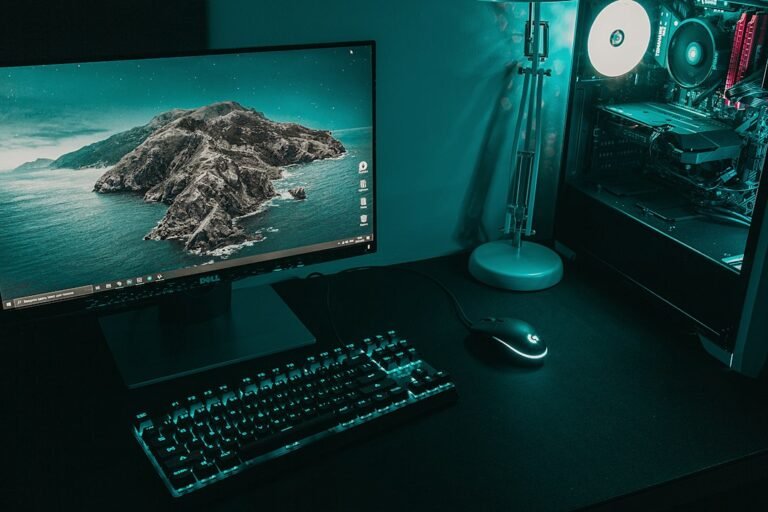

Choosing a wireless gaming mouse requires balancing sensor precision, battery life, and connection stability. You need a device that tracks your movements without lag while keeping your desk clutter-free. The right pick depends on your game genre and hand size. If you play fast-paced FPS titles, sensor polling rate and weight matter most. For MMOs, button count and programmability take priority. Always verify your hardware works correctly before diving into competitive matches.
Try it now: mouse test
Key Takeaways
- Sensor DPI and polling rate affect tracking accuracy more than marketing hype suggests.
- Battery life varies significantly based on RGB usage and connection type.
- Always test your mouse buttons online to rule out hardware faults before blaming the game.
- Lighter mice reduce arm fatigue during long sessions but may feel unstable for some users.
Why Wireless Beats Wired for Competitive Play
Modern wireless technology has closed the gap with wired connections. The delay is now imperceptible for most players. You gain freedom from cable drag, which can interfere with large mouse movements. This is especially helpful if you use a large mousepad or have a cluttered desk setup. However, wireless introduces new variables like battery management and potential interference. You must ensure your receiver is placed correctly to maintain a stable signal.
If you are switching from a wired setup, check your existing hardware first. Use a mouse test to confirm your current buttons are functioning properly. This free browser-based tool checks left, middle, and right buttons and spots double clicking issues. It helps you distinguish between a bad mouse and a software glitch.

Key Specs to Check Before Buying
Look beyond the DPI number. A high DPI does not equal better accuracy if the sensor cannot track it consistently. Focus on the polling rate, which measures how often the mouse reports its position to the computer. Higher polling rates, often 1000Hz or more, provide smoother tracking. Check the weight too.
Mice under 60 grams are popular for competitive FPS because they require less effort to move. Heavier mice offer a sense of stability that some players prefer for aiming precision.
Battery life is another critical factor. Many mice offer 50 to 100 hours of usage on a single charge. This varies if you keep RGB lighting on. Always check the manufacturer’s stated battery life under different settings. If you play in tournaments, ensure you have a backup battery or a charging dock available.
Common Mistakes When Selecting a Mouse
Many buyers focus solely on brand name. This leads to poor fit and discomfort. Hand size and grip style matter more. A mouse that fits your palm and fingers naturally will feel better than a premium model that doesn’t. Try to find a retailer with a good return policy. If possible, visit a store to hold the mouse before buying.
Another common error is ignoring compatibility. Some wireless mice use proprietary receivers that conflict with other USB devices. Check if the mouse supports standard Bluetooth or if it requires a specific dongle. If you use a laptop with limited USB ports, a Bluetooth-only option might be safer.

How to Test Your Mouse Functionality
Before assuming a new wireless mouse is defective, run a diagnostic check. Software glitches can mimic hardware failures. A simple online test can verify each button’s response. This step saves you from unnecessary returns or troubleshooting. It also helps identify if a specific button is double-clicking, which is a common issue in cheap mice.
Use a reliable online tool to check your inputs. The process is quick and requires no installation. Click each button repeatedly and observe the results. If the test shows irregularities, the hardware is likely the problem. If the test passes, the issue lies in your game settings or drivers. This distinction is crucial for effective troubleshooting.
Wireless vs Wired: Performance Comparison
Wired mice offer consistent power and zero battery anxiety. They are generally cheaper and have no latency concerns. Wireless mice offer freedom and a cleaner desk. The performance gap is negligible for 99% of players. The choice comes down to personal preference and playstyle. If you play in environments with high electromagnetic interference, wired might be safer. Otherwise, wireless is the standard for modern competitive gaming.
For players who switch between multiple devices, wireless can complicate things. You need to manage batteries and ensure the receiver is always connected. Wired mice are plug-and-play. They work immediately without pairing. Consider your setup and how often you move your computer. If you travel frequently, wireless might be more convenient despite the battery management.
Top Brands and Models to Consider
Several brands dominate the wireless gaming mouse market. Logitech, Razer, and SteelSeries offer high-end options with proven track records. The Logitech G PRO X2 SUPERSTRIKE is often cited for its sensor performance and new technology. Razer offers a wide range of options, from lightweight FPS mice to button-heavy MMO devices. Each brand has its own strengths and weaknesses.
Read recent reviews before making a final decision. Specifications change with new models. Look for feedback on battery life, build quality, and software reliability. User reviews often highlight issues that marketing materials ignore. Pay attention to comments about double-clicking problems or connection drops. These are signs of potential quality control issues.
Setting Up Your Wireless Mouse for Optimal Performance
Proper setup ensures the best possible experience. Start by installing the manufacturer’s software. This allows you to customize DPI, button assignments, and RGB settings. Update your drivers to the latest version. Outdated drivers can cause lag or unresponsiveness. Place the USB receiver in a direct line of sight with the mouse. Avoid placing it behind metal objects or other electronic devices.
Calibrate your sensitivity in-game. A high DPI requires lower in-game sensitivity for precision. Find the sweet spot that allows you to make small adjustments without moving your arm excessively. Test your setup in a practice map or training mode. Ensure that your clicks register consistently. If you notice any lag, check your polling rate settings in the software.
What to Do Next
- Identify your grip style and hand size to narrow down the list of potential mice.
- Check the latest reviews for shortlisted models, focusing on reliability and battery life.
- Test your current mouse with an online tool to ensure your existing setup is functioning correctly.
You can find more tips on optimizing your setup on our gaming tools site. This resource helps you benchmark your performance and diagnose hardware issues quickly.
Frequently Asked Questions
Is wireless latency noticeable in FPS games?
For most players, no. Modern wireless technology has minimal lag. The difference between wireless and wired is often imperceptible in real-time gameplay. Only extreme competitive scenarios might reveal slight differences. For the average gamer, the freedom from cables outweighs any theoretical latency concerns.
How often should I replace my wireless mouse battery?
Most gaming mice have non-replaceable batteries. They last for the lifespan of the mouse, which is typically several years. If the battery degrades significantly, you may need to replace the entire mouse. Some models offer replaceable batteries, but this is less common. Check the manufacturer’s warranty for battery life guarantees.
Can I use a wireless mouse with a laptop without a USB port?
Yes, if the mouse supports Bluetooth. You can pair it directly with your laptop’s Bluetooth adapter. This eliminates the need for a USB receiver. Ensure your laptop’s Bluetooth version is compatible with the mouse. Most modern laptops support the necessary standards. If your laptop lacks Bluetooth, you will need a USB receiver or a Bluetooth dongle.