
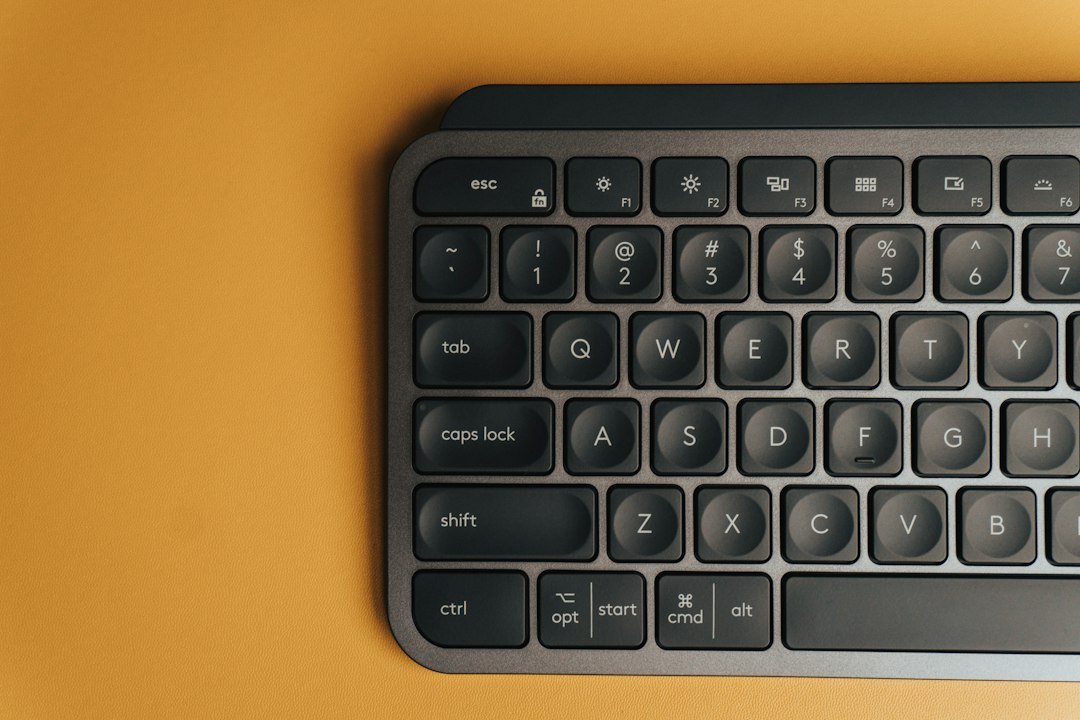
Typing in Hebrew requires a specific layout that maps Latin keys to Hebrew characters. You can achieve this three ways: using a virtual browser-based Hebrew keyboard, switching your operating system layout, or using physical stickers. For most users, a virtual tool is the fastest start because it requires no installation or system changes.
Try it now: keyboard tester
If you are already using a physical device and suspect a key is not registering, the first step is verification. You can use a browser-based keyboard tester to confirm which specific key code is being sent. This helps distinguish between a stuck physical switch and a software layout issue.
Key Takeaways
- Virtual Hebrew keyboards allow typing without changing OS settings.
- The standard Hebrew layout places letters in Aleph Bet order.
- Shift keys typically toggle to Latin letters on Hebrew layouts.
- Physical stickers are a low-cost solution for permanent layout changes.
- Testing your hardware ensures keys are registering before troubleshooting software.
How to type Hebrew using a virtual keyboard
Virtual tools are the most accessible option for occasional typists. Sites like Lexilogos and Gate2Home offer on-screen interfaces where you click letters with your mouse or finger. These tools handle the right-to-left text direction automatically. You do not need to change your device’s system settings.
Simply click the on-screen keys, and the text appears in the input box. You can then copy and paste this text into email clients, search bars, or documents. This method is ideal for quick tasks where installing a full language pack is overkill.

Understanding the standard Hebrew layout
Physical Hebrew keyboards follow a specific arrangement based on the Aleph Bet. The letters are ordered to match the traditional sequence, making it easier for learners to find characters. A key feature of this layout is the dual-function Shift key. Pressing Shift allows you to type Latin letters without switching keyboards.
This is useful for mixing English words into Hebrew text. The five final letters, such as final mem and final nun, have their own dedicated keys. You will also find the geresh mark, which indicates sounds like ‘j’ or ‘ch’ in loanwords. Familiarizing yourself with this layout is crucial if you plan to type frequently.
Switching layouts on your operating system
For daily use, adding a Hebrew keyboard to your computer is more efficient than clicking on-screen. On Windows, you can add the layout through the settings menu under Time & Language. On Mac, the process is similar via System Preferences.
Once added, you can switch between English and Hebrew using a keyboard shortcut, often Alt+Shift or Ctrl+Space. This method allows you to type directly on your physical keys. The text will flow right-to-left automatically in compatible applications. It is the best long-term solution for fluent typists.
It eliminates the lag of clicking virtual keys and speeds up your workflow significantly.
Using physical stickers for visual mapping
If you prefer the feel of your current keyboard but need visual cues, stickers are a practical option. They usually cost just a few dollars and are available online. These stickers overlay your existing keys with Hebrew characters. They make typing much easier by providing a visual reference.
This is particularly helpful for beginners who are learning the layout. Stickers are non-invasive and can be removed without damaging the keys. They bridge the gap between a standard QWERTY board and a dedicated Hebrew device.

Testing your physical keyboard for issues
Before assuming a software problem, verify your hardware. A dead key or a stuck switch can mimic layout errors. A browser-based diagnostic tool can show you the name and code of every key you press. This helps identify if a specific key is failing to register.
If a key does not appear in the test, the physical switch may be damaged. If the code appears but the wrong character shows, it is a layout or driver issue. This distinction saves time. It prevents you from reinstalling drivers when the hardware is the culprit.
You can run this test on any device without installing software.
Common mistakes when setting up Hebrew input
One frequent error is assuming the layout works everywhere. Some older applications may not support right-to-left text properly. Another mistake is forgetting the Shift function. Many users hesitate to mix languages because they forget Shift toggles to Latin. This causes frustration when trying to type English terms. Also, ensure your font supports Hebrew characters.
Standard fonts like Arial or Times New Roman usually work fine. However, specialized fonts may be needed for certain diacritical marks. Checking your font compatibility prevents missing character boxes.
When to use a virtual tool versus a system layout
Choose a virtual Hebrew keyboard if you type Hebrew less than once a week. It requires zero setup and works in any browser. Use a system layout if you type Hebrew daily or for professional work. The system layout is faster and integrates better with your operating system.
For gamers or users who switch languages frequently, the system layout is superior. It allows for rapid switching via shortcuts. Virtual tools are better for quick lookups or one-off messages. They are less efficient for long-form typing. Select the method that matches your frequency of use.
What to do next
If you need to type Hebrew immediately, open a virtual keyboard in your browser and start clicking. If you type regularly, add the Hebrew layout to your operating system settings today. Finally, if your keys feel unresponsive, run a quick hardware diagnostic to rule out dead switches before adjusting software settings.
Choosing the Right Online Hebrew Keyboard Tool
When you’re hunting for a web‑based Hebrew keyboard, don’t just pick the first one that pops up. Look for tools that let you switch between the standard layout and an alternative layout that shows the Latin letters on the same keys. That visual cue helps you keep your muscle memory while learning.
A good example is a site that offers a split view: the top half displays Hebrew characters, the bottom half shows the corresponding Latin letters. It’s a quick way to check if you’re pressing the right key.
Another factor is the ability to copy‑paste the typed text directly into your document or chat. Some sites open a separate window that only shows the text, which can be annoying if you need to embed it in a form. Prefer tools that keep the keyboard visible while you type in the surrounding application.
Common mistake: using a keyboard that only offers the Hebrew layout without the Latin overlay. You’ll end up guessing where the keys are, and your typing speed will suffer. Test a few options in a short session before committing.
Step‑by‑Step: Setting Up a Virtual Keyboard in Your Browser
1. Open the online keyboard of your choice.
2. Click the “Start typing” area and begin entering Hebrew letters. The letters will appear in the field below the keyboard.
3.
If you need to switch to a different layout (for example, the Hebrew layout that places the Hebrew letters on the right side of the Latin keys), look for a toggle button usually labeled “Layout” or “View.”
4. Once you’re comfortable, open the document or chat where you need the Hebrew text.
Click inside the text area and start typing – your browser will use the virtual keyboard’s input.
Tip: Many browsers allow you to pin the virtual keyboard to the side of the screen. On Chrome, right‑click the keyboard window, choose “Pin,” and it will stay in place as you switch tabs. This keeps the keyboard handy without covering your main work area.
Avoiding Common Typing Errors on the Web
Hebrew has a unique right‑to‑left flow. When you type in a web form, the cursor may start on the left side of the screen, making you think you’re typing left‑to‑right. To fix this, press the Alt + Right Arrow key to flip the cursor to the right side of the input field. If you’re using a virtual keyboard, ensure the “RTL” toggle is activated; otherwise, the text will appear left‑to‑right.
Another pitfall: forgetting to include the final yod in words that end with a vowel. A quick check is to read the word aloud after typing; if it sounds incomplete, you’ve likely omitted the yod. Many online keyboards highlight missing vowels if you enable the “Show vowels” option.
Edge case: when typing in a form that auto‑formats text (like a comment box that strips punctuation), you might lose the final period. Double‑check the output before submitting.
Practical Tips for Speed and Accuracy
Use a physical keyboard with a Hebrew layout sticker for practice. Place the sticker on a cheap laptop keyboard; the visual overlay will reinforce muscle memory. When you’re ready to type online, switch the OS layout to Hebrew and keep the sticker handy. This hybrid approach reduces the learning curve.
Practice with short, repetitive sentences. For example, type “שלום עולם” (hello world) 50 times. The repetition builds familiarity with the key positions and the right‑to‑left flow.
Check your typing speed with the online keyboard’s built‑in timer. Most tools show words per minute after you finish a passage. Aim for 30 WPM as a beginner; experienced typists can reach 60 WPM with consistent practice.
Finally, don’t ignore the built‑in spell‑check feature of most browsers. When you type in Hebrew, the browser will underline misspelled words. Hover over the underline to see the suggestion and correct it instantly.
You can find more guides on this topic and related ones at CPS Test.
Frequently asked questions
Do I need a special keyboard to type Hebrew?
No, you do not. You can use a virtual keyboard online or add a Hebrew layout to your existing QWERTY keyboard through your operating system settings. Physical stickers are also an option if you want visual guides on your current keys.
How do I type English while using a Hebrew layout?
On most standard Hebrew layouts, pressing the Shift key toggles the input to Latin letters. This allows you to type English words without switching back to the English keyboard layout manually.
Can I test if my Hebrew keys are working online?
Yes. You can use a browser-based keyboard tester to press each key and verify that the correct code is being sent. This helps identify if a key is physically dead or just mapped incorrectly in your system settings.