
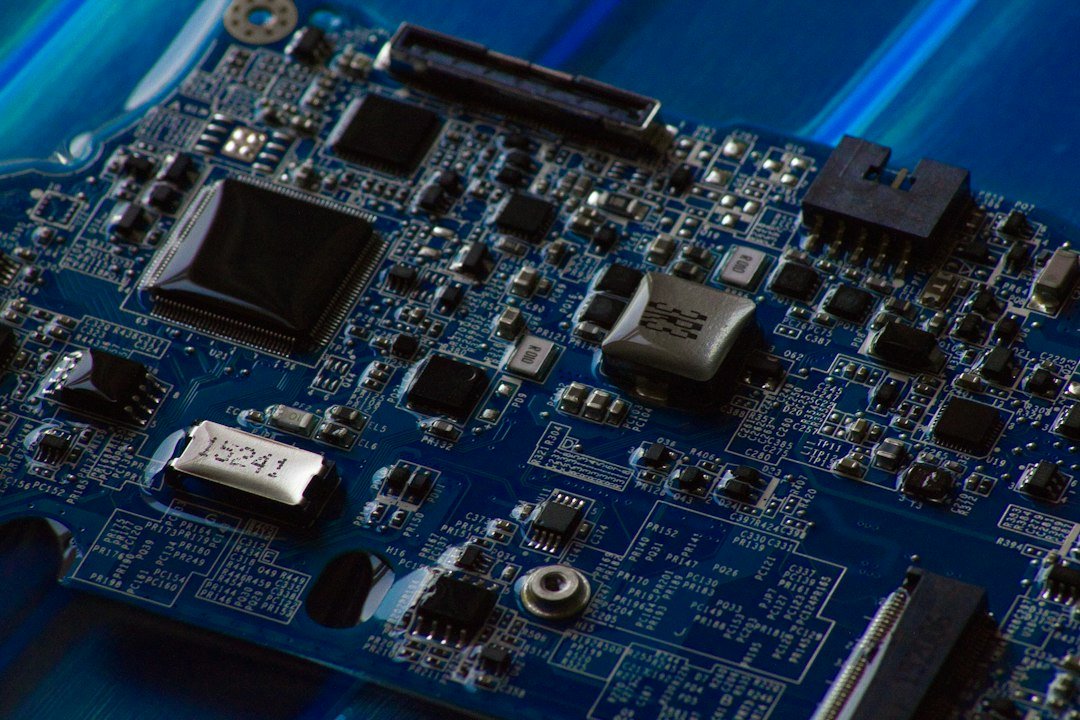
What is a bios? It is the firmware embedded in your computer that initializes basic hardware and loads the operating system. Before Windows, macOS, or Linux takes over, the Bios handles the first steps of startup. It checks memory, identifies storage drives, and passes control to the boot loader.
Key Takeaways
- Bios stands for Basic Input/Output System and acts as the bridge between hardware and software.
- It runs a Power-On Self-Test (POST) to ensure components like RAM and CPU are functioning.
- Modern systems often use UEFI, which replaces legacy Bios with a more flexible interface.
- Accessing the Bios usually requires pressing a specific key during startup, such as Del, F2, or F12.
How the Bios Handles the Startup Process
When you press the power button, the Bios takes immediate control. It does not wait for the operating system. Instead, it executes a sequence of checks known as the Power-On Self-Test. This phase verifies that critical hardware components are present and responsive. If a part fails this check, you will often see error beeps or a specific code on the screen.
After the hardware checks pass, the Bios locates the boot device. This could be a hard drive, solid-state drive, or USB stick. It then loads the master boot record or EFI system partition, depending on the mode. Finally, it hands off execution to the operating system kernel. This entire process happens in seconds, making it easy to overlook, yet it is the foundation of every computer session.

What Hardware Does the Bios Manage Directly?
The Bios interacts with low-level hardware components that the operating system does not control directly. This includes the CPU, memory modules, chipset, and basic input devices like the keyboard and mouse. It reads configuration data from these parts to ensure they operate within safe parameters. For example, it sets the voltage for the CPU and determines the speed at which the memory runs.
It also manages the system clock and battery status. The real-time clock continues ticking even when the computer is off, powered by a small coin-cell battery. This ensures the date and time are correct when you boot up. If the battery dies, the computer may lose its time settings or fail to save Bios configurations, prompting a warning message on startup.
Bios Versus UEFI: What Is the Difference?
Many people ask what is a bios when their system actually uses UEFI. UEFI stands for Unified Extensible Firmware Interface. It is the modern successor to the traditional Bios. While the term Bios is still used colloquially, UEFI offers a graphical interface, mouse support, and greater security features. Legacy Bios uses a text-based interface and has limitations on the size of hard drives it can boot from.
The key difference lies in how they handle booting. Legacy Bios uses a linear process, while UEFI allows for more complex boot options. UEFI also supports Secure Boot, which helps prevent malicious software from loading during the startup phase. Most computers made in the last decade use UEFI, even if the manual still refers to it as Bios settings.
How Do You Access the Bios on Your PC?
Accessing the Bios requires interrupting the startup process. You need to press a specific key immediately after powering on the computer. The key varies by manufacturer. Common keys include Delete, F2, F10, F12, or Esc. You can usually find the correct key in the computer’s manual or on a brief splash screen during boot.
If you miss the window, you will need to restart and try again. In Windows, you can often access the UEFI settings without pressing a key. Go to Settings, choose Update & Security, select Recovery, and click Restart now under Advanced startup. This method is helpful if your keyboard is not responsive or if you are using a fast-boot system that skips the key prompt.

Why Do Gamers and Testers Care About Bios Settings?
For gamers and hardware testers, the Bios is where performance tuning begins. You can enable features like XMP to run your memory at its rated speed. By default, many systems run memory at a lower, conservative speed. Enabling XMP in the Bios unlocks the full performance of your RAM modules, which can slightly improve frame rates in sensitive games.
It is also the place to manage fan curves and power profiles. You can set the system to prioritize performance over energy efficiency. This is useful for benchmarking or when you need maximum output from your CPU and GPU. However, changing these settings can increase heat and noise, so proceed cautiously. Understanding what is a bios helps you make informed decisions about your system’s configuration.
Common Bios Errors and How to Fix Them
Errors in the Bios usually indicate a hardware issue. A “CMOS checksum error” suggests the battery is dead or the settings were lost. Replacing the CR2032 battery often fixes this. A “No boot device found” error means the Bios cannot find the hard drive. Check the SATA or NVMe connections, or verify the boot order in the settings.
If you get stuck in a loop of beeps, the pattern tells you which component failed. For example, continuous beeps usually point to a memory issue. Reseating the RAM sticks or testing with a single stick can resolve this. If the problem persists, the component may be faulty. These errors are rare but critical to understand for troubleshooting.
How to Update Your Bios Safely
Updating the Bios can fix bugs, improve compatibility, or add new features. However, it is risky. If the process is interrupted by a power loss, the computer may become unbootable. Always use a stable power source and follow the manufacturer’s instructions precisely. Most manufacturers provide a utility to update the Bios from within the operating system.
Before updating, note your current settings. Some updates reset the Bios to default values, which means you will need to re-enable XMP or change the boot order. Download the update file from the official support page of your motherboard or laptop manufacturer. Never use third-party tools or files from unknown sources. The risk of bricking your system is too high.
What Are the Security Implications of the Bios?
The Bios is a low-level layer that runs before the operating system. This makes it a target for sophisticated malware. If a virus infects the Bios, it can survive OS reinstalls. UEFI’s Secure Boot feature helps mitigate this by verifying the digital signature of the boot loader. If the signature is invalid, the system refuses to boot.
For advanced users, disabling Secure Boot may be necessary to install older operating systems or dual-boot configurations. However, keeping it enabled is generally safer. Regularly checking for firmware updates from the manufacturer is a good security practice. These updates often patch vulnerabilities in the firmware itself.
FAQ
Can I change my Bios to improve gaming performance?
Yes, you can enable features like XMP for memory and adjust power profiles. These changes can yield minor performance gains. However, the impact is usually small compared to upgrading hardware like the GPU or CPU.
What happens if I reset my Bios settings?
Resetting loads the default configuration. You may need to re-enable XMP, change the boot order, or adjust fan settings. The system will still boot, but it may run at conservative defaults for memory and power.
Is UEFI better than legacy Bios?
Yes, UEFI offers a graphical interface, faster boot times, and better security features like Secure Boot. It also supports larger hard drives. Most modern systems use UEFI by default.