
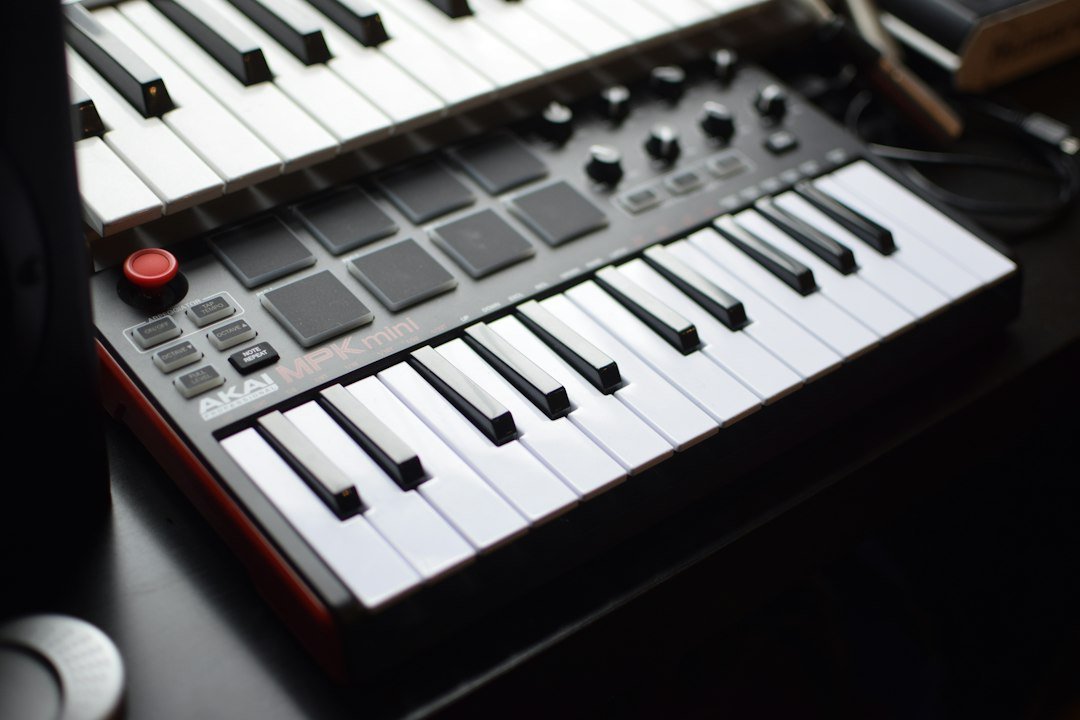
What is a midi keyboard and why it matters to anyone making music on a computer? In short, a MIDI keyboard is a controller that sends digital messages—notes, velocity, modulation—to a sound-generating device such as a DAW, hardware synth, or virtual instrument. It doesn’t produce sound on its own, but it lets you play, record, and edit music with the feel of a piano.
Key Takeaways
- A MIDI keyboard is a controller, not a sound source.
- It communicates via MIDI protocol over USB, traditional 5‑pin DIN, or Bluetooth.
- Key factors when buying: key action, number of keys, connectivity, and extra controls.
- Setup typically involves installing drivers (if needed) and mapping the keyboard in your DAW.
- Common mistakes include expecting built‑in speakers and ignoring latency.

Understanding MIDI Basics
The acronym MIDI stands for Musical Instrument Digital Interface. Developed in the early 1980s, it standardizes how electronic instruments talk to each other. A single MIDI message contains three parts: the command (note‑on, note‑off, control change), the note number (which key), and the velocity (how hard the key was pressed). This lightweight data stream allows a keyboard to trigger any sound source that understands MIDI.
Because the data is just numbers, a MIDI keyboard can control dozens of virtual instruments simultaneously, split the keyboard into zones, or layer sounds. The protocol is language‑agnostic, so the same keyboard works with Windows, macOS, Linux, iOS, and Android.
How a MIDI Keyboard Works
When you press a key, a sensor detects the motion and translates it into a MIDI note‑on message. The message travels through the chosen connection—usually USB nowadays—into your computer or hardware synth. The receiving software interprets the message and plays the corresponding sound. Releasing the key sends a note‑off message, ending the sound.
Many keyboards add knobs, sliders, and pads that send Control Change (CC) messages. These can adjust parameters like filter cutoff, volume, or trigger drum samples, giving you hands‑on control without touching the mouse.
Types of MIDI Keyboard Connections
- USB‑MIDI: Plug‑and‑play for most modern computers. No extra drivers for class‑compliant devices.
- 5‑Pin DIN: Traditional MIDI port used for connecting to older hardware synths or external sound modules.
- Bluetooth MIDI: Wireless option for tablets, iPads, or laptops, useful for mobile setups.
- Thunderbolt / USB‑C: Some high‑end models use these for lower latency and power delivery.
Choosing the Right Keyboard Size
Keyboards come in several key counts, measured in octaves:
| Keys | Typical Use |
|---|---|
| 25‑key (2 octaves) | Portable, beat‑making, limited melodic work. |
| 49‑key (4 octaves) | Balanced for synth work and basic piano parts. |
| 61‑key (5 octaves) | Standard for most home studios; good for chordal playing. |
| 76‑key (6+ octaves) | Closer to a piano feel, useful for classical or complex arrangements. |
| 88‑key (full piano) | Professional piano performance, weighted action. |
Consider your space, budget, and playing style. If you mainly program synth leads, a 25‑ or 49‑key unit may suffice. For piano‑centric composition, aim for 76 or 88 keys with weighted action.
Key Action: Weighted vs. Semi‑Weighted vs. Synth
Key action determines how the keys feel when pressed:
- Weighted (hammer‑action): Simulates an acoustic piano, ideal for pianists.
- Semi‑weighted: Light resistance with a spring; good compromise for hybrid players.
- Synth‑action: Light, fast keys designed for rapid synth lines and programming.
Try each type in a store if possible. The difference can affect technique and fatigue over long sessions.
Extra Controls and Integration Features
Beyond keys, many keyboards include:
- Pitch bend wheel or joystick
- Modulation wheel
- Assignable knobs and sliders (often 4‑8)
- Drum pads for triggering samples
- Transport controls (play, stop, record) that map to DAW functions
These controls let you shape sound in real time, reducing reliance on mouse clicks. When evaluating a model, check how many assignable controls you need for your workflow.
Software Compatibility and DAW Integration
Virtually every digital audio workstation (DAW) supports MIDI out of the box—Ableton Live, Logic Pro, FL Studio, Cubase, Reaper, and GarageBand are all examples. After connecting the keyboard, you typically:
- Open the DAW’s preferences and enable the MIDI device.
- Create a new MIDI track and select a virtual instrument.
- Play; you should hear sound immediately.
- Optional: Map knobs or pads to specific parameters via the DAW’s MIDI learn function.
For detailed steps, see the beginner’s guide on MIDI basics. It explains the protocol and common setup pitfalls.
Common Mistakes to Avoid
- Assuming the keyboard has built‑in speakers. It’s a controller only; you need headphones or monitors.
- Ignoring latency. Use a low‑buffer size and a USB‑3.0 port if possible.
- Not checking driver requirements. Most modern units are class‑compliant, but older models may need a driver download.
- Overlooking power needs. Some larger keyboards draw power from the USB port; others need an external adapter.
- Forgetting to map controls. Unassigned knobs are wasted potential; spend a few minutes customizing them.
Cost Overview and Value Considerations
Entry‑level 25‑ and 49‑key synth‑action keyboards start around $80‑$150. Mid‑range 61‑key models with semi‑weighted action and decent build quality range $200‑$400. Full‑size 88‑key weighted keyboards can cost $500‑$1,200, with premium brands reaching $2,000.
When budgeting, weigh the following:
- Key count vs. space constraints
- Action type relative to your playing background
- Number of assignable controls you’ll actually use
- Future expandability (e.g., adding external synths via DIN MIDI)
Investing a bit more in a reliable USB connection and sturdy build often saves headaches later.
Step‑by‑Step Setup Guide
- Unbox and place the keyboard. Connect any power adapter if required.
- Connect via USB. Plug the cable into a direct‑access USB port on your computer.
- Install drivers (if needed). Check the manufacturer’s website; many devices are plug‑and‑play.
- Open your DAW. Go to Preferences → MIDI → Enable the keyboard.
- Create a MIDI track. Load a virtual instrument (e.g., piano, synth).
- Test notes. Play a few keys; you should see MIDI activity meters move.
- Map extra controls. Use the DAW’s MIDI Learn to assign knobs to filter cutoff, volume, etc.
- Adjust latency. Lower the audio buffer size if you notice delay.
- Save a template. Store your track with the mapped controls for future sessions.
Following these steps ensures a smooth start without hunting for missing settings.
Alternatives to a Traditional MIDI Keyboard
If a keyboard doesn’t fit your workflow, consider:
- Pad controllers (e.g., Ableton Push, Akai MPD) for beat‑making.
- Wind or guitar MIDI controllers for non‑keyboard players.
- Smartphone/tablet apps that act as virtual MIDI keyboards via Bluetooth.
- Computer keyboard mapping using software like Virtual MIDI Piano Keyboard for quick testing.
Each alternative sends the same MIDI data, but the tactile experience differs. Choose based on the primary instrument you play.

Maintenance and Longevity Tips
- Keep the keyboard dust‑free; use a soft cloth.
- Avoid exposing it to extreme temperature or humidity.
- Periodically check the USB cable for wear.
- If keys feel sticky, a light cleaning with compressed air can help.
- Store portable units in a padded case when traveling.
When to Upgrade
Upgrade signals include:
- Needing more keys for complex arrangements.
- Desiring weighted action for expressive piano performance.
- Requiring additional assignable controls for live performance.
- Outgrowing the current connectivity (e.g., needing Bluetooth for mobile work).
Assess your current workflow and future goals before spending on a higher‑end model.
Creating Effective MIDI Templates for Faster Production
Starting a new project? A well‑crafted MIDI template saves time and keeps your workflow consistent. Below is a step‑by‑step process you can follow the first time you set up a session, then reuse it for any genre.
Step 1: Define Your Core Instrument Layers
- Identify the main sounds you’ll use (e.g., piano, synth lead, pad, drum‑machine).
- Create a separate MIDI track for each layer and label it clearly.
- Assign the appropriate virtual instrument or external hardware preset to each track.
Step 2: Set Up Common Controller Assignments
- Map Mod Wheel to filter cutoff on synth tracks.
- Assign Pitch Bend to lead instruments for expressive glides.
- Use CC#7 (Volume) for quick level adjustments across all tracks.
Step 3: Add Utility Tracks
- Tempo track – lock the BPM to a click track that matches your genre.
- Automation lanes – pre‑create lanes for volume, pan, and any effect parameters you tweak often.
- Marker track – place markers for intro, verse, chorus, and bridge to navigate quickly.
Step 4: Save and Document
Export the session as a template file (most DAWs call this a “Project Template” or “Starter Set”). Include a short text file that lists the controller mappings and any special routing notes. When you open the template, you’ll have a ready‑to‑play canvas that eliminates repetitive setup tasks.
Integrating External Hardware Synths with a MIDI Keyboard
Many producers combine a MIDI keyboard with hardware synths to capture the tactile feel of analog sound while keeping the flexibility of digital editing. The following checklist helps you connect and synchronize external gear without latency or MIDI‑channel confusion.
Hardware Checklist
- USB‑MIDI interface or a keyboard with built‑in USB‑MIDI ports.
- Standard 5‑pin DIN MIDI cables for older synths.
- Power supplies for each device (avoid bus‑powered hubs for analog synths).
- Optional MIDI thru splitter if you need to daisy‑chain multiple synths.
Connection Steps
- Connect the keyboard’s MIDI OUT to the synth’s MIDI IN using a DIN cable.
- If using a USB‑MIDI interface, plug the interface into your computer and route the keyboard’s USB port to the same interface for consistent clocking.
- Set the MIDI channel on the synth to match the channel your DAW sends (commonly channel 1 for the first track).
- Enable “MIDI Clock Sync” on both the DAW and the synth if you want the synth’s arpeggiator or sequencer to stay in tempo.
Common Pitfalls and How to Avoid Them
- Channel overlap: Two devices on the same channel will receive each other’s notes. Assign unique channels to each synth.
- Latency spikes: Using a cheap USB hub can introduce delay. Prefer a dedicated, low‑latency MIDI interface.
- Clock drift: If the synth’s internal clock runs independently, tempo changes in your DAW won’t affect it. Turn off the synth’s internal tempo and rely on DAW sync.
- Power noise: Analog synths can pick up hum from cheap power adapters. Use filtered power supplies or a power conditioner.
Optimising MIDI Velocity and Expression for Realistic Performance
Even with a high‑quality keyboard, flat‑sounding MIDI data is a common issue. Adjusting velocity curves and adding expression can make digital performances feel as nuanced as a live instrument.
Understanding Velocity Curves
Most keyboards let you choose a curve that maps how hard you press a key to the MIDI velocity value (0‑127). A “soft” curve gives a gradual increase, while a “hard” curve jumps quickly to higher values. Experiment with each setting while playing a simple melody to hear which matches your playing style.
Step‑by‑Step Velocity Editing in Your DAW
- Select the MIDI region you want to edit.
- Open the velocity editor (often a separate lane beneath the piano roll).
- Use the “Scale Velocity” function to raise or lower the overall dynamic range.
- Apply “Humanize” or “Randomize Velocity” with a low amount (5‑10) to introduce subtle variation.
- Manually adjust outlier notes that feel too loud or too soft.
Adding After‑Touch and Modulation
- After‑Touch (Channel Pressure) responds to pressure applied after the initial key strike. Map it to parameters like filter resonance or vibrato for expressive control.
- The Mod Wheel can be automated to evolve a sound over time; draw a slow upward curve for a gradual swell.
- Combine both: use after‑touch for per‑note nuance and the Mod Wheel for phrase‑level expression.
Practical Tips
- Record a reference performance on a real instrument, then match the MIDI velocity pattern to it.
- When layering multiple synths, keep velocity ranges distinct (e.g., low for pads, high for leads) to avoid masking.
- Use a velocity-sensitive pad controller for percussive parts; they often have a more linear response than keyboard keys.
FAQ
Do I need a MIDI keyboard to make music on a computer?
No, you can program notes with a mouse or use a virtual keyboard, but a MIDI keyboard offers speed, expression, and a more natural playing feel.
Can a MIDI keyboard produce sound on its own?
Only if it includes built‑in sound modules, which are rare. Most keyboards rely on external software or hardware synths for audio output.
Is Bluetooth MIDI reliable for recording?
Bluetooth adds a small amount of latency and can be prone to interference, so it’s fine for practice or live performance, but wired USB is preferred for critical recording.