Key Takeaways
- Xbox games can be bought and played on PC through the Microsoft Store.
- Use the Store’s filters to find games that fit your budget and interests.
- Keep your system ready with the right drivers and settings for smooth play.
- Regularly check for sales to save up to $48 on popular titles.
- Link your Microsoft account to sync progress across devices.
What Are Xbox Games and Why Play Them on PC?
Xbox games are titles originally designed for Microsoft’s Xbox consoles but are also available for Windows PCs. They offer high‑quality graphics, expansive worlds, and multiplayer experiences. Playing them on PC lets you use a keyboard and mouse, enjoy a larger screen, and benefit from the free Microsoft Store tools that track your playtime and achievements.
How to Get Started: Setting Up Your PC for Xbox Games
- Make sure you have a Windows 10 or 11 PC with a recent graphics driver. If you’re unsure, visit the Helene Update homepage for quick driver checks.
- Sign in with a Microsoft account. This account lets you buy, download, and sync games.
- Open the Microsoft Store from the Start menu or search bar.
- Navigate to the Games section and click on “Xbox” to see the full catalog.
- Use the search bar or filters to find a game that interests you.
Finding the Right Game: Filters and Search Tips
The Store offers several ways to narrow down choices:
- Genre: Action, adventure, RPG, sports, etc.
- Price: Free, paid, or subscription (Game Pass).
- Rating: Look for 4+ stars for reliable quality.
- Platform: Confirm the game runs on PC.
When you find a game, click its title to see details, screenshots, and user reviews. If the game is listed as “Xbox” and also shows “Windows PC”, it’s ready for download.
Buying and Downloading: Step‑by‑Step
- On the game page, click “Buy” or “Add to cart” if you’re purchasing.
- Choose a payment method or use a gift card. Microsoft Store accepts credit cards, PayPal, and Microsoft gift cards.
- After purchase, the game appears in your Library. Click “Install” to download.
- Once installed, launch the game from the Store or your desktop shortcut.
Saving Money: Deals, Sales, and Game Pass
Microsoft frequently offers discounts. For example, Silent Hill 2 Deluxe Edition dropped from $79.99 to $31.99, saving over $40. Keep an eye on the Store’s “Deals” section and use the “Subscribe” button for Game Pass, which gives access to a rotating catalog of titles for a monthly fee.
Use the Store’s notification feature to get alerts when a favorite game goes on sale. You can also set a budget and let the Store remind you when prices fall.
Common Mistakes to Avoid When Buying Xbox Games
- Buying a game that only supports the console version. Always check the PC label.
- Ignoring the system requirements. A low‑end PC may struggle with high‑end titles.
- Forgetting to sign in with the same Microsoft account across devices, which can lock progress.
- Missing the “Game Pass” option, which can offer cheaper access to many games.
Keeping Your System Ready for Smooth Play
After installation, make sure your drivers are up‑to‑date. The Helene Update tools can quickly check your keyboard and mouse health, ensuring no input lag. Also, enable Game Mode in Windows Settings to prioritize gaming performance.
What to Do Next: Expand Your Experience
Once you’re comfortable, explore these next steps:
- Try a Game Pass subscription to test new titles without buying.
- Join online communities for the games you love; they often share tips and patches.
- Use the Helene Update’s Aim Trainer Comparison to improve your precision in shooter games.
- Set up a routine to check for updates and patches, keeping your games running smoothly.

Understanding the Ecosystem: Console vs. PC vs. Cloud
Before you buy a single title, you need to understand where the game actually runs. This is the first decision that affects price, performance, and your library ownership. Many beginners assume “Xbox Game” means a disc for a console. In 2026, that definition has blurred. You are likely choosing between three distinct environments, each with different rules for saving progress and purchasing content.
- Native PC (Xbox App/Store): The game installs directly to your hard drive. You need a compatible PC. This offers the best performance ceiling and the most control over settings.
- Xbox Console (Series X|S): The game runs on dedicated hardware. This is the most “plug-and-play” option. If you do not have a gaming PC, this is the default path.
- Cloud Gaming (Xbox Cloud): The game runs on Microsoft’s servers and streams to your device. You need a strong internet connection. This is for convenience, not performance. Save data is stored in the cloud, so it works across devices, but input lag can affect gameplay in fast-paced titles.
The critical difference here is save data portability. If you buy a game on PC and play it on an Xbox Series X, your local save files do not automatically transfer unless the developer has implemented cross-save features. Microsoft accounts link your purchases, but not always your progress. Always check the game’s details page for a “Cross-save” badge before starting a long campaign. If the badge is missing, assume your save is locked to the platform where you started.
Mastering the Xbox App Interface for PC Users
If you are playing on PC, the dedicated Xbox App is your primary hub. It looks simple, but it hides several controls that prevent common errors. The interface is divided into Store, Library, and Community. Beginners often stick to the Store and miss the Library, which is where your actual games live.
Managing Your Library and Downloads
When you purchase a game, it does not always download immediately. It goes to your Library as a “Ready to Install” item. To start the download, open the Library tab, find the game, and click the download arrow. You can then choose which drive it saves to.
If you have multiple internal drives, ensure you are selecting the one with enough free space. A 100GB game will not fit on a nearly full C: drive, and the app will not always warn you clearly until the download fails halfway.
Adjusting Visual Settings for Performance
On PC, you have the chance to tweak settings before the first launch. Go to the game’s page in the Xbox App and look for the “Settings” or “Display” option. You can often change the refresh rate to match your monitor (e.g., 60Hz, 144Hz) and adjust the target resolution.
If your PC is mid-range, lowering the resolution from 4K to 1080p or 1440p is the single most effective way to increase your frame rate.
Do not rely on the game’s internal menu for this initially; setting it in the app ensures the window opens at the correct size and prevents black screens that often occur when a game defaults to a resolution your monitor cannot handle.
Optimizing Save Data and Cloud Sync
“Save” in the context of Xbox games has two meanings: saving your progress (checkpoints) and saving your game files (the installation). Beginners often confuse these, leading to lost progress or wasted storage. Understanding the difference is essential for a smooth experience.
How Cloud Saves Work
Microsoft automatically uploads your save files to the cloud when you finish a game session or pause in a safe zone. This happens in the background. To verify it is working, go to your Profile and Settings, then select “Cloud Saves.” Ensure “Upload saves to the cloud” is toggled on.
If you lose this setting, your progress stays on the local device. If that device crashes or you sell it, you lose everything. This is the most common mistake for new players. Always confirm the cloud sync toggle is green before starting a new game.
Managing Local Storage for Games
Game files are large. A modern AAA title can take up 80-120GB. If you play on PC, you need to manage this space actively. Use the Xbox App’s “Manage” button on any game in your Library. This lets you move the game to another drive or delete it.
If you delete a game, your save data remains in the cloud. You can reinstall the game later, and your progress will sync back down. This is a powerful feature for players with limited storage. You do not need to keep every game installed.
Keep only the titles you are currently playing on your main drive, and store the rest as “Library” items that you can download to a secondary drive when needed.
One edge case to watch for: some older or indie titles do not support cloud saves. If you see a warning that says “This game does not support cloud saves,” you must back up your save file manually. On PC, these files are usually stored in a specific folder, often under “Documents” or “AppData”.
Locate this folder before you start playing, and copy the save file to a USB drive or cloud storage service like OneDrive. If the game crashes, you will have a backup. Do not assume this step is optional for every title.
Troubleshooting Common Launch and Save Issues
Even with a correct setup, technical glitches happen. Knowing the specific fixes saves you from restarting your PC or reinstalling the game, which wastes hours. Here are the most frequent issues and their direct solutions.
Game Fails to Launch or Crashes on Load
If the game opens to a black screen or crashes immediately after the logo, it is usually a driver or permission issue. First, update your graphics drivers. Do not just click “check for updates” in the driver software; go to the manufacturer’s website (NVIDIA or AMD) and download the latest stable version.
Second, run the Xbox App and the game as an administrator. Right-click the app icon, select “Run as administrator,” and then try launching the game. This gives the game permission to access all necessary system files. If the game still crashes, check if the file is corrupted.
In the Xbox App, go to the game’s Manage screen and select “Verify and repair.” This scans the files for errors and replaces any that are missing.
Save File Not Loading or Corrupted
If your save file says “Corrupted” or fails to load, do not delete it immediately. First, check if there is a backup in the cloud. Log out and log back in to force a sync. If the cloud copy is also corrupted, look for local backups.
If you followed the advice above and saved files manually, restore from that copy. If you did not back up, the save is likely lost. This is why manual backups are critical for non-cloud-supported games. To prevent this in the future, enable “Auto-save” if the game offers it, and play in shorter sessions.
Frequent saving reduces the window of opportunity for corruption.
Another common issue is the “Game Pass” license error. If you subscribed to Game Pass and a game stops working, check your subscription status. Sometimes the license fails to refresh. Restart the Xbox App while connected to the internet.
If the issue persists, sign out of your Microsoft account, restart the PC, and sign back in. This forces a re-authentication of your licenses. If you are playing on a console, ensure it is connected to the internet to validate your subscription.
Offline play is not supported for Game Pass titles unless you have a specific backward-compatible exception, which is rare.
FAQ
Can I play Xbox games on a Mac?
Xbox games are designed for Windows PCs. Mac users can play via cloud services like Xbox Cloud Gaming, but the native experience is limited.
Do I need a controller to play Xbox games on PC?
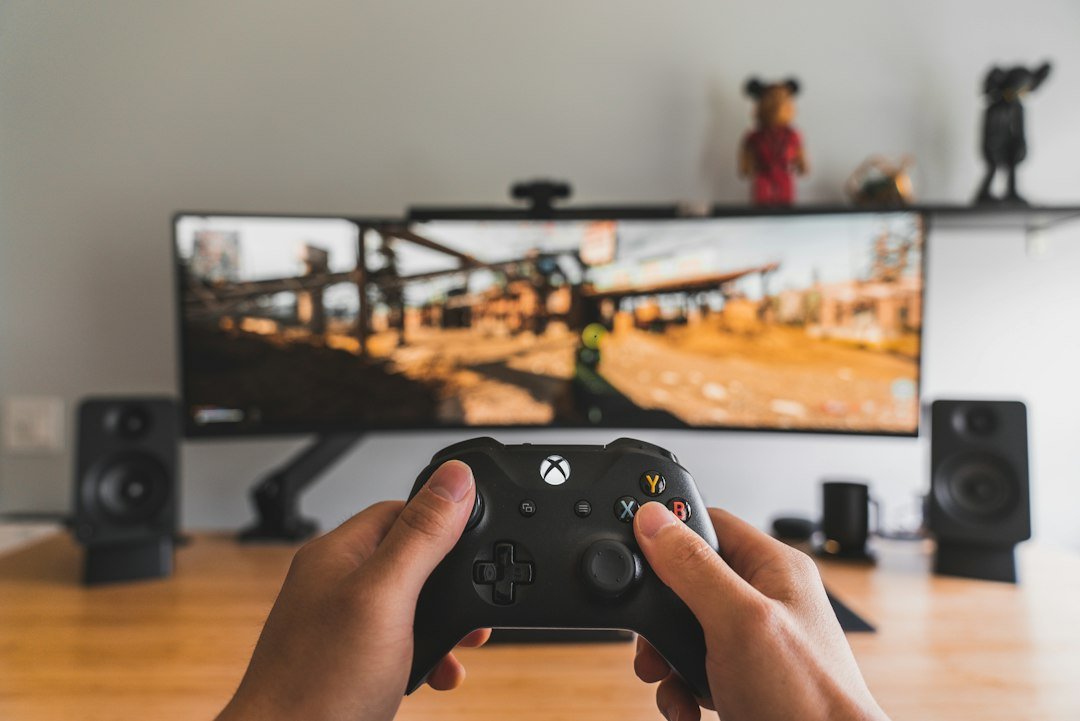
Many titles support keyboard and mouse, but some, especially first‑person shooters, feel better with a controller. You can use a Xbox Wireless Controller via Bluetooth.
How often are Xbox game deals updated?
Microsoft updates the Deals section daily. Setting up notifications helps you catch new discounts as soon as they appear.