
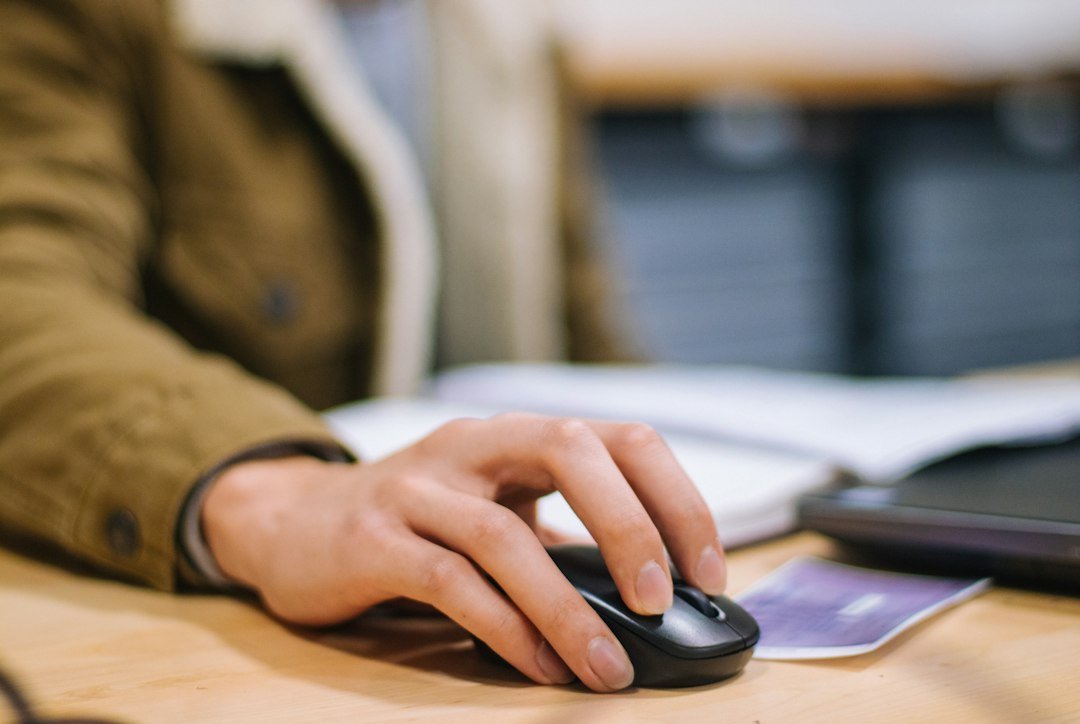
Jitter clicking is a rapid clicking method that lets gamers achieve high clicks per second (CPS) by vibrating their fingers or hand while pressing the mouse button. It’s popular in Minecraft PvP, competitive shooters, and any game where fast clicks give an edge.
Key Takeaways
- Jitter clicking relies on muscle vibration, not pure finger speed.
- Typical safe CPS ranges from 8 to 12; elite players may reach 15‑18 with practice.
- Proper ergonomics and warm‑up routines reduce risk of tendon strain.
- Use a mouse with low actuation force and a high polling rate for best results.
- Training tools like online jitter click tests can track progress objectively.

What Is Jitter Clicking?
In jitter clicking, the player rapidly shakes their hand or finger while keeping the mouse button depressed. The shaking causes the button to register multiple clicks as the actuator moves in and out of its travel range. Unlike butterfly or drag clicking, jitter clicking does not require special mouse modifications; it’s purely a physical technique.
How Jitter Clicking Works Physically
The mouse button is a mechanical switch with a spring that returns to its original position after each press. When you jitter, the spring is constantly compressed and released by the vibration, producing a series of micro‑presses that the sensor reads as separate clicks. The speed you can achieve depends on:
- Muscle fiber type – fast‑twitch fibers respond quicker.
- Hand‑arm coordination – smoother vibration yields more consistent clicks.
- Mouse specifications – low actuation force (<0.5 N) and high polling rate (1000 Hz) register each micro‑press.
Getting Started: Basic Jitter Clicking Technique
- Choose the right mouse. A lightweight mouse with a low click resistance, such as a gaming mouse rated for 0.2 N actuation, reduces fatigue.
- Position your hand. Rest your palm lightly on the side of the mouse. Keep your index finger on the left button, thumb on the side for support.
- Engage the vibration. Slightly tense your forearm and rapidly shake your hand back‑and‑forth while maintaining light pressure on the button.
- Practice timing. Start slow (3‑4 Hz) and gradually increase the shake frequency until the CPS rises.
- Monitor fatigue. Stop if you feel tingling or pain; overuse can lead to tendonitis.
Measuring Your CPS with Online Tools
Objective measurement helps you track improvement and avoid over‑estimating your speed. Several free jitter click tests are available:
- Cpstest.org jitter click test – simple 5‑second timer with real‑time CPS display.
- Cpstest.io – includes a graph of click distribution.
- Cpstest.tools – offers a 10‑second mode and a leaderboard for comparison.
Record your baseline, then repeat the test after each practice session to see incremental gains.

Training Routine for Consistent Improvement
A structured routine prevents burnout and builds the specific muscle memory needed for jitter clicking.
- Warm‑up (2 minutes). Light finger stretches, wrist rotations, and a few slow clicks.
- Interval practice (10 minutes). Alternate 30 seconds of maximum jitter clicking with 30 seconds of rest.
- Cool‑down (2 minutes). Gentle hand stretches and shaking the arm to release tension.
- Progress check. Use one of the online tests after each session.
Most players see a 1‑2 CPS increase after a week of consistent training.
Comparing Jitter Clicking to Other Click Methods
| Method | Typical CPS | Learning Curve | Equipment Needed | Injury Risk |
|---|---|---|---|---|
| Jitter Clicking | 8‑15 (elite 18+) | Medium | Low‑resistance mouse | Medium‑High |
| Butterfly Clicking | 10‑14 | High | Standard mouse | Medium |
| Drag Clicking | 12‑20 | High | Mouse with smooth surface | Low‑Medium |
| Standard Clicking | 5‑7 | Low | Any mouse | Low |
If you’re just starting, jitter clicking offers a balance of speed and accessibility without needing mouse mods.
Common Mistakes and How to Fix Them
- Holding too much pressure. Excess force fatigues the finger quickly. Lighten your grip and focus on the shake, not the press.
- Using a high‑actuation mouse. Switch to a mouse rated under 0.5 N; otherwise the switch won’t register micro‑presses.
- Skipping warm‑up. Jumping straight into max speed raises the chance of strain. Incorporate the warm‑up routine every session.
- Ignoring hand ergonomics. Keep your wrist neutral; a bent wrist increases tendon stress.
Health Considerations and Injury Prevention
Jitter clicking stresses the extensor tendons in the forearm and the flexor tendons in the fingers. Repetitive micro‑presses can lead to:
- Tendonitis
- Carpal tunnel syndrome
- Muscle fatigue
If you notice persistent pain, stop clicking and rest for at least 48 hours. Applying ice and gentle stretching can help. For chronic issues, consult a medical professional specializing in sports medicine.
Choosing the Right Mouse for Jitter Clicking
Key specs to look for:
- Actuation force: ≤0.5 N (lower is easier to vibrate).
- Polling rate: 1000 Hz ensures each micro‑press is captured.
- Weight: 70‑90 g for better control without fatigue.
- Button durability: Look for at least 20 million clicks.
Examples of popular choices in 2026 include the Logitech G Pro X Superlight and the Razer Viper V2, both meeting the low‑actuation criteria.
Integrating Jitter Clicking into Your Gameplay
Once you can sustain 10‑12 CPS, incorporate the skill into specific in‑game scenarios where speed matters, such as:
- Mining blocks quickly in Minecraft PvP.
- Firing burst weapons in FPS titles that benefit from rapid fire.
- Performing quick inventory swaps in battle‑royale games.
Practice in a low‑stakes environment first to avoid costly mistakes in competitive matches.
Links to Related Guides
For a broader view of click speed, see What Is a Good CPS? Understanding Clicks Per Second. To improve overall aim, check the Aim Trainer Guide: Improve Your FPS Skills Fast.
Advanced Finger Positioning for Maximum Speed
Fine‑tuning the way your fingers rest on the mouse can shave milliseconds off each click. Below is a step‑by‑step guide to experiment with three common positions and discover which feels most natural for you.
1. The Classic “V” Grip
- Setup: Place your index finger on the left button and middle finger on the right button, forming a loose “V”.
- Action: Slightly bend both fingers at the knuckle, then rapidly flex the tendons to generate a quick tap.
- Why it works: The V shape keeps the fingers close together, reducing travel distance and allowing simultaneous vibration.
- When to use it: Ideal for players who prefer a balanced feel and need to switch quickly between left‑ and right‑click bursts.
2. The “Flat Palm” Rest
- Setup: Lay the base of your palm lightly on the mouse side, with the index and middle fingers resting flat on the buttons.
- Action: Use a rapid up‑and‑down wrist motion while keeping the fingers relaxed; the palm acts as a stabiliser.
- Why it works: The palm absorbs shock, reducing fatigue during long sessions.
- When to use it: Best for marathon gaming or training blocks where endurance matters more than peak CPS.
3. The “Pinch” Technique
- Setup: Position the thumb on the side of the mouse, index finger on the left button, and middle finger on the right button, almost as if you are pinching the mouse.
- Action: Apply a quick, controlled squeeze with the thumb while the fingers tap, creating a compound motion.
- Why it works: Engages additional muscles, distributing effort and potentially increasing click consistency.
- When to use it: Useful for players who have strong thumb dexterity and want an alternative to pure finger vibration.
Try each position for a five‑minute interval while monitoring CPS on an online tester. Record which grip yields the highest stable rate and feels least tiring. Rotate the grip after a week to avoid overuse of a single set of muscles.
Structured Warm‑Up and Cool‑Down Routines
Just like athletes, jitter clickers benefit from preparing their hands before high‑intensity bursts and relaxing them afterward. Below is a practical routine you can perform in under ten minutes.
Warm‑Up (3‑4 minutes)
- Finger Stretch: Extend each finger back gently, hold for 5 seconds, then release. Repeat twice.
- Wrist Rotations: Rotate the wrist clockwise for 15 seconds, then counter‑clockwise for 15 seconds.
- Rapid Tap Drill: Using a low‑CPS setting (around 5 CPS), tap each button for 30 seconds. Focus on smooth, even motion.
- Grip Squeeze: Hold a soft stress ball or a tennis ball, squeeze for 3 seconds, release for 2 seconds. Do 10 repetitions.
Cool‑Down (3‑4 minutes)
- Reverse Stretch: Pull each finger gently toward the palm, hold for 5 seconds, then relax.
- Forearm Flex: Extend the arm forward, palm down, and use the opposite hand to gently push the fingers back, stretching the forearm muscles.
- Massage: Rub the base of the thumb, the webbing between index and middle fingers, and the outer forearm for 30 seconds each.
- Deep Breathing: Inhale for four counts, hold for four, exhale for six. Repeat three times to lower heart rate and reduce tension.
Incorporating these routines reduces the risk of tendonitis and helps maintain click speed over multiple gaming sessions. If you notice persistent soreness, pause training and consider consulting a hand therapist.
Performance Tracking Spreadsheet – A Practical Template
Quantifying progress turns practice into measurable improvement. The following spreadsheet layout is simple to set up in Google Sheets or Excel and requires only a few minutes each day.
| Date | Session Length (min) | Average CPS | Peak CPS | Grip Used | Notes (fatigue, pain, game) |
|---|---|---|---|---|---|
| 2026‑09‑01 | 15 | 9.2 | 12 | V Grip | Felt good, no pain |
| 2026‑09‑02 | 10 | 8.8 | 11 | Flat Palm | Slight wrist ache after 8 min |
Key points for effective tracking:
- Consistency: Log every session, even short ones. Small data points reveal trends.
- Context: Note the game mode (e.g., PvP, practice map) because different scenarios affect CPS.
- Grip Rotation: Track which grip correlates with higher peak CPS and lower fatigue.
- Health Flags: If you record pain three days in a row, treat it as a warning sign and reduce intensity.
After a week, use the built‑in chart function to plot “Average CPS” versus “Date”. A steady upward slope indicates effective training; a plateau suggests you need to vary drills or adjust grip.
FAQ
Can jitter clicking damage my mouse?
Yes, the rapid micro‑presses can wear out the switch faster than normal use. Choose a mouse with a high click‑rating (20 million+ clicks) and monitor for any click‑lag.
Is jitter clicking allowed in esports tournaments?
Most tournaments do not ban the technique, but some organizers consider it a form of hardware abuse if a modified mouse is used. Pure jitter clicking with a standard mouse is generally acceptable.
How long does it take to reach 12 CPS?
With daily 15‑minute practice, most players hit 12 CPS within 2‑3 weeks, assuming they use a suitable mouse and follow proper ergonomics.
3 thoughts on “Mastering Jitter Clicking: Techniques, Risks, and Best Practices”