
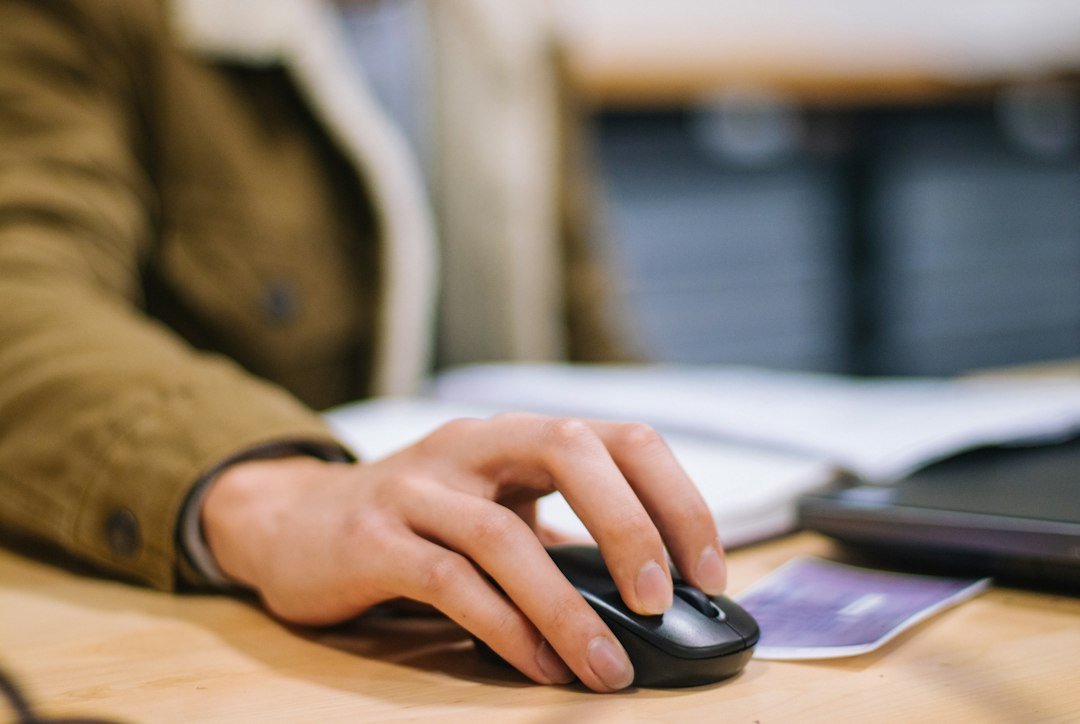
what is a good CPS depends on the activity you’re doing, your hand size, and how much practice you’ve put into rapid clicking. For most casual gamers, 5‑7 clicks per second (CPS) feels fast enough, while competitive click‑intensive games often see players hitting 10‑12 CPS or higher.
Key Takeaways
- Typical casual CPS: 5‑7 clicks/sec
- Competitive benchmarks: 10‑12 CPS, elite players can reach 15‑20 CPS
- Measure with reliable tools like the CPS Meter or mouse‑click test sites
- Improvement comes from technique, ergonomics, and consistent practice
- Safety matters: avoid strain, take breaks, and use proper hand positioning

Understanding CPS and Why It Matters
CPS stands for clicks per second, a simple metric that counts how many mouse clicks you can register in one second. It’s most often discussed in the context of fast‑clicking games (e.g., “clicker” titles, certain shooters, or Minecraft PvP) but also matters for tasks like rapid data entry or testing hardware limits.
The number itself doesn’t tell the whole story. Consistency, accuracy, and the ability to sustain a rate over time are equally important. A burst of 15 CPS for one second isn’t useful if you can’t hold it for the duration of a game round.
Typical CPS Ranges by Skill Level
Benchmarks from several community sources give a useful picture of what most people achieve.
| Skill Level | Typical CPS | Notes |
|---|---|---|
| Beginner | 3‑5 | New to rapid clicking, often using a standard grip. |
| Casual Gamer | 5‑7 | Comfortable with occasional fast clicks, no dedicated training. |
| Intermediate / Competitive | 9‑12 | Practices technique, may use jitter or butterfly methods. |
| Elite / Professional | 13‑20+ | Specialized training, optimized hardware, and refined ergonomics. |
These ranges align with the CPS score chart from CPSCount, which groups scores into “average,” “good,” and “exceptional” categories.
How to Measure Your CPS Accurately
Using a trustworthy test is the first step. Two reliable options are linked below:
- Mouse Button Test: How to Check Your Clicks Quickly
- Mouse Click Test: Surprising Speed Results in 2026
Both guides recommend a 5‑second test window, which balances short bursts with a realistic sustain period. Record multiple attempts and take the average to smooth out variability.
Techniques for Increasing CPS
Improvement isn’t just about raw muscle power. Below are the most common methods, each with pros and cons.
- Standard Single‑Click: Use a normal grip and press the button with your index finger. Good for beginners; limited ceiling.
- Jitter Clicking: Rapidly vibrate the hand while keeping the finger on the button. Can reach 10‑12 CPS but may cause fatigue.
- Butterfly Clicking: Use two fingers (usually index and middle) alternating on the same button. Often yields 12‑15 CPS with less strain than jitter.
- Drag Clicking: Drag the finger across the button surface to generate multiple clicks from a single motion. Effective for very high CPS (15‑20+) but depends heavily on mouse sensor quality.
Choose a technique that matches your comfort level and the policies of the games you play—some competitive scenes ban jitter or drag clicking.
Ergonomics and Safety
Rapid clicking can stress tendons and muscles. Follow these guidelines to stay safe:
- Keep your wrist neutral; avoid excessive bending.
- Take a 5‑minute break after every 10‑15 minutes of intense clicking.
- Use a mouse with a low actuation force (around 30‑40 g) to reduce effort.
- Stretch your fingers, hand, and forearm before and after sessions.
If you feel persistent pain, stop and consult a medical professional.
Hardware Considerations
Not all mice can register extremely high click rates. Look for:
- High polling rate (1000 Hz) for smoother input.
- Durable switches rated for millions of clicks.
- Software that doesn’t limit click registration (some gaming mice have built‑in click‑rate caps).
Testing your mouse with the tools above will reveal its practical ceiling.

Common Mistakes and How to Avoid Them
Even experienced clickers stumble into pitfalls that stall progress.
- Focusing on peak CPS only: A short burst looks impressive but won’t help in sustained scenarios. Track average CPS over a 10‑second window.
- Neglecting hand health: Skipping breaks leads to fatigue and possible injury, reducing long‑term performance.
- Using the wrong grip: A grip that feels comfortable for typing may limit click speed. Experiment with claw or fingertip grips.
- Over‑optimizing hardware: Buying an expensive mouse won’t compensate for poor technique.
Cost of Improving CPS
Improvement is mostly time‑based, not money‑based. You might invest in:
- A quality mouse ($30‑$100) with low actuation force.
- A mouse pad that provides consistent friction.
- Training resources—free videos, community challenges, or paid coaching ($20‑$100 per session).
Most users see measurable gains with just free practice and proper ergonomics.
Alternatives to Pure Click Speed
If a game allows it, consider macro‑free alternatives that reduce the need for extreme CPS:
- Keybinds that replace mouse clicks with keyboard presses.
- Auto‑clicker settings in the game (some titles have built‑in rapid‑fire options).
- Adjusting sensitivity to require fewer clicks for the same in‑game effect.
Next Steps: Building a Personal CPS Improvement Plan
1. Test baseline: Use the mouse‑button test to record your current average CPS.
2. Select a technique: Try jitter, butterfly, and drag clicking in short sessions; note which feels most natural.
3. Set realistic goals: Aim for a 10‑15% increase over two weeks, then reassess.
4. Schedule practice: 10‑minute focused drills three times a week, with breaks.
5. Monitor health: Keep a log of any discomfort and adjust frequency accordingly.
Following this loop will let you track progress without overexertion.
Benchmarking Your CPS Against Game Requirements
Before you chase a raw number, compare your current click speed to the demands of the games or tools you use. Different titles have distinct thresholds for what feels “fast enough.” Knowing those thresholds prevents you from over‑training for a metric that won’t actually improve performance.
Identify the target CPS for popular titles
- First‑person shooters (FPS) with click‑based fire rates: Most modern FPS games cap the fire rate at 10‑12 clicks per second. Anything above that provides no in‑game advantage, though it can help with rapid‑fire weapon handling.
- Real‑time strategy (RTS) games: Macro‑intensive titles like StarCraft II often see elite players operating around 6‑8 CPS during intense macro phases.
- Clicker/idle games: These can benefit from 15‑20 CPS, but diminishing returns appear once the game’s internal timer limits actions.
- Speed‑running tool‑assisted segments: Some tool‑assisted runs require 20‑30 CPS for specific input tricks, but these are niche and usually not required for casual play.
How to match your CPS to the game
1. Research the game’s mechanics. Look for community‑compiled data on maximum effective click rates. Forums, wikis, and developer notes often list these limits.
2. Test in‑game. Use the game’s built‑in performance metrics or a third‑party overlay to record your CPS while performing typical actions.
3. Set a realistic target. If the game caps at 12 CPS, aim for 10‑11 CPS to give yourself a small buffer without unnecessary strain.
When a higher CPS still matters
Even if a game caps clicks, a higher baseline can improve muscle memory for rapid button transitions, reduce latency in combo execution, and make you more resilient to fatigue during long sessions. In those cases, treat CPS as a foundation rather than a direct performance metric.
Creating a Structured Practice Routine
A random burst of clicking will not translate into sustainable speed. A disciplined routine builds the neural pathways and finger endurance needed for consistent high CPS.
Step‑by‑step weekly plan
- Assessment day (15 min): Use a reliable CPS tester (e.g., a browser‑based timer with a 10‑second window). Record your baseline for the week.
- Warm‑up (5 min): Light hand stretches—extend fingers, rotate wrists, and shake out tension. This reduces injury risk.
- Focused drills (20 min):
- Speed bursts: 5 seconds of all‑out clicking, rest 25 seconds, repeat 8 times.
- Consistency blocks: 30 seconds at a target of 80 % of your current max, rest 30 seconds, repeat 4 times.
- Alternating hand drills: Switch between left and right hand every 10 seconds to balance development.
- Cool‑down (5 min): Gentle finger extensions and wrist flexor stretches. Hold each stretch for 15‑20 seconds.
- Reflection (5 min): Log the highest CPS achieved, average CPS, and any discomfort. Note patterns (e.g., drop after the third burst).
Progressive overload principle
Just like weight training, increase the difficulty gradually. After two weeks, add one more burst per session or extend each burst by 2 seconds. If you notice pain, revert to the previous level for a few sessions.
Tools to aid practice
- Metronome apps: Set a click‑per‑second tempo and try to match it, improving timing accuracy.
- Custom macros (for practice only): Record a series of clicks and replay them at a controlled speed to compare your live performance.
- Progress trackers: Simple spreadsheets with columns for date, max CPS, average CPS, and notes on fatigue.
Tracking Progress and Adjusting Your Plan
Without data, it’s impossible to know whether your routine is effective. Systematic tracking also highlights when a plateau is genuine versus when it’s caused by poor ergonomics or overtraining.
Key metrics to monitor
- Peak CPS: Highest number recorded in a single test.
- Average CPS over a session: Gives a sense of sustainable speed.
- Consistency ratio: Percentage of bursts that stay within 5 % of your peak.
- Fatigue index: Difference between first and last burst in a session; a growing gap signals overuse.
Monthly review checklist
- Compare the current month’s peak CPS to the previous month’s. Aim for a 5‑10 % improvement, but accept smaller gains if you’re already above 12 CPS.
- Assess the consistency ratio. If it falls below 70 %, revisit warm‑up and ergonomics.
- Check the fatigue index. An increase of more than 2 CPS between first and last burst suggests you need more rest days.
- Update your target CPS based on any changes in game requirements or personal goals.
When to adjust the routine
Plateau for more than three weeks: Introduce a new drill, such as “double‑tap” (two rapid clicks followed by a pause) to stimulate different motor patterns.
Recurring discomfort: Reduce session length by 25 %, add an extra rest day, and prioritize ergonomic adjustments (mouse grip, desk height).
Rapid improvement: If you surpass your target by a comfortable margin for two consecutive weeks, raise the target by 0.5‑1 CPS and add an extra burst per session.
Documenting setbacks
Note any days you miss practice or experience pain. Over time you’ll see whether missed sessions correlate with slower progress, helping you fine‑tune the balance between training and recovery.
FAQ
What is a good CPS for casual gaming?
For most casual titles, 5‑7 CPS provides smooth performance and is comfortable for extended play.
Can I safely reach 15 CPS?
Yes, but it usually requires a technique like drag clicking and a mouse designed for high click rates. Prioritize breaks and hand stretches to avoid strain.
Do mouse specifications affect my CPS?
Absolutely. A mouse with a low actuation force and a high polling rate can register clicks more reliably, allowing you to achieve higher CPS without extra effort.
2 thoughts on “What Is a Good CPS? Understanding Clicks Per Second”