
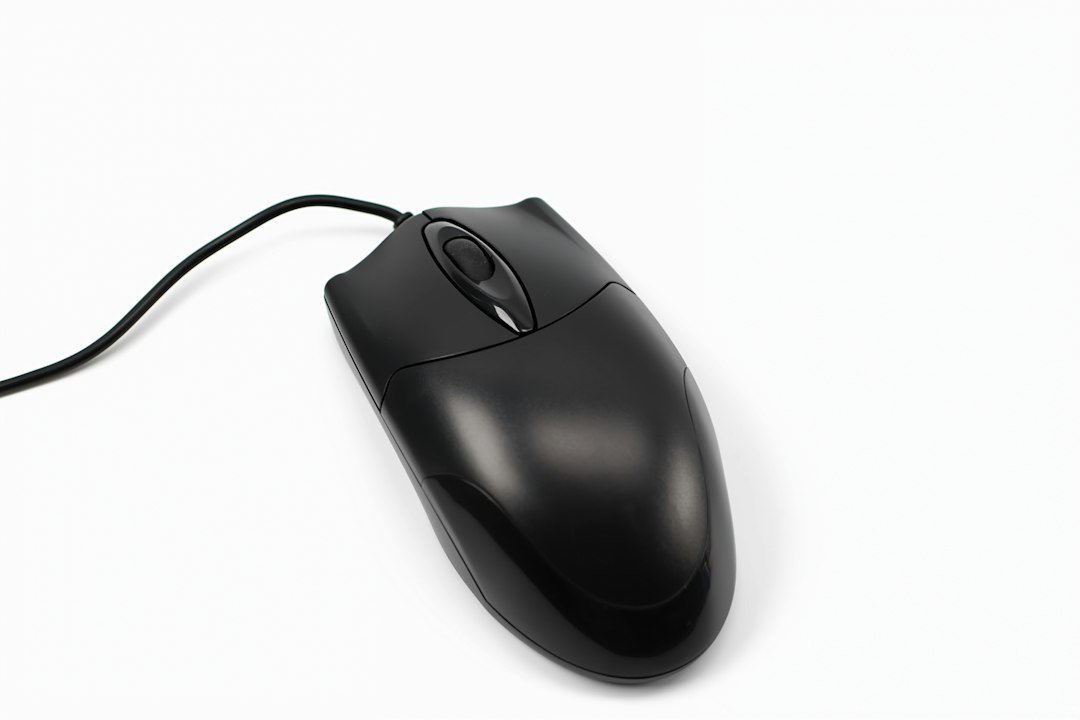
Mouse Button Test tools let you measure click speed, latency, and button consistency in seconds, so you know exactly how your mouse performs.
Key Takeaways
- Online testers give millisecond latency and clicks‑per‑second (CPS) readouts.
- Run a test on a clean surface, with default DPI, and repeat for reliable data.
- Interpret results: low latency = faster response; high CPS = better gaming or data‑entry speed.
- Common issues include debounce settings, worn switches, and software interference.
- Improvement steps: clean the sensor, adjust DPI, or replace faulty switches.

What Is a Mouse Button Test?
A Mouse Button Test is an online or software‑based utility that records each press of a mouse button and reports metrics such as clicks per second (CPS), response time, and bounce rate. The test is useful for gamers, designers, and anyone who relies on precise clicking.
Why Run a Mouse Button Test?
Knowing how your mouse behaves helps you:
- Identify hardware problems before they affect performance.
- Compare different mice or settings (DPI, polling rate).
- Train for higher CPS in competitive games.
- Verify that accessibility tools (e.g., click‑assist software) are working correctly.
Top Free Online Mouse Button Test Tools
Several reputable sites host instant testers. Below is a quick comparison:
| Tool | Key Features | Interface | Extra Info |
|---|---|---|---|
| Mouse Button Test Online | Latency, CPS, left/right split, visual graph | Simple, colour‑coded bars | Good for quick checks |
| XBitLabs Mouse Tester | Polling rate detection, double‑click test | Modern dashboard | Shows hardware limits |
| OnlineMicTest Mouse Test | Key‑press style view, export CSV | Minimalist | Useful for data‑analysis |
Preparing for an Accurate Test
Before you start, follow these steps to reduce variables:
- Close background applications that may capture mouse input (e.g., screen recorders).
- Use a flat, non‑reflective mouse pad to keep sensor tracking consistent.
- Set DPI and polling rate to your usual settings; note them for later comparison.
- Disable mouse acceleration in OS settings to avoid software‑added latency.
- Warm‑up the mouse by clicking lightly for 30 seconds; mechanical switches settle after a few minutes of use.
Running the Test: Step‑by‑Step
The process is similar across most testers. Here’s a generic workflow using the Mouse Button Test Online tool:
- Navigate to Mouse Button Test Online.
- Choose the button you want to test (left, right, or middle).
- Press the Start button; a 5‑second timer begins.
- Click as rapidly as you can, keeping your hand relaxed to avoid fatigue.
- When the timer ends, the site displays CPS, average latency, and a visual bar chart.
- Record the numbers in a notebook or spreadsheet for future reference.
Repeat the test three times and use the average to smooth out outliers.
Understanding the Results
Metrics have practical meanings:
- CPS (Clicks Per Second): Higher numbers indicate faster clicking ability. Competitive shooters often aim for 8‑12 CPS on the left button.
- Latency (ms): The delay between physical click and software registration. Anything under 5 ms is considered excellent for gaming.
- Bounce Rate: Percentage of unintended double clicks caused by switch chatter. A bounce rate above 2 % may signal a worn switch.
If you notice a large discrepancy between left and right button CPS, it could be a hardware issue or simply a habit difference.
Common Issues Detected by a Mouse Button Test
When a test reveals unexpected numbers, consider these causes:
- Debounce Settings: Some mice let you adjust debounce time via software. Too high a setting reduces CPS.
- Worn Switches: Mechanical switches lose crispness over time, increasing bounce.
- USB Bandwidth Limits: Using a USB hub with many devices can add latency.
- Driver Conflicts: Outdated or generic drivers may not expose the mouse’s full polling rate.
Improving Your Click Performance
After diagnosing any issues, you can take concrete actions:
- Clean the mouse with compressed air; dust can affect sensor tracking and button feel.
- Update firmware via the manufacturer’s utility (e.g., Logitech G HUB, Razer Synapse).
- Adjust DPI and polling rate to a setting that balances speed and accuracy for your use case.
- Replace faulty switches if you’re comfortable opening the mouse; many hobbyists solder new Omron switches.
- Practice click drills using the same test tool daily; gradual improvement is measurable.
When to Use a Dedicated Software Test
Online tools are convenient, but offline utilities offer deeper data:
- Latency logging over longer sessions (e.g., 30 minutes) to see stability.
- Customizable debounce sliders for fine‑tuning.
- Integration with game overlays to monitor performance in real time.
Popular desktop options include MouseTester (open source) and the built‑in diagnostics in many gaming mouse suites.
Related Tools and How They Complement a Mouse Button Test
Testing one aspect of a mouse rarely tells the whole story. Pair a button test with these checks:
- Mouse Click Test for broader click‑speed comparisons across devices.
- Keyboard testers (see Keyboard Tester: How to Check Every Key Quickly) to ensure overall input reliability.
- Game‑specific reviews like Engineering.com Games for context on how mouse performance affects gameplay.

Cost Considerations
All the online testers listed are free. If you need hardware diagnostics, a basic USB mouse costs under $20, while high‑end gaming mice with adjustable debounce can range $80‑$150. Investing in a quality mouse often eliminates the need for frequent button testing.
Alternatives to a Traditional Mouse Button Test
If you prefer a different approach, consider:
- High‑speed video analysis: Record clicks at 240 fps and count frames between press and release.
- Software macros: Use macro‑recording tools to log timestamps of each click.
- Physical click meters: Small hardware devices that output click counts via USB.
These methods are more involved but can validate the results from online tools.
Next Steps After Testing
Once you have reliable data, decide what to do:
- If numbers meet your expectations, keep your current setup and schedule a re‑test every 6‑12 months.
- If latency is high or CPS low, troubleshoot using the “Common Issues” list.
- Document settings (DPI, polling rate, debounce) alongside test results for future reference.
- Share your findings on forums; community feedback can point out hidden problems.
Diagnosing Specific Button Failures
When a mouse reports inconsistent clicks, the first step is to identify which button—or combination of buttons—is problematic. A generic click test shows that something is wrong, but a targeted approach tells you whether the left, right, middle, or side buttons need attention.
Step‑by‑step diagnostic flow
- Isolate the button. Use a test tool that lets you click each button individually while displaying a real‑time count. Note any discrepancies between expected and actual counts.
- Check for double‑click registration. Some wear patterns cause a single press to be read as two rapid clicks. Enable the “double‑click detection” mode (if available) and watch for spikes.
- Swap hands. Press the suspect button with the opposite hand. If the issue persists, the hardware is likely at fault; if it disappears, your grip or pressure may be the cause.
- Test on another computer. Connect the mouse to a different system and repeat the isolated test. Consistent results confirm a hardware defect.
- Measure actuation force. For mechanical mice, a simple spring‑scale can reveal whether the button requires unusually high pressure, indicating wear or debris.
By following this flow you can quickly narrow the problem down to a single button, a combination of buttons, or a broader issue such as firmware glitches.
Common failure patterns and what they mean
- Missed clicks on the left button only. Often caused by worn microswitches or accumulated dust under the button cap.
- Random double‑clicks on the right button. May indicate a loose contact inside the switch; a gentle tap on the button housing can sometimes restore proper contact.
- Intermittent middle‑button response. Frequently seen in mice with scroll‑wheel click mechanisms that double as a button; the wheel’s bearing might be misaligned.
- Side‑button ghost clicks. Some gaming mice use optical sensors for side clicks; firmware updates often resolve phantom activations.
Understanding these patterns helps you decide whether a simple cleaning, a firmware patch, or a full replacement is the appropriate remedy.
Customizing Test Settings for Different Use Cases
Not every user needs the same level of granularity from a mouse button test. Gamers, graphic designers, and office workers each have distinct performance criteria, and tailoring the test parameters can surface issues that a generic test would miss.
Adjusting click‑rate thresholds
Most free online testers default to a 5‑click per second benchmark. For competitive gamers, raise the threshold to 10‑12 CPS (clicks per second) to verify that rapid tapping does not trigger missed clicks. Office users can keep the lower threshold, focusing instead on consistency over speed.
Enabling latency measurement
Latency—time between physical press and software registration—matters for fast‑paced games. Choose a tester that displays millisecond latency and compare it against the manufacturer’s specifications. A variance of more than 2 ms may indicate driver issues or a failing USB controller.
Testing with different DPI settings
Changing DPI does not affect button actuation directly, but many high‑performance mice link DPI profiles to button firmware. Run the button test after switching to each DPI preset to ensure the firmware correctly maps clicks across all profiles.
Saving and comparing multiple test runs
Some tools let you export results as CSV or JSON. Keep a log of tests taken under various conditions (different surfaces, hand positions, or after firmware updates). Over time you’ll spot trends—like a gradual increase in missed clicks—that signal impending failure.
Integrating Mouse Button Tests into Routine Maintenance
Treating a mouse button test as a one‑off check misses the opportunity to catch wear early. Incorporating a quick test into your regular hardware maintenance schedule can extend the life of the device and prevent unexpected downtime.
Monthly quick‑check routine (under 2 minutes)
- Open a lightweight online tester.
- Perform a 10‑second left‑button burst at a comfortable speed.
- Repeat for right, middle, and any side buttons.
- Note any missed clicks or irregular counts; log them in a simple spreadsheet.
If the log shows a single missed click, schedule a deeper diagnostic the next month. Two or more missed clicks merit cleaning or firmware updates immediately.
Quarterly deep‑clean and re‑test
Every three months, remove any detachable covers, use compressed air to clear debris, and gently wipe the button caps with a lint‑free cloth dampened with isopropyl alcohol (≤70%). After the mouse dries, run the full step‑by‑step test from the earlier section and compare the new results with the previous quarter’s data.
Automating reminders
Set a recurring calendar event titled “Mouse Button Health Check.” Include a link to your preferred test tool and a short checklist. Automation removes the mental overhead and ensures consistency.
When to retire the mouse
- Consistent missed clicks on the same button after cleaning.
- Latency spikes beyond the manufacturer’s spec in two consecutive tests.
- Physical wear such as cracked button caps or loose scroll‑wheel feel.
At this point, replacement is more cost‑effective than repair, especially for budget‑range devices where parts are not sold separately.
FAQ
Can a Mouse Button Test detect a faulty USB port?
The test measures click latency, which can be affected by a failing USB port. If you see unusually high latency on multiple mice, try a different port or a direct motherboard connection.
Do wireless mice show higher latency in a button test?
Generally, wireless mice add 1‑2 ms of latency compared to wired counterparts, but high‑quality 2.4 GHz or Bluetooth 5.0 models can be indistinguishable in casual tests.
How often should I run a Mouse Button Test?
For most users, a quarterly test is sufficient. Competitive gamers may test before tournaments or after firmware updates.
2 thoughts on “Mouse Button Test: How to Check Your Clicks Quickly”