
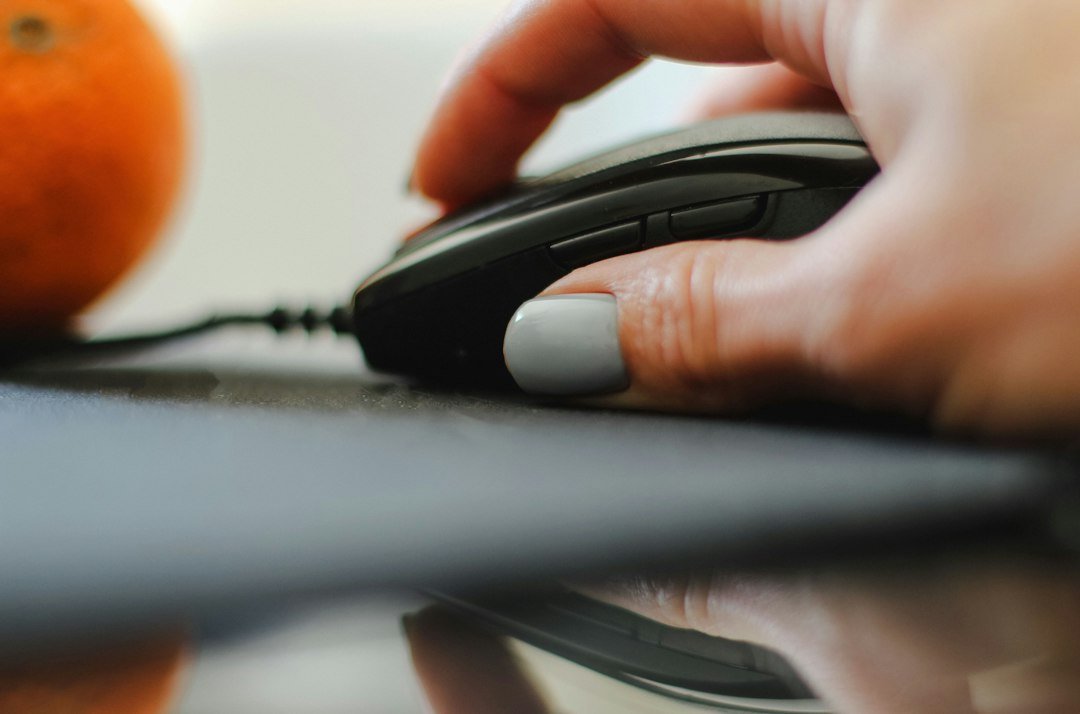
A click counter is a simple tool that records each press of a mouse button, keyboard key, or touchscreen tap, giving you a numeric tally you can review later. Whether you need it for high‑speed gaming, measuring typing speed, or tracking repetitive tasks, the basics are the same: the device or software counts clicks and displays the total.
Key Takeaways
- Click counters come as hardware devices, browser extensions, or web apps; choose based on portability and feature set.
- For gaming, look for low latency, high refresh rates, and customizable hotkeys.
- For productivity, a web‑based counter with export options often suffices.
- Common mistakes include ignoring battery life on hardware counters and not calibrating software thresholds.
- Regularly back up your data if you rely on the counts for reporting or training.

What Is a Click Counter and When Do You Need One?
A click counter records each activation of an input device. The most common scenarios are:
- Gaming: Measuring clicks per second (CPS) for shooters, rhythm games, or click‑intensive titles.
- Typing practice: Counting space‑bar presses to gauge rhythm and speed.
- Data collection: Tracking how many times a button is pressed in a lab experiment or during a manual workflow.
- Fitness or rehab: Logging repetitions of a button‑press exercise.
If you need an objective number to compare performance, train for a skill, or simply keep a record, a click counter is the most straightforward solution.
Types of Click Counters
Understanding the three main categories helps you narrow down the right product.
Hardware Click Counters
These are standalone devices that resemble a small handheld tally counter. They usually have a mechanical or electronic button and a digital display.
- Pros: No software installation, works offline, often very durable.
- Cons: Limited to one or a few separate tallies, battery dependence, less flexible for data export.
Browser‑Based Click Counters
Websites like Online Mini Tools and RapidTables host free click counters that run in any modern browser.
- Pros: No installation, instantly accessible, often support multiple simultaneous counters.
- Cons: Requires internet or at least a loaded page, may lose data if the tab closes unexpectedly.
Desktop or Mobile Apps
Dedicated applications for Windows, macOS, Android, or iOS provide more features such as hotkey mapping, CSV export, and customizable alerts.
- Pros: Can run in the background, supports automation, often includes analytics.
- Cons: Requires installation and occasional updates.

How to Choose the Right Click Counter for Your Goal
Use the following checklist to match features with your primary use case.
| Feature | Gaming | Productivity/Typing | Data Collection |
|---|---|---|---|
| Latency | Low (≤1 ms) | Medium | Low‑to‑medium |
| Multiple tallies | Yes, often 10+ | Yes, up to 5 | Yes, custom fields |
| Export format | CSV/JSON optional | CSV preferred | CSV or direct API |
| Portability | Hardware or lightweight app | Web‑based fine | Desktop app or web form |
| Battery life | Important for handheld | Not critical | Depends on duration of test |
If you mainly track CPS for games, a low‑latency web tool or a lightweight desktop app works best. For repetitive office tasks, a browser‑based counter with CSV export is sufficient.
Setting Up a Click Counter – Step‑by‑Step
Below is a generic workflow that works for most web‑based counters. Adjust the steps for hardware or app variants.
- Open the tool. Navigate to a trusted site such as MiniWebTool. The page loads a simple interface with a large “Click” button and a numeric display.
- Configure settings. Look for options like “Reset on start,” “Maximum count,” or “Keyboard shortcut.” Set the shortcut to a key you can press without interfering with your activity (e.g., the space bar for typing drills).
- Test the input. Press the assigned key a few times and verify the count increments correctly. If the count lags, check the browser’s performance tab for high CPU usage.
- Start your session. When ready, press the designated start button or hotkey. The counter will begin tallying each click.
- Monitor and pause. Most tools let you pause without resetting. Use this to take breaks or switch tasks while preserving the current total.
- Export data. After the session, click “Export” or copy the number into a spreadsheet. For longer projects, consider exporting to CSV for easy analysis.
Hardware counters follow a similar logic: press the reset lever, then start clicking. Some models include a USB interface for automatic data transfer.
Integrating a Click Counter with Gaming Practice
For gamers who want to improve CPS, the click counter becomes a feedback loop.
- Baseline measurement. Use a web tool to record your natural CPS over a 10‑second interval.
- Technique trial. Experiment with jitter clicking, butterfly clicking, or drag‑clicking. Record each method separately.
- Analyze results. Export the counts, calculate average CPS, and note any fatigue points.
- Iterate. Adjust hand positioning or grip, then retest.
For deeper analysis, combine the click counter with a video recording to see the correlation between hand movement and click rate. This mirrors the approach described in the Mastering Jitter Clicking guide.
Using a Click Counter for Typing and Space‑Bar Training
Space‑bar rhythm matters for touch‑typists and gamers alike. A click counter can track the number of spaces per minute, helping you maintain a steady flow.
- Set the counter’s hotkey to the space bar.
- Open a plain‑text document and type a paragraph at your normal speed.
- When finished, stop the counter and note the total.
- Divide by the minutes spent to get spaces per minute.
Compare this metric with your words‑per‑minute (WPM) score to see if you’re over‑ or under‑using spaces. The Space Bar Counter guide offers additional drills.
Common Mistakes and How to Avoid Them
Even a simple tool can produce misleading data if used incorrectly.
- Not resetting between sessions. Always hit the reset button before a new test; otherwise previous counts inflate results.
- Using the wrong input device. Some keyboards register a key press as two events (press and release). Choose a counter that counts only the press event or adjust settings accordingly.
- Ignoring latency. In high‑speed gaming, a delay of even a few milliseconds can affect CPS. Test your counter’s response time by clicking a known rapid sequence and comparing with a second, trusted tool.
- Forgetting to back up data. Browser tabs can crash. Export after each session or use a desktop app with auto‑save.
Cost Considerations
Most click counters are free or low‑cost. Here’s a rough breakdown:
- Web tools: Free, no installation.
- Desktop apps: Free to $15 for premium features like API access.
- Hardware counters: $10‑$30 depending on build quality and extra features like Bluetooth sync.
If you only need occasional counts, a web tool is sufficient. Invest in hardware only if you need durability for field work or want a tactile feel.
Next Steps: Building a Personal Click‑Tracking Routine
To get the most value, embed the click counter into a regular practice schedule.
- Set a weekly goal. For example, increase CPS by 5% over four weeks.
- Schedule short sessions. 5‑minute drills 3 times per week keep muscles fresh.
- Record each session. Use a spreadsheet with columns for date, technique, CPS, and notes.
- Review trends. Plot the data weekly to see progress or plateaus.
- Adjust technique. When a plateau appears, try a new clicking method or hand stretch routine.
This systematic approach mirrors the methodology in the Double Click Test guide, where consistent measurement drives improvement.
Real‑World Scenarios: When a Click Counter Makes a Difference
Seeing a tool in theory is easy; watching it solve a concrete problem is what convinces most users. Below are three common situations where a click counter can turn vague effort into measurable progress.
1. Speed‑running a rhythm game
- Goal: Reach 150 clicks per minute (cpm) on a specific track.
- Setup: Use a hardware counter with a low‑latency USB interface. Connect the button that triggers the in‑game action to the counter’s input.
- Process: Play the track while the counter records each press. After the run, note the total clicks and the exact time stamp provided by the device.
- Outcome: Compare the measured cpm to the target. If you fall short, isolate the slowest 10‑second segment and replay it, focusing on finger positioning.
2. Improving typing speed for coding
- Goal: Increase sustained space‑bar usage from 60 to 80 presses per minute while maintaining error‑free syntax.
- Tool: A software counter that can filter out non‑space keys and display a live per‑minute graph.
- Method: Open a simple code template, set a 5‑minute timer, and type the boilerplate code while the counter runs in the background.
- Review: Export the CSV log, plot the data, and look for dips that correspond to pauses for thinking or syntax errors.
3. Tracking clicks for a productivity Pomodoro routine
- Goal: Ensure at least 30 purposeful clicks (e.g., task switches, file saves) per 25‑minute work block.
- Device: A small Bluetooth counter clipped to the keyboard.
- Practice: Start the Pomodoro timer, begin work, and let the counter run. When the timer ends, note the total clicks.
- Adjustment: If clicks are below target, examine whether you’re spending too much time in passive reading versus active editing.
These examples illustrate how a click counter moves you from “I think I’m improving” to “I have data that proves it.” The key is pairing the metric with a clear, actionable goal.
Advanced Tips for Accurate Tracking and Continuous Improvement
Once you have a counter in place, fine‑tuning its use can prevent false readings and keep your data meaningful.
Calibrate Your Device Before Each Session
Even inexpensive hardware can drift after prolonged use. Perform a quick 30‑second test press at the start of every session and compare the displayed count to the known number of presses. Adjust the sensitivity setting if the numbers differ.
Use Rolling Averages Instead of Raw Totals
Raw click totals can be misleading when session length varies. Implement a rolling 1‑minute average (available in most software counters) to see how your speed fluctuates over time. This highlights fatigue points that a simple total would hide.
Segment Your Data by Task Type
In productivity work, not all clicks are equal. Tag clicks with a simple prefix—e.g., “E:” for email, “C:” for coding—using a macro or a secondary counter. Later, filter the CSV file to compare click density across tasks and discover which activities naturally generate more momentum.
Set Incremental Benchmarks
Jumping from 60 to 100 clicks per minute often leads to frustration. Instead, aim for a 5‑10% increase each week. Record the baseline, apply the new target, and review the data after three sessions before adjusting again.
Combine Click Data with Video Review
For gaming, a numeric count tells you how fast you’re clicking, but not why you missed a beat. Record a short clip of a high‑intensity segment, then overlay the click‑per‑minute graph. Identify moments where the graph spikes or drops and watch the corresponding gameplay to understand technique flaws.
Avoid Common Pitfalls
- Counting unintended inputs: Keep your hands steady and disable any macro that could generate extra clicks.
- Relying on a single metric: Pair click count with accuracy, error rate, or completion time to get a fuller performance picture.
- Neglecting rest: High click rates can cause strain. Schedule micro‑breaks after each 10‑minute burst of intensive clicking.
By integrating these practices, you turn a simple click counter into a feedback loop that drives real skill growth, whether you’re chasing a high score or shaving minutes off a daily task list.
FAQ
Can a click counter work on a mobile device?
Yes. Many web‑based counters are responsive and can be used on smartphones or tablets. Just tap the on‑screen button or assign a hardware keyboard shortcut if you have one attached.
Do hardware click counters store data after power loss?
Most basic models lose their count when the battery dies. Higher‑end units with internal memory retain the last total, but it’s still good practice to export data after each session.
Is it safe to use high‑speed clicking techniques for long periods?
Intensive clicking can strain tendons and lead to repetitive‑strain injuries. Take regular breaks, stretch your hands, and consider consulting a medical professional if you notice pain.
3 thoughts on “How to Choose and Use a Click Counter for Gaming and Productivity”