
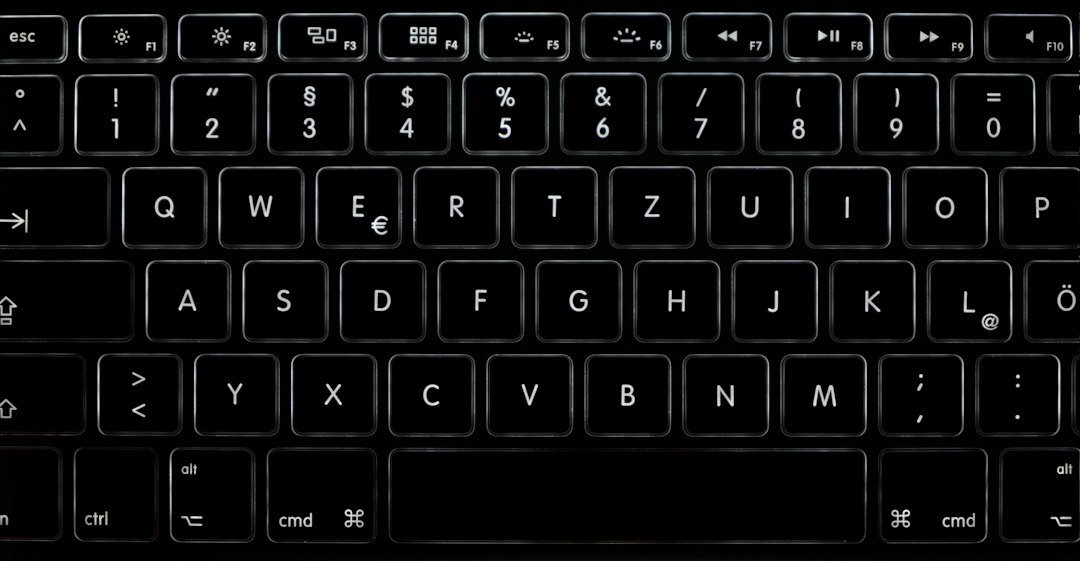
Keyboard polling rate is the frequency at which a keyboard sends data about key presses to the computer, measured in hertz (Hz). A higher polling rate means the computer receives input more often, which can translate to smoother, more responsive typing or gaming.
Key Takeaways
- Polling rate is measured in Hz; common values are 125 Hz, 250 Hz, 500 Hz, and 1000 Hz.
- Higher rates reduce input lag but may increase CPU usage slightly.
- For most typing tasks, 125 Hz is sufficient; gamers often prefer 500 Hz or 1000 Hz.
- Testing tools are available online; three reliable options are linked below.
- Adjusting the rate usually requires software from the keyboard manufacturer or BIOS settings.

What Is Keyboard Polling Rate?
The polling rate defines how many times per second the keyboard’s controller reports its state to the computer. If a keyboard polls at 125 Hz, it sends an update every 8 ms (1/125 s). At 1000 Hz, updates happen every 1 ms. The concept is similar to how a mouse reports movement, which is why many people encounter the term while researching gaming peripherals.
Polling is a continuous process: the keyboard’s firmware reads the matrix of keys, packages any changes, and transmits them over USB or Bluetooth. The faster this loop runs, the less time there is between a physical press and the system’s awareness of that press.
Why Does Polling Rate Matter?
Input lag is the delay between a physical action and the on‑screen response. While human perception varies, studies on reaction time suggest that delays under 10 ms are generally imperceptible for most users. A 125 Hz poll (8 ms) is already close to that threshold, but in fast‑paced games or competitive typing tests, even a few milliseconds can affect performance.
Higher polling rates also improve the fidelity of rapid key sequences. When a keyboard reports more frequently, the operating system can register each press more accurately, reducing the chance of missed or duplicated inputs during high‑speed activities.
Common Polling Rate Settings
| Polling Rate | Update Interval | Typical Use Case |
|---|---|---|
| 125 Hz | 8 ms | General office work, casual typing |
| 250 Hz | 4 ms | Enthusiast gamers, fast‑typing practice |
| 500 Hz | 2 ms | Competitive FPS/RTS gamers |
| 1000 Hz | 1 ms | Professional e‑sports, ultra‑responsive setups |
Most modern mechanical keyboards default to 1000 Hz because the performance impact on modern CPUs is negligible. However, some budget or older models may stick to 125 Hz.
How to Test Your Keyboard Polling Rate
Several free web tools let you measure the actual polling rate of your keyboard. The process is straightforward: you open the test page, press any key repeatedly, and the tool displays the measured Hz.
- Keyboard Polling Rate & MS Test – Check Hz & Scan Rate provides a live graph and average reading.
- MechanicalKeyboard.net Polling Rate Test includes a simple numeric result and a short explanation.
- MousePollingRateTest.com Keyboard Hz Checker offers a clean interface for quick checks.
Run each test a few times to account for variability. If the reported rate differs from the specification in your keyboard’s manual, check for firmware updates or software settings that may be overriding the default.

Adjusting the Polling Rate
Most keyboards let you change the polling rate through dedicated software (e.g., Razer Synapse, Corsair iCUE) or by using a hidden key combination. If your keyboard lacks software, you can sometimes adjust the rate via the operating system:
- Open Device Manager and locate the keyboard under “Keyboards”.
- Right‑click, choose “Properties”, then the “Details” tab.
- Select “Device Instance Path” and note the hardware ID.
- Search for a registry tweak specific to your keyboard model (use caution; back up the registry first).
Because registry edits can affect system stability, the safest route is to use the manufacturer’s utility. If no utility exists, the default polling rate is usually the best balance of performance and power consumption.
Polling Rate vs. Other Keyboard Specs
When evaluating a keyboard, polling rate is just one factor. Consider these alongside it:
- Switch type (linear, tactile, clicky) – impacts feel and actuation force.
- Debounce time – the interval the controller waits before registering another press of the same key; lower debounce can feel faster but may cause ghosting.
- Report rate – similar to polling but sometimes used to describe the USB transfer speed (Full‑Speed 12 Mbps vs. High‑Speed 480 Mbps).
- Key rollover – how many simultaneous key presses are recognized; important for gaming and fast typing.
High polling rates are most beneficial when combined with low debounce and high rollover, creating a truly responsive experience.
Who Needs a High Polling Rate?
Gamers: First‑person shooters, battle‑royale titles, and fast‑reaction games benefit from 500 Hz or 1000 Hz. The reduced latency can shave off milliseconds in reaction time, which matters in competitive play.
Speed typists: Participants in click‑click tests or CPS (clicks per second) challenges may notice smoother counts at higher rates. For casual writing, the difference is negligible.
Developers and designers: When testing key‑binding responsiveness or building applications that rely on rapid key events, a higher polling rate provides more accurate data.
If you primarily use a keyboard for email, document creation, or browsing, 125 Hz is perfectly adequate and may conserve a tiny amount of power on laptops.
Potential Drawbacks of Very High Polling Rates
While modern CPUs handle 1000 Hz without strain, there are scenarios where a lower rate is preferable:
- Battery life: On wireless keyboards, higher polling can increase power draw, shortening battery life.
- Compatibility: Some older operating systems or BIOS versions may not recognize 1000 Hz correctly, leading to missed inputs.
- Noise: A marginal increase in electrical activity can produce faint audible hum in very sensitive audio setups, though this is rare.
In practice, the trade‑off is minor; most users won’t notice any downside.
How Polling Rate Interacts with CPS and Click‑Click Tests
Online CPS (clicks per second) tests measure how many clicks you can register in a given time. A higher keyboard polling rate can give a more accurate count because each click is reported sooner. For those looking to improve CPS scores, see the related guide Understanding Your CPS Score and the Click Click Test Mastery article for practice tips.
Similarly, mouse polling rate influences click timing, which is why many gamers synchronize both devices to 1000 Hz for consistency.
Steps to Optimize Your Keyboard Setup
- Identify your current polling rate using one of the online testers linked above.
- Check the manufacturer’s software for a polling rate option. Set it to the highest stable value.
- Update firmware if the software indicates a newer version is available.
- Test again to confirm the new rate is applied.
- Evaluate performance in your typical tasks—gaming, typing tests, or development.
- Adjust other settings such as debounce time or key rollover if you notice ghosting or missed inputs.
Document the changes so you can revert if you encounter any instability.
Measuring Real‑World Impact on Gameplay
Why frame‑rate matters
Even if a keyboard reports a 1000 Hz polling rate, the benefit is only noticeable when the rest of your system can keep up. A 144 Hz monitor, for example, refreshes every 6.9 ms, so a 500 Hz poll (2 ms) already exceeds the display’s ability to show every input change. The practical gain shows up in fast‑paced games where each millisecond can affect reaction time.
Step‑by‑step test
- 1. Set your monitor to its native refresh rate and disable any motion‑blur or frame‑interpolation features.
- 2. Use a reliable polling‑rate tester (e.g., KeyboardTester or an open‑source script) to record the baseline at 125 Hz.
- 3. Increase the rate to 500 Hz, repeat the test, and note the average latency reduction.
- 4. If you have a 240 Hz monitor, repeat once more at 1000 Hz.
- 5. Compare the numbers: a drop of 0.5–1 ms is typical; anything larger may indicate a bottleneck elsewhere (USB controller, driver, or CPU load).
Interpreting results
If the latency improvement is under 0.5 ms, the higher setting is unlikely to affect your performance. In that case, keep the lower rate to save power and reduce wear on the keyboard’s firmware.
Choosing the Right Polling Rate for Different Workflows
Gaming vs. productivity
Gamers often prioritize the lowest possible input lag, while writers, programmers, or office workers value stability and battery life (for wireless keyboards).
- Competitive FPS/MOBA players: 500–1000 Hz for the sharpest response.
- Casual gamers: 250 Hz is a comfortable middle ground.
- Content creators (coding, writing): 125 Hz is perfectly adequate and reduces USB traffic.
- Wireless‑only setups: 125 Hz extends battery life; many modern wireless boards maintain reliable performance at this rate.
Decision checklist
- Do you play fast‑reaction games? → Choose 500 Hz or higher.
- Is battery longevity a priority? → Stick to 125 Hz.
- Do you experience missed keystrokes in high‑speed typing tests? → Try 250 Hz before jumping to 500 Hz.
- Is your USB controller shared with many devices? → Lower rates reduce bus contention.
Common Mistakes When Tweaking Polling Rate
Changing the rate without checking driver compatibility
Some keyboards rely on proprietary software to expose higher polling options. Updating the driver or using generic HID drivers can revert the setting to 125 Hz without warning. Always verify the change in a tester after each driver update.
Overlooking USB‑C power delivery limits
High polling rates increase the frequency of data packets. On low‑power USB hubs, this can cause occasional drop‑outs, especially with multiple peripherals attached. If you notice intermittent lag, try moving the keyboard to a dedicated port or a powered hub.
Assuming higher is always better
Beyond the point where your monitor and CPU can process inputs, extra polling adds noise and may introduce jitter. Users sometimes report a “twitchy” feel when the rate is set to 1000 Hz on older keyboards with less stable firmware.
Checklist of safe adjustments
- Confirm the keyboard’s firmware supports the desired rate.
- Test after each change with a reliable latency tool.
- Monitor CPU and USB utilization (Task Manager or system monitor).
- Revert to a lower rate if you notice missed keystrokes, increased jitter, or battery drain.
Frequently Overlooked Settings Related to Polling
Beyond polling rate, these settings can affect perceived responsiveness:
- USB polling interval: Some motherboards allow you to set the USB polling interval in the BIOS; a lower interval can complement a high keyboard rate.
- Power management: Disabling USB selective suspend in Windows can prevent the keyboard from dropping to a lower rate to save power.
- Operating system latency settings: Windows 10/11’s “Game Mode” can prioritize input processing, making high polling rates feel even snappier.
Conclusion: Balancing Speed and Practicality
Keyboard polling rate is a measurable, adjustable spec that influences input latency. For most users, the default setting—often 1000 Hz on modern mechanical keyboards—offers the best experience with negligible downsides. Gamers and speed typists can benefit from confirming that the highest rate is active, while casual users may stick with the default or even a lower rate to conserve battery on wireless models.
Regularly testing your keyboard and keeping firmware up to date ensures you get the responsiveness you expect, no matter the task.
FAQ
What is the ideal polling rate for gaming?
Most competitive gamers aim for 500 Hz or 1000 Hz because the sub‑5 ms latency helps with fast reaction times. The exact choice depends on personal preference and whether the keyboard’s software supports both options without stability issues.
Can I change the polling rate on a wireless keyboard?
Yes, if the manufacturer provides software that includes a polling setting. Keep in mind that higher rates will drain the battery faster, so you may need to balance responsiveness with battery life.
Does a higher polling rate increase CPU usage?
It adds a very small amount of overhead—typically less than 1 % of CPU time on modern systems—so the impact is negligible for most users.
1 thought on “Understanding Keyboard Polling Rate: What It Is and Why It Matters”