
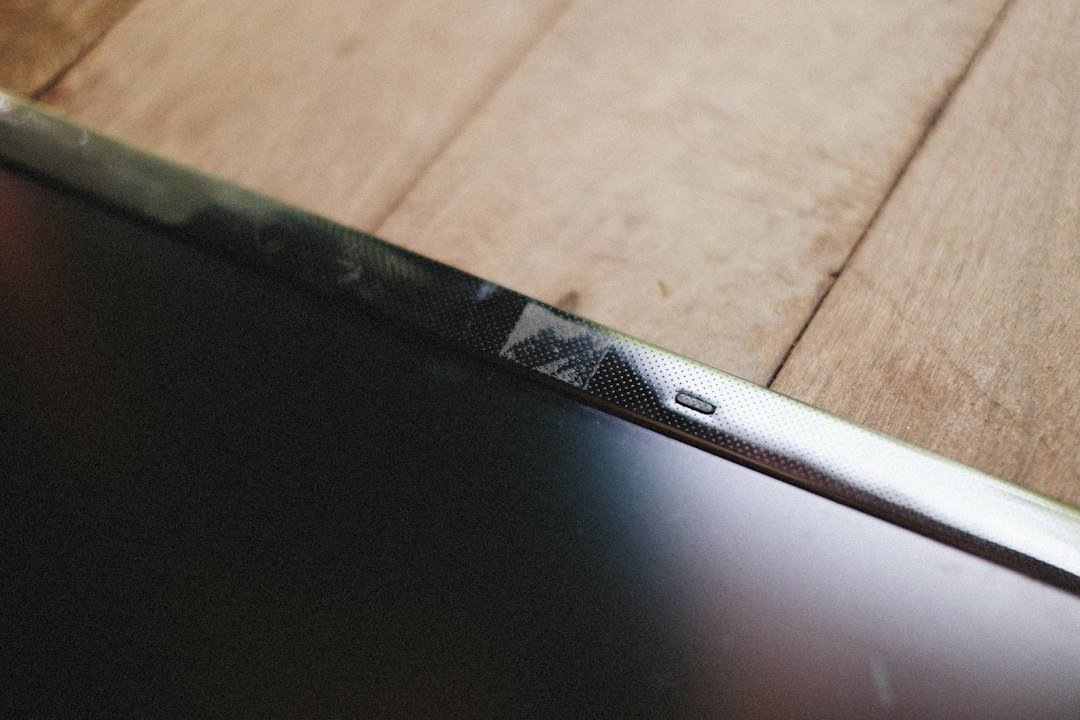
If you are facing Acer Chromebook display issues, the first step is to determine whether the problem is physical, software-based, or thermal. Most screen glitches on these budget-friendly laptops are resolvable without a factory reset. You can often restore normal function by inspecting the panel for stress, adjusting basic display settings, or allowing the device to cool down.
Key Takeaways
- Physical stress like micro-cracks or pressure imprints is a leading cause of permanent screen damage.
- Software glitches often stem from outdated Chrome Flags or incorrect brightness settings.
- Overheating can cause temporary display failures; letting the unit cool resolves this.
- External USB devices can occasionally interfere with display drivers, so disconnect them to test.
How to Spot Physical Stress on Your Screen
Before touching any settings, look at the screen physically. Acer Chromebooks are durable, but the display panel is the most fragile part. Tiny cracks or pressure imprints might be invisible under normal lighting. Turn on the backlight and tilt the laptop to catch the light.
If you see lines or spots that appear when you press gently on the bezel, the panel is stressed. Using a microfiber cloth to clean lightly can help you see these marks better. Avoid using liquids, as they can seep into the edges and cause short circuits.
If you find physical damage, using the laptop daily without precautions can make it worse, so handle it with care.

Why Your Display Settings Might Be Glitched
Sometimes the screen looks wrong because of a software setting. This is common with Acer Chromebook display issues that appear after an update. Check your brightness levels first. If the screen is too dim or too bright, adjust the slider in the quick settings menu. If that does not help, look at your Chrome Flags.
These are experimental features that can cause visual bugs. You can reset them to default by typing chrome://flags in your address bar and clicking the reset button. This often fixes flickering or color distortion without needing a full system reset.
How Heat Can Kill Your Display Temporarily
Chromebooks run hot when you use them for long periods, especially in small rooms. When the internal temperature rises, the hardware may throttle performance or cut power to the screen to protect itself. This is a safety feature, not a failure.
If your screen goes black or freezes while the laptop feels warm, do not try to force it. Turn it off and let it cool for ten to fifteen minutes. Place it on a hard, flat surface, not on a bed or sofa, to improve airflow. Once it cools, turn it back on.
The display should work normally again if heat was the only issue.

Why External Devices Can Cause Screen Problems
It sounds strange, but external USB devices can trigger display errors. Some docks or hubs send conflicting signals to the operating system. This can confuse the display driver and cause black screens or flickering. To test this, remove all USB accessories. Disconnect webcams, external drives, and docking stations. Then, restart the laptop.
If the screen works fine without them, you have found the culprit. You can try reconnecting them one by one to see which one causes the problem. This is a quick check that saves you time.
When to Drain the Battery for a Reset
If the screen is unresponsive and the laptop seems stuck, draining the battery can clear temporary glitches. This is different from a hard reset, which uses specific key combinations. To drain the battery, turn off the laptop and unplug the charger. Wait until the battery is completely empty.
The screen will not light up, and the power button will do nothing. Once it is dead, plug in the charger and wait a few minutes before turning it on. This process clears the residual power in the capacitors, which can fix stuck display states.
It is a safe method that does not erase your data.
When to Consider Professional Repair
Not all Acer Chromebook display issues can be fixed at home. If you see physical cracks, the backlight is broken, or the screen is dead even after draining the battery, the panel itself may be faulty. Replacing a display panel requires specialized tools and knowledge.
You can check the iFixit troubleshooting guide for specific symptoms like a black screen or no power. If the repair cost is close to the value of your laptop, it might be worth looking at a replacement.
Always back up your data before sending it out, even though Chromebooks sync to the cloud, local files still need saving.
Preventing Future Display Glitches
Prevention is easier than repair. Keep your laptop clean and avoid placing heavy objects on the closed lid. This prevents pressure imprints on the screen. Use a stand or hard surface to keep the vents clear and prevent overheating. Update your ChromeOS regularly to ensure you have the latest display drivers.
If you use external monitors, ensure the cables are secure and of good quality. These small habits can extend the life of your display and keep it working smoothly for years.
What to Do Next
Start with a physical inspection of the screen. Then, reset your display settings and Chrome Flags. If the problem persists, let the laptop cool down and disconnect external devices. If these steps do not work, drain the battery. If the screen is still broken, seek professional help.
You can also explore online testing tools to check if other hardware components are working correctly, which can help isolate the issue. Taking these steps in order will help you fix most common display problems quickly.
How to Verify the Display Resolves Correctly in Safe Mode
Before assuming hardware failure, confirm the issue isn’t a corrupted user profile or a rogue extension. ChromeOS allows you to boot into a minimal state that loads only essential system files. If the screen works perfectly in this mode, the problem is software-related, not a broken panel or loose cable.
Steps to Enter Safe Mode
- Shut down your Chromebook completely.
- Press and hold the Ctrl and Shift keys.
- While holding them, press the Power button once.
- Release the Power button but keep holding Ctrl and Shift until the login screen appears.
- Log in with your Google account password.
In this state, third-party apps do not run. If the acer chromebook display issues disappear here, the culprit is likely a specific extension or a corrupted cache. Restart normally and disable extensions one by one to isolate the fault. This method saves you from unnecessary factory resets or trip to a repair shop for a problem that is purely digital.
Common Mistakes When Tapping the Screen
Many users tap the bezel or the screen frame when trying to wake a dark display. This is ineffective and can damage the internal ribbon cables. The power button on most Acer models is located on the top right or left corner, often marked with a small power icon. It is not the same as the trackpad click area.
Why Gentle Pressure Matters
If the screen is unresponsive to the power button, some users apply pressure to the screen itself. Do not do this. The LCD or OLED panel is fragile. Pressure can cause internal cracks that don’t show immediately but lead to permanent pixel death or lines across the display. Instead, focus on the keyboard.
Try pressing Esc + F1 (or the function key with the sun icon) to toggle brightness. If the screen is on but invisible, you may have accidentally set brightness to zero. This is a common oversight that mimics a hardware blackout.
Checking the BIOS for Screen Detection
Chromebooks have a limited BIOS interface, but it can confirm whether the motherboard detects the display hardware at a low level. This is useful if the screen fails before the ChromeOS logo appears. If the logo is visible but the desktop is black, the issue is in the OS. If the screen is black from the moment you press power, the BIOS check is your next step.
How to Access the BIOS
- Shut down the device.
- Press Esc + F1 (or the key with the sun icon) immediately after pressing Power.
- Wait for the BIOS screen to load.
If you see the BIOS menu, the display hardware is working. The issue is likely a firmware glitch or a corrupted OS update. In this case, a Powerwash (factory reset) is the next logical step. If the screen remains black during BIOS, the problem is physical: a dead backlight, a disconnected inverter, or a failed GPU. At this stage, software fixes will not help. You are dealing with a component failure that requires professional attention.
Interpreting Diagnostic Lights and Beeps
Some Acer Chromebooks have an LED indicator near the power button or on the front edge. These lights flash in patterns to indicate specific errors. A solid white light usually means normal operation. A flashing amber or red light indicates a hardware fault. While ChromeOS does not always provide a beep code like traditional Windows PCs, the LED pattern is your primary diagnostic tool for silent failures.
What the Patterns Mean
- Solid White: System is on and functioning normally.
- Flashing Amber: Battery issue or charging circuit fault. This can sometimes cause display instability if the power delivery is inconsistent.
- Solid Amber: Device is in low-power sleep mode. Try pressing the power button to wake it.
If the light is solid white but the screen is black, the motherboard is powered, but the display path is broken. This points to a loose display cable or a failed panel. If there is no light at all, the device is not receiving power.
Check the charger tip for dirt and ensure the wall outlet works. Do not assume the display is dead if the device is not charging properly. A weak battery can cause the screen to dim or turn off unexpectedly under load.
Frequently Asked Questions
Why does my Acer Chromebook screen flicker?
Flickering is often caused by a loose cable, a failing panel, or a software glitch. Try resetting Chrome Flags and checking for physical damage first. If the flickering continues, it may be a hardware failure that needs repair.
Can I fix a black screen without a reset?
Yes. Try a hard reset by holding the Refresh and Power buttons. You can also let the laptop cool down or disconnect external devices. These steps often resolve black screens without erasing your data.
Is it worth repairing a cracked screen?
It depends on the cost. If the repair fee is more than half the value of the laptop, replacement might be better. Check local repair shops for quotes before deciding.