
Direct Answer: How It Works
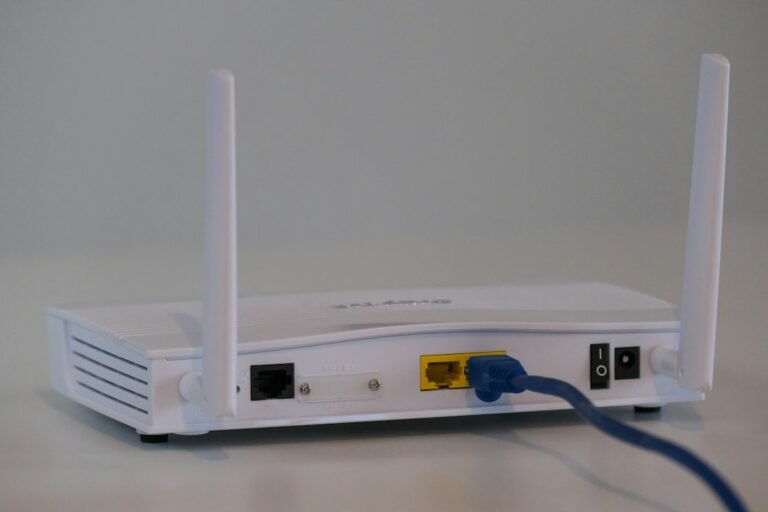
So, what is a router? It is a network device that forwards data packets between different computer networks. Think of it as a traffic controller for your internet connection. It looks at the destination IP address of each packet and decides the best path to send it.
This allows multiple devices in your home or office to share a single internet connection efficiently. Without a router, every device would need its own separate connection to the internet, which is impractical and expensive.
The router handles the routing logic in the background, ensuring your web requests, video streams, and file transfers reach their destinations quickly and reliably.
Key Takeaways
- A router connects different networks and forwards packets based on IP addresses.
- It uses a routing table to determine the most efficient path for data.
- Routers often work with modems to provide internet access to multiple devices.
- They manage traffic flow to prevent congestion and improve performance.
- Understanding router functions helps you troubleshoot connectivity issues effectively.
What Is a Router in Simple Terms
Imagine you are sending a letter. You write the address on the envelope. The postal service uses that address to decide which truck, which sorting center, and which mail carrier should handle the letter. A router does the same thing for digital data. It reads the destination IP address on a data packet.
Then it checks its routing table, which is like a map of the network. Based on that map, it sends the packet to the next router or directly to the destination. This process happens millions of times per second across the internet.
For you, it means you can open a webpage and it loads almost instantly, even though the data traveled across many different networks. The router handles all this complexity so you do not have to. It is the core device that makes multi-device internet usage possible in modern homes and businesses.
How a Router Decides Where to Send Data
The heart of a router is its routing table. This table contains information about network paths, including which networks are reachable and what the next hop is for each destination. When a packet arrives, the router examines its destination IP address. It then compares that address with the entries in its routing table.
If it finds a match, it forwards the packet to the specified next hop. If there is no exact match, it looks for the closest match, often called the longest prefix match.
This ensures that even if the router does not know the exact path to every destination, it can still send the packet in the right direction. Routers also use routing protocols to update their tables dynamically. These protocols allow routers to talk to each other and share the best paths.
This dynamic updating helps the network adapt to changes, such as a cable failure or a new network being added. The result is a resilient and efficient way to move data across complex networks.
Router vs. Modem: What Is the Difference
Many people confuse routers and modems, but they do different jobs. A modem connects your home to your internet service provider (ISP). It translates the signal from your ISP, such as cable, DSL, or fiber, into a digital signal your devices can understand.
A router, on the other hand, takes that digital signal and shares it with multiple devices on your local network. The modem is the gateway to the internet, while the router is the manager of your local network.
Most home devices sold today are combo units, meaning they have both a modem and a router in one box. This saves space and simplifies setup. However, understanding the difference is useful when troubleshooting. If your internet is down, the issue might be with the modem or the connection to your ISP.
If your internet is up but some devices cannot connect, the issue is likely with the router or your local network settings. Knowing which part is failing saves you time and frustration.

Common Types of Routers and Where They Fit
Not all routers are the same. The type you need depends on your network size and requirements. Home routers are the most common. They are designed for small networks, typically handling 10 to 20 devices. They offer basic security features like a firewall and Wi-Fi access. Business routers are more robust.
They handle larger networks, support more devices, and offer advanced features like quality of service (QoS) and content filtering. Enterprise routers are used in large organizations. They handle high traffic volumes and complex routing protocols. They often support multiple connections for redundancy.
Each type has different hardware capabilities, such as CPU power, memory, and port speed. Choosing the right type ensures your network performs well under load. If you are setting up a small home office, a standard home router is usually enough.
If you are managing a large office with many users and servers, you need a business or enterprise router with more processing power and management options. The key is matching the router’s capabilities to your actual network needs.
How Routers Enable Multi-Device Internet Sharing
One of the main reasons routers exist is to allow multiple devices to share one internet connection. Your ISP provides one public IP address for your home. A router uses Network Address Translation (NAT) to map multiple private IP addresses for your devices to that single public IP.
When your laptop sends a request to a website, the router tags it with a unique identifier. When the response comes back, the router uses that identifier to send the data to the correct device. This process is transparent to you.
You can have your phone, tablet, laptop, and smart TV all connected to the internet at the same time, all using the same connection. The router manages this sharing efficiently, ensuring each device gets the bandwidth it needs. This is why you do not need a separate internet subscription for every gadget in your house.
The router makes multi-device usage practical and affordable. It is a core feature that defines modern home networking.
Security Features Built Into Modern Routers
Routers are also the first line of defense for your network security. They typically include a firewall that filters incoming and outgoing traffic. This firewall blocks unauthorized access attempts from the internet. Many routers also offer features like wireless encryption (WPA2 or WPA3) to secure your Wi-Fi network.
This prevents neighbors or strangers from connecting to your network and using your internet. Some routers also have parental controls, allowing you to restrict access to certain websites or set time limits for specific devices. These security features are crucial because your router is the gateway between your private network and the public internet.
If your router is compromised, attackers can gain access to your devices and data. Regularly updating your router’s firmware is important to patch security vulnerabilities. Most router manufacturers release firmware updates to fix bugs and security issues. Keeping your router updated is one of the simplest ways to protect your network.
It is a basic but essential part of maintaining a secure home or office environment.

Common Problems and How to Troubleshoot Them
If your network is acting up, the router is often the first place to check. Common issues include devices not connecting, slow speeds, or complete internet outages. If one device cannot connect but others can, the issue is likely with that specific device or its settings.
If all devices are offline, check the modem and your ISP connection. If the internet is slow, the problem could be high traffic on your local network, a distant router placement, or interference from other devices. Moving your router to a central, elevated location can improve Wi-Fi coverage.
Restarting your router can also fix temporary glitches. Most routers have a power button or a reset button. Power cycling the router means turning it off, waiting 30 seconds, and turning it back on. This clears its memory and re-establishes connections. If issues persist, check your router’s admin page for error messages or connection status.
Understanding these basic troubleshooting steps helps you resolve many common network issues without calling for support. It saves time and keeps your network running smoothly.
What to Do Next
Now that you know what is a router and how it works, you can take a few simple steps to ensure your network is healthy. First, check your router’s firmware version and update it if a newer version is available. Second, verify that your Wi-Fi security settings are using WPA2 or WPA3 encryption.
Third, if you experience slow speeds, consider moving your router to a better location or reducing the number of connected devices. These small actions can make a big difference in your network performance. You do not need to be an expert to manage your router.
Basic knowledge of what it does and how it works is enough to keep your connection stable and secure. Use the information in this article to check your setup and make small improvements where needed.
Frequently Asked Questions
Do I need a router if I only have one device?
Yes, you still need a router if your modem does not have built-in routing capabilities. Even with a single device, the router handles the connection between your device and the internet. It also provides security features like a firewall. If your modem is a combo unit with a router, then you already have routing functionality built in. Otherwise, a separate router is needed to manage the connection properly.
Can a router improve my internet speed?
A router does not increase the speed provided by your ISP. However, a good router can ensure you get the full speed you are paying for. If your router is old or overloaded, it may bottleneck your connection. Upgrading to a newer router with better hardware and Wi-Fi standards can help you reach your ISP’s maximum speed. It also improves stability and reduces lag, especially when multiple devices are connected.
How often should I restart my router?
There is no strict rule, but restarting your router once a month can help clear memory and fix temporary issues. If you notice slow speeds or connectivity problems, a restart is a quick first step. It does not hurt to restart more often if you want to ensure a fresh connection. Some people prefer to set a schedule or use a smart plug to automate this process. Regular restarts are a simple way to maintain network health.