
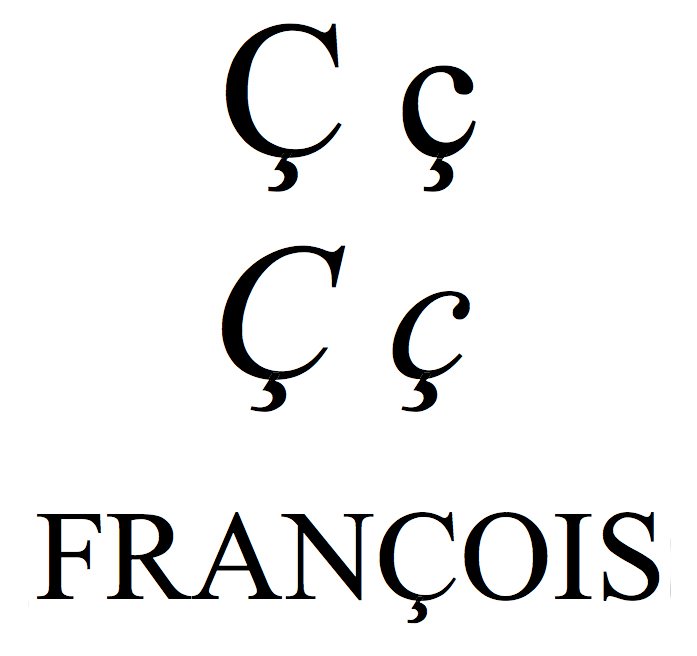
Typing a cedilla (ç) seems simple until you realize your keyboard lacks the key. Whether you are writing a French name, a Portuguese address, or a Turkish message, you need the right method. This guide provides verified shortcuts for Windows, macOS, and web use, so you can stop guessing and start typing.
Key Takeaways
- Windows: Use Alt codes (e.g., Alt+0231 for ç) if you have a numeric keypad.
- macOS: Hold Option and press C (for lowercase ç), then release both and press C again.
- Web/Browser: Use HTML entities like
çor Unicodeçin forms and code. - Mobile: Long-press the C key on most iOS and Android keyboards to reveal the cedilla option.
What Is a Cedilla and Why Do You Need It?
A cedilla is a diacritic mark (¸) placed under a consonant letter. It changes how the letter is pronounced. In French and Portuguese, it turns a hard ‘c’ into a soft ‘s’ sound, as in garçon or ação. In Turkish, it appears under ‘s’ to indicate a ‘sh’ sound, as in Istanbul.
Without it, the pronunciation shifts to a ‘k’ or ‘ch’ sound, which can change the meaning of a word entirely. You need it for accurate spelling in these languages, especially in formal writing, names, and technical documentation.
Many users assume they need special software to type this character. They do not. Every modern operating system and major browser supports it natively. The challenge is knowing which shortcut applies to your specific device and input field.

How to Type Cedilla on Windows with Alt Codes
On Windows, the most reliable method is using Alt codes. This requires a physical numeric keypad on your keyboard. If you are on a laptop without a dedicated numpad, this method will not work directly, and you should use the Character Map instead.
- Hold down the Alt key.
- Type the code 0231 on the numeric keypad for lowercase ç.
- Release the Alt key.
For uppercase Ç, use Alt+0199. For other letters, the codes vary. For example, Alt+135 works for ç in some legacy systems, but Alt+0231 is the standard Windows code. If the code does not appear, ensure Num Lock is on. If you are using a compact keyboard, open the on-screen keyboard in Windows Settings and use the numeric keys there, though this is slower for frequent use.
Common mistake: Using the number row on top of the keyboard instead of the numeric keypad. The Alt code method ignores the top row numbers. Always use the keypad below the Enter key.
How to Type Cedilla on Mac with Option Key
macOS uses a different approach. You do not type a code; you use a modifier key sequence. This is faster than Alt codes once you get used to it.
- Hold down the Option key.
- Press the C key.
- Release both keys.
- Press the C key again.
This produces a lowercase ç. For uppercase Ç, hold Option, press Shift, then press C, release all, and press Shift+C again. The first press of C (with Option held) places a temporary accent mark on the screen. The second press applies it to the letter. If you type a different letter after the accent, the accent disappears. This is by design.
Common mistake: Trying to hold Option while typing the second C. This produces a different character or nothing at all. You must release the keys between the accent step and the letter step.

How to Type Cedilla in Browsers and Web Forms
When filling out online forms, emails, or social media posts, you cannot always rely on Alt codes or Option keys, especially on touchscreens or web apps that capture keyboard input differently. In these cases, use copy-paste or Unicode input.
The simplest method is to copy the character from a reliable source. You can copy the lowercase ç or uppercase Ç directly from this page. Paste it into your field. This works in 99% of online text fields, including email clients, social media, and web forms.
If you are editing HTML code, use the entity ç for lowercase and Ç for uppercase. In JSON or JavaScript, use the Unicode escape sequence \u00E7 for lowercase and \u00C7 for uppercase. These are standard and supported across all modern browsers and programming environments.
For quick access on Windows without a numpad, you can use the Windows Character Map utility. Search for “Character Map” in the Start menu, find ç, and copy it. This is slower than Alt codes but works on any Windows machine.
How to Type Cedilla on Mobile Devices
On iOS and Android, the method is consistent: long-press the letter key. Hold your finger down on the C key for about one second. A pop-up menu will appear with accented variations, including ç. Slide your finger to ç and release. This works in almost every app, from browsers to messaging platforms.
On iOS, you can also enable a keyboard layout that includes cedilla if you frequently type in French or Portuguese. Go to Settings, then General, then Keyboard, then Keyboards, then Add New Keyboard, and select French or Portuguese. This adds a dedicated ç key to the keyboard layout, saving you the long-press step. On Android, the method varies slightly by manufacturer, but long-press is the universal standard.
Common mistake: Tapping the C key quickly instead of holding it. A quick tap just types c. You must hold it until the pop-up appears. If the pop-up does not appear, your keyboard layout may not support it, and you should switch to a layout that does.
Common Mistakes and How to Fix Them
Most typing errors with cedilla stem from using the wrong method for the platform. Here are the top three mistakes and how to fix them.
- Using Alt codes on a laptop without a numpad: Switch to the on-screen keyboard or copy-paste. Alt codes only work with a physical numeric keypad.
- Holding Option too long on Mac: Release Option after pressing C, then press C again. Holding it down prevents the accent from applying.
- Using the wrong Unicode value: ç is U+00E7. Ç is U+00C7. Using the wrong one will produce the wrong case. Always double-check the case of your character.
If you are still stuck, check your keyboard layout settings. Some keyboards, especially those with non-QWERTY layouts, may map cedilla to a different key. Verify your layout in your OS settings before assuming the standard shortcuts won’t work.
What to Do Next
Try typing ç in a blank document using the method for your platform. Test it in a web form, an email, and a chat message to confirm it works everywhere. If you type in these languages regularly, consider switching your keyboard layout to one that includes cedilla natively. This saves time and reduces errors. For occasional use, copy-paste is the fastest and most reliable option.
When to Use a Cedilla vs. an Accent
Many people confuse the cedilla (ç) with an acute accent (é) or a grave accent (è). They serve different linguistic purposes. The cedilla is strictly a diacritic used to indicate a soft pronunciation of the letter ‘C’ before the vowels ‘A’, ‘O’, or ‘U’. It turns a hard ‘K’ sound into a soft ‘S’ sound. In French, ‘ç’ in français is pronounced like the ‘s’ in ‘see’. Without it, the word would sound like ‘frankais’, which changes the meaning entirely.
However, the cedilla is not used before ‘E’ or ‘I’. In French, you would never write ‘çé’ or ‘çise’. Instead, you use the standard ‘c’ because the pronunciation is already soft. If you are typing in a language like Portuguese or Turkish, the rules are similar but the phonetic outcomes vary slightly.
Understanding this distinction prevents a common editing error where users add cedillas indiscriminately to every ‘C’ in a text. Always check the specific orthographic rules of the language you are using.
Language-Specific Nuances
- French: Mandatory before A, O, U. Never before E, I, Y.
- Portuguese: Used in words like ação (action). It signals the ‘S’ sound.
- Turkish: The character ç represents a voiceless alveolar fricative, similar to the ‘ch’ in ‘church’.
- Spanish: Rarely used in standard modern Spanish, though it appears in some older texts or specific proper nouns.
Why Your Cedilla Might Not Show Up in Code
If you are writing HTML, CSS, or JavaScript, you might find that typing the character directly sometimes breaks your layout or causes encoding errors. This happens when the file is saved with the wrong character set. UTF-8 is the standard for modern web development, but older systems might use ISO-8859-1 or Windows-1252. If your file is not explicitly declared as UTF-8, the browser might interpret the bytes of the cedilla as two separate, incorrect characters.
To avoid this, always declare the charset in your HTML head: <meta charset="UTF-8">. Alternatively, you can use HTML numeric character references. This is a robust method that works regardless of the file’s encoding. Instead of typing the character, you type ç for lowercase ç or Ç for uppercase Ç.
This approach is particularly useful in code comments or when dealing with legacy systems that do not support modern Unicode fully. It ensures that the character displays correctly on any device, from a high-end desktop monitor to a basic mobile browser.
Quick Reference for HTML Entities
- Lowercase ç:
çorç - Uppercase Ç:
ÇorÇ - Unicode Hex:
ç(lowercase) andÇ(uppercase)
Formatting Cedillas in Professional Documents
When working in word processors like Microsoft Word or Google Docs, the cedilla can sometimes behave unexpectedly if you copy and paste text from different sources. For instance, pasting text from a PDF might result in a different font variant or a missing character if the PDF uses a non-standard encoding. To fix this, use the ‘Clear Formatting’ option after pasting. This strips away hidden formatting codes that might be interfering with the character display.
Another pro tip involves using styles. If you are writing a formal document with many accented characters, create a specific style for text containing diacritics. This allows you to adjust the font size or line height globally if the cedilla appears too large or small in certain typefaces.
Some fonts render the cedilla with more visual weight than others, so adjusting the style ensures consistency across your entire document. This is especially important in legal or academic papers where precision in character representation is critical for readability and professional appearance.
Frequently Asked Questions
What is the Alt code for cedilla on Windows?
The standard Alt code for lowercase ç is Alt+0231. For uppercase Ç, use Alt+0199. These codes require a numeric keypad. If you do not have one, use the on-screen keyboard or copy-paste.
How do I type cedilla on a Mac without Option key?
If you do not have an Option key, you are likely using a non-Apple keyboard. You can use the Character Viewer (Emoji & Symbols) in macOS. Press Control+Command+Space, type “cedilla,” and select the character. Alternatively, copy-paste from a reliable source.
Does cedilla work in all programming languages?
Yes, as long as the file encoding supports Unicode. UTF-8 is the standard and supports ç in all modern programming languages. If you are working with older systems that use ASCII or Latin-1, you may need to use escape sequences or entities instead of the raw character.