gaming ergonomics tips are about more than comfort; they are about consistency. If your wrist is bent or your shoulder is hunched, your click speed will drop after ten minutes. The goal is a neutral body position that lets your muscles relax so your hands can move freely. This setup prevents the fatigue that kills your reaction time and lowers your overall CPS score.
Key Takeaways
- Keep your elbows at a 90 to 110-degree angle to reduce shoulder strain.
- Your monitor should be at eye level to prevent neck fatigue, which slows reaction time.
- Use a mouse pad that allows your hand to rest lightly without gripping tightly.
- Check your normal CPS range after adjusting your setup to see the difference.
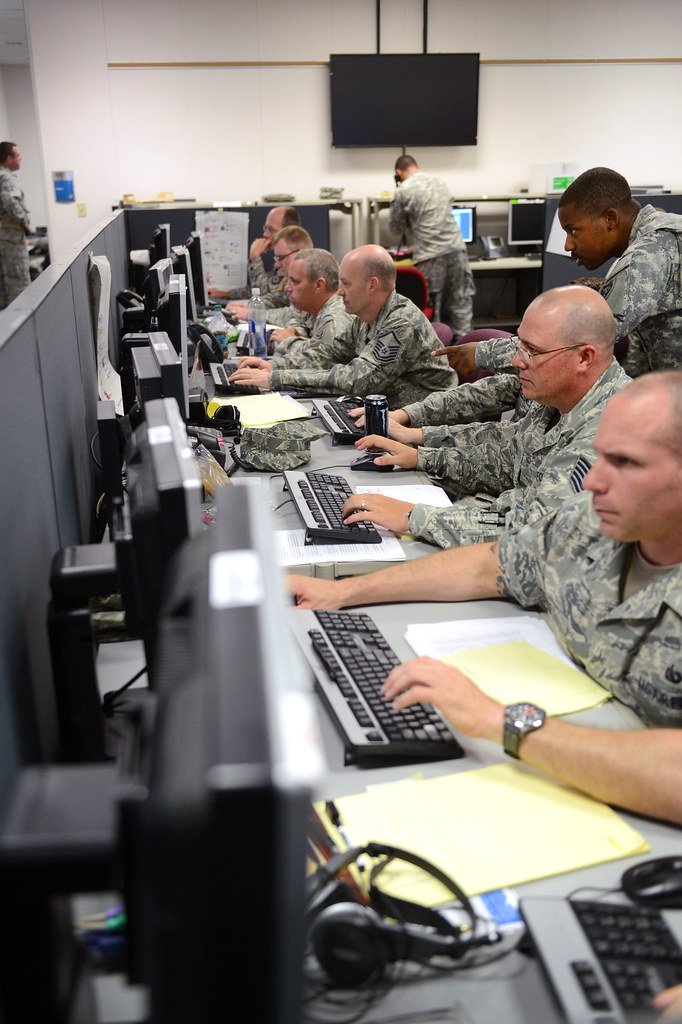
Why Your Seat Position Ruins Your CPS
Most gamers sit too far from their desks. This forces you to reach for the mouse, engaging your shoulder muscles. When those muscles tense up, your fine motor control suffers. You might think you are clicking fast, but your body is fighting against the resistance of a bad posture. The result is a lower average CPS over time, even if your burst speed is high.
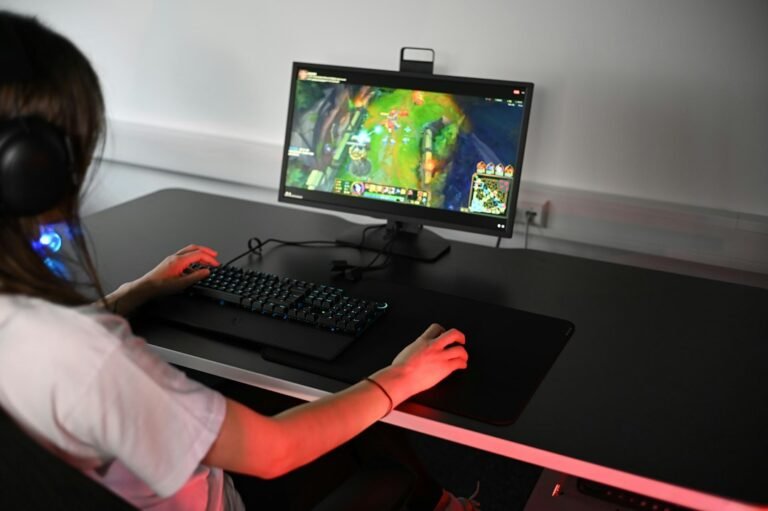
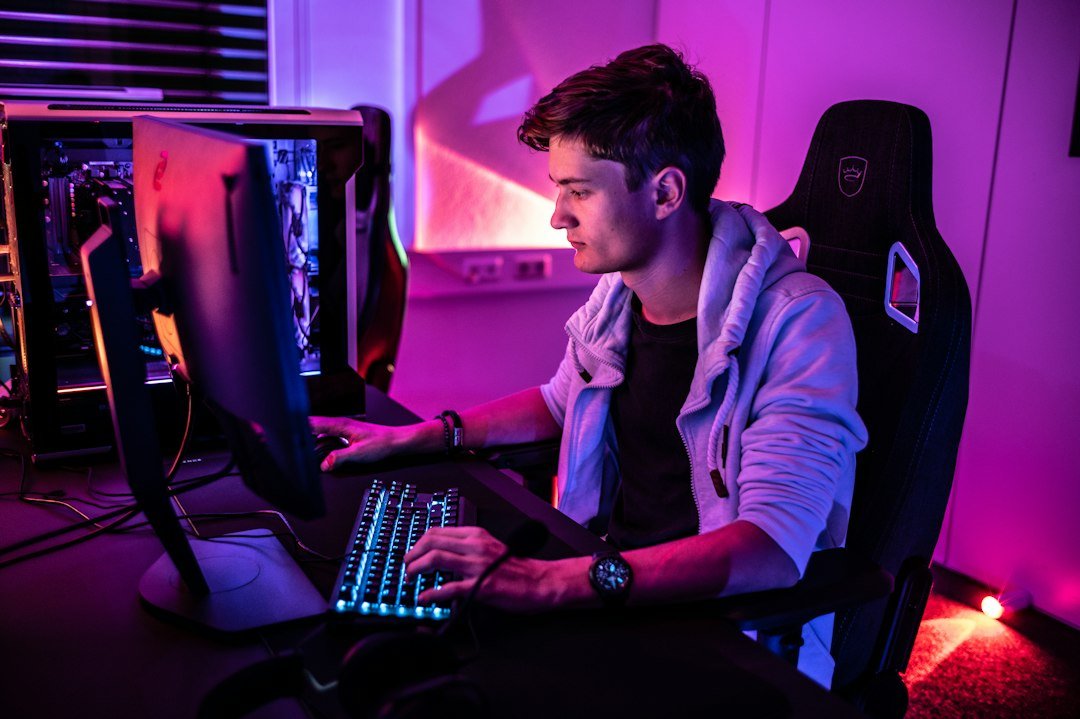
Fix this by pulling your chair closer. Your elbows should rest on your armrests or the desk. If you have no armrests, your forearms should hover comfortably. You should not feel weight on your wrists. This neutral position allows for rapid, repetitive motion without fatigue. It also helps you maintain the same click rhythm for longer periods, which is crucial for competitive play. If you find your shoulders rising when you click, you are sitting too far away or your mouse is too heavy.
Adjusting Your Chair for a Stable Base
Your chair is the foundation of your gaming ergonomics tips. Start with the seat height. Your feet should be flat on the floor. If they dangle, your lower back loses support, causing you to slouch. Slouching compresses your diaphragm and restricts breathing, which increases stress and reduces focus. Both factors negatively impact your ability to stay calm during intense matches.
Next, check the backrest. It should support your lower back curve. If it does not, consider adding a lumbar cushion. A supported spine keeps your blood flow steady. Poor circulation to the hands can cause numbness, which is a major killer of click precision. You want your hands to feel light and alert, not heavy and cold. If you feel any tingling in your fingers, your chair is likely too low or your desk too high. Adjust until the tingling stops.
Monitor Height and Eye Strain
Many gamers look down at their screens. This hunches your neck and puts pressure on the cervical spine. Over a long session, this neck stiffness radiates to your shoulders and upper back. Even if your hands are relaxed, a tired body makes it harder to maintain high-level performance. Your brain has to divert energy to manage discomfort, leaving less for fast reflexes.
The top of your monitor should be at or slightly below eye level. This allows you to look straight ahead. If your monitor is not adjustable, use books to raise it. Keep the screen about an arm’s length away. This distance reduces eye strain. Tired eyes blink less, leading to dryness and blurred vision. Clear vision is essential for tracking targets and clicking accurately. If your vision blurs, your click accuracy drops, even if your speed stays the same. You need both speed and precision to win.

Mouse Placement and Grip Style
Your mouse position matters as much as your chair. The mouse should be centered under your forearm. If it is too far to the right, your shoulder rotates inward, causing strain. If it is too far left, your elbow flares out. Both positions create muscle tension. Center the mouse so your forearm points straight forward. This allows for a natural arc of movement.
Your grip also affects your CPS. A tight grip increases tension in your hand and forearm. Relax your hand. Imagine holding a light feather. Let your fingers rest lightly on the buttons. Use your finger muscles, not your whole hand, to click. This micro-movement is faster and less tiring. If you are using a claw grip, ensure your wrist is not bent upward. A bent wrist blocks blood flow. Keep your wrist flat or slightly angled downward. This neutral wrist position prevents carpal tunnel symptoms and keeps your clicks crisp. You can test your current grip efficiency by running a click counter for five minutes and noting where you feel fatigue first.
Keyboard Angle and Foot Support
Do not ignore your keyboard. If it is too high, your wrists bend upward. This is a common cause of wrist pain. Use a keyboard tray or riser to tilt the keyboard slightly downward. The goal is a straight line from your elbow to your wrist. This alignment reduces joint stress. If you type with your left hand while clicking with your right, both arms must be comfortable. Unbalanced strain on one side will slow you down over time.
Your feet need support too. If your feet are not flat, your hips tilt. This misalignment travels up your spine and affects your upper body stability. Use a footrest if your chair is too high. A stable base helps you stay relaxed. When your lower body is secure, your upper body can move freely. This stability is key for precise aiming and rapid clicking. It also helps you stay focused during long sessions. You will notice a difference in your consistency after making these small adjustments.
Lighting and Environmental Factors
Lighting affects your mood and your eyes. Harsh overhead lights can cause glare on your monitor. This forces you to squint, leading to eye fatigue. Use indirect lighting or a bias light behind your monitor. This reduces the contrast between the bright screen and the dark room. Your eyes will adjust more easily, reducing strain. Comfortable eyes mean a more relaxed body. A relaxed body clicks faster. This is a simple but often overlooked gaming ergonomics tip. Check your room lighting before a big session. If your eyes feel tired within an hour, your lighting is likely the problem.
Test Your Setup Before You Play
Do not assume your setup is fine. Test it. Sit in your new position for ten minutes. Do not play a game. Just sit and breathe. Notice any tightness in your shoulders, neck, or wrists. If you feel tension, adjust again. Repeat until you feel neutral. Then, run a quick spacebar CPS test. Compare your score to your previous baseline. You should see a slight improvement in consistency. Your peak speed might not change, but your average speed over time should increase. This is the real benefit of good ergonomics. It is about sustainability, not just burst power. If your score drops after five minutes, your setup is still wrong. Keep adjusting.
For more on how to optimize your input devices for speed, check out our guide on improving mouse click speed. It covers grip styles and button placement in detail.
Common Mistakes That Kill Your Speed
One big mistake is ignoring pain. If your wrist hurts, stop. Pushing through pain causes injury. Injury means you cannot play at all. That is the worst case. Another mistake is using a mouse that is too heavy. A heavy mouse requires more force to click. This fatigues your hand faster. Choose a mouse that feels light. Your hand should not have to work hard to move it. If you have to grip tightly to control the mouse, it is the wrong weight for you.
Another error is neglecting breaks. Even with perfect ergonomics, you need to rest. Sit still for too long, and your blood flow slows. Take a short break every 30 to 60 minutes. Stand up, stretch your arms, and shake out your hands. This resets your muscle tension. You will return to your desk with fresh energy. Your CPS will bounce back. This simple habit prevents the gradual decline in performance that plagues many gamers. It is not just about the setup; it is about how you use it.
What to Do Next
Start with your chair height today. Adjust it so your feet are flat. Then move your monitor to eye level. Finally, center your mouse under your forearm. Spend ten minutes sitting in this position. Notice how your body feels. If it feels neutral, you are on the right track. Run a click speed test to track your progress. Small adjustments lead to big gains in consistency and comfort. Your hands will thank you.
Frequently Asked Questions
Does a better chair increase my CPS?
Not directly, but it helps you maintain your speed for longer. A good chair reduces fatigue, which prevents your click speed from dropping during long sessions. It supports a neutral posture that allows for consistent performance.
How high should my monitor be?
The top of your monitor should be at or slightly below eye level. This prevents you from looking down, which strains your neck. A straight line of sight keeps your body relaxed and your eyes comfortable.
What if my wrist still hurts after adjusting?
If pain persists, consult a qualified professional. Ergonomic adjustments help, but they are not a cure for existing conditions. A doctor or physiotherapist can assess your specific needs and recommend exercises or equipment to prevent injury.