
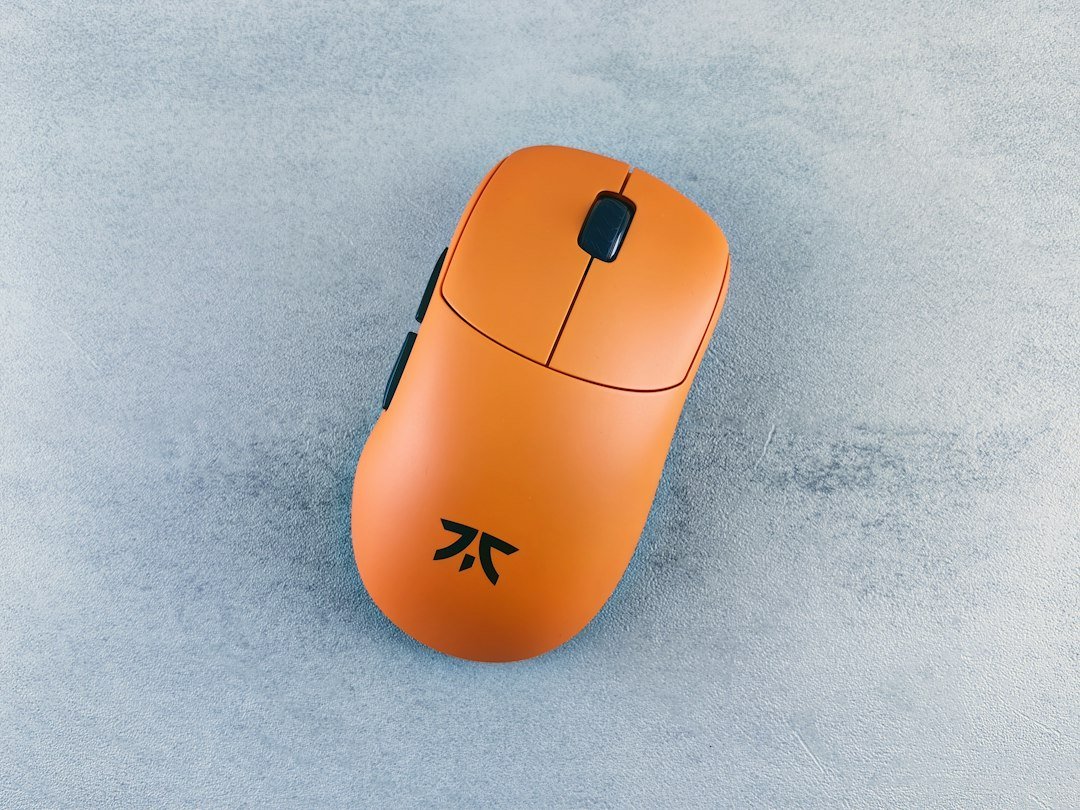
gaming mouse recommendation starts with a mouse that can reliably register rapid clicks without missing or double‑clicking unintentionally.
Try it now: mouse test
Key Takeaways
- Prioritize low debounce time, high polling rate, and durable switches for high CPS.
- Use the free online mouse test to verify your mouse’s left, middle and right button performance.
- Consider ergonomics and weight that match your grip style; a comfortable mouse lets you sustain high click rates.
- Top picks in 2026 include models with Omron or Kailh switches and 1000‑2000 Hz polling.
- Regularly clean and firmware‑update your mouse to keep click latency low.

What makes a mouse good for high CPS?
High clicks‑per‑second (CPS) demands three technical qualities: debounce time, polling rate, and switch durability. Debounce time is the brief pause a mouse firmware adds after a click to ignore bounce; lower values (often 1‑2 ms) let the next click be registered faster. Polling rate is how often the mouse reports its state to the computer; 1000 Hz means a report every millisecond, while some premium models push to 2000 Hz, shaving off a half‑millisecond per click.
Switch durability matters because rapid clicking wears out contacts. Most gaming mice use Omron, Kailh, or proprietary mechanical switches rated for 20‑50 million clicks. If you plan to click thousands of times per session, aim for the higher rating.
Ergonomics don’t affect the raw numbers, but they influence how long you can maintain a high CPS without fatigue. A well‑shaped mouse for your grip (palm, claw, fingertip) reduces strain, letting you keep a steady rhythm.

How to test your mouse for CPS suitability
Before buying, run a quick check with our free mouse test. The tool measures each button’s response, flags double‑clicking issues, and shows the effective debounce time. No sign‑up or download is required; just open the page, follow the on‑screen prompts, and click the buttons as fast as you can for ten seconds.
If the test reports missed clicks or accidental double clicks, the mouse may have high debounce settings or worn switches. In that case, look for a model with adjustable debounce (some Razer and Logitech mice offer firmware tweaks) or consider a mouse with known low‑bounce switches.
Top criteria to compare when reading reviews
When you browse the lists on RTINGS, Tom’s Hardware, or PC Gamer, focus on these data points rather than marketing buzz:
- Debounce time: Reported in milliseconds; lower is better for CPS.
- Polling rate: 1000 Hz is standard; 2000 Hz is a premium edge.
- Switch type and rating: Omron G502‑type, Kailh GM‑4, or proprietary low‑bounce switches.
- Weight and balance: Light (<80 g) for fingertip clicking, heavier (90‑110 g) for palm grip stability.
- Software support: Ability to adjust DPI, polling, and debounce without extra tools.
Best gaming mouse recommendation for high CPS – 2026 picks
Below are three models that consistently score low debounce, high polling, and durable switches in the 2026 reviews. Each fits a different grip style.
| Model | Switch | Debounce | Polling | Durability | Best grip |
|---|---|---|---|---|---|
| Logitech G Pro X Superlight | Omron 30M | 1 ms | 1000 Hz | 50 M clicks | Claw / Fingertip |
| Razer Viper Ultimate | Kailh GM‑4 | 1.2 ms | 2000 Hz | 40 M clicks | Palm / Claw |
| SteelSeries Prime+ | Omron 25M (adjustable) | 0.9 ms (adjustable) | 1000 Hz | 45 M clicks | Palm |
All three are wireless with low‑latency receivers, which matters because wired connections can add microseconds of lag if the cable is long or of poor quality. Wireless 2.4 GHz with a dedicated dongle typically matches wired latency for high CPS.
When to skip a high‑CPS mouse recommendation
If you mainly play strategy games or titles that rely on precise aiming rather than rapid clicking, you may not need the lowest debounce time. In those cases, a mouse with a higher DPI sensor and better tracking accuracy could be more valuable than a low‑bounce switch.
Also, if you have a limited budget, the premium models above cost more than $100. A mid‑range mouse like the Corsair M55 RGB Pro, which uses Omron switches rated at 30 M clicks and offers 1000 Hz polling, can still deliver solid CPS without breaking the bank.
Common mistakes that hurt your CPS performance
- Using default Windows mouse settings: Windows adds its own debounce; set “Enhance pointer precision” off and use raw input in games.
- Ignoring firmware updates: Manufacturers sometimes lower debounce via firmware patches.
- Choosing a mouse with a high DPI but low polling: High DPI doesn’t help click speed; polling rate is the limiting factor.
- Not cleaning the mouse: Dust can cause stickiness, leading to missed clicks.
How to adjust debounce and polling on supported mice
Many modern mice let you tweak settings in their companion software. For example, Logitech G HUB offers a “Debounce Time” slider ranging from 1 ms to 5 ms. Set it to the lowest stable value – test with the mouse test after each change.
Polling rate is often a simple dropdown: 125 Hz, 500 Hz, 1000 Hz, or 2000 Hz. Choose the highest your PC can handle; older USB 2.0 ports may cap at 1000 Hz.
Ergonomic considerations for sustained high CPS
A mouse that feels good in your hand reduces hand fatigue, which directly translates to a more consistent click rhythm. Look for these ergonomic cues:
- Thumb rest: Helpful for palm grip users who click with the thumb.
- Grip texture: Matte side grips prevent slipping when your hand sweats during long sessions.
- Weight tuning: Some mice have removable weights; lighter setups favor rapid finger flicks, while a bit more mass can steady palm clicks.
How to maintain your mouse for peak CPS
Regular maintenance keeps the switches clean and the firmware current. Follow this simple checklist each month:
- Blow out dust from the button crevices with compressed air.
- Wipe the surface with a microfiber cloth lightly dampened with isopropyl alcohol.
- Check the manufacturer’s website for firmware updates; apply them if they mention latency or debounce improvements.
- Run the mouse test to confirm performance hasn’t degraded.
Where to buy and what to look for in the listing
When you click “Buy” on a retailer page, verify the product description mentions the exact switch type and polling rate. Some listings bundle accessories like extra side grips or a charging dock; those are nice extras but not required for CPS.
If the price seems unusually low, double‑check that the mouse isn’t a refurbished unit with unknown wear on the switches. A reputable seller will list the warranty period – most gaming mice come with at least a one‑year warranty covering click‑related defects.
What to do next
1. Run the free mouse test on your current mouse to see its baseline CPS performance.
2. Compare the specs of the three recommended models above with your budget and grip preference.
3. Purchase the mouse that best matches your needs, then fine‑tune debounce and polling in the companion software.
Which sensor type delivers the most consistent clicks?
Not every optical sensor is built the same way. For high CPS you want a sensor that tracks movement accurately while keeping the internal switch mechanism stable. Two sensor families dominate the market:
- Pixart PAW series (e.g., PAW3395, PAW3389) – known for low jitter and a wide DPI range. The PAW3395 adds a built‑in acceleration curve that can be disabled, which helps keep click timing predictable.
- Avago/Avago‑derived sensors (e.g., Avago ADNS‑9800) – older but still popular in budget models. They tend to have slightly higher latency, which can add a few milliseconds to each click.
If you can pick, go with a PAW‑based mouse. The difference is most noticeable when you alternate between rapid mouse movement and fast clicking; the PAW sensor maintains a steadier report rate, so your clicks don’t drift out of sync with the cursor.
When sensor choice matters most
Consider these scenarios:
- Competitive shooters that require precise aim while firing at 15‑20 CPS – a PAW sensor prevents the cursor from lagging behind the click stream.
- Casual click‑intensive games (e.g., click‑based idle games) where you rarely move the mouse – sensor choice is less critical; focus on switch quality instead.
Step‑by‑step: Configuring a high‑CPS mouse on Windows
Even the best hardware can underperform if the software stack isn’t tuned. Follow these exact steps to get the most out of a high‑CPS mouse on a typical Windows 11 PC.
- Install the manufacturer’s driver. Download the latest version from the brand’s support page. During installation, choose the “custom” option and enable “high‑performance polling” if it appears.
- Set the polling rate. Open the driver UI, locate the polling setting (often listed as “Report Rate”) and select 1000 Hz. This tells the mouse to report its state every millisecond, which is the ceiling most high‑CPS mice can sustain.
- Adjust debounce time. Find the debounce slider – typical values range from 0 ms (no debounce) to 5 ms. Start at 1 ms; test your click speed in a simple click‑counter tool. If you notice missed clicks, raise it by 1 ms increments until the counter matches your physical clicks.
- Disable USB power‑saving. Open
Device Manager → Universal Serial Bus controllers → USB Root Hub (USB 3.0), right‑click, choose Properties → Power Management, and uncheck “Allow the computer to turn off this device to save power.” This prevents the OS from throttling the mouse during long sessions. - Verify with a benchmark. Use a free utility like MouseTester or CPS Meter. Record the reported CPS at three different intensities (slow, medium, fast). If the numbers stay within a 5 % variance, your setup is solid.
After these steps, you can return to your game or training routine knowing the OS isn’t the bottleneck.
Comparing debounce vs. polling: Which should you tweak first?
Both settings influence click latency, but they do so in different ways. Think of debounce as a filter that removes accidental double‑clicks, while polling determines how often the mouse tells the computer about its state.
| Setting | Primary effect | Typical safe range |
|---|---|---|
| Debounce | Reduces false double‑clicks at the cost of added delay per click. | 0–3 ms for most high‑CPS users. |
| Polling rate | Controls how quickly the mouse reports movement and button state. | 500–1000 Hz (2–1 ms intervals). |
Start by setting the polling rate to the maximum your mouse supports – usually 1000 Hz. If you still miss clicks, lower the debounce in 0.5 ms steps. Dropping debounce too far can cause ghost clicks, especially on cheaper switches. The sweet spot is the lowest debounce that still registers every click in your chosen benchmark tool.
Edge case to watch
Some Windows laptops throttle USB 3.0 ports to 500 Hz when running on battery power. If you notice a sudden drop in CPS after unplugging, switch to a powered USB hub or adjust the power plan to “High performance.”
Practical checklist before you buy a high‑CPS mouse
- Sensor: PAW3395 or newer preferred.
- Switch type: Omron 30M or Kailh Speed Silver for sub‑1 ms actuation.
- Debounce adjustment: hardware or driver‑based slider.
- Polling rate: supports 1000 Hz without firmware throttling.
- Ergonomics: ambidextrous or right‑handed shape that matches your grip style.
- Warranty: at least 2 years, indicating the manufacturer expects heavy use.
Cross‑check each bullet against the product listing. If a spec is missing, assume the mouse isn’t optimized for high CPS and keep searching.
FAQ
Can a wired mouse be faster than a wireless one for CPS?
Modern wireless gaming mice with dedicated 2.4 GHz receivers often match wired latency, especially at 1000 Hz or 2000 Hz polling. The key is the mouse’s internal debounce, not the connection type.
Do I need to adjust DPI for better click speed?
No. DPI affects cursor movement, not how fast the mouse registers a click. Focus on debounce, polling, and switch durability for CPS.
How often should I replace my gaming mouse if I click a lot?
Switches are typically rated for 20‑50 million clicks. If you click 10 CPS in a 2‑hour session daily, you’ll reach 20 million clicks in roughly 23 months. Watch for double‑clicking issues as a sign it’s time to replace.