
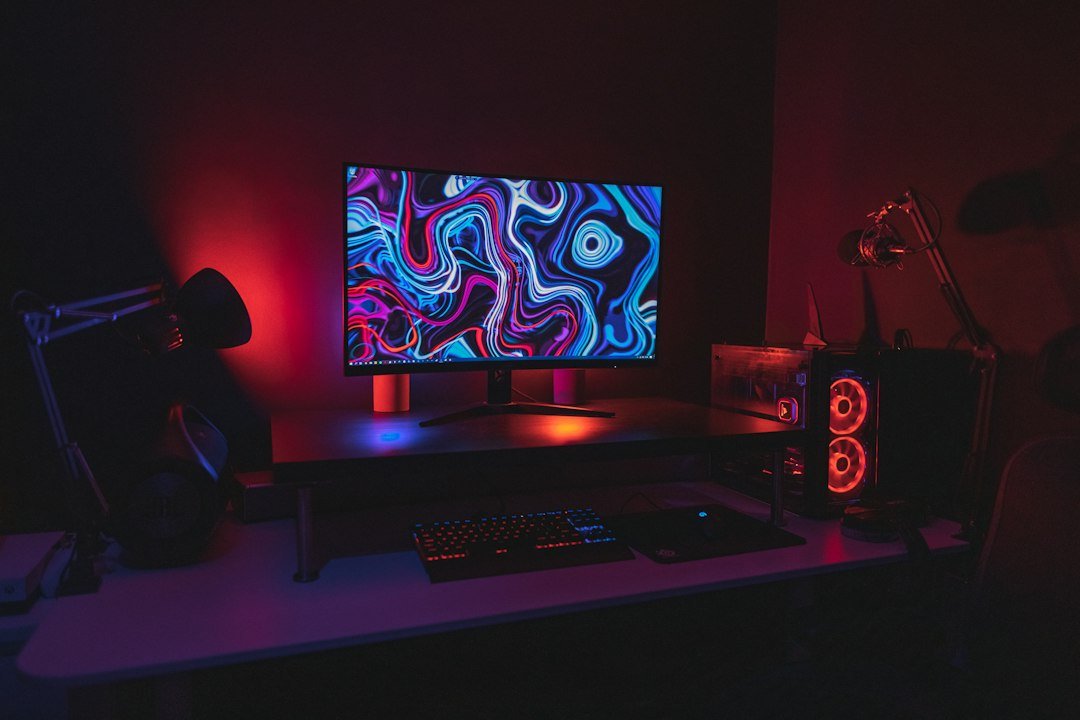
How to choose a gaming monitor starts with matching the display’s specs to the games you play and the hardware you own. If you need a monitor that keeps up with fast shooters, look for high refresh rates and low response times; if you prefer immersive RPGs, prioritize resolution and color accuracy.
Key Takeaways
- Refresh rate matters most for competitive FPS and battle‑royale titles.
- Response time below 5 ms reduces motion blur for fast action.
- Panel type (IPS vs. VA vs. TN) balances color fidelity and speed.
- Resolution and size should fit your desk space and GPU capability.
- Adaptive sync (FreeSync or G‑Sync) prevents tearing without extra cost.

What refresh rate do I really need?
Refresh rate is the number of frames a monitor can display each second, measured in hertz (Hz). For most casual gamers, 60 Hz is acceptable, but competitive players benefit from 144 Hz or higher. The rule of thumb: if your graphics card can consistently push 120 fps or more in your favorite game, aim for a monitor that matches or exceeds that rate. Otherwise you’ll be limited by the display, not the GPU.
Common mistake: buying a 144 Hz monitor but pairing it with an older GPU that tops out at 60 fps. The monitor will still work, but you won’t see the smoothness you paid for.
How does response time affect gameplay?
Response time is how quickly a pixel can change color, usually expressed in milliseconds (ms). Lower numbers mean less ghosting and motion blur. For fast‑paced shooters, aim for 1–5 ms. For slower‑paced strategy games, 5–8 ms is fine.
Edge case: some monitors advertise “gray‑to‑gray” (GtG) times that look great on paper but perform worse with rapid color shifts. If you notice trailing images in fast scenes, the real‑world response may be higher than the spec.
Which panel type should I pick?
Three main panel technologies dominate the market:
- TN (Twisted Nematic): fastest response, often 1 ms, but limited color range and narrow viewing angles.
- VA (Vertical Alignment): deep blacks and good contrast, slightly slower (4–6 ms) but better for dark games.
- IPS (In‑Plane Switching): best color accuracy and wide angles, typically 4–5 ms, making it a solid all‑rounder.
If you play mostly competitive shooters, a high‑refresh TN might feel snappier. If you value vibrant colors for RPGs or creative work, an IPS panel is the safer bet.
What resolution and size work best for my setup?
Resolution determines how sharp the image looks. Common options are 1080p (Full HD), 1440p (QHD), and 4K (UHD). Pair the resolution with a size that lets you see details without pixel‑pushing. A 24‑inch 1080p monitor feels crisp at 144 Hz, while a 27‑inch 1440p offers a good balance of clarity and performance.
Trade‑off: higher resolutions demand more GPU power. If your card struggles above 1080p, you’ll drop frames and negate the benefit of a high refresh rate.
Do I need adaptive sync technology?
Adaptive sync (FreeSync for AMD, G‑Sync for NVIDIA) synchronizes the monitor’s refresh rate with the GPU’s frame output, eliminating screen tearing. Most modern monitors include FreeSync; G‑Sync‑compatible models are pricier but work with both GPU brands.
Decision rule: if you already own a compatible GPU, pick a monitor with that brand’s sync. If you’re undecided, a FreeSync‑enabled monitor works with most cards and costs less.
How important are extra features?
Features like HDR, USB‑C ports, and ergonomic stands add convenience but aren’t essential for performance. HDR can boost contrast, but only true HDR10 monitors with high peak brightness deliver noticeable improvement. A height‑adjustable stand helps avoid neck strain during long sessions.
Common pitfall: buying a monitor with HDR that only reaches 250 nits; the effect will be subtle and may not justify the price.
What budget should I set?
Entry‑level 1080p 144 Hz monitors start around $150‑$200. Mid‑range 1440p 144 Hz IPS models sit between $300‑$450. Premium 4K 144 Hz or 240 Hz panels can exceed $800. Decide which spec gives you the biggest win for your play style and stick to that price band.
Tip: watch for seasonal sales and compare the same panel with and without adaptive sync; often the price difference is minimal.
How to test a monitor before buying?
If you can visit a store, bring a laptop or console that outputs the resolution you plan to use. Run a fast‑action game or a free motion‑test video to check for blur and tearing. Online, you can use the mouse test to gauge input lag on a demo monitor if the retailer offers a live stream.
Remember that perceived lag can also come from your own setup (e.g., wireless mouse), so test the whole chain.

Putting it all together: a quick decision flow
| Step | Question | Result |
|---|---|---|
| 1 | Do you play fast shooters? | Yes → prioritize 144 Hz+ and low response; No → focus on color/size. |
| 2 | Is your GPU 1080p‑capable? | Yes → consider 1440p; No → stay at 1080p. |
| 3 | Do you need accurate colors? | Yes → choose IPS; No → TN or VA works. |
| 4 | Do you own FreeSync or G‑Sync GPU? | Match the sync or pick FreeSync for flexibility. |
| 5 | Budget range? | Select the panel that fits within it. |
Follow these steps and you’ll land on a monitor that feels right for your games and hardware.
What to do next
1. List your most‑played game genres and note the frame rates your GPU delivers.
2. Use the decision flow above to narrow down panel type, refresh rate, and resolution.
3. Check out a few models on review sites and compare prices before you buy.
How to match a monitor to your game genre?
Different game types stress different display attributes. Knowing which genre you spend most of your time on lets you prioritize the specs that actually matter.
Fast‑paced shooters and battle‑royales
These games benefit from the highest possible refresh rate and the lowest response time you can afford. A 240 Hz panel with 1 ms gray‑to‑gray response will keep motion blur to a minimum and make split‑second aiming feel smoother.
- Priority: Refresh rate, response time, low input lag.
- Secondary: Adaptive sync (G‑Sync/FreeSync) to avoid tearing when frame rates dip.
- Compromise: Color accuracy is nice but not a deal‑breaker.
Strategy and role‑playing games
Here the visual fidelity and screen real estate often outweigh raw speed. A 144 Hz IPS panel at 1440p or 4K gives you crisp textures and wide viewing angles, which helps when you’re scanning a map or reading dialogue.
- Priority: Resolution, panel color performance, size.
- Secondary: Refresh rate above 120 Hz is useful but not essential.
- Compromise: You can tolerate a slightly higher response time (4–5 ms).
Simulation and racing titles
These titles sit between the two extremes. A 144 Hz IPS or VA panel with a 2 ms response time gives a good balance of smooth motion and accurate colors, while a 27‑inch 1440p screen matches the typical field‑of‑view used by most simulators.
- Priority: Balanced refresh rate and color accuracy.
- Secondary: Low motion blur (look for “ELMB” or “Blur Reduction”).
- Compromise: You may skip the highest‑end adaptive sync if you stay above 60 fps consistently.
Step‑by‑step: Building a shortlist from specs to real‑world testing
Turning a spec sheet into a confident purchase involves three short phases: filter, compare, and validate.
1. Filter by hard limits
Start with the numbers you cannot bend.
- Maximum budget – set a firm ceiling.
- Minimum refresh rate – decide if 144 Hz is non‑negotiable.
- Required connections – ensure the monitor has the ports your GPU supports (DisplayPort 1.4, HDMI 2.1, USB‑C).
Any model that fails one of these checks drops out immediately.
2. Compare the remaining candidates
Use a simple table to see where each model shines.
| Model | Refresh | Response | Panel | Resolution | Adaptive Sync |
|---|---|---|---|---|---|
| Model A | 240 Hz | 1 ms | TN | 1080p | FreeSync |
| Model B | 144 Hz | 2 ms | IPS | 1440p | G‑Sync Compatible |
| Model C | 165 Hz | 4 ms | VA | 1440p | FreeSync Premium |
Mark the columns that align with your primary game genre (see the previous section). The row with the most matches becomes your short‑list candidate.
3. Validate with a hands‑on test
If possible, visit a store or a friend’s setup. Test three things:
- Input lag: Use a high‑frame‑rate demo (e.g., Counter‑Strike: Global Offensive) and watch for any noticeable delay between mouse click and on‑screen action.
- Uniformity: Look at a solid gray background; note any bright or dark patches, especially on VA panels.
- Ergonomics: Adjust height, tilt, and swivel. A comfortable posture prevents neck strain during long sessions.
If the model passes these checks, add it to your final list. Otherwise, move to the next row in the table.
Mistakes to avoid when finalizing your purchase
Even experienced gamers slip into common traps that waste money or hurt performance.
Chasing the highest refresh rate without matching GPU power
If your graphics card tops out at 120 fps in your favorite titles, buying a 240 Hz monitor won’t give you smoother gameplay – it will just display the same frames twice as often, which can actually increase perceived input lag. Verify your average frame output first, then pick a monitor that fits that range.
Ignoring panel backlight bleed and ghosting
Backlight bleed shows as bright edges on dark scenes, while ghosting leaves faint trails after fast motion. Both are more noticeable on dark‑themed games. Look for reviews that specifically test these issues, or request a demo where you can view a black screen with a bright object moving across it.
Over‑valuing size at the expense of pixel density
A 34‑inch ultrawide looks impressive, but if you pair it with a 1080p panel the pixel density drops below 70 PPI, making text and UI elements look fuzzy. For any size above 27 inches, aim for at least 1440p to keep sharpness acceptable.
Assuming all adaptive‑sync labels are equal
FreeSync ranges from basic (30‑48 Hz) to Premium Pro (up to 240 Hz with HDR). G‑Sync modules guarantee a tighter range but add cost. Match the label to your typical frame‑rate envelope; a basic FreeSync monitor is fine if you rarely dip below 60 fps.
Skipping warranty and service considerations
Monitors can develop dead pixels or backlight dimming after months of use. Check the manufacturer’s warranty length (usually three years) and whether they offer a hassle‑free RMA process. A slightly higher price with a solid warranty often saves headaches later.
FAQ
Can I use a 144 Hz monitor with a 60 fps console?
Yes, the monitor will display 60 fps without issue, but you won’t see the extra smoothness a higher refresh rate offers. The benefit is mainly reduced input lag and a cleaner image.
Is a higher refresh rate always better than a higher resolution?
Not necessarily. If your GPU can’t sustain the higher frame rate at a given resolution, you’ll experience stutter. Choose the spec that your system can consistently deliver.
Do I need G‑Sync if I already have FreeSync?
FreeSync works with most AMD GPUs and many NVIDIA cards. If you have an NVIDIA GPU and want guaranteed compatibility, a G‑Sync‑compatible monitor is safer, but many FreeSync models now pass NVIDIA’s certification.