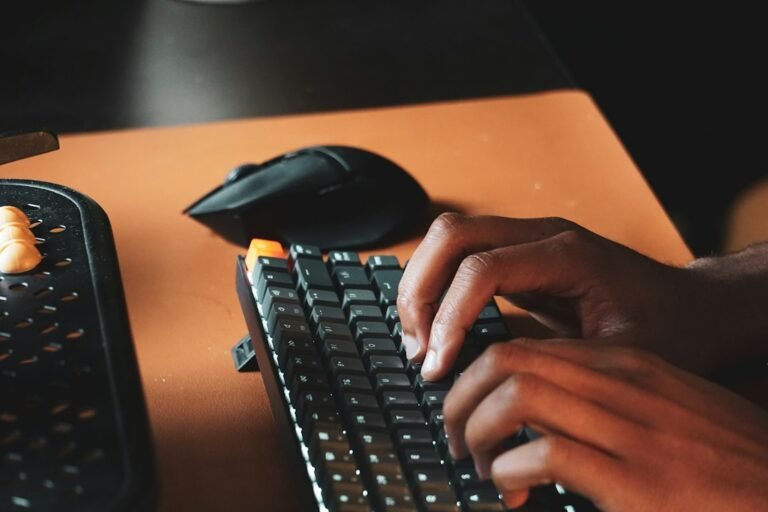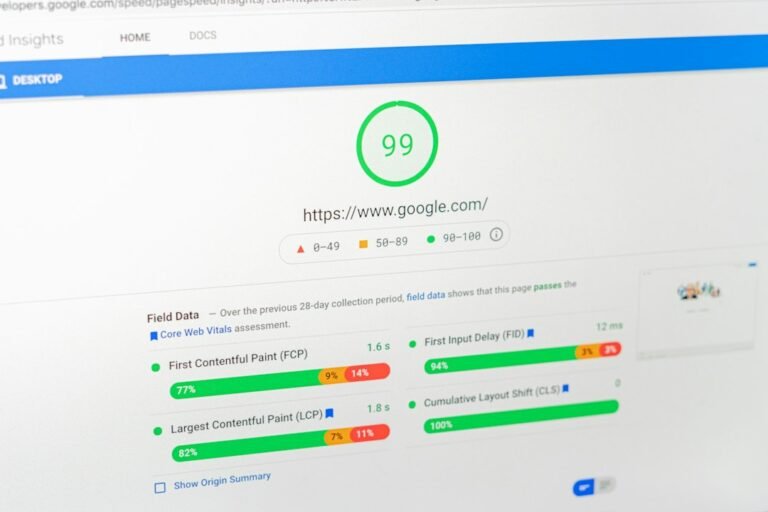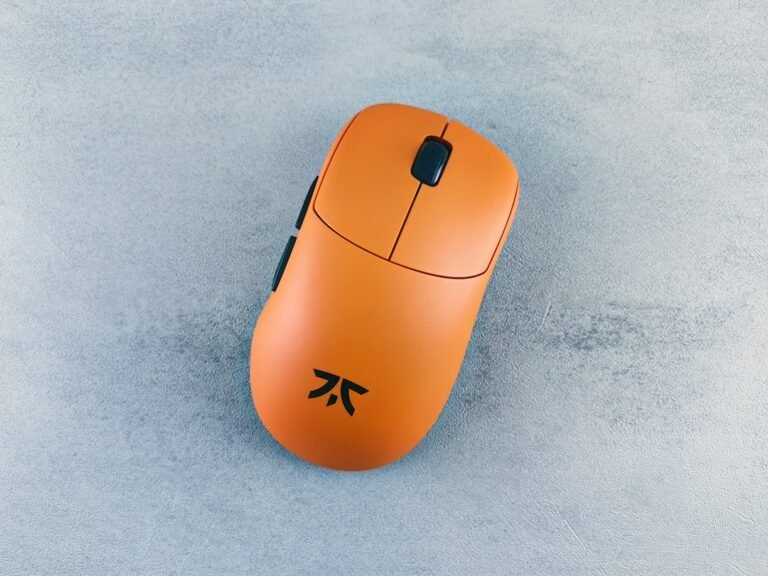
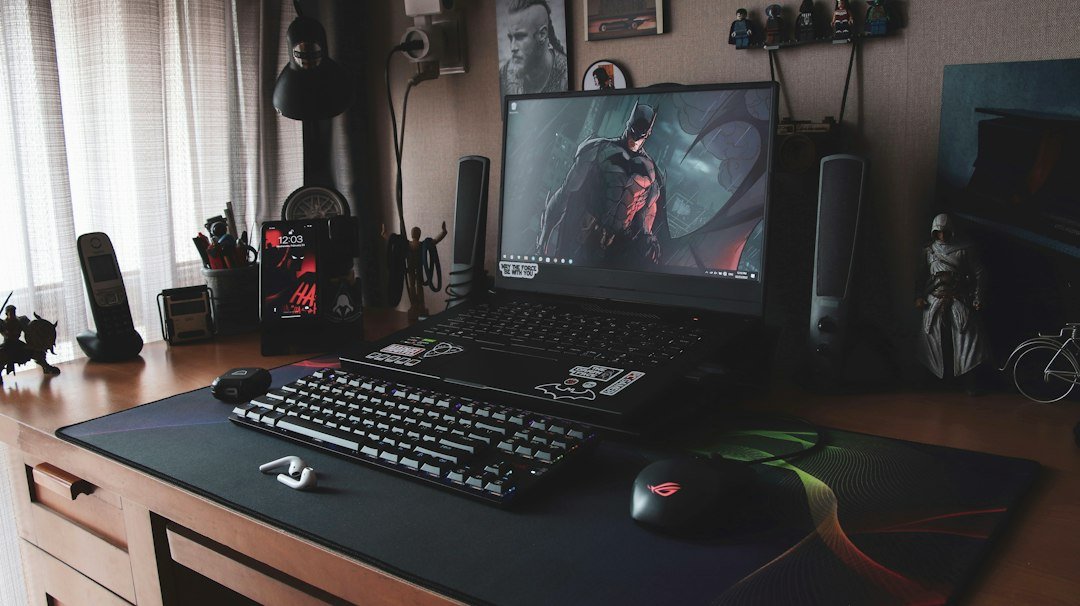
When deciding on an input device comparison for high-speed clicking, the mouse consistently yields a higher CPS than a trackpad. The physical design of a standard mouse allows for faster finger actuation and shorter travel distances compared to the capacitive surface of a laptop trackpad. For competitive gamers, this difference is measurable and significant.
Try it now: mouse test
If you want to verify your current setup’s reliability before optimizing speed, start with our mouse test. It checks the left, middle, and right buttons and spots double clicking, ensuring your hardware is functioning correctly before you worry about technique.
Key Takeaways
- Mice offer faster click speeds due to mechanical switches and direct finger contact.
- Trackpads are limited by capacitive sensing and screen surface friction.
- Hardware defects like double-clicking can artificially lower or skew CPS results.
- Verify your input device health before blaming your technique for low scores.
Why Mice Outperform Trackpads in CPS Tests
The fundamental difference lies in the actuation mechanism. A standard mouse uses a microswitch or optical sensor that triggers with minimal force. Your index or middle finger can tap this button with very short travel distance. In contrast, a trackpad requires you to press the physical pad or click the bottom edge. This action involves more finger movement and often requires a firmer press to register.
For players aiming for 10+ CPS (clicks per second), this extra distance is a major bottleneck. The mechanical advantage of a mouse allows for rapid, repetitive tapping that is physically difficult to replicate on a flat, smooth trackpad surface. This is why most competitive players abandon trackpads for dedicated peripherals.
How to Run a Reliable Input Device Test
Before you attempt to break your CPS record, you need to ensure your hardware is not introducing errors. Double-clicking, where one physical press registers as two clicks, is a common issue with worn-out mechanical switches. This can make your speed appear higher than it is, or cause erratic input that ruins your rhythm.
- Open the browser-based mouse test.
- Click the left button 20 times slowly and carefully.
- Check the result for any “double-click” warnings.
- Repeat for the right button if your game uses it.
If the tool flags double-clicking, your mouse switch is failing. Replacing the mouse or the specific switch is necessary before any speed training will be accurate. You cannot improve a broken instrument.
Common Mistakes When Comparing Input Devices
A frequent error is comparing a high-end gaming mouse against a built-in laptop trackpad without controlling for surface and posture. If you are testing on a low-quality mousepad or a rough desk, the friction can slow down your hand movement, even if the button itself is fast. Always test on a smooth, consistent surface to get a true reading of the input device itself.
Another mistake is ignoring polling rate. While polling rate (how often the mouse reports its position to the PC) does not directly change the speed of a single click, a very low polling rate can introduce input lag that makes rapid clicking feel unresponsive. If your mouse feels “choppy” during high CPS attempts, check your settings. Most modern gaming mice default to 1000Hz, which is ideal for this type of input device comparison.

Hardware Specs That Matter for Click Speed
Not all mice are created equal when it comes to rapid clicking. The most critical spec is the switch type. Optical switches often have less physical wear and can maintain consistent actuation forces over time compared to mechanical switches, which can develop a “bouncy” feel or double-click issues after heavy use.
Button height and shape also play a role. A button that is too high requires more finger travel, while one that is too low might be hard to locate quickly. For a proper input device comparison, look for a mouse with a concave or flat top on the left button. This allows your fingertip to stay in the same position for every click, reducing the time needed to reset your finger between taps.
Trackpad Limitations in Competitive Gaming
Trackpads are designed for precision pointing, not rapid repetitive input. The capacitive layer that detects your finger has a certain threshold of pressure and area required to register a click. This is why many users find that they must press harder or use a specific finger angle to get a consistent click. This variability makes it difficult to maintain the rhythmic tapping required for high CPS.
Trackpads are often located on a shared surface with the keyboard. This means your palm is resting nearby, which can limit the range of motion for your clicking finger. A dedicated mouse allows your hand to float or rest in a position that maximizes finger mobility. For any serious input device comparison, the ergonomic freedom of a mouse is a decisive factor for speed.
How to Optimize Your Mouse for Higher CPS
Once you have confirmed your mouse is healthy, focus on technique. The most common technique for high CPS is “jitter clicking” or “butterfly clicking.” These methods involve relaxing the finger and letting it bounce off the button or using two fingers alternately. However, these techniques require a smooth, consistent button actuation. If your mouse has a stiff or uneven switch, these techniques will fail.
Adjust your grip. A claw grip or fingertip grip often allows for more isolated finger movement than a palm grip, which locks the hand in place. Experiment with different grips to see which allows for the most fluid, repetitive tapping. This is a key part of any effective input device comparison, as the best hardware is useless if your grip restricts your speed.

Verifying Your Results with a Click Counter
To track your progress objectively, use a dedicated click counter. This tool records every click you make and calculates the average CPS over a set period. It removes the guesswork and lets you see exactly how your speed changes as you practice. Compare your scores from a trackpad against your scores from a mouse using the same counter to get a fair input device comparison.
Log your results over several days. Speed is not just about raw power; it is about consistency. A player who maintains 8 CPS for a full minute is more valuable in competitive play than one who hits 12 CPS for two seconds and then drops off. Use the data to identify your sustainability limit and work on endurance.
When to Switch Input Devices
There are specific scenarios where switching from a trackpad to a mouse is mandatory. If you are playing fast-paced FPS games like Valorant or CS2, the precision and speed of a mouse are non-negotiable. Trackpads lack the fine motor control needed for accurate aiming and rapid firing. For these games, an input device comparison clearly favors the mouse.
Conversely, if you are primarily using a laptop for casual gaming or single-player titles, the convenience of a trackpad might outweigh the speed difference. However, if you find yourself struggling to register clicks or experiencing input lag, upgrading to an external mouse is the most cost-effective way to improve your experience. Do not let a subpar input device hold back your performance.
What to Do Next
1. Run the mouse test to check for double-clicking or unresponsive buttons.
2. Record your baseline CPS on both your trackpad and your mouse using a click counter.
3. If your mouse shows signs of wear, consider replacing it or adjusting your grip to accommodate the switch feel.
Measuring Click Speed in Real-World Scenarios
Lab tests often isolate raw speed, but competitive environments introduce variables that skew results. If you are testing for a specific game, replicate the actual interface. A clicker tool measures mechanical repetition, but a game measures input registration. These are two different metrics. For example, some fighting games ignore inputs if they arrive too close together, a phenomenon known as input buffering. A mouse capable of 10 clicks per second might register as 8 CPS in-game if the software drops frames. Always run your tests within the target application if possible. If you stick to external tools, note that your effective in-game rate may be lower due to processing lag. This gap is significant for high-stakes play where milliseconds decide outcomes.
Accounting for Interface Latency
Modern operating systems introduce input latency, which varies by background processes. Before starting a serious test, close unnecessary applications. Disable game overlays, as they add processing overhead to every input event. You can check your system’s baseline latency using built-in diagnostic tools or third-party software. If your latency spikes above 10 milliseconds, your raw device speed is being throttled by your computer, not your hand. This is a common reason why a new mouse feels slower on an old machine. The hardware is not the bottleneck; the software pipeline is.
The Impact of Hand Position and Ergonomics
Your physical setup dictates your sustainable click speed more than the device itself. A high-CPS mouse is useless if your hand fatigue sets in after thirty seconds. Most players achieve their peak speed in a claw grip, but for sustained marathon sessions, a palm grip often wins out. The trade-off is speed versus endurance. If you are testing for a marathon match, prioritize comfort. A device that allows you to maintain 7 CPS for ten minutes is more valuable than one that hits 10 CPS for ten seconds. Watch for signs of wrist strain or finger cramping. If you feel tension, your technique is likely off. Adjust your wrist rest or monitor height. Proper posture reduces the energy required per click, lowering the threshold for fatigue. This is especially important for left-handed users, who have fewer ergonomic options and may need to sacrifice some speed for a more neutral hand position to avoid injury.
Choosing the Right Grip for Consistency
Consistency matters more than peak bursts. A steady 6 CPS is often more reliable than a fluctuating 9 CPS. To find your sweet spot, record your session and review the variance. Look for clusters of missed or double-clicks. These usually indicate that your finger is bouncing off the button instead of striking it cleanly. Practice slow, deliberate clicks first. Speed comes naturally with muscle memory. Do not force the acceleration. Let your hand find the rhythm. If you switch grips, expect a drop in performance for the first few days. This is normal. Your neural pathways are rewiring to the new position. Give it at least a week before judging the new setup.
Software Settings That Quietly Affect CPS
Windows and macOS have hidden settings that can interfere with input timing. On Windows, check your mouse pointer speed and acceleration settings. High acceleration can cause unintended double-clicks or missed inputs during rapid tapping. Set the pointer speed to the middle notch and disable enhanced pointer precision. This ensures that every physical click maps to a single digital event. On macOS, adjust the trackpad or mouse click speed in System Settings. If you are using a third-party driver for your mouse, update it to the latest version. Outdated drivers can introduce micro-delays that are imperceptible to the eye but measurable in a CPS test. Also, disable any macro software that might be intercepting your inputs. These tools are great for automation but terrible for accurate timing tests. They add a layer of processing that introduces jitter. Keep your input path as direct as possible. A clean signal path is the foundation of accurate measurement.
Checking for Input Delay in Drivers
Some gaming mice offer onboard memory for profiles. While convenient, this can sometimes bypass the operating system’s input queue, leading to inconsistent timing. Test your device with both onboard modes enabled and disabled. Compare the results. If the difference is significant, stick to the mode that offers the most stable timing. Most modern mice default to the most stable configuration, but it is worth verifying. If you are using a wireless mouse, ensure the receiver is plugged directly into the computer, not through a USB hub. Hubs can introduce latency and signal interference. Place the receiver close to the mouse to maintain a strong connection. A weak signal can cause dropped inputs, which looks like low CPS but is actually a connectivity issue. Move the receiver away from other wireless devices like Wi-Fi routers to reduce interference.
FAQ
Does polling rate affect CPS?
Polling rate affects how often your mouse communicates with your computer. While it does not directly change the speed of your finger, a low polling rate can introduce lag that makes rapid clicking feel unresponsive. For high CPS, a 1000Hz polling rate is standard and recommended.
Can I use a trackpad for competitive FPS games?
It is highly discouraged. Trackpads lack the precision and speed required for competitive FPS games. The input lag and limited finger mobility will put you at a significant disadvantage compared to players using mice.
How do I know if my mouse is broken?
If a single click registers as two, or if a click does not register at all, your mouse switch is likely failing. Use a browser-based mouse test to check each button. If the test flags double-clicking, the hardware is faulty.