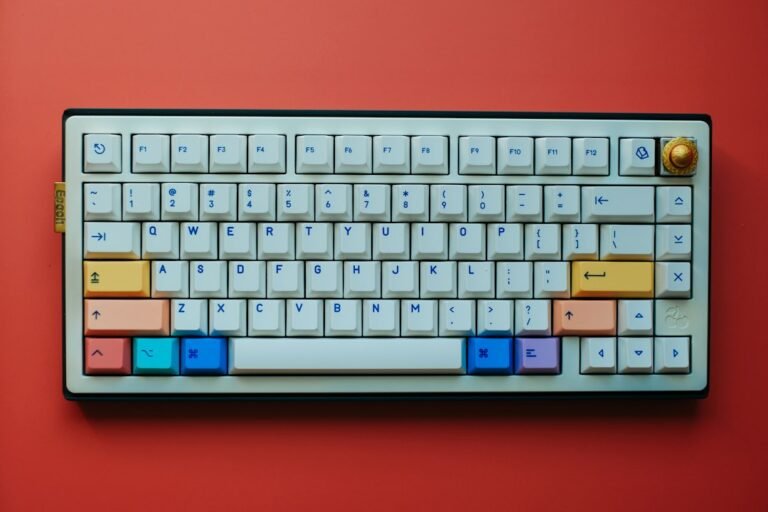

mechanical keyboard guide: Linear switches like Cherry MX Red or Gateron Yellow usually produce the fastest clicks because they have a smooth keystroke with low actuation force and no tactile bump.
Try it now: keyboard tester
Key Takeaways
- Linear switches are generally the quickest for repetitive clicking.
- Tactile switches can feel more responsive but add a slight delay.
- Clicky switches are loud and may fatigue your fingers faster.
- Consider actuation force (<10g is ideal for speed) and travel distance (<2mm helps).
- Test your own keyboard with our free keyboard tester before buying.

What makes a switch fast?
Speed boils down to two physical properties: actuation force and travel distance. Actuation force is the amount of pressure needed to register a keypress. Lower force means less effort per click, which translates to higher clicks per second (CPS). Travel distance is how far the key moves before it registers. Shorter travel reduces the time your finger spends moving, again boosting CPS.
Most linear switches sit around 45cN (centi‑Newtons) of force and have a total travel of 4mm, but they often register at about 2mm. That combination is why many competitive gamers prefer them for fast clicking.
Linear switches – the speed specialists
Linear switches have no tactile bump or audible click. The keystroke feels like a smooth slide from top to bottom. Popular examples include Cherry MX Red, Gateron Red, Kailh Speed Silver, and NovelKeys Cream.
Why they’re fast:
- Low actuation force: Typically 45cN, some even drop to 35cN (e.g., Kailh Speed Silver).
- Consistent travel: No bump means the finger can keep moving, reducing dwell time.
- Quiet operation: Less fatigue for long sessions.
Edge case: If you have very light fingers, a switch with <10cN force (like some low‑profile switches) might feel too mushy and lead to accidental double‑clicks.
Tactile switches – feel without the click
Tactile switches add a small bump at the actuation point. You feel the register without an audible click. Common types are Cherry MX Brown, Gateron Brown, and Zealios V2.
Speed impact:
- Actuation force is similar to linear (45cN), but the bump adds a millisecond‑scale pause.
- Some players like the feedback because it reduces missed clicks.
- For pure CPS, the bump can cost you 0.1‑0.2 seconds per 10 clicks.
If you struggle with accuracy, tactile switches may be a better trade‑off despite the slight speed loss.
Clicky switches – loud but precise
Clicky switches combine a tactile bump with an audible click. Examples include Cherry MX Blue, Kailh Box White, and Razer Green.
Speed considerations:
- Actuation force is higher (often 50‑60cN), requiring more effort.
- The click adds a mechanical reset time, which can slow rapid clicking.
- Noise can be distracting in shared spaces.
These are best for typists who value feedback over raw CPS. For competitive clicking, they’re usually avoided.
How to choose the right switch for your clicking style
Use this decision rule:
- If you prioritize raw CPS above all, pick a linear switch with actuation ≤45cN and travel ≤2mm.
- If you need a balance of speed and feedback, go tactile with a moderate bump and similar force.
- If you type a lot and want audible confirmation, clicky may suit you, but expect lower CPS.
Test the switch you’re considering with our keyboard tester to see how quickly it registers your presses.
Common mistakes when picking switches for fast clicking
1. Choosing based on looks alone: Aesthetic RGB doesn’t affect actuation.
2. Ignoring keycap profile: High‑profile caps add travel, slowing clicks.
3. Assuming all reds are the same: Spring weight varies between manufacturers.
4. Skipping real‑world testing: Lab specs differ from how your fingers interact.
Testing your current keyboard’s speed
Run a quick CPS test on our site, then compare the result to the same test after swapping keycaps or lubricating the switches. Lubrication can reduce friction, shaving off a few milliseconds per keystroke.
For a deeper dive, check out the Full Size Mechanical Keyboard Buying Guide for Gamers, which covers keycap material, stabilizer quality, and build ergonomics.

Switch compatibility with popular gaming keyboards
Most mainstream gaming keyboards use Cherry‑compatible MX stems. If you’re buying a pre‑built board, verify the switch type in the specs. Some brands (e.g., Razer, Corsair) use proprietary stems that limit aftermarket swaps.
When you need a custom build, look for hot‑swap sockets. They let you change switches without soldering, perfect for experimenting with speed‑focused options.
Beyond switches – other factors that affect clicking speed
Even the best linear switch won’t reach its potential if the keyboard’s polling rate is low. A 1000 Hz polling rate (1 ms latency) is ideal for fast clicking. Read more about polling rates in our Polling Rate Explained: How It Affects Your Click Speed article.
Keyboard layout matters too. Compact layouts (60% or 65%) reduce finger travel between keys, which can shave off a few milliseconds in high‑CPS scenarios.
What to do next
- Run a CPS test on our site to establish a baseline.
- Use the free keyboard tester to see how your current switches register.
- If you need faster clicks, consider a hot‑swap board with linear switches like Cherry MX Red or Kailh Speed Silver.
How to measure your own click latency on a mechanical keyboard
Before you start swapping switches, get a baseline of how fast you actually type or game. The simplest way is to use a free online latency tester that records the time between a key press and the signal reaching the computer.
Step‑by‑step measurement
- Open a browser and search for “keyboard latency test” (sites such as keyboardtester.com or humanbenchmark.com work well).
- Choose the test that measures press‑to‑actuation rather than just key repeat speed.
- Press the key you plan to use for fast clicking (commonly Z, X, or the left mouse button key) repeatedly for 30 seconds.
- Record the average latency the tool shows. Most modern mechanical keyboards sit between 1 ms and 5 ms, but older or cheap models can be higher.
- Repeat the test with a different key or with the same key after swapping the switch (if you have a hot‑swappable board) to see the impact.
These numbers give you a concrete reference point. If you notice a drop of more than 0.5 ms after a switch change, you’ve likely made a meaningful improvement for competitive clicking.
Common pitfalls while testing
- Background processes: Close any heavy applications; they can add jitter to the measurement.
- Inconsistent force: Try to press the key with a similar force each time. A sudden heavy tap can artificially raise the latency.
- USB polling rate: A 125 Hz poll (8 ms) will mask the real switch speed. Use a keyboard with at least 500 Hz (2 ms) polling, or enable “USB high‑speed” in the BIOS if available.
When to consider lubing or spring swapping for speed
Lubing a switch is often associated with smoother typing, but it also reduces friction that can slow down actuation. Spring swapping – replacing the stock spring with a lighter or heavier one – directly changes the force curve, which can make a switch feel faster or slower.
Lubing basics
- Choose the right lubricant: A thin, non‑conductive PTFE oil works well for linear switches; a slightly thicker grease is better for tactile switches to preserve the bump.
- Apply sparingly: A single drop on the slider and a thin coat on the housing are enough. Too much oil can make the key feel mushy and reduce tactile feedback.
- Reassemble and test: After lubing, run the latency test again. You’ll often see a 0.1‑0.3 ms improvement because the slider moves more freely.
Spring swapping for faster actuation
Switches are rated by their spring weight, typically measured in grams. A lighter spring (e.g., 45 g) requires less force to actuate, which can shave milliseconds off your click, while a heavier spring (e.g., 65 g) can prevent accidental double‑clicks.
- Identify your switch type: Most manufacturers label the spring weight in the product specs. If not, you can find community databases that list common weights for popular models.
- Buy compatible springs: Ensure the spring length matches the housing; otherwise the switch may not close properly.
- Install: Disassemble the switch, replace the spring, and re‑lubricate if desired. Re‑test latency to confirm the change.
Remember that lighter springs can increase the chance of accidental double‑clicks in games that rely on rapid fire. If you notice this, try a medium‑weight spring (around 55 g) as a compromise.
Building a switch testing rig for consistent comparisons
When you’re evaluating several switches, a repeatable testing setup removes human bias. A small rig can be assembled with a few inexpensive parts and will let you compare actuation force, travel distance, and acoustic profile side by side.
Materials you need
- Arduino Nano or similar microcontroller.
- Two force‑sensing resistors (FSR) or a cheap digital force gauge.
- Miniature speaker or sound level meter (optional, for click loudness).
- Mounting board to hold the switch steady.
- USB cable for data logging.
Wiring and firmware
- Connect each FSR to an analog input on the Arduino, with a pull‑down resistor to ground.
- Upload a simple sketch that records the voltage change when the switch is pressed and releases, converting it to force (in grams) using a calibration curve.
- If you add a microphone, connect it to another analog pin and log peak decibel levels.
- Run the script and press the switch repeatedly; the Arduino will output a CSV file with force, travel (derived from time between first contact and actuation), and sound level.
Interpreting the data
Look for three key metrics:
- Actuation force: Lower values generally mean faster clicks, but watch for values below 40 g if you have a tendency to “bottom‑out” unintentionally.
- Travel time: Measured from first contact to actuation; sub‑2 ms travel is typical for premium linear switches.
- Acoustic peak: A louder click can be distracting in shared spaces; if the decibel reading exceeds 70 dB, consider a quieter linear or add dampening foam.
By logging the same number of presses for each switch (e.g., 100 strokes), you can calculate averages and standard deviations, giving you a statistical basis for choosing the fastest, most reliable option for your clicking style.
Practical tip: pairing switch choice with keycap profile for speed
The keycap shape you use influences how quickly you can depress a key. A low‑profile keycap reduces the distance your finger must travel, while a sculpted profile can guide your fingers to the optimal spot for each row.
Low‑profile vs. OEM vs. SA
- Low‑profile (e.g., Cherry MX Low‑Profile, Kailh Choc): Height around 12 mm, travel 3 mm. Great for rapid clicking because the finger travels less.
- OEM (standard 1.5 U): Height 13‑14 mm, travel 4 mm. Balanced feel; works well with most switch types.
- SA (tall, spherical): Height 18 mm, travel 4 mm. Provides a pronounced tactile feel but can slow down click speed due to the longer travel.
If your primary goal is speed, pair a linear or tactile switch with low‑profile keycaps. The combination can cut overall key travel by up to 0.5 mm, which translates to a noticeable reduction in click time for high‑frequency gamers.
Choosing the right material
ABS keycaps are lighter and produce a slightly higher-pitched click, while PBT caps are denser and mute the sound a bit. For fast clicking in a quiet environment, PBT low‑profile caps give you the speed of a short travel with a softer acoustic footprint.
FAQ
Which switch is the fastest for click speed tests?
Linear switches with low actuation force, such as Cherry MX Red or Kailh Speed Silver, are generally the quickest because they have no tactile bump or audible click.
Can I improve my CPS without buying a new keyboard?
Yes. You can lubricate existing switches, adjust keycap height, or switch to a higher polling‑rate keyboard. Practicing with our CPS test will also help you refine technique.
Do clicky switches ever make sense for competitive clicking?
Only if you value the tactile and auditory feedback more than raw speed. Most high‑CPS players avoid clicky switches because the higher actuation force and reset time slow down rapid clicking.